Lifestyle
Troubleshooting for beginners
Start by locating the failing layer. A missing executable suggests installation or PATH; a rejected account suggests authentication; missing files suggest location or permissions; an incorrect result may involve the request or project code. Change one condition at a time.
About 15 min read · Practice 20 min
Beginner · Desktop / mobile / CLI
Before you start
On this page
Back to the Codex learning hubCodex learning hub: tutorial directoryA planned 60-lesson, ten-unit Codex curriculum, from setup and your first task to MD instructions and advanced integrations. Find your next lesson by experience, platform, goal or command; unpublished entries show their status.Read the full article
Goal and how to use this guide
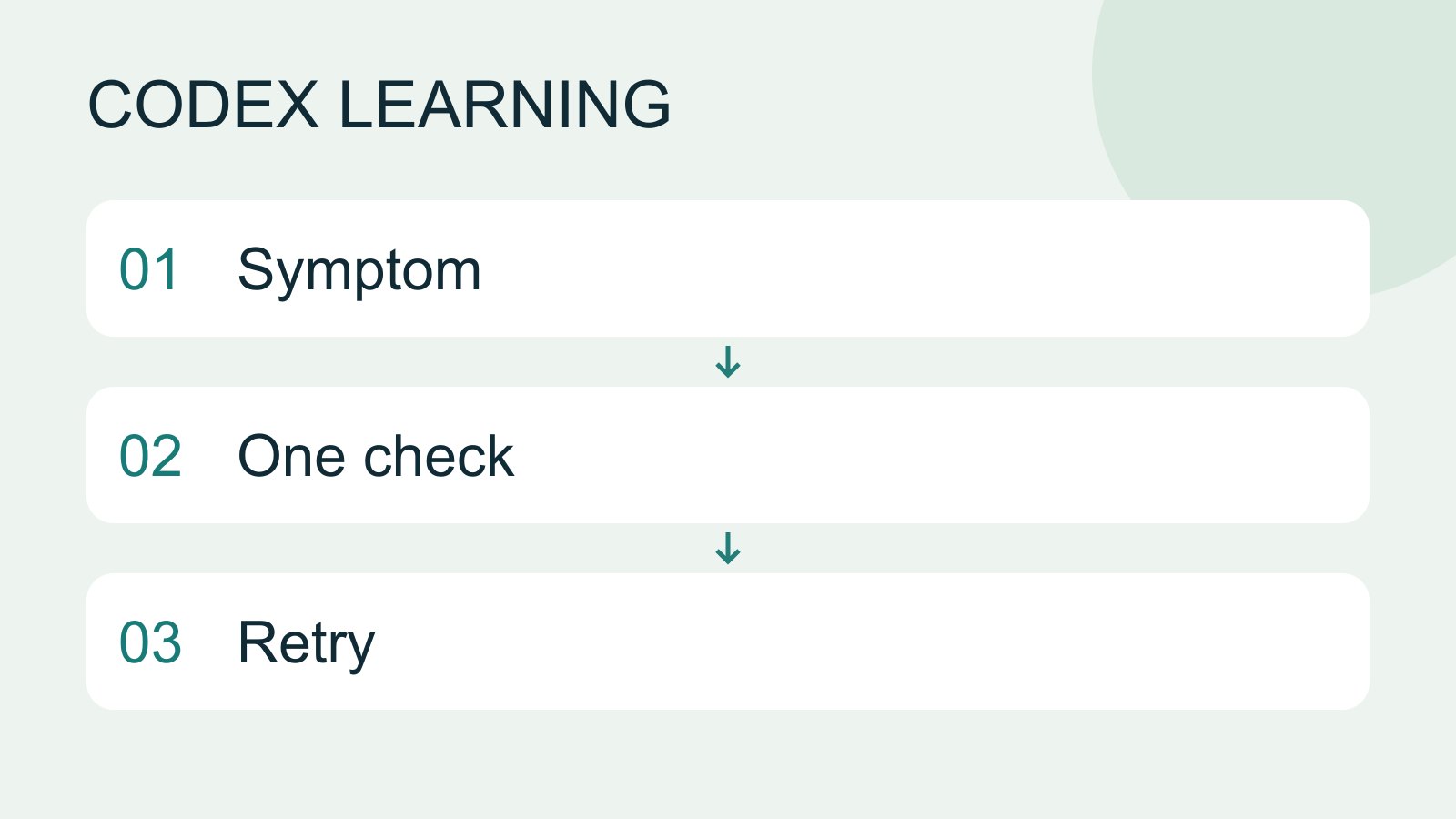
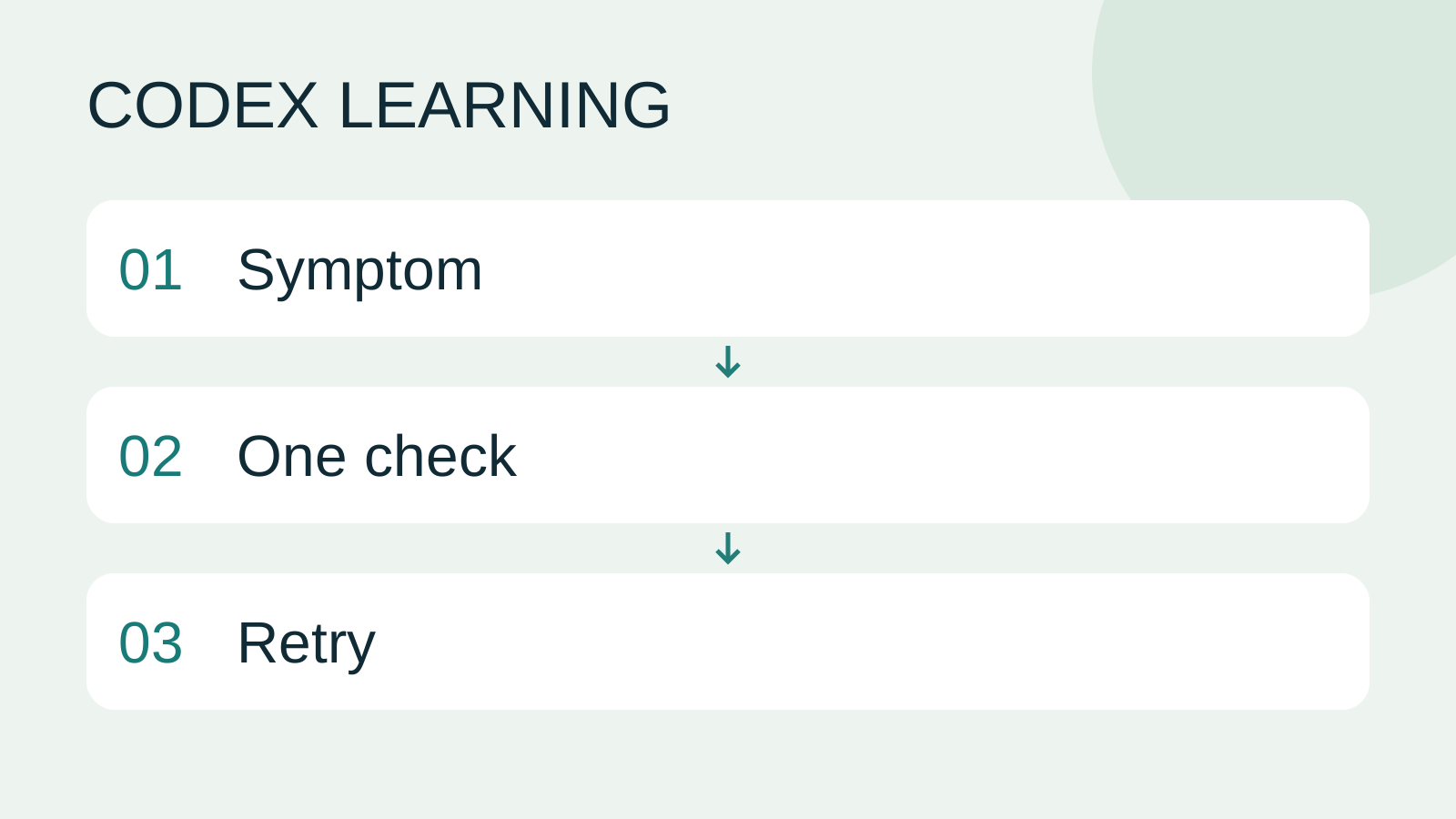
The diagram maps 01 to recording symptoms, 02 to one minimal check and 03 to repeating the original action after correcting the cause. Do not retry immediately on every error: retain input, state and the working environment before narrowing the problem.
First: Record the symptom and last successful action
Record time, platform, app/CLI version, current folder, exact command/action, expected result and original error. Share relevant details with accounts, private paths and credentials redacted. Preserve installation output if a command is missing afterward, or task/host identity if another run is active. Do not crop an error to red text alone: the preceding command and working directory often determine the next step.
# Troubleshooting record
- Time and timezone:
- Surface: desktop / CLI / IDE / mobile / web
- OS and app or CLI version:
- Working folder or execution host (redacted if shared):
- Exact command or UI action:
- Expected result:
- Actual error and exit status:
- Last successful action:
- One change attempted:
- Result after that change:
- Files or settings to restore:
Installation, login and platform surfaces
| Symptom | Small first check | Detailed guide |
|---|---|---|
| codex not found | Reopen the terminal and locate the executable | CLI setup |
| PowerShell blocks a script | Record the blocked filename and invocation | Windows CLI |
| Different macOS/Linux install paths | Identify shell, PATH and executable | macOS, Linux/WSL |
| Unauthorized after login | Run codex login status in that terminal | Account/usage |
| Missing desktop/mobile control | Record version, account, workspace and surface | Platform selection |
codex not found: CLI setupInstall and start Codex CLIChoose an installation platform, sign in, inspect a file, make a one-line change, verify it independently and resume the session. Includes a repeatable two-file exercise and a missing-file test.Read the full article
PowerShell blocks a script: Windows CLIWindows CLI setup and troubleshootingInstall and sign in from PowerShell, check command discovery, read a project and troubleshoot updates.Read the full article
Different macOS/Linux install paths: macOSmacOS CLI setup and troubleshootingSet up the CLI in macOS Terminal and separate shell, update, directory and permission problems.Read the full article · Linux/WSLLinux and WSL CLI environmentsDistinguish host and WSL tools, paths and accounts, then run the exercise and update from the right environment.Read the full article
Unauthorized after login: Account/usageAccounts, sign-in, plans and usageCheck how you signed in before interpreting usage. ChatGPT sign-in uses the Codex allowance associated with that account; API-key authentication in a supported client requires checking API billing separately. This tutorial teaches you where to verify your own allowance rather than freezing a price or message limit that may change.Read the full article
Missing desktop/mobile control: Platform selectionChoosing a Codex platformCompare desktop, mobile, CLI, IDE and cloud scenarios, and identify where files and tools run.Read the full article
Windows, WSL, containers and remote hosts need not share login/configuration even on one computer. Identify the failing environment.
Use Get-Command codex on Windows or command -v codex on macOS/Linux to locate the executable. Record multiple installations before deleting versions or changing machine-wide security policy. Distinguish ChatGPT authentication, API keys and organization restrictions; reinstalling does not replenish quota. For possible service incidents, compare the official status page with your timestamp and affected service. Overall service health does not prove your network and permissions work.
Folders, MD files and configuration
| Symptom | First check | In-depth lesson |
|---|---|---|
| Edits do not appear | Folder, served URL and file version | Paths, Browser |
| AGENTS.md seems ignored | Filename, hierarchy and task root | Rule scopes |
| README treated as permanent rules | Distinguish instruction entry points and task data | Document roles |
| config.toml parse failure | Last edit, quotes, duplicate tables and active path | Config troubleshooting |
| Resume repeats stale conclusions | Inspect current files/revision, not just notes | Sessions, Handoff |
Edits do not appear: PathsTerminal paths and project rootsCreate a practice folder on Windows, macOS or Linux and distinguish current, relative and absolute paths.Read the full article · BrowserWork with browsers, screenshots and imagesVisual work needs a reference, the actual result and explicit change criteria. Browser inspection, screenshots and generated concepts provide different evidence. A generated interface is not proof that a workflow works.Read the full article
AGENTS.md seems ignored: Rule scopesAGENTS.md scopes and overridesTrace root and nested instructions, conflicts and overrides, and verify which files were selected.Read the full article
README treated as permanent rules: Document rolesSeparating rules, documentation and contextSeparate working rules, project entry points, design requirements and handoff state. Check outdated hypotheses against actual files and tests.Read the full article
config.toml parse failure: Config troubleshootingConfiguration precedence and diagnosisTrace ineffective or conflicting settings, change one item at a time and keep a reversible record.Read the full article
Resume repeats stale conclusions: SessionsSessions, resuming and forkingDistinguish new, resumed and forked tasks, locate the right history and verify the directory and remaining work.Read the full article · HandoffContext and task handoffLong work needs durable decisions and evidence, not just a long conversation. README explains use, design documents explain choices, handoffs record current progress and AGENTS.md holds ongoing instructions. Do not turn all temporary progress into permanent rules.Read the full article
Change one condition at a time. After recovery, keep necessary changes and remove your diagnostic markers rather than replacing the full config with an online template.
Reproducible drill: find the correct folder
Create a new path-trouble folder with empty project and other subfolders. Put marker.md only in project with the line below. Open a terminal in other and deliberately try reading marker.md to reproduce a missing file without Codex or production changes. Inspect the current directory and file list, read the marker through an explicit relative path, then cd into project and repeat the original read command.
# Correct folder: PATH-PRACTICE-1
Get-Content -LiteralPath .\marker.md
Get-Location
Get-ChildItem
Get-Content -LiteralPath ..\project\marker.md
Set-Location -LiteralPath ..\project
Get-Content -LiteralPath .\marker.md
cat ./marker.md
pwd
ls
cat ../project/marker.md
cd ../project
cat ./marker.md
The first read fails; the next two show the same PATH-PRACTICE-1. You corrected location, not file contents. Return to your original working folder afterward and retain the fixture without recursive deletion. In Codex, first ask for its working root and whether a specified file exists before deciding that the wrong project is open. Same-named desktop tasks, another worktree or old phone content are not proof of the same folder.
For Get-Content, a PowerShell cmdlet, save $? immediately; $LASTEXITCODE is primarily for native programs such as codex or node. After the path exercise you should be in project. The blocks below read missing other/marker.md, then the real marker. Expect False then True in PowerShell, or nonzero then 0 in the shell. Do not wait until other commands replace the status.
Get-Content -LiteralPath ..\other\marker.md
$practiceReadOk = $?
$practiceReadOk
Get-Content -LiteralPath .\marker.md
$practiceReadOk = $?
$practiceReadOk
cat ../other/marker.md
practice_read_exit=$?
printf '%s\n' "$practice_read_exit"
cat ./marker.md
practice_read_exit=$?
printf '%s\n' "$practice_read_exit"
See PowerShell's automatic variables for exact definitions. Neither read changes the marker. Investigate unexpected edits separately, so the handoff distinguishes corrected paths from preserved file contents.
Tools, remote work and automation
| Symptom | Layer to inspect | In-depth lesson |
|---|---|---|
| Skill visible but behaves wrongly | Selection, instructions and resources | Skill acceptance |
| Installed plugin cannot read data | Surface support, enablement, account and source permission | Plugin troubleshooting |
| MCP configured but tools unavailable | Process/URL, handshake, tool list and authorization | MCP troubleshooting |
| Phone shows stale data | Host, task, file marker and Handoff | Remote setup, Cross-device |
| Agent reports done but results conflict | Ownership and reproducible evidence | Agent quality, Integration |
| Schedule times out or duplicates | Saved configuration versus active run | Automation recovery |
| JSON answer despite failed process | Exit status, events and final data | JSON/JSONL |
Skill visible but behaves wrongly: Skill acceptanceTesting skill selection and resultsTest format, selection and outcomes separately, using matching and non-matching requests to refine descriptions.Read the full article
Installed plugin cannot read data: Plugin troubleshootingTroubleshooting plugin connectionsDistinguish installation, account connection, authorization and callable tools before reconnecting or removing a plugin.Read the full article
MCP configured but tools unavailable: MCP troubleshootingMCP connection diagnosis and recoveryInspect process, transport, authentication and tool discovery, preserve errors and verify a minimal operation.Read the full article
Phone shows stale data: Remote setupRemote setup, diagnosis and disconnectionPair devices, diagnose host availability and verify fresh file reads. Distinguish remote access, device pairing and task execution when stopping work.Read the full article · Cross-deviceCross-device handoff: files and environmentsTrack the conversation, host, directory and branch so a handoff continues the intended work.Read the full article
Agent reports done but results conflict: Agent qualitySubagent scope and quality checksDefine independent inputs, edit scopes and evidence, then review subagent results and resolve gaps.Read the full article · IntegrationIntegrating parallel workIntegrate independent edits using file and interface contracts, resolve conflicts and verify combined behavior.Read the full article
Schedule times out or duplicates: Automation recoveryAutomation failure, retry and stoppingUse execution records to detect prior effects, avoid duplicates, repair prerequisites and confirm a schedule has stopped.Read the full article
JSON answer despite failed process: JSON/JSONLJSON output and result validationSeparate event streams from final results, parse structured output and reject missing or invalid fields.Read the full article
Address the relevant layer: plugin installation and source-account access are distinct states.
Close the incident and resume work
Repeat the originally failing action after fixing it, then test a nearby behavior: check Active after fixing Completed, preserve earlier working configuration after a config edit, or actually read a fictional document after reconnecting MCP rather than trusting a green icon. Record symptom, cause, one correction and verification in issue-notes.md. For handoff, provide minimal input and attempted steps. If unresolved, say so and preserve a usable state plus the next evidence to collect.
Remove your temporary markers/settings while keeping the necessary fix, backups and records. Troubleshooting is not a reason to clear all configuration, delete sessions or expose sensitive content. You do not need to execute this index from top to bottom: choose the row matching your symptom. Return to the Learning hubCodex learning hub: tutorial directoryA planned 60-lesson, ten-unit Codex curriculum, from setup and your first task to MD instructions and advanced integrations. Find your next lesson by experience, platform, goal or command; unpublished entries show their status.Read the full article from the top/bottom of any lesson and search a feature, command or MD filename. Record unavailable platform features separately from installation failures.
Back to the Codex learning hubCodex learning hub: tutorial directoryA planned 60-lesson, ten-unit Codex curriculum, from setup and your first task to MD instructions and advanced integrations. Find your next lesson by experience, platform, goal or command; unpublished entries show their status.Read the full article
Read the full description
Symptom to One check to Retry
Lifestyle
Codex learning hub: tutorial directory
A planned 60-lesson, ten-unit Codex curriculum, from setup and your first task to MD instructions and advanced integrations. Find your next lesson by experience, platform, goal or command; unpublished entries show their status.
Lifestyle
Worktrees and isolated tasks
A Git worktree gives one repository multiple working directories on different branches. It isolates file edits, but databases, ports and external services may still be shared. File isolation is not full resource isolation.
Lifestyle
Workshop: build a small website
Plan and build the Small Steps task website from brief.md, with adding, completing, deleting, filtering and local persistence. Separate HTML, CSS, data functions, UI events and tests, verify with Node and browser checks, and document restart and recovery steps.
Lifestyle
Usage and efficiency: reducing rework
Record task conditions, model options, time and outcomes to reduce unnecessary retries and excess context.
Articles that cite this one
Latest travel guides

GuideTokyo
Where to Stay in Tokyo: Comparing Shinjuku, Ueno, Tokyo Station, Shibuya, Asakusa, Ikebukuro, and Ginza, Plus Airport Access, Accommodation Tax, and Luggage Delivery
Where should you stay in Tokyo? Compare Shinjuku, Ueno, Tokyo Station, Shibuya, Asakusa, Ikebukuro, and Ginza by the same criteria: access from Narita and Haneda, transit routes, nearby attractions, neighborhood character, and who each area suits. Includes a comparison table, a Yamanote Line diagram, Tokyo’s accommodation tax as verified in 2026/9 (changing to 3% in 2027/4), and Airport TA-Q-BIN luggage shipping rules.
- Budget
- Hotels

GuideTokyo
How to Choose Tokyo Transit Passes: Are Suica, Welcome Suica, the Tokyo Subway Ticket, and the JR Pass Worth It?
On a first Tokyo trip, start with an IC card and pay per ride (Welcome Suica has no deposit and is valid for 28 days). If you take four or more subway rides in a day, add a 72-hour Tokyo Subway Ticket for 2,000 yen; a JR Pass is never worthwhile if you stay in Tokyo and do not go to Kansai. See what TOURIST PASMO, Suica on iPhone, and the Tokyo Metro day pass do and do not cover, with a decision chart. Prices verified in September 2026.
- Transport
- Budget

GuideTokyo
Tokyo Disneyland and DisneySea Guide: Ticket Prices, Fantasy Springs, Disney Premier Access (DPA), Standby Pass, and Which Park to Choose for Your First Visit
Tokyo Disney one-day Passport prices vary: most weekdays in 9/2026 cost ¥9,900 and weekends ¥10,900. At 14:00 daily, tickets go on sale for the same date two months later. Free Priority Pass is no longer on the official service list; only paid Disney Premier Access (¥1,000–3,500 per person per use) shortens waits. Covers hours, the 25th anniversary, Standby Pass, Entry Request, Fantasy Springs access and first-visit park choice; checked on the official site in 9/2026.
- Itineraries
- Family
Sources
- Codex CLI command reference · Checked:
- Codex authentication · Checked:
- OpenAI status · Checked: