Lifestyle
Worktrees and isolated tasks
A Git worktree gives one repository multiple working directories on different branches. It isolates file edits, but databases, ports and external services may still be shared. File isolation is not full resource isolation.
About 15 min read · Practice 20 min
On this page
Back to the Codex learning hubCodex learning hub: tutorial directoryA planned 60-lesson, ten-unit Codex curriculum, from setup and your first task to MD instructions and advanced integrations. Find your next lesson by experience, platform, goal or command; unpublished entries show their status.Read the full article
Goal and preparation
Lessons and resources mentioned here: Branches and diffsGit, branches, diffs and recoveryGit stores file history, branches organize changes and diffs show what changed. Codex can help, but you must verify that the changes belong to the task. Restoring an old conversation does not restore Git files.Read the full article
A worktree is another checkout of the same Git repository. Files and indexes are separate while commits and branch metadata are shared. It helps with a bug fix alongside another feature, but is not a security sandbox. Checkouts using the same database, cloud document or port can still interfere. Separate file ownership, external data and running services instead of assuming different folder names imply complete isolation.
Step 1: Create a repository without private data
Create an empty worktree-lab folder under your practice area using File Explorer on Windows, Finder on macOS or a Linux file manager, then open a terminal there. Verify the current path and absence of production files first. Run the following commands only in this new practice repository; the author identity is repository-local, so do not add --global.
git init -b main
git config user.name "Codex Learner"
git config user.email "learner@example.test"
git status --short
Create notes.md in worktree-lab with the complete content below. Its deliberate marker makes file comparison independent of Codex's narrative. Save UTF-8 plain text and check for an accidental .txt extension before committing. Add only notes.md rather than git add . so nearby files do not enter the practice commit.
# Worktree practice

Marker: LOCAL-A
git add -- notes.md
git commit -m "Add worktree practice baseline"
git status --short
git branch --show-current
Expect branch main and no uncommitted entries from status. If commit fails, inspect the error and fix this repository's author settings without changing organizational signing policy. A repository without its first commit has no HEAD baseline, so finish this step before adding a worktree. For existing folder or branch names, choose unused practice names and replace them consistently rather than force-overwriting content.
Step 2: Create the second checkout
git worktree add -b codex/worktree-practice ../worktree-copy
git worktree list
The command creates sibling worktree-copy on the new codex/worktree-practice branch. Verify that the target path does not exist beforehand. list should show two actual paths on main and the new branch; both notes.md files initially contain LOCAL-A. The relative path works on Windows too when the terminal is truly inside worktree-lab. Check Terminal pathsTerminal paths and project rootsCreate a practice folder on Windows, macOS or Linux and distinguish current, relative and absolute paths.Read the full article if unsure.
Open worktree-copy/notes.md in another editor window and replace only LOCAL-A with COPY-B. In the original worktree-lab window, verify its file remains LOCAL-A, then inspect both statuses and the diff. File tabs named notes.md are insufficient; display the full path or project root to identify the edited copy.
git status --short
git -C ../worktree-copy status --short
git -C ../worktree-copy diff -- notes.md
Expect a clean first status, modified notes.md in the second, and a one-line marker diff. That demonstrates working-file separation, not a merge into main. If both changed, verify whether both editors point at the same folder or whether you also edited the other file. Resolve that discrepancy before committing.
Step 3: Understand branch ownership and save work
git -C ../worktree-copy switch main
Git normally refuses the same branch in two worktrees and reports that main is already in use. This expected guard should leave both checkouts on their original branches; do not bypass it with force or ignore-in-use options. Commit the verified marker on the practice branch, then compare branches from the original checkout. The commit stays in the local repository and does not automatically appear on GitHub.
Before committing, test removal refusal while COPY-B is still uncommitted. Use worktree list to confirm that ../worktree-copy resolves to this lesson's checkout, then run the command below. Git should refuse; the folder and COPY-B must remain. If you already committed, skip this case without adding another change. Continue with the commit below after checking; do not use --force.
git worktree list
git worktree remove ../worktree-copy
git -C ../worktree-copy status --short
git -C ../worktree-copy add -- notes.md
git -C ../worktree-copy commit -m "Change isolated practice marker"
git -C ../worktree-copy status --short
git diff main...codex/worktree-practice -- notes.md
How the Codex desktop workflow corresponds
For a Git project, choose Worktree under a new task's composer, select the starting branch and submit the request. When including current uncommitted changes, verify that they belong to this task and do not indiscriminately include unrelated private data. Desktop-managed worktrees can initially use detached HEAD. To preserve work long term, use Create branch here in the header and follow normal validation and commits.
Use Hand off to move the task and code into Local, then verify directory, branch and files again. Handoff moves work; it does not establish a main merge or deployment. Use corresponding controls in available Windows, macOS and Linux desktop versions; if a Linux preview lacks them, use the Git route and record the difference. Mobile Remote controls the connected computer's task; the worktree remains on the host rather than running Git on the phone.
| Resource | Automatically separated? | Check yourself |
|---|---|---|
| Tracked files and index | Yes | Editor's actual path |
| Commits and branches | Shared | Branch ownership per checkout |
| Dependencies and build caches | Usually need separate setup | Project setup instructions |
| Local ports | Not guaranteed | Port used by each preview |
| Database and cloud service | Not guaranteed | Practice data and account scope |
Failures, cleanup and acceptance
For missing local setup, inspect .gitignore and README and create practice configuration through the project's setup steps. Do not copy a production .env as a shortcut. Codex's .worktreeinclude copying rules for locally managed worktrees do not apply to this manually created Git worktree; consult official guidance and Data safetyProject data, credentials and practice isolationCreate fictional test data and restorable copies, and identify information to exclude from prompts, screenshots and repositories.Read the full article. For an occupied preview port, select another local port and record the URL instead of stopping someone else's service.
Before cleanup, close editors, terminals and previews using the copy, return to worktree-lab, compare its full target path in list and confirm the copy has a clean status. Remove it only after saving the result on codex/worktree-practice. Preserve uncommitted files first and do not add --force to a refusal. The command removes only this lesson's worktree-copy, retaining the original repository and committed branch.
git worktree list
git -C ../worktree-copy status --short
git worktree remove ../worktree-copy
git worktree list
git show codex/worktree-practice:notes.md
At acceptance, list should retain only the original checkout, main's notes.md should still contain LOCAL-A, and git show should retrieve COPY-B from the branch. Together with separate dirty/clean statuses and the branch-in-use refusal, this verifies creation, isolation, preservation and removal. Record local Git testing separately from desktop Handoff and label unoperated platforms as officially documented. Continue to Subagent divisionSubagents and task delegationSubagents suit independent work that can be reviewed and combined by the main task. They consume additional model and tool usage. Parallel tasks with mutual dependencies or overlapping edits can create more conflict than speed.Read the full article to distinguish workspace isolation from task delegation.
Back to the Codex learning hubCodex learning hub: tutorial directoryA planned 60-lesson, ten-unit Codex curriculum, from setup and your first task to MD instructions and advanced integrations. Find your next lesson by experience, platform, goal or command; unpublished entries show their status.Read the full article
Read the full description
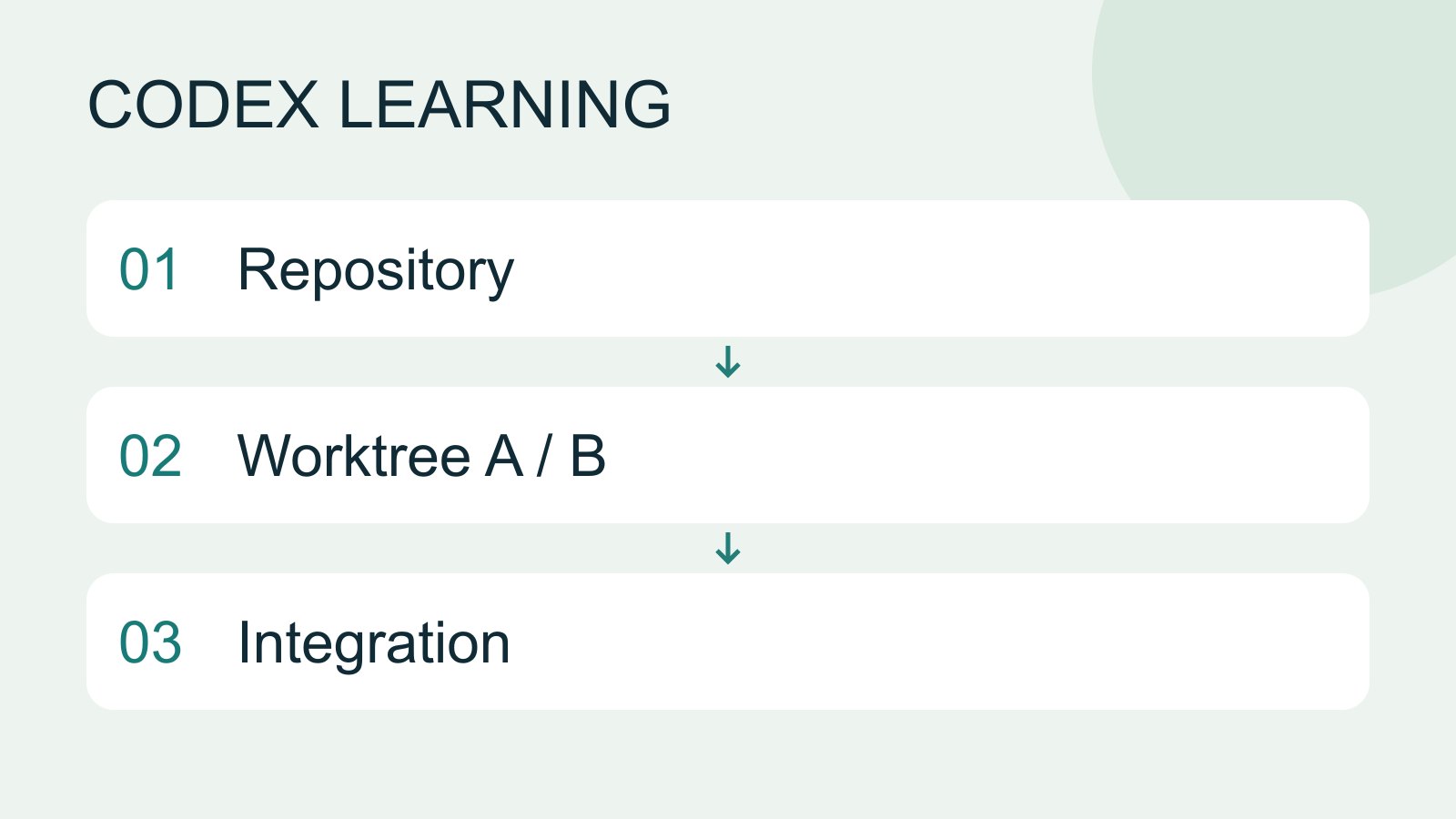
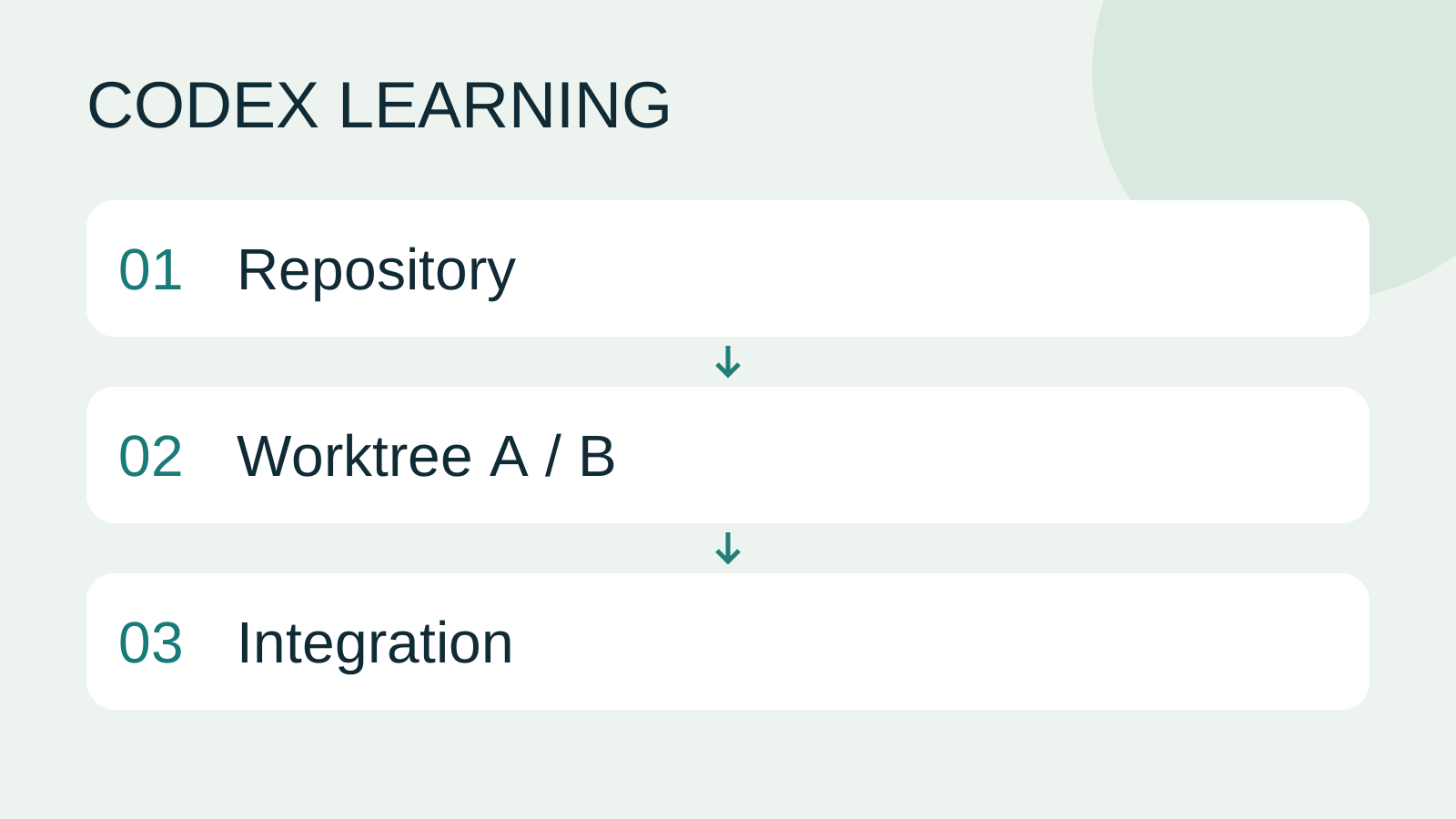
Repository to Worktree A / B to Integration
Lifestyle
Codex learning hub: tutorial directory
A planned 60-lesson, ten-unit Codex curriculum, from setup and your first task to MD instructions and advanced integrations. Find your next lesson by experience, platform, goal or command; unpublished entries show their status.
Lifestyle
Workshop: build a small website
Plan and build the Small Steps task website from brief.md, with adding, completing, deleting, filtering and local persistence. Separate HTML, CSS, data functions, UI events and tests, verify with Node and browser checks, and document restart and recovery steps.
Lifestyle
Usage and efficiency: reducing rework
Record task conditions, model options, time and outcomes to reduce unnecessary retries and excess context.
Lifestyle
Understanding an existing codebase
Use a read-only workflow to locate entry points, data flow and tests, with file-backed explanations.
Articles that cite this one
Latest travel guides

GuideTokyo
Where to Stay in Tokyo: Comparing Shinjuku, Ueno, Tokyo Station, Shibuya, Asakusa, Ikebukuro, and Ginza, Plus Airport Access, Accommodation Tax, and Luggage Delivery
Where should you stay in Tokyo? Compare Shinjuku, Ueno, Tokyo Station, Shibuya, Asakusa, Ikebukuro, and Ginza by the same criteria: access from Narita and Haneda, transit routes, nearby attractions, neighborhood character, and who each area suits. Includes a comparison table, a Yamanote Line diagram, Tokyo’s accommodation tax as verified in 2026/9 (changing to 3% in 2027/4), and Airport TA-Q-BIN luggage shipping rules.
- Budget
- Hotels

GuideTokyo
How to Choose Tokyo Transit Passes: Are Suica, Welcome Suica, the Tokyo Subway Ticket, and the JR Pass Worth It?
On a first Tokyo trip, start with an IC card and pay per ride (Welcome Suica has no deposit and is valid for 28 days). If you take four or more subway rides in a day, add a 72-hour Tokyo Subway Ticket for 2,000 yen; a JR Pass is never worthwhile if you stay in Tokyo and do not go to Kansai. See what TOURIST PASMO, Suica on iPhone, and the Tokyo Metro day pass do and do not cover, with a decision chart. Prices verified in September 2026.
- Transport
- Budget

GuideTokyo
Tokyo Disneyland and DisneySea Guide: Ticket Prices, Fantasy Springs, Disney Premier Access (DPA), Standby Pass, and Which Park to Choose for Your First Visit
Tokyo Disney one-day Passport prices vary: most weekdays in 9/2026 cost ¥9,900 and weekends ¥10,900. At 14:00 daily, tickets go on sale for the same date two months later. Free Priority Pass is no longer on the official service list; only paid Disney Premier Access (¥1,000–3,500 per person per use) shortens waits. Covers hours, the 25th anniversary, Standby Pass, Entry Request, Fantasy Springs access and first-visit park choice; checked on the official site in 9/2026.
- Itineraries
- Family
Sources
- Git worktree · Checked:
- Codex worktrees and Handoff · Checked: