Lifestyle
Desktop: Windows, macOS and Linux
The desktop workspace combines tasks, files, terminals and change review. Current official downloads use the name ChatGPT desktop app; choose Codex inside it. Follow the separate installation path for your system. Linux is a preview with a specific support list, not a promise of compatibility with every distribution.
About 15 min read · Practice 25 min
On this page
Back to the Codex learning hubCodex learning hub: tutorial directoryA planned 60-lesson, ten-unit Codex curriculum, from setup and your first task to MD instructions and advanced integrations. Find your next lesson by experience, platform, goal or command; unpublished entries show their status.Read the full article
What you will accomplish
The desktop app organizes tasks, files and outputs. The model interprets requests; a task holds the conversation and its working environment. Distinguishing these prevents confusing a model change with a change of folder. See the Codex introductionWhat is Codex? How it differs from ChatGPTCodex is a coding agent that can inspect a project, edit files and run tools in a chosen environment. A model supplies its reasoning; a task is one assignment; a project groups related work and files. Unlike copying a code answer from chat into an editor, an agent can make the change in the workspace you selected.Read the full article to compare entry points.
Before you begin
Prepare an internet connection and a ChatGPT account with Codex access. Use account and usage guidanceAccounts, sign-in, plans and usageCheck how you signed in before interpreting usage. ChatGPT sign-in uses the Codex allowance associated with that account; API-key authentication in a supported client requires checking API billing separately. This tutorial teaches you where to verify your own allowance rather than freezing a price or message limit that may change.Read the full article to check the workspace you are signed into. Plans, limits and model menus vary, so this lesson does not prescribe a fixed price or model. If the app is installed already, use its supported update method before checking the entry points below.
Download the Small Steps practice package, extract it and copy expected into your own codex-practice folder. It contains five source files, fictional data, no login and no backend. This lesson changes only a heading and its styling. Use this copy before opening a production project. Previewing requires Python 3; data tests require Node.js.
Keep an untouched copy first
After extracting expected, use your file manager to make two sibling folders: codex-practice for edits and codex-practice-before for comparison. Each must directly contain the five source files. Keep the backup outside the working folder, not in a child directory. Use File Explorer on Windows, Finder on macOS, or your Linux file manager.
The app's Git diff features may be unavailable before you create a Git repository. You can still compare matching files in a text editor. You do not need to commit or restore an entire repository for this exercise; continue to the Git lessonGit, branches, diffs and recoveryGit stores file history, branches organize changes and diffs show what changed. Codex can help, but you must verify that the changes belong to the task. Restoring an old conversation does not restore Git files.Read the full article when you need version control.
Step 1: install for your operating system
Windows: choose Windows on the official ChatGPT download page, complete the official installer and open ChatGPT from Start. If you use PowerShell, the Windows documentation also provides the following command. Open the app after installation finishes; if the shortcut is missing, check installation progress before downloading more copies.
winget install --id 9PLM9XGG6VKS -s msstore
macOS: choose macOS on the official download page, open the downloaded installer and follow its instructions to place the app in the indicated location. Open ChatGPT from Applications. If the system reports incompatibility, check the current requirements on the download page; disabling system protections will not make an unsupported version supported. Close the installer and confirm you are launching the installed app.
Linux: the desktop app is in preview. The documented distributions are Ubuntu 24.04/26.04 LTS, Debian 13, Fedora 43/44, and fully updated current Arch Linux releases, with x64 and ARM64 support. Check your distribution and processor before choosing a package or script on the official Linux installation page. Other distributions are outside this supported list; successfully installing a package does not establish full support.
cat /etc/os-release
uname -m
Use .deb for Ubuntu/Debian, .rpm for Fedora, and the official install script for Arch. x86_64 means x64; aarch64 or arm64 means ARM64. Open a terminal in the download folder and use only the method matching your system. If the browser added a number to the filename, check the actual name first.
| System | Architecture | Installation command |
|---|---|---|
| Ubuntu / Debian | x64 | sudo apt install ./chatgpt_amd64.deb |
| Ubuntu / Debian | ARM64 | sudo apt install ./chatgpt_arm64.deb |
| Fedora | x64 | sudo dnf install ./chatgpt.x86_64.rpm |
| Fedora | ARM64 | sudo dnf install ./chatgpt.aarch64.rpm |
On Arch, download and then run the official script with sudo. It configures OpenAI's signed package repository and performs a full system upgrade, so inspect the script and confirmation prompt first.
curl --proto '=https' --tlsv1.2 -fL -o install-arch.sh https://persistent.oaistatic.com/codex-app-prod/linux/install-arch.sh
sudo bash install-arch.sh
Open ChatGPT from the application menu or run chatgpt in a terminal. Later updates use the distribution's package manager. Computer Use is not yet available in the Linux preview, and native Wayland has experimental limitations. You can still practice file edits and inspect the browser yourself. A macOS screenshot should not be presented as a Linux screen.
Step 2: sign in and select the practice folder
On all three systems, sign in, verify the account and workspace, select Codex, then open a folder or create a project pointing to codex-practice. You should see index.html and the other files directly, rather than the ZIP or its parent directory. If asked to choose a local or other environment, select the location of your own practice copy.
Start a New chat and perform a read-only check first. Paste the following into the Codex task composer, not PowerShell or Terminal. This catches the wrong project, unextracted files or a task running on another host before it edits anything.
Before editing, report the current working folder and list the exercise files.
Read index.html and explain how the page loads its JavaScript.
Do not change files. Tell me if the expected five files are missing.
Expect an actual folder path and an explanation of how app.js relates to core.mjs. Compare the path with your file manager instead of accepting “I understand the project.” If the app created a worktree copy, inspect that copy's location; see WorktreesWorktrees and isolated tasksA Git worktree gives one repository multiple working directories on different branches. It isolates file edits, but databases, ports and external services may still be shared. File isolation is not full resource isolation.Read the full article. This exercise can start without a Git repository.
Step 3: request one verifiable change
Update this Small Steps practice website.
Change the main heading to "Small steps, clear progress."
Use a dark blue heading color with readable contrast on the existing background.
Keep the form labels, task data format, storage key and behavior unchanged.
Do not add dependencies or external services.
Show the changed files, explain the diff and report checks actually performed.
After the task responds, open index.html and style.css through its file or changes view. Check the heading string and color against the request, and look for unintended storage changes or removed labels. Added and removed lines in a diff are a comparison, not publication. For the first task, keep a scope you can verify rather than adding accounts, deployment and a database at once.
Inspect files before the screen
| File | Check for this request |
|---|---|
| index.html | The main heading matches the requested text; other labels and text remain |
| style.css | Only necessary heading-color changes; contrast still needs visual inspection |
| app.js, core.mjs, core.test.mjs | Contents match the untouched copy; this request does not change data logic or tests |
If other files changed, ask for an explanation of each difference, then undo only changes outside this request. Do not overwrite the whole folder to hide the cause. “Only two files changed” also does not replace the functional checks that follow.
Step 4: inspect the browser result
Open a terminal in the practice directory. On Windows, run the following. The server keeps that terminal busy; this is normal. Open a browser separately instead of launching the server again because the shell prompt did not return.
py -m http.server 4173 --bind 127.0.0.1
python3 -m http.server 4173 --bind 127.0.0.1
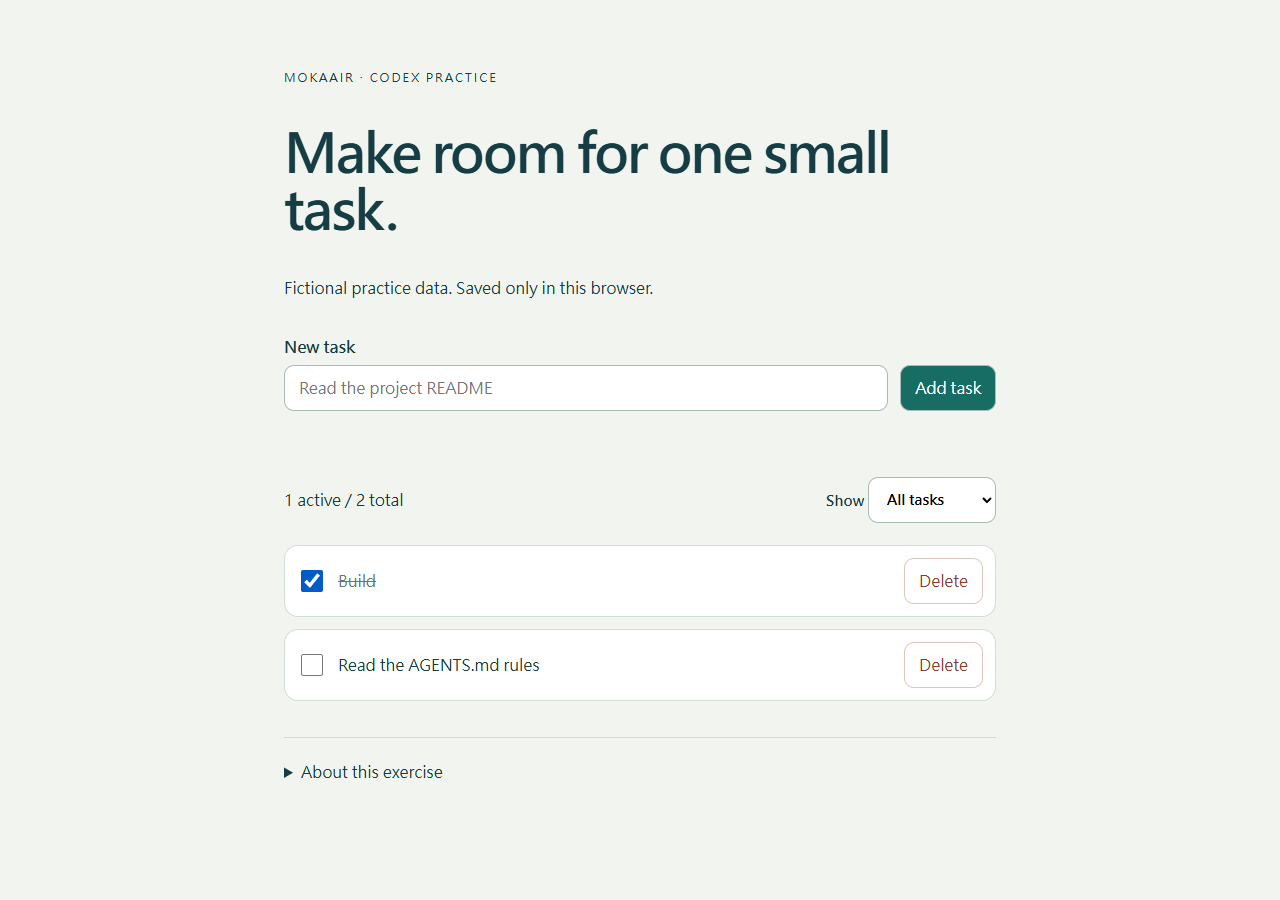
Visit http://127.0.0.1:4173. If this origin contains fictional tasks you want to keep, record them first. Open About this exercise, choose Reset practice data, select All tasks, and confirm the list is empty. This resets practice data only; it does not restore source files. Add Read and Build, then complete Read. Active tasks should show only Build; Completed tasks should show only Read. Reload and confirm the data remains. A whitespace-only task must be rejected: verify this boundary case alongside the normal workflow.
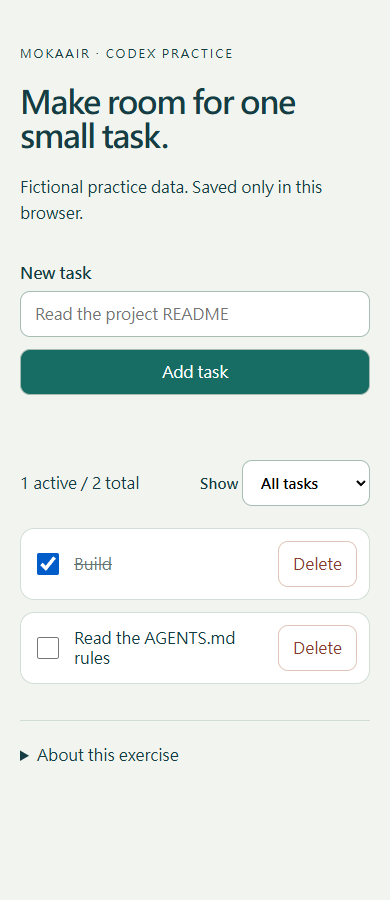
Use responsive mode in browser developer tools at 390 and 1280 pixels, or narrow the window to check the small layout. Text, buttons and the form must not overflow horizontally. Tab should show a visible focus indicator. In another terminal in the same folder, run node --test core.test.mjs: the reference version should pass three tests. If Codex lacks a browser tool, perform visual verification yourself and record that the agent did not run it.
Troubleshooting, stopping and restoring
No Codex option: check the app update, account and workspace, then account availability. Reinstalling repeatedly does not resolve usage limits or workspace policy. CLI is a separate entry point; installing the desktop app does not establish that a terminal can find the codex command.
Wrong folder: compare the task's absolute path and five files with your copy. If it points to a ZIP, empty directory or different project, stop editing and select the correct location. Inspect any changes already made at the original location; switching projects does not move files.
Blank page or inactive JavaScript: confirm the URL is http://127.0.0.1:4173 rather than a file URL from double-clicking HTML. Check the server terminal and browser Console. If the port is busy, stop your earlier server or choose another port. Browser storage is separate for different ports.
Stop the preview with Ctrl+C. Restore only the heading and styles changed in this exercise, preserving unrelated edits. Reset practice data clears this exercise's dedicated data, not its source code. Task completion, passing tests and a publicly deployed website are separate states.
Practice and verification record
Try asking for the form button to occupy its own full row on mobile while staying beside the input on desktop. Ask Codex to explain the existing CSS before editing. Verify both widths and the original data workflow. If the current styles already satisfy the request, accept that no change is necessary.
Installation and features were checked on 2026-09-20 using the desktop documentation, Windows documentation and Linux documentation. The practice site was tested in Windows/Edge 153 at 360, 390 and 1280px. Those captures show the website result, not the desktop product interface, a physical phone or hands-on macOS/Linux installation. Continue with AGENTS.mdProject instructions with AGENTS.mdAGENTS.md supplies project instructions before Codex starts work. Global guidance and files along the project-root-to-working-directory path form an instruction chain. At the same level, AGENTS.override.md takes precedence. Keep rules concrete and verify what was actually loaded.Read the full article, Plan modePlan mode: agree on the work firstPlan mode is useful when scope or approach still needs decisions. It produces an implementation plan, not finished code. Define the questions to resolve and check that the plan includes inputs, outputs, constraints and verification.Read the full article and Git diffsGit, branches, diffs and recoveryGit stores file history, branches organize changes and diffs show what changed. Codex can help, but you must verify that the changes belong to the task. Restoring an old conversation does not restore Git files.Read the full article.
Back to the Codex learning hubCodex learning hub: tutorial directoryA planned 60-lesson, ten-unit Codex curriculum, from setup and your first task to MD instructions and advanced integrations. Find your next lesson by experience, platform, goal or command; unpublished entries show their status.Read the full article
Read the full description
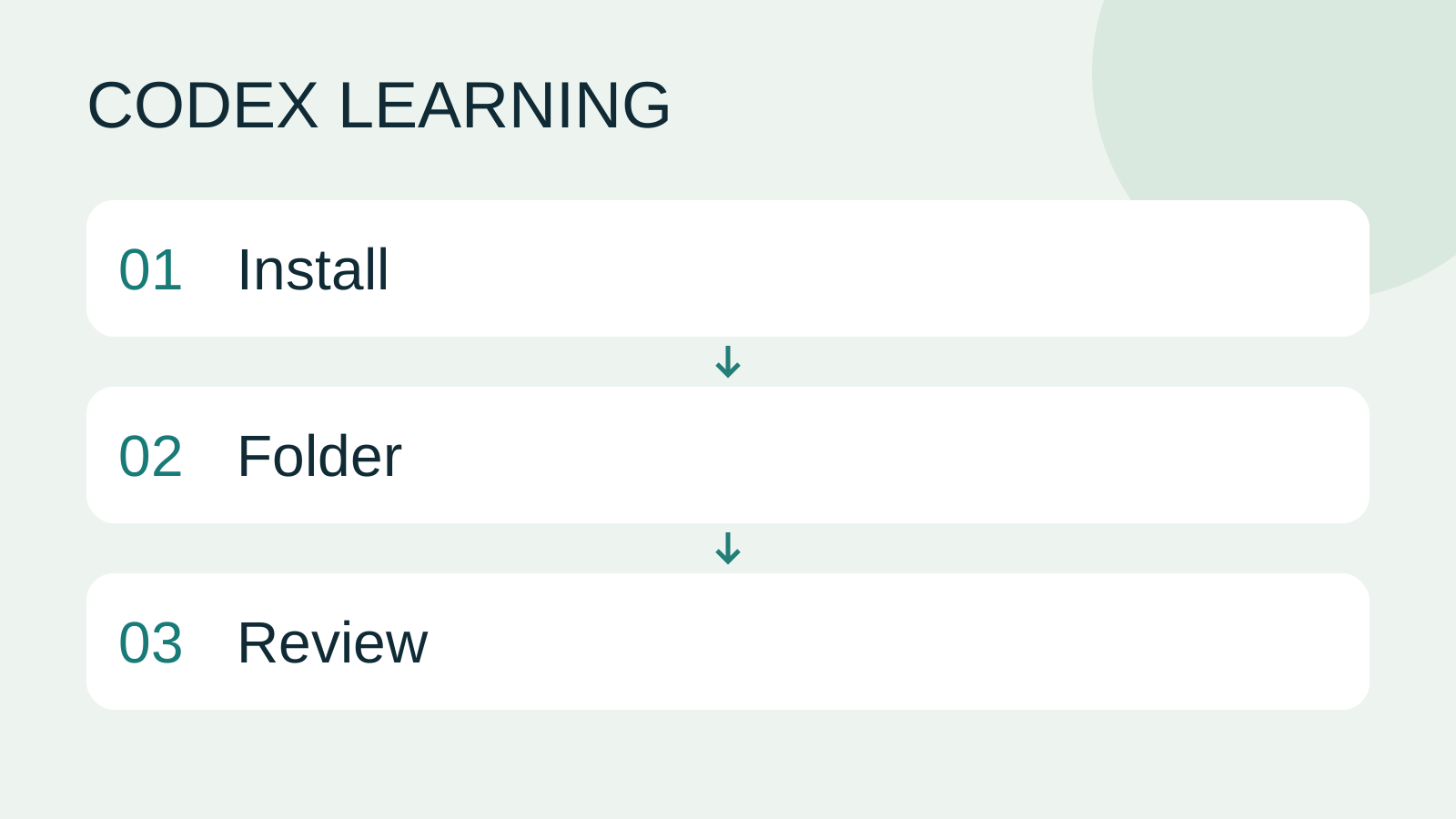
Install to Folder to Review
Lifestyle
Codex learning hub: tutorial directory
A planned 60-lesson, ten-unit Codex curriculum, from setup and your first task to MD instructions and advanced integrations. Find your next lesson by experience, platform, goal or command; unpublished entries show their status.
Lifestyle
Worktrees and isolated tasks
A Git worktree gives one repository multiple working directories on different branches. It isolates file edits, but databases, ports and external services may still be shared. File isolation is not full resource isolation.
Lifestyle
Workshop: build a small website
Plan and build the Small Steps task website from brief.md, with adding, completing, deleting, filtering and local persistence. Separate HTML, CSS, data functions, UI events and tests, verify with Node and browser checks, and document restart and recovery steps.
Lifestyle
Usage and efficiency: reducing rework
Record task conditions, model options, time and outcomes to reduce unnecessary retries and excess context.
Articles that cite this one
Latest travel guides

GuideTokyo
Where to Stay in Tokyo: Comparing Shinjuku, Ueno, Tokyo Station, Shibuya, Asakusa, Ikebukuro, and Ginza, Plus Airport Access, Accommodation Tax, and Luggage Delivery
Where should you stay in Tokyo? Compare Shinjuku, Ueno, Tokyo Station, Shibuya, Asakusa, Ikebukuro, and Ginza by the same criteria: access from Narita and Haneda, transit routes, nearby attractions, neighborhood character, and who each area suits. Includes a comparison table, a Yamanote Line diagram, Tokyo’s accommodation tax as verified in 2026/9 (changing to 3% in 2027/4), and Airport TA-Q-BIN luggage shipping rules.
- Budget
- Hotels

GuideTokyo
How to Choose Tokyo Transit Passes: Are Suica, Welcome Suica, the Tokyo Subway Ticket, and the JR Pass Worth It?
On a first Tokyo trip, start with an IC card and pay per ride (Welcome Suica has no deposit and is valid for 28 days). If you take four or more subway rides in a day, add a 72-hour Tokyo Subway Ticket for 2,000 yen; a JR Pass is never worthwhile if you stay in Tokyo and do not go to Kansai. See what TOURIST PASMO, Suica on iPhone, and the Tokyo Metro day pass do and do not cover, with a decision chart. Prices verified in September 2026.
- Transport
- Budget

GuideTokyo
Tokyo Disneyland and DisneySea Guide: Ticket Prices, Fantasy Springs, Disney Premier Access (DPA), Standby Pass, and Which Park to Choose for Your First Visit
Tokyo Disney one-day Passport prices vary: most weekdays in 9/2026 cost ¥9,900 and weekends ¥10,900. At 14:00 daily, tickets go on sale for the same date two months later. Free Priority Pass is no longer on the official service list; only paid Disney Premier Access (¥1,000–3,500 per person per use) shortens waits. Covers hours, the 25th anniversary, Standby Pass, Entry Request, Fantasy Springs access and first-visit park choice; checked on the official site in 9/2026.
- Itineraries
- Family
Sources
- ChatGPT desktop app · Checked:
- Windows desktop app · Checked:
- Linux desktop app · Checked:
- ChatGPT download · Checked: