Lifestyle
Get started in your IDE
IDE integration places Codex beside your code for focused explanation and edits. VS Code, Cursor and Windsurf use the Codex extension; Xcode and JetBrains expose their own integration flows. Do not interchange their installation steps.
About 12 min read · Practice 30 min
Practical · VS Code / JetBrains
Before you start
On this page
Back to the Codex learning hubCodex learning hub: tutorial directoryA planned 60-lesson, ten-unit Codex curriculum, from setup and your first task to MD instructions and advanced integrations. Find your next lesson by experience, platform, goal or command; unpublished entries show their status.Read the full article
What you will accomplish
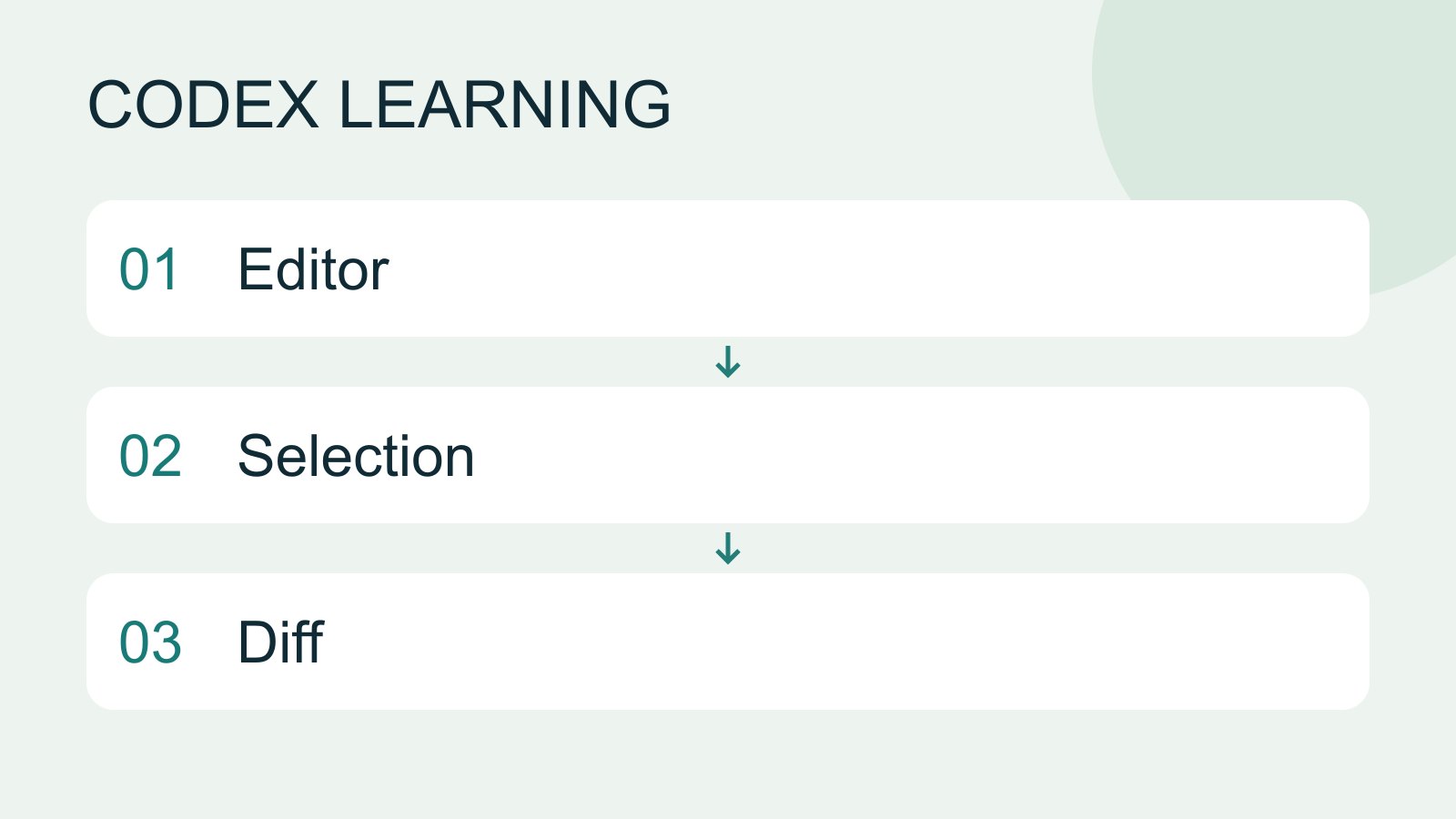
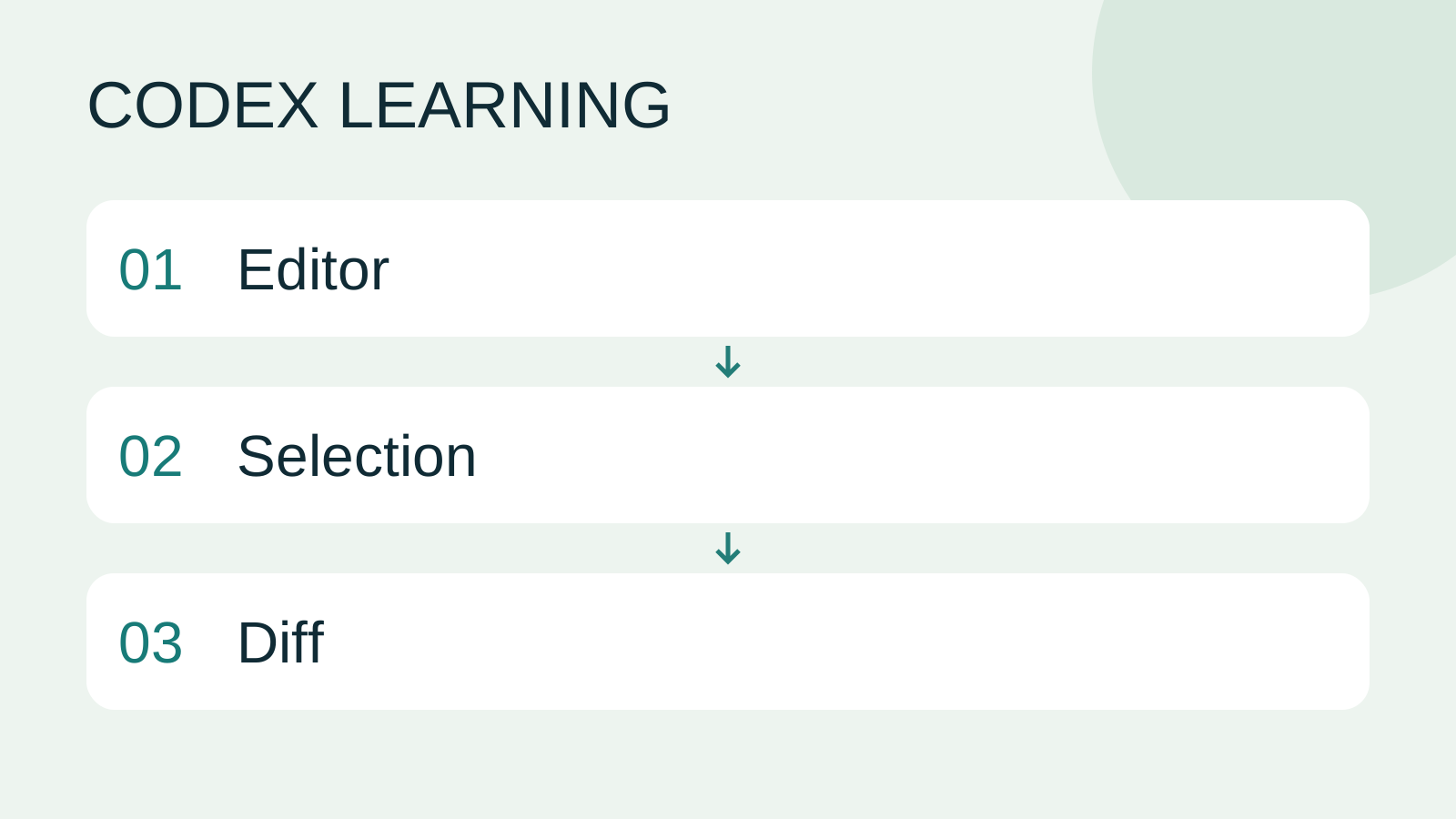
An IDE combines editing, files and tools. The extension places Codex beside them so selections can become context. Selecting ten lines does not restrict the agent to editing only those lines. State the task scope in your promptWrite a clear task requestA useful request explains the outcome, available context, boundaries and acceptance checks. 'Improve the page' could mean speed, appearance or accessibility. Convert it into observable behavior before adding more instructions.Read the full article; permissions govern file access. Diagram 01 is selected context, 02 the requested change and 03 review and verification.
Before you start: install the official extension
On each operating system, open your installed VS Code, search Extensions for Codex, verify OpenAI as publisher and openai.chatgpt as identifier, then install. The official IDE page below also links to installation. Do not identify it by icon alone. Save files before any requested window reload. Installed status establishes the extension's presence, not that it has opened or authenticated.
Open the Codex icon. If it is absent, use View → Command Palette and search Codex: Open Codex Sidebar. The palette shortcut is Ctrl+Shift+P on Windows/Linux and Command+Shift+P on macOS. Follow the extension sign-in flow and verify the account/workspace. CLI and extension can share cached authentication, so consider other active work before logging out.
Official documentation also lists compatible editors such as Cursor and Windsurf; this walkthrough uses VS Code. Xcode and JetBrains use their own integrations, so the VS Code extension identifier is not their setup procedure. In a Windows VS Code WSL window, verify the remote environment and terminal path; required tools must be available in WSLLinux and WSL CLI environmentsDistinguish host and WSL tools, paths and accounts, then run the exercise and update from the right environment.Read the full article.
Step 1: open the broken practice copy
Download the Small Steps materials, extract them and copy broken to codex-ide-lab while keeping expected as an independent reference. Use File → Open Folder and verify index.html, style.css, app.js, core.mjs and core.test.mjs in Explorer. Handle trust prompts for this verified practice copy, not your entire downloads directory.
Open Terminal → New Terminal. Check Get-Location on native Windows or pwd on macOS/Linux for codex-ide-lab. This exercise needs Node.js; check node --version before running the test. Expect the filtering group to fail among three test groups while the others pass. The bug is intentional. Do not delete the failing test or change its expectation to make the initial run green.
node --test core.test.mjs
Step 2: add the selection to Codex
Open core.mjs and select the entire visibleTasks function. Attach the selection using the Command Palette action for adding it to the current Codex chat; its official command ID is chatgpt.addToThread. Open core.test.mjs and attach the whole file with chatgpt.addFileToThread. Display names vary by language and version; search the ID in Keyboard Shortcuts to identify the corresponding command. These IDs are not terminal commands. An open editor tab alone does not establish attachment. Before sending, check filenames, ranges and attachment indicators to exclude similarly named copies.
Explain the selected visibleTasks function in core.mjs and the failing filter assertion in core.test.mjs. Do not edit yet. Identify which tasks should appear for All, Active and Completed, and quote the predicate that causes the mismatch. Confirm the working folder before answering.
This first request is explanatory only. Expect identification of !task.completed in the completed branch, which shows unfinished tasks. If the response only says filtering may be wrong, ask for the branch and assertion. If it claims to have fixed it, inspect whether it exceeded the read-only request. Open files help provide context, but verify that the needed function and failure were actually understood.
Step 3: request a precisely scoped fix
Fix only the Completed filter in core.mjs so completed tasks appear. Keep the public function signatures and existing tests unchanged. Preserve All and Active behavior, task order, and input arrays. Run node --test core.test.mjs and report the actual result. Show the final diff and any remaining limitation.
Send this in the same Codex task. For approval prompts, inspect the working directory and command against the exercise. The essential fix uses task.completed in the completed branch while retaining active behavior and test expectations. After Codex reports passing tests, rerun them independently in your integrated terminal.
export function visibleTasks(tasks, filter) {
  if (filter === "active") return tasks.filter((task) => !task.completed);
  if (filter === "completed") return tasks.filter((task) => task.completed);
  return tasks;
}
This is the reference result for comparison, not code to paste before claiming Codex fixed the bug. Remove the obsolete deliberate-bug comment in that function if it remains misleading. Layout changes, new dependencies and a backend are unnecessary. All three test groups passing is necessary, and the actual diff must also meet the requested scope.
When the editor shows the fix but tests still fail
Save the file first, then inspect the integrated terminal's working directory. Unsaved editor text can differ from the on-disk file read by tests; a similarly named copy can also mean you are viewing the right fix while testing the wrong file. Verify core.mjs's full path, saved state and test directory, then rerun the original tests. If all three are correct and failure remains, give Codex the full error and current diff rather than changing expected results or reinstalling the extension. Attaching context, saving files and executing tests each need their own check.
Step 4: inspect the diff and behavior
If the copy already uses Git, inspect modified files in Source Control. Without Git, use Select for Compare / Compare with Selected in Explorer to compare the retained broken core.mjs and the fixed file. No production commit is needed to view a diff. Expect the predicate and obsolete comment to change, with test expectations intact.
Before this codex-ide-lab preview check, preserve any older practice records you want to keep; the same browser address may retain data from another lesson. Expand About this exercise, click Reset practice data, select All tasks under Show and confirm an empty list. This resets practice data, not source files. In local preview, add Read and Build and complete Read. All shows both, Active only Build, Completed only Read. After reload, selecting Completed still shows Read; filters on an empty list should not error. See your first projectFinish your first small projectUse an independent copy of the Small Steps todo website to change its heading and background. Identify the five practice files and compare the diff, core tests and two viewport widths while preserving behavior and data.Read the full article for preview commands on each OS. This verifies localhost practice data, not a deployed website.
| Check | Success | Common mistake |
|---|---|---|
| Context | Correct function, test and folder | Treating selection as a write boundary |
| Change | Correct Completed predicate, other behavior intact | Trusting only the completion message |
| Tests | Three existing groups pass | Changing expected results to pass |
| UI | Correct filters and reload | Treating localhost as a public URL |
Troubleshooting, restoration and next steps
For missing commands, check the enabled extension and environment in this window; WSL and local windows can differ. For missing selection context, inspect attachment, file and range indicators, or explicitly name visibleTasks in core.mjs and provide the needed excerpt. If node is unavailable, check this integrated terminal, not a different shell. After an interrupted response, inspect the diff before requesting remaining work.
To repeat, restore only retained broken/core.mjs into the practice copy; the original filter failure should return. That confirms restoration of the starting defect. Avoid a project-wide forced reset that discards other work. Local checks establish the intended broken failure, passing expected code and reference UI, not extension-generated output. Continue with debuggingA complete debugging workflowDebugging starts with a reproducible symptom, narrows causes with evidence and verifies the fix. Give the input, exact step, expected behavior and observed failure instead of only saying the site is broken.Read the full article, testing and reviewTests, code review and pull requestsTests check behavior under specified conditions, review examines the change for defects and a PR presents proposed integration. They complement each other: tests passing does not establish review approval, and an open PR is not a merge.Read the full article and Git diffsGit, branches, diffs and recoveryGit stores file history, branches organize changes and diffs show what changed. Codex can help, but you must verify that the changes belong to the task. Restoring an old conversation does not restore Git files.Read the full article.
Back to the Codex learning hubCodex learning hub: tutorial directoryA planned 60-lesson, ten-unit Codex curriculum, from setup and your first task to MD instructions and advanced integrations. Find your next lesson by experience, platform, goal or command; unpublished entries show their status.Read the full article
Read the full description
Editor to Selection to Diff
Lifestyle
Codex learning hub: tutorial directory
A planned 60-lesson, ten-unit Codex curriculum, from setup and your first task to MD instructions and advanced integrations. Find your next lesson by experience, platform, goal or command; unpublished entries show their status.
Lifestyle
Worktrees and isolated tasks
A Git worktree gives one repository multiple working directories on different branches. It isolates file edits, but databases, ports and external services may still be shared. File isolation is not full resource isolation.
Lifestyle
Workshop: build a small website
Plan and build the Small Steps task website from brief.md, with adding, completing, deleting, filtering and local persistence. Separate HTML, CSS, data functions, UI events and tests, verify with Node and browser checks, and document restart and recovery steps.
Lifestyle
Usage and efficiency: reducing rework
Record task conditions, model options, time and outcomes to reduce unnecessary retries and excess context.
Articles that cite this one
Latest travel guides

GuideTokyo
Where to Stay in Tokyo: Comparing Shinjuku, Ueno, Tokyo Station, Shibuya, Asakusa, Ikebukuro, and Ginza, Plus Airport Access, Accommodation Tax, and Luggage Delivery
Where should you stay in Tokyo? Compare Shinjuku, Ueno, Tokyo Station, Shibuya, Asakusa, Ikebukuro, and Ginza by the same criteria: access from Narita and Haneda, transit routes, nearby attractions, neighborhood character, and who each area suits. Includes a comparison table, a Yamanote Line diagram, Tokyo’s accommodation tax as verified in 2026/9 (changing to 3% in 2027/4), and Airport TA-Q-BIN luggage shipping rules.
- Budget
- Hotels

GuideTokyo
How to Choose Tokyo Transit Passes: Are Suica, Welcome Suica, the Tokyo Subway Ticket, and the JR Pass Worth It?
On a first Tokyo trip, start with an IC card and pay per ride (Welcome Suica has no deposit and is valid for 28 days). If you take four or more subway rides in a day, add a 72-hour Tokyo Subway Ticket for 2,000 yen; a JR Pass is never worthwhile if you stay in Tokyo and do not go to Kansai. See what TOURIST PASMO, Suica on iPhone, and the Tokyo Metro day pass do and do not cover, with a decision chart. Prices verified in September 2026.
- Transport
- Budget

GuideTokyo
Tokyo Disneyland and DisneySea Guide: Ticket Prices, Fantasy Springs, Disney Premier Access (DPA), Standby Pass, and Which Park to Choose for Your First Visit
Tokyo Disney one-day Passport prices vary: most weekdays in 9/2026 cost ¥9,900 and weekends ¥10,900. At 14:00 daily, tickets go on sale for the same date two months later. Free Priority Pass is no longer on the official service list; only paid Disney Premier Access (¥1,000–3,500 per person per use) shortens waits. Covers hours, the 25th anniversary, Standby Pass, Entry Request, Fantasy Springs access and first-visit park choice; checked on the official site in 9/2026.
- Itineraries
- Family
Sources
- Codex IDE extension · Checked:
- Editor context and selected code · Checked:
- Authentication · Checked: