Lifestyle
Git, branches, diffs and recovery
Git stores file history, branches organize changes and diffs show what changed. Codex can help, but you must verify that the changes belong to the task. Restoring an old conversation does not restore Git files.
About 15 min read · Practice 30 min
Practical · Desktop / CLI / VS Code / JetBrains
Before you start
On this page
Back to the Codex learning hubCodex learning hub: tutorial directoryA planned 60-lesson, ten-unit Codex curriculum, from setup and your first task to MD instructions and advanced integrations. Find your next lesson by experience, platform, goal or command; unpublished entries show their status.Read the full article
Goal and preparation
Know terminal pathsTerminal paths and project rootsCreate a practice folder on Windows, macOS or Linux and distinguish current, relative and absolute paths.Read the full article. The working tree is current files, the index is the next commit's staged content, and commits record versions; these can differ. A branch identifies a history line, not an automatic copy of uncommitted files. For separate directories, use worktreesWorktrees and isolated tasksA Git worktree gives one repository multiple working directories on different branches. It isolates file edits, but databases, ports and external services may still be shared. File isolation is not full resource isolation.Read the full article; creating a branch is not a backup.
Step 1: Create an isolated baseline
Place the five expected files in new codex-git-lab outside any other project. Open its editor terminal, verify the path with Get-Location in Windows PowerShell or pwd on macOS/Linux, then run git --version. If Git is missing, use its official platform installation guidance and reopen the terminal. Do not initialize your existing work repository for this exercise.
git init -b main
git config user.name "Practice Learner"
git config user.email "learner@example.invalid"
git add index.html style.css app.js core.mjs core.test.mjs
git diff --cached --name-only
git commit -m "Add practice baseline"
git status --short
Run line by line. Initial staging should contain exactly five files and status should be clean after committing. Identity values are local to this practice repository, not GitHub login or global configuration. If existing signing/hooks requirements prevent a commit, follow your setup or record the blocker instead of changing global policy.
Step 2: Make two distinguishable changes on a branch
git switch -c codex/title-lab
git branch --show-current
Verify codex/title-lab. In index.html change only the h1 text Make room for one small task. to Plan one useful step. Append the comment below to style.css to represent separate uncommitted work. The title is the deliverable; preserve the CSS note without including it in the title commit. Both edits are fictional practice.
/* KEEP-MY-NOTE */
git status --short
git diff -- index.html style.css
Minus lines are old, plus lines new, with surrounding context. Check the exact h1 and CSS comment instead of only “2 files changed.” Use the read-only prompt below for Codex to identify existing work and intended scope before any commit request.
Inspect this lab's current branch, status and diff without editing, staging or committing. The intended change is only the h1 title in index.html. The KEEP-MY-NOTE comment in style.css represents separate work and must be preserved. Explain what belongs in the title commit and what must stay outside it.
Step 3: Stage one file, then practice restoration
git add index.html
git diff --cached --name-only
git diff --cached -- index.html
git diff -- style.css
Now compare two versions of the same file. Without running git add again, change only the staged title Plan one useful step. to Compare one useful step. in the editor. Run the four lines below to distinguish the working tree, index and HEAD.
git status --short
git diff --cached -- index.html
git diff -- index.html
git show :index.html
Expect MM index.html and unstaged style.css. This is not a conflict. In this case, the first M means the index differs from HEAD; the second means the working tree differs from the index, as explained in Git status. The cached diff should show Make → Plan, the plain diff Plan → Compare, and show :index.html the staged Plan version. An ordinary commit now would not automatically include Compare.
Next run the two restore commands in their original order. The first only unstages, leaving Compare on disk. The second restores index.html from the index, now containing the baseline title. If you skip the first command, worktree restore instead uses the still-staged Plan version. Git restore documents these default sources. Confirm that you intend to discard this practice title; CSS must remain untouched.
git restore --staged -- index.html
git restore --worktree -- index.html
git status --short
git diff -- style.css
Now only style.css should be modified, h1 restored and the note preserved. Undoing your change must not clear separate work. restore --staged does not discard the working-file edit; restore --worktree overwrites the specified file from its restore source. They are not interchangeable.
Step 4: Commit the scoped edit and revert with history
Reapply Plan one useful step. in the editor, stage only index.html and inspect cached diff again. The commit below should contain only the title while CSS remains uncommitted. Verify committed paths with show; command success alone does not prove correct scope.
git add index.html
git diff --cached --name-only
git diff --cached -- index.html
git commit -m "Update practice title"
git show --format=short --name-only HEAD
git status --short
Before reverting, resolve working-tree changes. Here the only remaining change is your fictional CSS note. After verifying its preservation, explicitly finish that exercise and discard only it with the first command below. Require clean status and confirm HEAD is Update practice title before reverting HEAD. Do not apply this cleanup to real work with unrelated changes.
git restore --worktree -- style.css
git status --short
git log -1 --oneline
git revert --no-edit HEAD
git log -3 --oneline
git status --short
revert adds a reversing commit while preserving the original title commit. Expect original h1, three history entries and clean status. On conflict, inspect actual state instead of forcing options. To cancel an unfinished revert, use Git's git revert --abort workflow and recheck files.
Command comparison, troubleshooting and acceptance
| Goal | Command | Check |
|---|---|---|
| Inspect unstaged content | git diff | Working tree versus index |
| Inspect next commit | git diff --cached | Index versus HEAD |
| Unstage | git restore --staged -- index.html | Edit remains |
| Discard selected uncommitted edit | git restore --worktree -- index.html | Verify source and path first |
| Reverse a commit | git revert --no-edit HEAD | New history; verify target and clean state |
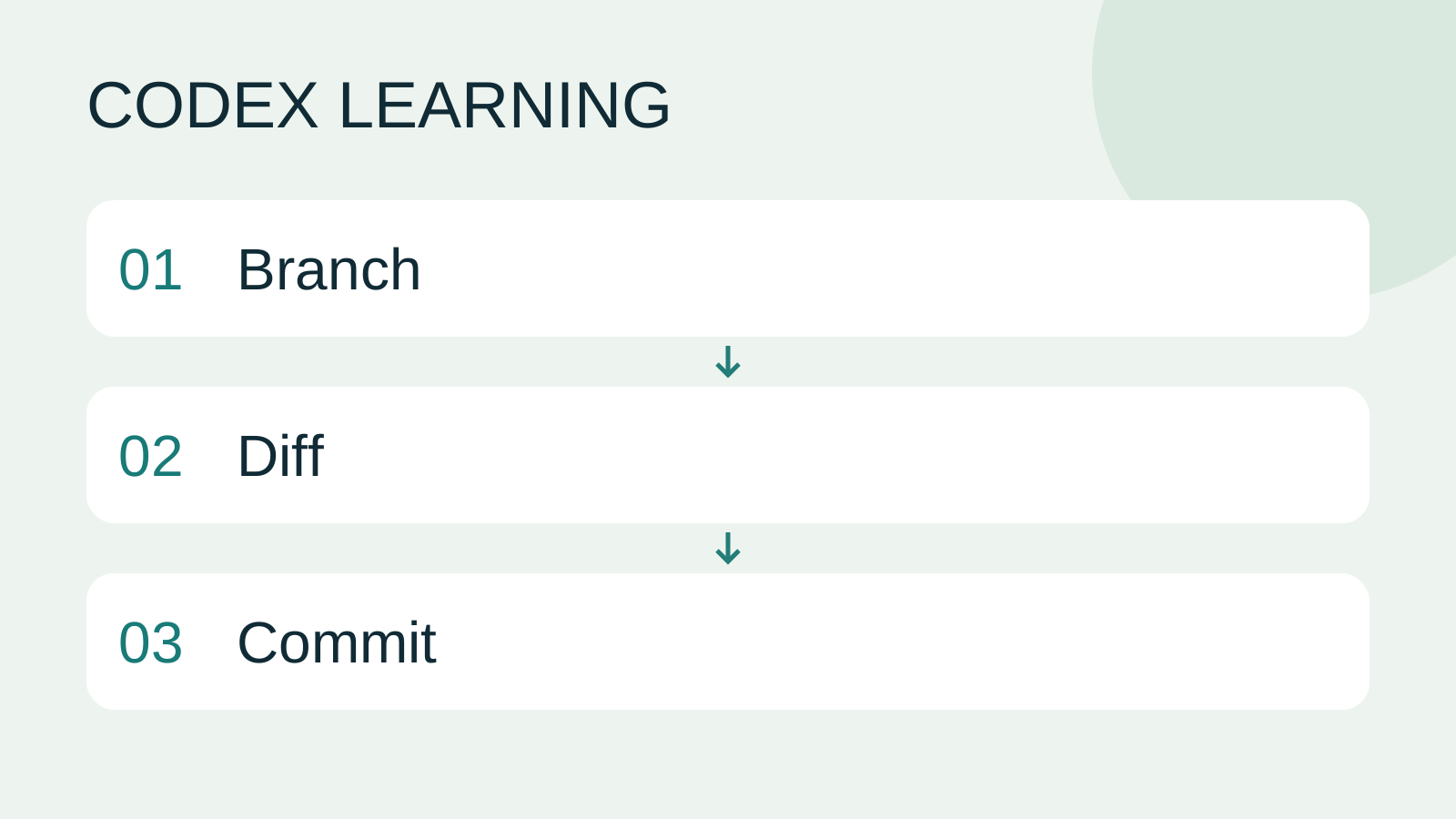
For a missing branch, verify the repository. Inspect unexpected files instead of staging every file at once. If one file mixes edits, whole-file staging includes all of them; review hunks before selective handling. Acceptance proves CSS exclusion, distinct restore effects and preserved revert history. Diagram 1 identifies state, 2 scopes commits, 3 verifies restoration. Continue to testing, review and PRTests, code review and pull requestsTests check behavior under specified conditions, review examines the change for defects and a PR presents proposed integration. They complement each other: tests passing does not establish review approval, and an open PR is not a merge.Read the full article.
Back to the Codex learning hubCodex learning hub: tutorial directoryA planned 60-lesson, ten-unit Codex curriculum, from setup and your first task to MD instructions and advanced integrations. Find your next lesson by experience, platform, goal or command; unpublished entries show their status.Read the full article
Read the full description
Branch to Diff to Commit
Lifestyle
Codex learning hub: tutorial directory
A planned 60-lesson, ten-unit Codex curriculum, from setup and your first task to MD instructions and advanced integrations. Find your next lesson by experience, platform, goal or command; unpublished entries show their status.
Lifestyle
Workshop: build a small website
Plan and build the Small Steps task website from brief.md, with adding, completing, deleting, filtering and local persistence. Separate HTML, CSS, data functions, UI events and tests, verify with Node and browser checks, and document restart and recovery steps.
Lifestyle
Usage and efficiency: reducing rework
Record task conditions, model options, time and outcomes to reduce unnecessary retries and excess context.
Articles that cite this one
Latest travel guides

GuideTokyo
Where to Stay in Tokyo: Comparing Shinjuku, Ueno, Tokyo Station, Shibuya, Asakusa, Ikebukuro, and Ginza, Plus Airport Access, Accommodation Tax, and Luggage Delivery
Where should you stay in Tokyo? Compare Shinjuku, Ueno, Tokyo Station, Shibuya, Asakusa, Ikebukuro, and Ginza by the same criteria: access from Narita and Haneda, transit routes, nearby attractions, neighborhood character, and who each area suits. Includes a comparison table, a Yamanote Line diagram, Tokyo’s accommodation tax as verified in 2026/9 (changing to 3% in 2027/4), and Airport TA-Q-BIN luggage shipping rules.
- Budget
- Hotels

GuideTokyo
How to Choose Tokyo Transit Passes: Are Suica, Welcome Suica, the Tokyo Subway Ticket, and the JR Pass Worth It?
On a first Tokyo trip, start with an IC card and pay per ride (Welcome Suica has no deposit and is valid for 28 days). If you take four or more subway rides in a day, add a 72-hour Tokyo Subway Ticket for 2,000 yen; a JR Pass is never worthwhile if you stay in Tokyo and do not go to Kansai. See what TOURIST PASMO, Suica on iPhone, and the Tokyo Metro day pass do and do not cover, with a decision chart. Prices verified in September 2026.
- Transport
- Budget

GuideTokyo
Tokyo Disneyland and DisneySea Guide: Ticket Prices, Fantasy Springs, Disney Premier Access (DPA), Standby Pass, and Which Park to Choose for Your First Visit
Tokyo Disney one-day Passport prices vary: most weekdays in 9/2026 cost ¥9,900 and weekends ¥10,900. At 14:00 daily, tickets go on sale for the same date two months later. Free Priority Pass is no longer on the official service list; only paid Disney Premier Access (¥1,000–3,500 per person per use) shortens waits. Covers hours, the 25th anniversary, Standby Pass, Entry Request, Fantasy Springs access and first-visit park choice; checked on the official site in 9/2026.
- Itineraries
- Family
Sources
- Git installation · Checked:
- Git init · Checked:
- Git diff · Checked:
- Git restore · Checked:
- Git revert · Checked:
- Codex review workflow · Checked: