Lifestyle
Continuing Codex work on Android
Check the Android app, pairing and notifications, select the correct host and verify the task output.
About 12 min read · Practice 25 min
On this page
Back to the Codex learning hubCodex learning hub: tutorial directoryA planned 60-lesson, ten-unit Codex curriculum, from setup and your first task to MD instructions and advanced integrations. Find your next lesson by experience, platform, goal or command; unpublished entries show their status.Read the full article
Goal and the Android's role
The Android sends requests and displays results; the connected host provides source files, terminal, dependencies and signed-in websites. Installing ChatGPT on the phone does not install Codex CLI or synchronize computer folders into a phone file manager. Read the mobile overviewMobile: iPhone and AndroidRemote in the ChatGPT mobile app lets you guide Codex work on a connected computer. Official documentation lists iOS and Android clients, with Mac or Windows hosts, subject to rollout. This does not install a full development environment on the phone, and does not establish Linux host support.Read the full article and Remote host setupRemote setup, diagnosis and disconnectionPair devices, diagnose host availability and verify fresh file reads. Distinguish remote access, device pairing and task execution when stopping work.Read the full article to distinguish connection, task and execution.
Before starting: prepare the host and account
Update ChatGPT desktop on your Mac or Windows computer, use the same account/workspace as the Android and confirm Codex access. Extract the Small Steps pack, copy expected into codex-android-lab and retain the original. Check the five source files on the host before pairing. Use this fictional practice project rather than private production work.
Install or update official ChatGPT from Google Play, verifying OpenAI as publisher. The Google Play account is distinct from the ChatGPT login; confirm the intended host-matching account/workspace inside the app. With personal/work profiles or managed apps, identify which ChatGPT instance is open. Matching icons do not establish matching authentication or policy. Complete SSO, MFA or passkey requirements before Remote.
Add your own identification file on the host
Create remote-check.txt in codex-android-lab, replacing 01 below with your own marker. Inspect any existing file; do not overwrite another task's file. This sixth file supplements the five website files. Use a unique marker per copy, never an account, password or pairing code. Privately note the marker and full path; omit the marker from the later prompt.
ANDROID-PRACTICE-01
Step 1: scan into Remote with Camera
On the desktop host, open Settings → Connections → Control this Mac or PC, choose Set up or Add, authenticate and display the QR code. On Android, use a supported camera or scanner, frame the full code and open its detected link. Google documents Camera and Quick Settings scanning for Pixel; other brands follow their own instructions. Do not upload the QR image to a chat for model-assisted pairing.
If detection fails, check framing, focus and glare; on Pixel also check Camera scan suggestions. If Android asks which app should open the link, choose official ChatGPT and verify the intended work profile. If the link stays in the browser, check app version and login before restarting setup from the host. Do not change all URL defaults for one pairing or publish pairing links, codes or account screenshots.
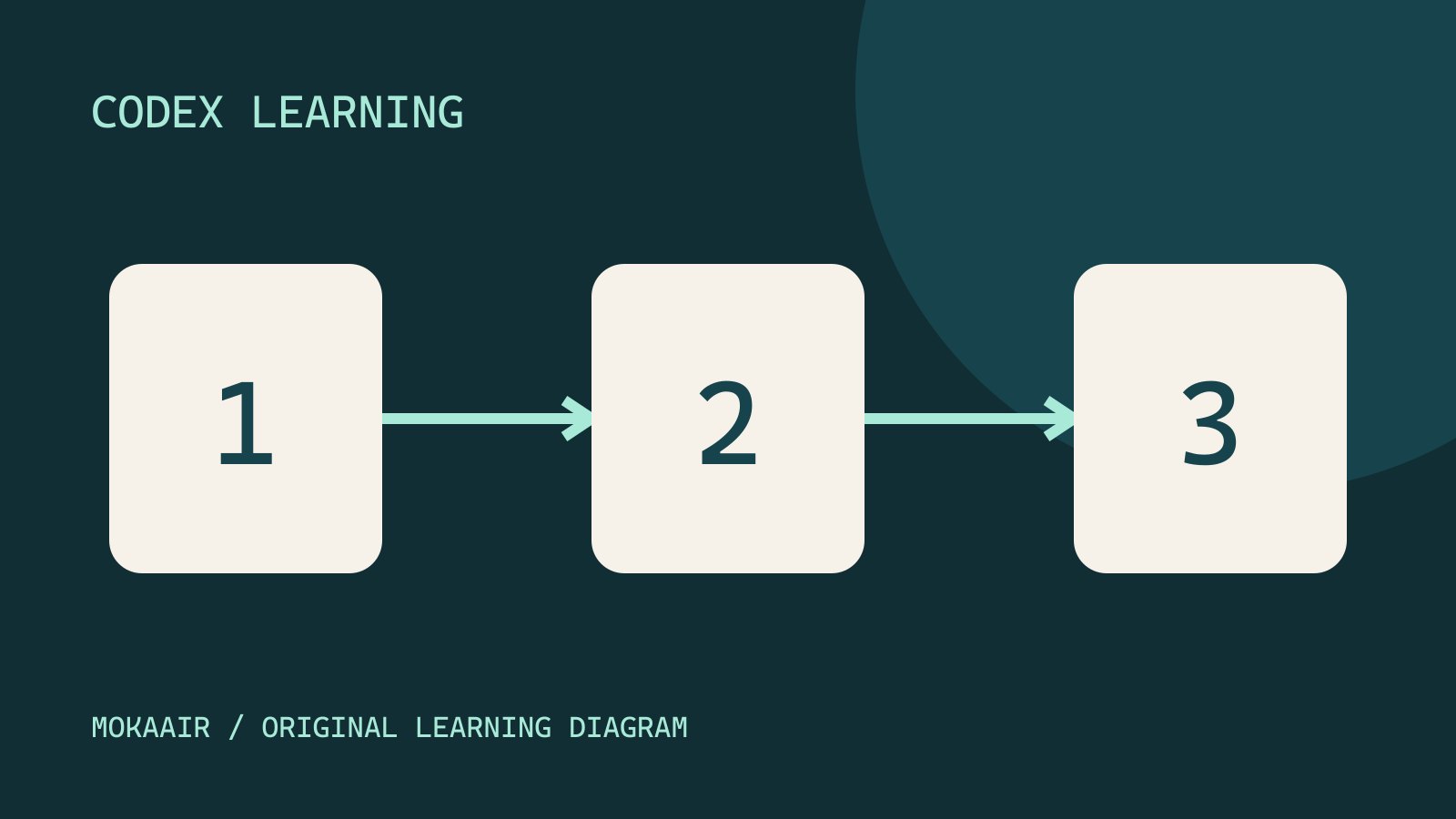
Confirm account, workspace and host in the phone setup. Success should show the host in Remote and let you select codex-android-lab and open a Codex task. A login-complete page alone is insufficient. If the listed machine is wrong, revisit the intended host's pairing setup. Diagram 1 is the Android entry, 2 the selected host and 3 the verifiable project result.
Step 2: send a precise file-read request
Paste the following into the host project's task composer in Remote. Check that keyboard autocorrection has not altered filenames or function names. This is a prompt, not a terminal command for Android. Send once, observe the response and record identifying task information so you can return after switching apps.
Read this Small Steps project without changing files. Confirm the working directory and inspect app.js and core.mjs. Identify the localStorage key, the field that records completion, and the function that rejects blank task titles. Cite the file for each answer. If a file is unavailable, report that instead of guessing.
Expect mokaair-codex-todo-v1 from app.js, completed and addTask's blank-title check from core.mjs, and the actual working directory. Generic todo-app advice is insufficient; ask which file was inspected. For a wrong directory, stop and select the correct host/project. A plausible explanation alone does not prove the connection reached your files.
Read a marker unique to this copy
Read remote-check.txt from this task's project now.
Quote its exact content and report the absolute file path and the tool used to read it.
Do not edit files or infer the marker from earlier messages.
If the file is missing or cannot be read, report that limitation.
Compare the reply with the marker and path in your host-side note and with the tool read record. The host's displayed name and this file marker are different facts. To check freshness, wait for the task to finish, change and save only the marker on the host, then send the same read request without supplying the new value. A stale value, missing tool evidence or mismatched path remains unverified; check saved state, host and copy first.
Step 3: follow up, review approvals and inspect progress
In the same project, explain what happens when I add Read and Build, complete Read, and choose Completed. Then explain an empty task title. Separate code you inspected, tests actually run, and checks still pending. Do not edit or clear stored data.
With only Read and Build initially present, expect Completed to show only Read and blank titles to be rejected. Account for any other stored tasks; this read-only request leaves them unchanged. Separate inspected code, executed tests and pending UI checks. Verify the predicted behavior in the computer's local preview.
If an approval appears, inspect the operation, directory and scope against your request. This read-only exercise does not need new external accounts, website publication or deletion. Review long commands on the host if the phone view is insufficient. If no approval appears, inspect the original Remote task's state instead of repeatedly creating new tasks.
Step 4: leave and return to the same task
After the read-only response finishes, switch to another Android app, then return through recent apps or the home screen to ChatGPT → Remote and the same host/task. Navigation gestures/buttons vary by phone, so no universal position is assumed. Inspect the last response, then request a fresh directory read; cached text does not prove the host is online. If the login environment differs, check personal/work profiles before recreating projects.
Notifications signal completion or attention; they do not validate results. Open the task even without a notification. If the host sleeps, disconnects or closes the app, restore it and inspect whether the previous request finished. For later writable tasks, avoid resending create/submit actions merely because the phone disconnected. This read-only exercise teaches recovery first.
Completion checks and common misunderstandings
| Check | Sufficient evidence | Insufficient evidence |
|---|---|---|
| Pairing | Correct selectable Remote host | Same-account login alone |
| Reading | Directory, storage key and source function | Generic todo explanation |
| Continuation | Fresh read in the same task | Old notification or response |
| Verification | Host file and behavior checks | Unsubstantiated model assurance |
A host's localhost URL entered in Android browser points to the phone, not the computer. Review host-provided results or screenshots in Remote and use the computer for local preview; public preview/deployment is a separate step. Manage access through host setupRemote setup, diagnosis and disconnectionPair devices, diagnose host availability and verify fresh file reads. Distinguish remote access, device pairing and task execution when stopping work.Read the full article, and check task cancellation separately. Signing out does not automatically delete pairings.
Finish in the same task with a handoff of host/directory, inspected content, unrun tests and next steps, then verify on the computer. Android does not need Node.js to invoke host tools; dependencies belong on the execution host. Continue with cross-device workCross-device handoff: files and environmentsTrack the conversation, host, directory and branch so a handoff continues the intended work.Read the full article and context handoffContext and task handoffLong work needs durable decisions and evidence, not just a long conversation. README explains use, design documents explain choices, handoffs record current progress and AGENTS.md holds ongoing instructions. Do not turn all temporary progress into permanent rules.Read the full article. Switching to iPhoneContinuing Codex work on iPhone or iPadCheck the available iOS entry point, pairing and authentication, then track a supported task on its host.Read the full article uses equivalent checks without rewriting the project.
On the host, remove only the remote-check.txt created in this exercise. Keep the five website files and never delete or overwrite pre-existing files. The marker and code requests are read-only. Record pairing or product operations you did not perform as untested.
Back to the Codex learning hubCodex learning hub: tutorial directoryA planned 60-lesson, ten-unit Codex curriculum, from setup and your first task to MD instructions and advanced integrations. Find your next lesson by experience, platform, goal or command; unpublished entries show their status.Read the full article
Read the full description
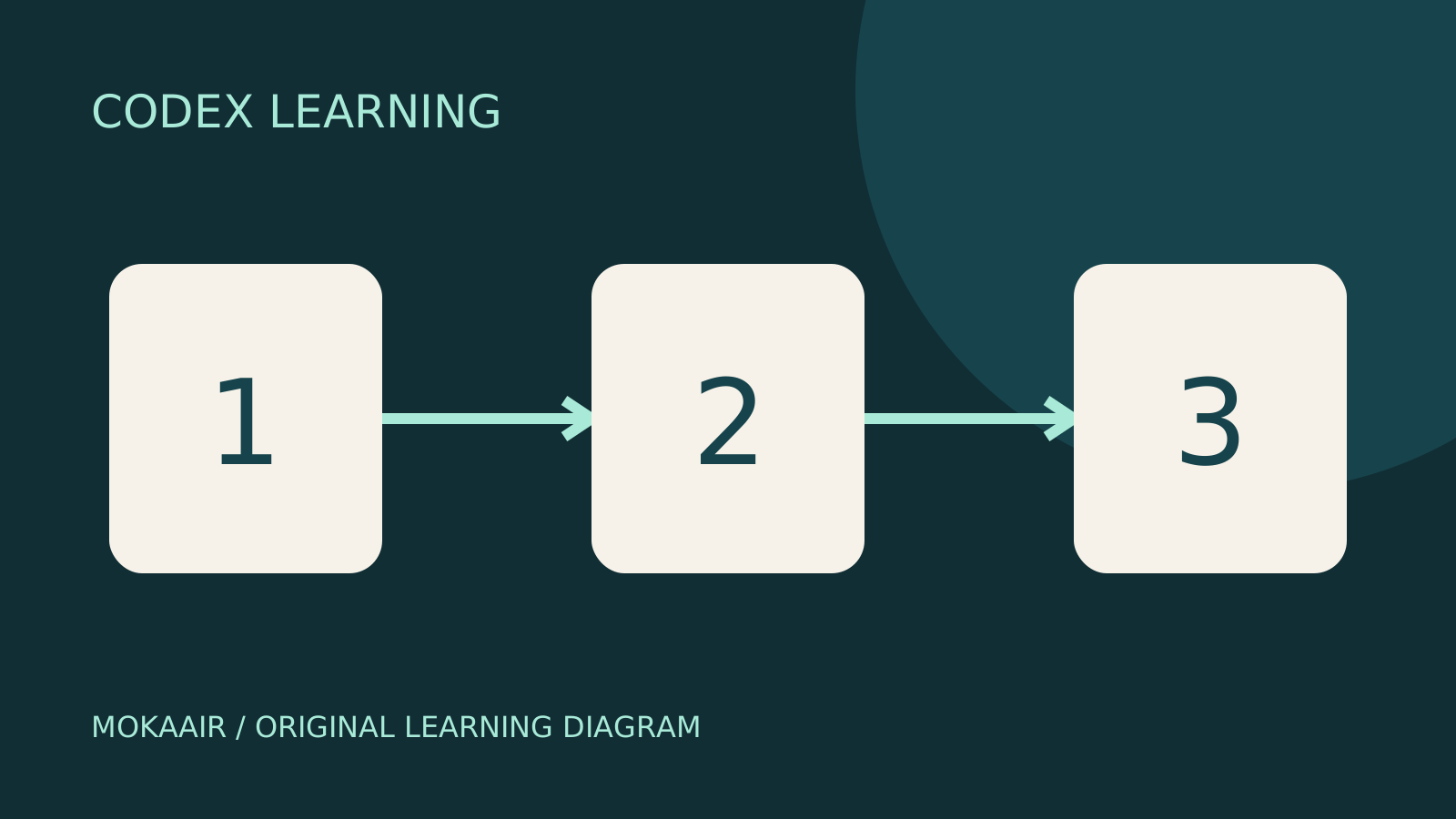
Three numbered stages: identify the starting point, perform the exercise, and verify the result. Original illustration, not a product screenshot.
Lifestyle
Codex learning hub: tutorial directory
A planned 60-lesson, ten-unit Codex curriculum, from setup and your first task to MD instructions and advanced integrations. Find your next lesson by experience, platform, goal or command; unpublished entries show their status.
Lifestyle
Worktrees and isolated tasks
A Git worktree gives one repository multiple working directories on different branches. It isolates file edits, but databases, ports and external services may still be shared. File isolation is not full resource isolation.
Lifestyle
Workshop: build a small website
Plan and build the Small Steps task website from brief.md, with adding, completing, deleting, filtering and local persistence. Separate HTML, CSS, data functions, UI events and tests, verify with Node and browser checks, and document restart and recovery steps.
Lifestyle
Usage and efficiency: reducing rework
Record task conditions, model options, time and outcomes to reduce unnecessary retries and excess context.
Articles that cite this one
Latest travel guides

GuideTokyo
Where to Stay in Tokyo: Comparing Shinjuku, Ueno, Tokyo Station, Shibuya, Asakusa, Ikebukuro, and Ginza, Plus Airport Access, Accommodation Tax, and Luggage Delivery
Where should you stay in Tokyo? Compare Shinjuku, Ueno, Tokyo Station, Shibuya, Asakusa, Ikebukuro, and Ginza by the same criteria: access from Narita and Haneda, transit routes, nearby attractions, neighborhood character, and who each area suits. Includes a comparison table, a Yamanote Line diagram, Tokyo’s accommodation tax as verified in 2026/9 (changing to 3% in 2027/4), and Airport TA-Q-BIN luggage shipping rules.
- Budget
- Hotels

GuideTokyo
How to Choose Tokyo Transit Passes: Are Suica, Welcome Suica, the Tokyo Subway Ticket, and the JR Pass Worth It?
On a first Tokyo trip, start with an IC card and pay per ride (Welcome Suica has no deposit and is valid for 28 days). If you take four or more subway rides in a day, add a 72-hour Tokyo Subway Ticket for 2,000 yen; a JR Pass is never worthwhile if you stay in Tokyo and do not go to Kansai. See what TOURIST PASMO, Suica on iPhone, and the Tokyo Metro day pass do and do not cover, with a decision chart. Prices verified in September 2026.
- Transport
- Budget

GuideTokyo
Tokyo Disneyland and DisneySea Guide: Ticket Prices, Fantasy Springs, Disney Premier Access (DPA), Standby Pass, and Which Park to Choose for Your First Visit
Tokyo Disney one-day Passport prices vary: most weekdays in 9/2026 cost ¥9,900 and weekends ¥10,900. At 14:00 daily, tickets go on sale for the same date two months later. Free Priority Pass is no longer on the official service list; only paid Disney Premier Access (¥1,000–3,500 per person per use) shortens waits. Covers hours, the 25th anniversary, Standby Pass, Entry Request, Fantasy Springs access and first-visit park choice; checked on the official site in 9/2026.
- Itineraries
- Family
Sources
- Remote connections · Checked:
- Scan QR codes with your Pixel phone · Checked: