Lifestyle
Remote setup, diagnosis and disconnection
Pair devices, diagnose host availability and verify fresh file reads. Distinguish remote access, device pairing and task execution when stopping work.
About 12 min read · Practice 25 min
On this page
Back to the Codex learning hubCodex learning hub: tutorial directoryA planned 60-lesson, ten-unit Codex curriculum, from setup and your first task to MD instructions and advanced integrations. Find your next lesson by experience, platform, goal or command; unpublished entries show their status.Read the full article
Goal: identify the environment your phone controls
Remote lets a phone send prompts, approvals and follow-ups while the host supplies files, tools and signed-in services. It does not turn the phone into a desktop-tool runtime or establish a Codex cloud upload. Review the mobile overviewMobile: iPhone and AndroidRemote in the ChatGPT mobile app lets you guide Codex work on a connected computer. Official documentation lists iOS and Android clients, with Mac or Windows hosts, subject to rollout. This does not install a full development environment on the phone, and does not establish Linux host support.Read the full article. iOS and Android are alternatives; you do not need both. This route connects one existing computer without renting a server.
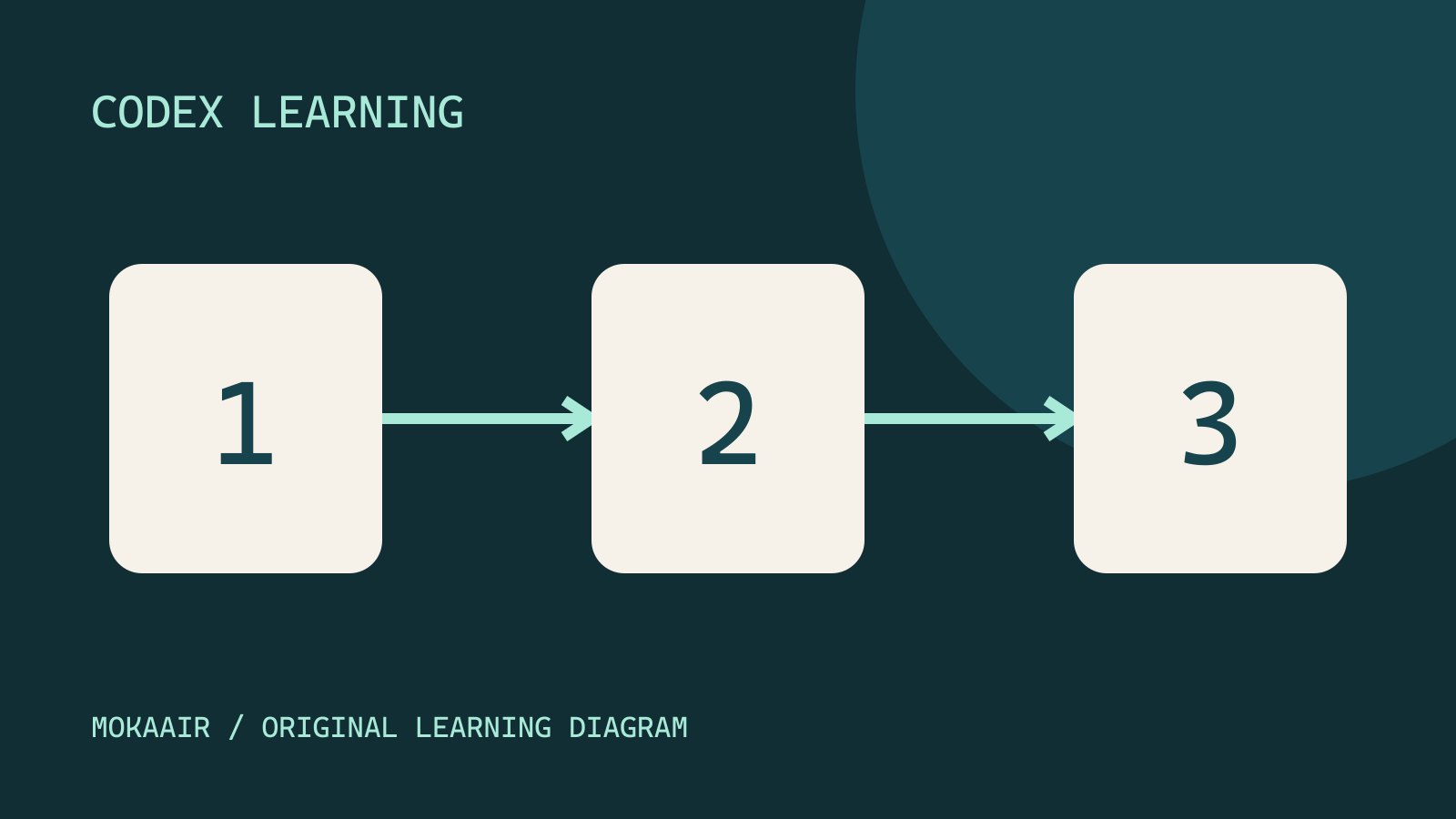
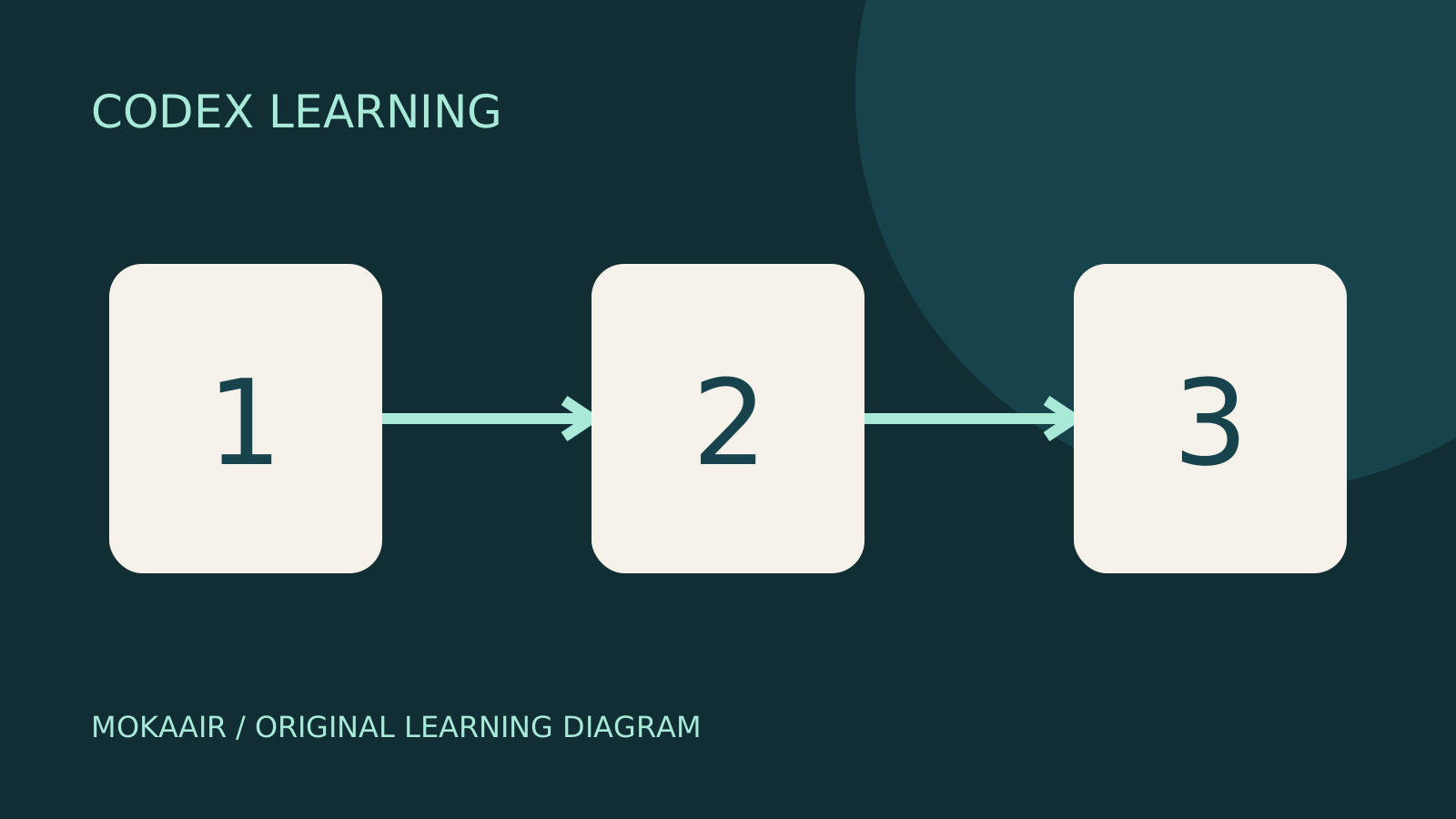
In the workflow illustration, 1 identifies the host and directory, 2 sends a fresh read-only request, and 3 checks the result against file contents. Follow that order. A host appearing in a list satisfies only part of step 1, not steps 2 and 3.
Before setup: both devices and the work location
Use a supported ChatGPT desktop host with Codex access in the same account/workspace, awake, online and running the app. Update the official ChatGPT mobile app. Complete required SSO, MFA or passkey steps; an administrator may also need to enable Remote Control. Availability rolls out in stages. Missing Remote controls call for version, workspace and access checks first.
The documented mobile Remote hosts are macOS and Windows; a Linux desktop preview does not establish support for this pairing route. Initial setup starts from the desktop app, not CLI or IDE sign-in. The phone does not supply missing Git, Node.js, browsers, Skills or MCP configuration. Check required tools on the machine that will actually execute the task.
Step 1: prepare an identifiable host project
Create a new codex-remote-lab folder on the host and save two plain-text files. Put the first block in host-marker.txt and the second in request.txt. REMOTE-LAB-A is a fictional exercise marker, not the actual host name. Separately record the device name shown in the app and the real project path. Use a new folder name if it exists.
REMOTE-LAB-A
Revision: 1
Read the host marker and report it. Keep both files unchanged.
Add that folder as a desktop project and create a read-only practice task that reports its path and two files. Confirm host-side access first. Use Get-Location/Get-Content in the Windows practice folder or pwd/cat on macOS. Establish this local baseline before Remote, so missing files are not mistaken for connection failures.
Step 2: enable access and pair the phone
On the intended host, open Settings → Connections → Control this Mac or PC, choose Set up or Add and complete access/verification prompts. Setting up a different empty computer on the same account will not automatically provide this host's folder. The QR code pairs a device with the host; keep it out of public teaching material and do not send it to others to scan.
Scan with your iPhone or Android, confirm the official ChatGPT app opens, and complete Remote setup with the same account/workspace. Success should show the host in the phone's Remote list. Each phone-host pair needs pairing; signing in on both is not sufficient evidence. If the link stays in a browser, check the updated app and opening route first.
Review connection and keep-awake settings on the host. For a Mac laptop, connect power and keep the lid open; selecting Sleep still stops availability. Windows Computer Use tasks need an unlocked, available session. This file-reading exercise does not require enabling every browser or desktop-control capability. Arrange a suitable work period if someone else uses the host.
Step 3: verify three pieces of evidence
In phone Remote, select this host, the codex-remote-lab project and the existing task, then send the prompt below. An ordinary phone chat without a host association does not establish file access. Recheck the execution location if creating a new task. Matching task names do not establish matching environments.
In this host project, read host-marker.txt and request.txt without changing files. Report the host/environment name if available, the actual working directory, and both files' exact contents. Do not infer unavailable information or use other services. If either file is missing, stop and report that.
Expect the real directory, REMOTE-LAB-A with Revision: 1 and the original request.txt text. If host identity is unavailable, the response should say so rather than treat the marker as the actual device name. Independently compare both files on the computer and inspect the read record. Host selection, working path and file contents are separate checks; keep any missing check unresolved.
Test freshness after the task finishes: edit only the marker's second line on the host to Revision: 2 and save. From the phone, request a fresh file read rather than a summary. Expect Revision: 2. An old 1 calls for checks of stale replies, unsaved edits or a different folder. Restore 1 on the host and reread so the exercise is repeatable.
Disconnection and stopping remote access
After current work completes, temporarily disable the host's allow-connections control, check access from the phone, then re-enable it on the host and verify reconnection. This can affect all paired devices, so first confirm no other remote work is in progress. Treat connection availability, pairing removal and task cancellation as separate states rather than assuming one control performs all three.
Official documentation states that sign-out turns off Remote Control but retains pairings; re-enabling may be needed after sign-in. Do not treat logout as permanent device revocation. For an individual pairing, inspect the host's current Connections device list and available management actions, then verify loss of control from the original device. The documentation does not establish one removal-button label across all versions.
Record connection, pairing and task state separately
Worked case: after Remote Control is turned off, the phone cannot control the host, but the host still shows a running task. You have established disabled remote access, not cancellation or removal of a device pairing. To stop the task, separately use its stop control and inspect the result. To remove a device, separately inspect Connections management and whether the original device retains control. If your version offers no clear removal action, record removal as unverified rather than treating sign-out as permanent revocation.
Checked at: [time and timezone]
Controller and execution host: [your private labels]
Remote Control: [on / off / unknown]
Device pairing: [present / removed / unknown]
Task execution: [running / stopped / completed / unknown]
Last fresh file read: [time, path and revision / not verified]
Action taken: [exact control used / none]
Next verification: [what remains to check]
| Symptom | Check first | Evidence |
|---|---|---|
| No Remote entry | App, account/workspace, rollout | Entry actually appears |
| Entry but no host | Pairing, host app, connection permission | Correct host appears |
| Wrong file | Task location, revision, read record | Path and Revision: 2 match |
| Connection lost | Sleep, network, closed app | Fresh read works after recovery |
Completion and further reading
Success means identifying the host, freshly reading the correct path, recognizing the updated marker and knowing how to stop remote access, not merely receiving a notification. Review tool activity and results in the task. Continue with iPhoneContinuing Codex work on iPhone or iPadCheck the available iOS entry point, pairing and authentication, then track a supported task on its host.Read the full article, AndroidContinuing Codex work on AndroidCheck the Android app, pairing and notifications, select the correct host and verify the task output.Read the full article and cross-device handoffCross-device handoff: files and environmentsTrack the conversation, host, directory and branch so a handoff continues the intended work.Read the full article. For independent execution while your computer is off, learn the separate cloud-taskCloud tasks and GitHubCloud tasks run in a remote environment configured for a repository. They suit longer delegated work, but cannot automatically see uncommitted files on your computer. Creating a pull request is distinct from merging or deploying it.Read the full article environment and delivery workflow.
Back to the Codex learning hubCodex learning hub: tutorial directoryA planned 60-lesson, ten-unit Codex curriculum, from setup and your first task to MD instructions and advanced integrations. Find your next lesson by experience, platform, goal or command; unpublished entries show their status.Read the full article
Read the full description
Three numbered stages: identify the starting point, perform the exercise, and verify the result. Original illustration, not a product screenshot.
Lifestyle
Codex learning hub: tutorial directory
A planned 60-lesson, ten-unit Codex curriculum, from setup and your first task to MD instructions and advanced integrations. Find your next lesson by experience, platform, goal or command; unpublished entries show their status.
Lifestyle
Worktrees and isolated tasks
A Git worktree gives one repository multiple working directories on different branches. It isolates file edits, but databases, ports and external services may still be shared. File isolation is not full resource isolation.
Lifestyle
Workshop: build a small website
Plan and build the Small Steps task website from brief.md, with adding, completing, deleting, filtering and local persistence. Separate HTML, CSS, data functions, UI events and tests, verify with Node and browser checks, and document restart and recovery steps.
Lifestyle
Usage and efficiency: reducing rework
Record task conditions, model options, time and outcomes to reduce unnecessary retries and excess context.
Articles that cite this one
Latest travel guides

GuideTokyo
Where to Stay in Tokyo: Comparing Shinjuku, Ueno, Tokyo Station, Shibuya, Asakusa, Ikebukuro, and Ginza, Plus Airport Access, Accommodation Tax, and Luggage Delivery
Where should you stay in Tokyo? Compare Shinjuku, Ueno, Tokyo Station, Shibuya, Asakusa, Ikebukuro, and Ginza by the same criteria: access from Narita and Haneda, transit routes, nearby attractions, neighborhood character, and who each area suits. Includes a comparison table, a Yamanote Line diagram, Tokyo’s accommodation tax as verified in 2026/9 (changing to 3% in 2027/4), and Airport TA-Q-BIN luggage shipping rules.
- Budget
- Hotels

GuideTokyo
How to Choose Tokyo Transit Passes: Are Suica, Welcome Suica, the Tokyo Subway Ticket, and the JR Pass Worth It?
On a first Tokyo trip, start with an IC card and pay per ride (Welcome Suica has no deposit and is valid for 28 days). If you take four or more subway rides in a day, add a 72-hour Tokyo Subway Ticket for 2,000 yen; a JR Pass is never worthwhile if you stay in Tokyo and do not go to Kansai. See what TOURIST PASMO, Suica on iPhone, and the Tokyo Metro day pass do and do not cover, with a decision chart. Prices verified in September 2026.
- Transport
- Budget

GuideTokyo
Tokyo Disneyland and DisneySea Guide: Ticket Prices, Fantasy Springs, Disney Premier Access (DPA), Standby Pass, and Which Park to Choose for Your First Visit
Tokyo Disney one-day Passport prices vary: most weekdays in 9/2026 cost ¥9,900 and weekends ¥10,900. At 14:00 daily, tickets go on sale for the same date two months later. Free Priority Pass is no longer on the official service list; only paid Disney Premier Access (¥1,000–3,500 per person per use) shortens waits. Covers hours, the 25th anniversary, Standby Pass, Entry Request, Fantasy Springs access and first-visit park choice; checked on the official site in 9/2026.
- Itineraries
- Family
Sources
- Remote connections · Checked:
- ChatGPT desktop app · Checked:
- Authentication · Checked: