Lifestyle
Manage desktop tasks and projects
Keep follow-ups about one outcome in the same task and separate independent outcomes into different tasks. Projects identify files; tasks track assignments. Multiple tasks do not automatically isolate files: use worktrees when isolation is needed.
About 12 min read · Practice 20 min
On this page
- Goal and preparation
- Step 1: Attach the practice folder
- Step 2: Create two tasks with distinct outcomes
- Step 3: Reread files when switching tasks
- Step 4: Pin, find, archive and restore
- Extension: the same task name in different projects
- When to resume, start fresh or stop
- Troubleshooting and organizational habits
Back to the Codex learning hubCodex learning hub: tutorial directoryA planned 60-lesson, ten-unit Codex curriculum, from setup and your first task to MD instructions and advanced integrations. Find your next lesson by experience, platform, goal or command; unpublished entries show their status.Read the full article
Goal and preparation
Complete desktop basicsDesktop: Windows, macOS and LinuxThe desktop workspace combines tasks, files, terminals and change review. Current official downloads use the name ChatGPT desktop app; choose Codex inside it. Follow the separate installation path for your system. Linux is a preview with a specific support list, not a promise of compatibility with every distribution.Read the full article. A project organizes shared files and tasks; each task has its own outcome and conversation. Use “Inventory the lab” and “Propose the edit” rather than naming everything “continue.” A ChatGPT project differs from a local project linked to a computer folder; verify that this exercise uses the latter.
Step 1: Attach the practice folder
Create codex-project-lab with separate note.txt and request.txt samples below. Add it as a local project using desktop basics, then verify folders in the project's Edit project menu. Attach only this lab, not your entire user directory. Use it as the primary folder and check the actual path before starting a task.
PROJECT-LAB
Revision: 1
Current title: Small Steps
Propose the title Daily Steps.
Do not edit note.txt until the proposal is reviewed.
The primary folder sets the starting location and default discovery for some project settings. Additional folders may also be readable/writable; they are not isolated copies. This lab has no Git or worktree, making shared files explicit. For concurrent code edits, use worktreesWorktrees and isolated tasksA Git worktree gives one repository multiple working directories on different branches. It isolates file edits, but databases, ports and external services may still be shared. File isolation is not full resource isolation.Read the full article rather than assuming separate task entries are isolation.
Step 2: Create two tasks with distinct outcomes
Start the first task in this project and send the inventory prompt. Verify both files, PROJECT-LAB and revision 1, then rename it “PROJECT-LAB — Inventory.” Use the task menu to retain a shared marker plus outcome, making it searchable even when you remember only PROJECT-LAB. This task is read-only and needs no new document.
Inventory this practice folder. Read note.txt and request.txt. Report their filenames, the lab marker, revision and current title. Do not edit files or search other directories. This task's outcome is a verified inventory only.
Create another new task in the same project with the proposal prompt and name it “PROJECT-LAB — Title proposal.” Expect Small Steps to Daily Steps and only note.txt's title line as the proposed edit, without implementation yet. Switching back to Inventory should retain that task's conversation rather than merging both transcripts.
Read note.txt and request.txt. Propose the smallest title change that satisfies the request. Identify exactly which line would change and how to verify it. Do not implement yet; this task's outcome is a reviewable proposal.
Step 3: Reread files when switching tasks
Simulate work between tasks: manually change only note.txt's Revision to 2, leaving the title Small Steps and request.txt unchanged. In Inventory, send the fresh-read request. Old conversation says 1 while disk now says 2. Ask the proposal task to reread too; both should observe 2 in the same folder.
Read note.txt from disk again now. Compare its current revision with this task's earlier record. Report the actual directory, current revision and unchanged title. Do not repair the mismatch by restoring old contents.
The mismatch is intentional, not a request to revert it. Tasks can share files while retaining separate conversations; pinning, renaming and switching do not create another disk copy. If one still says 1, verify path, host and fresh reading, then possible worktree differences. Preserve such revision changes in a handoffContext and task handoffLong work needs durable decisions and evidence, not just a long conversation. README explains use, design documents explain choices, handoffs record current progress and AGENTS.md holds ongoing instructions. Do not turn all temporary progress into permanent rules.Read the full article for long work.
Step 4: Pin, find, archive and restore
Pin the frequently used Title proposal task and check that it remains easy to find after opening another task. Pinning should not change its transcript or files. Use sidebar Search chats for PROJECT-LAB, then distinguish by full title. Use the visible search entry because shortcuts vary by version.
Archive only the Inventory task through its menu after finishing it; avoid the project's bulk Archive chats action. Restore it from Settings → Archived chats and verify its transcript and note.txt revision 2 remain. Archiving organizes lists; it is not feature acceptance, backup or disk cleanup. Delete is unnecessary here.
Extension: the same task name in different projects
Create a separate codex-project-other folder beside codex-project-lab with only the note.txt below. Add it as another local project, not as an extra folder in the first project. Start a third task there, also named “PROJECT-LAB — Inventory”, and send the read-only request below. Matching titles do not prove that tasks use the same files.
PROJECT-OTHER
Revision: 100
Current title: Other Steps
Read only this project's note.txt from disk. Report the absolute path, marker, revision and current title. Do not infer content from this task's title, another task or another project. Do not edit or search outside this project.
The third task should read PROJECT-OTHER / 100 / Other Steps; the first two still use PROJECT-LAB / 2 / Small Steps. Record three rows with outcome, project, absolute path, latest file reading and active/archived state. If the third reports 2, check whether it was created in the wrong project; do not edit files to match the expected result. Then rename it “PROJECT-OTHER — Inventory” and archive or restore only the intended row.
Lessons and resources mentioned here: official worktree documentation · worktree lessonWorktrees and isolated tasksA Git worktree gives one repository multiple working directories on different branches. It isolates file edits, but databases, ports and external services may still be shared. File isolation is not full resource isolation.Read the full article
| Action | Changes | Verification |
|---|---|---|
| Rename | Displayed title | Find marker plus outcome |
| Pin | Sidebar position | Return to same conversation |
| Archive/restore | List visibility | Original conversation remains |
| Reread | Current disk evidence | Both see Revision: 2 |
| Change primary folder | New task starting location | Recheck actual path |
When to resume, start fresh or stop
Continue the existing proposal when refining that same title change. Start a fresh task for a distinct outcome such as organizing test evidence, naming the files to read. Do not assume it has read verbal constraints from another conversation. Put durable rules such as unchanged tests in project AGENTS.md, current revisions and pending checks in a handoff, and reference them explicitly.
For running work, first use its visible stop control, verify no more edits are produced, then organize or archive. Stop and archive are distinct. Existing edits are not automatically undone, so reread and inspect changes. Before changing the primary folder, record the old path and verify the new starting location in a fresh task; do not assume existing tasks moved or attached folders are backups.
Troubleshooting and organizational habits
For a missing task, check another project, host or archive, then search its marker; do not create many duplicates. If both tasks want to edit the same file, keep one read-only while the other makes the change, then let the first review. For genuinely concurrent features, use the worktree and integration lessons.
As work grows, name tasks by outcome and scope, such as “Filters: complete Completed” or “Docs: startup steps.” End each with changes, verification and remaining work. Keep unfinished work in a task-list document as well as chat, so switching does not require retelling the whole project or equating archived with nothing pending.
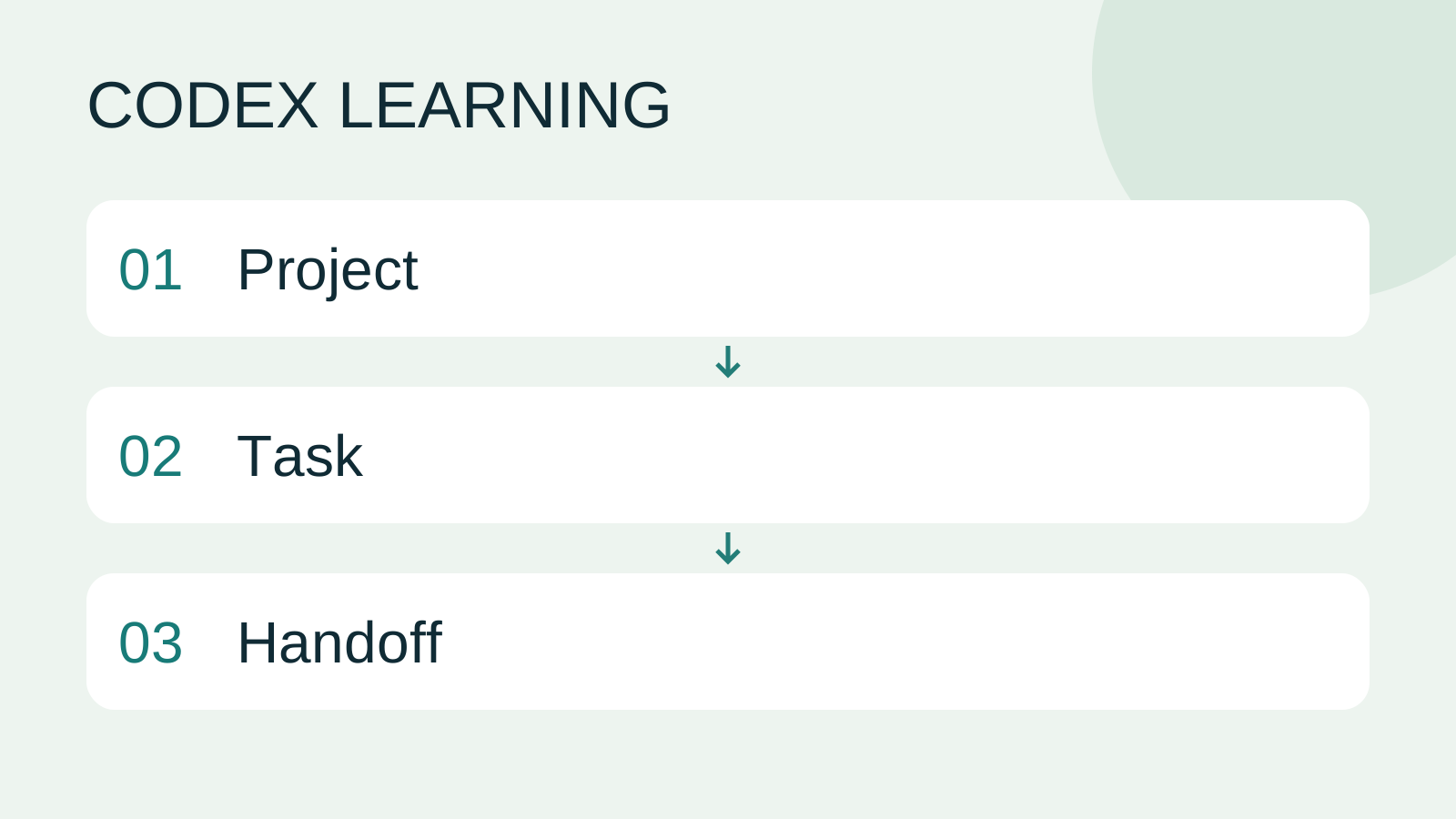
Keep the three-task state table across two projects, fresh revision-2 reads from the first two tasks, revision 100 from the third, and the selected task's archive/restore result. Restore only codex-project-lab/note.txt to revision 1 and verify Small Steps; the other project stays at 100 / Other Steps. Unpin this exercise; no project or file deletion is needed. Diagram 1 sets scope, 2 separates outcomes, and 3 rechecks and organizes. Continue with understanding existing codeUnderstanding an existing codebaseUse a read-only workflow to locate entry points, data flow and tests, with file-backed explanations.Read the full article.
Back to the Codex learning hubCodex learning hub: tutorial directoryA planned 60-lesson, ten-unit Codex curriculum, from setup and your first task to MD instructions and advanced integrations. Find your next lesson by experience, platform, goal or command; unpublished entries show their status.Read the full article
Read the full description
Project to Task to Handoff
Lifestyle
Codex learning hub: tutorial directory
A planned 60-lesson, ten-unit Codex curriculum, from setup and your first task to MD instructions and advanced integrations. Find your next lesson by experience, platform, goal or command; unpublished entries show their status.
Lifestyle
Workshop: build a small website
Plan and build the Small Steps task website from brief.md, with adding, completing, deleting, filtering and local persistence. Separate HTML, CSS, data functions, UI events and tests, verify with Node and browser checks, and document restart and recovery steps.
Lifestyle
Usage and efficiency: reducing rework
Record task conditions, model options, time and outcomes to reduce unnecessary retries and excess context.
Articles that cite this one
Latest travel guides

GuideTokyo
Where to Stay in Tokyo: Comparing Shinjuku, Ueno, Tokyo Station, Shibuya, Asakusa, Ikebukuro, and Ginza, Plus Airport Access, Accommodation Tax, and Luggage Delivery
Where should you stay in Tokyo? Compare Shinjuku, Ueno, Tokyo Station, Shibuya, Asakusa, Ikebukuro, and Ginza by the same criteria: access from Narita and Haneda, transit routes, nearby attractions, neighborhood character, and who each area suits. Includes a comparison table, a Yamanote Line diagram, Tokyo’s accommodation tax as verified in 2026/9 (changing to 3% in 2027/4), and Airport TA-Q-BIN luggage shipping rules.
- Budget
- Hotels

GuideTokyo
How to Choose Tokyo Transit Passes: Are Suica, Welcome Suica, the Tokyo Subway Ticket, and the JR Pass Worth It?
On a first Tokyo trip, start with an IC card and pay per ride (Welcome Suica has no deposit and is valid for 28 days). If you take four or more subway rides in a day, add a 72-hour Tokyo Subway Ticket for 2,000 yen; a JR Pass is never worthwhile if you stay in Tokyo and do not go to Kansai. See what TOURIST PASMO, Suica on iPhone, and the Tokyo Metro day pass do and do not cover, with a decision chart. Prices verified in September 2026.
- Transport
- Budget

GuideTokyo
Tokyo Disneyland and DisneySea Guide: Ticket Prices, Fantasy Springs, Disney Premier Access (DPA), Standby Pass, and Which Park to Choose for Your First Visit
Tokyo Disney one-day Passport prices vary: most weekdays in 9/2026 cost ¥9,900 and weekends ¥10,900. At 14:00 daily, tickets go on sale for the same date two months later. Free Priority Pass is no longer on the official service list; only paid Disney Premier Access (¥1,000–3,500 per person per use) shortens waits. Covers hours, the 25th anniversary, Standby Pass, Entry Request, Fantasy Springs access and first-visit park choice; checked on the official site in 9/2026.
- Itineraries
- Family
Sources
- Local projects and task organization · Checked:
- Instruction discovery · Checked: