Lifestyle
Scheduled tasks and reminders
Scheduled work needs a defined execution environment. A desktop task that reads local files requires the computer and app to be available at run time. Cloud work cannot directly read local data you have not supplied.
About 15 min read · Practice 20 min
On this page
Back to the Codex learning hubCodex learning hub: tutorial directoryA planned 60-lesson, ten-unit Codex curriculum, from setup and your first task to MD instructions and advanced integrations. Find your next lesson by experience, platform, goal or command; unpublished entries show their status.Read the full article
Goal and preparation
Lessons and resources mentioned here: Task managementManage desktop tasks and projectsKeep follow-ups about one outcome in the same task and separate independent outcomes into different tasks. Projects identify files; tasks track assignments. Multiple tasks do not automatically isolate files: use worktrees when isolation is needed.Read the full article
Step 1: Choose the execution location
Local files need a desktop host that can access them, with the computer on, app running and folder available. On Windows, macOS and Linux, check whether the installed desktop version offers Scheduled; record missing preview support as unavailable. CLI and IDE have no Scheduled management UI, though they can prepare scripts/prompts before management on a supported desktop or web surface.
| Need | Choice | Environment to check |
|---|---|---|
| Continue tracking in one task | In-chat schedule | Existing context and accessible data |
| Independent report each time | Standalone schedule | Saved prompt and selected project |
| Read local practice files | Desktop host | Power, app and folder |
| Read uploads/connected data | Supported web/mobile surface | Plan, tools and source permissions |
A web schedule does not acquire access to a computer folder; this exercise uses a desktop schedule returning to the same task.
Step 2: Run an ordinary task first
Create daily-check.md with the content below in an empty practice-schedule folder, save UTF-8 plain text and open that folder as a desktop project. The filename daily does not cause daily execution; the schedule controls whether and when it runs. This fixture contains no client data, credentials or production paths.
# Practice check
Revision: 1
- [x] Read the task instructions
- [ ] Review the practice report
Read daily-check.md from this practice project once now.
Report its Revision, completed count and open count, using the current file contents.
If the file is missing or unreadable, report that exact limitation and stop.
Do not edit files, create a schedule, send messages elsewhere or call external services.
Expect Revision 1, completed 1 and open 1, with actual file-read activity. Record the source path/result and verify no file change. Resolve path or permission failures in the ordinary task before scheduling. This tests the action only, not scheduling, the unattended environment or notifications.
Step 3: Create a traceable natural-language schedule
Create one recurring check named 'Practice list review' in this existing task.
Run every Monday at 09:00 in the Asia/Taipei time zone.
On each run, reread daily-check.md from this local practice project.
Report the current Revision, completed and open counts. Do not rely on an earlier report.
If the file or required access is unavailable, stop the run and report the limitation.
Keep the source file unchanged and do not contact external services.
Notify me on the first result, meaningful changes or failures; stay quiet when nothing changes.
Show the saved schedule and next run time so I can verify them.
Open Scheduled and locate Practice list review. Confirm a saved Active entry, correct time/time zone and the intended practice project/task. A conversational promise is not creation evidence; inspect the stored entry and next run. If created after Monday 09:00, the next occurrence may be next week, so use the displayed calculation instead of assuming it runs today.
Use a Run now action when offered, or save a near-future time you can observe and wait for the actual trigger. Avoid creating another same-name schedule for testing. Record its identity, next occurrence and recent run, distinguishing saved, started, finished and produced-a-result states.
Step 4: Verify a fresh source read each run
The first scheduled result should match 1/1. Manually change Revision to 2 and check the second item, yielding completed 2/open 0. Do not place the new counts in the saved prompt. Trigger or await the next run and verify it reads the new values from the file, detecting reuse of old summaries rather than repetition of an answer you supplied.
# Practice check
Revision: 2
- [x] Read the task instructions
- [x] Review the practice report
Run the unchanged state again and verify quiet-on-no-change behavior while checking run status in Scheduled. No push notification does not necessarily mean no execution; inspect OS notifications, app notifications and schedule reporting separately. If you want every weekly report even when unchanged, request that explicitly rather than asking both always-notify and silence-on-no-change.
Step 5: Edit, pause and understand stopping
Update the existing 'Practice list review' schedule to Wednesday at 10:00 Asia/Taipei.
Keep its task, project, read-only prompt and notification preference unchanged.
Show the updated next run time. Do not create a second schedule.
Verify the same entry now has the new time and no duplicate Active task was created. Disambiguate duplicate names by project, prompt and identity. For changes to source/action, manually test the revised prompt before updating. A day/time-only change does not require unrelated functional retesting.
Pause the existing 'Practice list review' schedule after this practice.
Confirm it is Paused and show whether any run is already in progress.
If a run is in progress, report its state before stopping anything else.
Confirm Paused in Scheduled. Pausing future triggers may not cancel an already started run, so inspect it separately. If the schedule is no longer needed, use its delete/remove action and verify it disappears. Existing reports, external changes and other schedules are not automatically reversed. Resume the same entry and inspect its next occurrence instead of creating a replacement under another name.
Common failures and a negative case
For a missing run, check Active/Paused, time zone and next occurrence, then host power, app and project availability. Do not assume missed runs during sleep are caught up; inspect actual history. For file access failures, verify path and PermissionsPermissions, sandbox, network and keysSandbox rules define technical access to files and networks; approval policy determines when the agent asks before acting. No prompt does not guarantee permission, and read access does not imply write access everywhere.Read the full article. Unattended actions requiring fresh authorization can fail and should report the step rather than treating background execution as blanket permission.
Pause the schedule and confirm no run is still reading the file. Check that daily-check.saved.md is unused; choose another name if needed, without overwriting a backup. Rename your daily-check.md, confirm the original name is absent and test the same read manually. Expect a missing-file report, not reused 2/0 counts or an empty list. Restore the filename and require Revision 2. This tests the prompt's missing-file branch, not background notifications.
Record source, time zone, saved entry, one real scheduled result, fresh reading after change, edited time and Paused state. Mark partial completion if unsupported or no trigger has occurred. Event triggers have separate plan/surface limits; desktop timing is not Gmail/Slack event monitoring. The flow is documented from official sources without creating reader schedules or claiming all-platform tests. Continue to codex execcodex exec and scriptscodex exec runs one non-interactive task for scripts or CI. Normally progress goes to stderr and the final answer to stdout. --json produces JSON Lines events, not a single JSON object.Read the full article.
Back to the Codex learning hubCodex learning hub: tutorial directoryA planned 60-lesson, ten-unit Codex curriculum, from setup and your first task to MD instructions and advanced integrations. Find your next lesson by experience, platform, goal or command; unpublished entries show their status.Read the full article
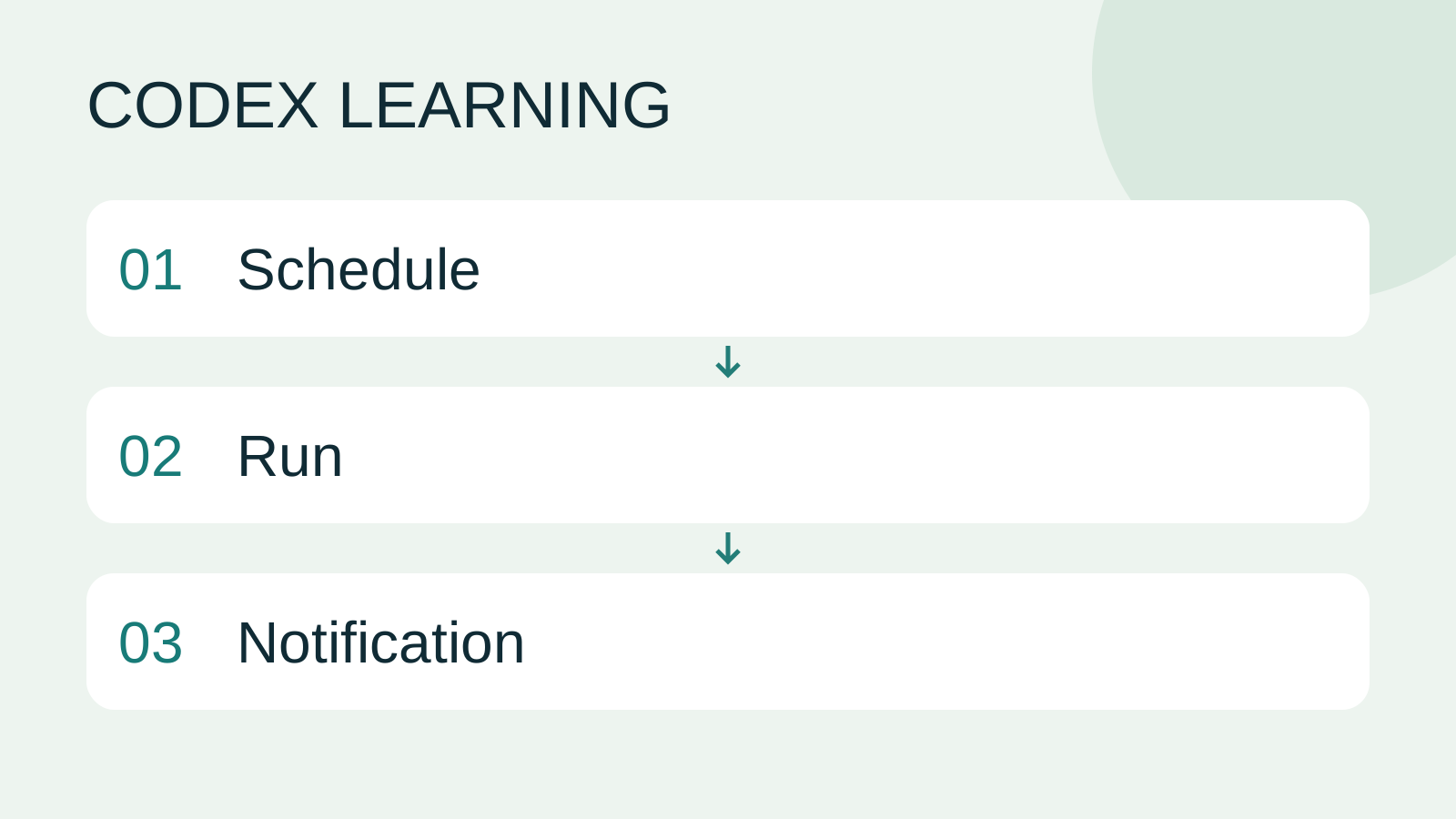
Read the full description
Schedule to Run to Notification
Lifestyle
Codex learning hub: tutorial directory
A planned 60-lesson, ten-unit Codex curriculum, from setup and your first task to MD instructions and advanced integrations. Find your next lesson by experience, platform, goal or command; unpublished entries show their status.
Lifestyle
Worktrees and isolated tasks
A Git worktree gives one repository multiple working directories on different branches. It isolates file edits, but databases, ports and external services may still be shared. File isolation is not full resource isolation.
Lifestyle
Workshop: build a small website
Plan and build the Small Steps task website from brief.md, with adding, completing, deleting, filtering and local persistence. Separate HTML, CSS, data functions, UI events and tests, verify with Node and browser checks, and document restart and recovery steps.
Lifestyle
Usage and efficiency: reducing rework
Record task conditions, model options, time and outcomes to reduce unnecessary retries and excess context.
Articles that cite this one
Latest travel guides

GuideTokyo
Where to Stay in Tokyo: Comparing Shinjuku, Ueno, Tokyo Station, Shibuya, Asakusa, Ikebukuro, and Ginza, Plus Airport Access, Accommodation Tax, and Luggage Delivery
Where should you stay in Tokyo? Compare Shinjuku, Ueno, Tokyo Station, Shibuya, Asakusa, Ikebukuro, and Ginza by the same criteria: access from Narita and Haneda, transit routes, nearby attractions, neighborhood character, and who each area suits. Includes a comparison table, a Yamanote Line diagram, Tokyo’s accommodation tax as verified in 2026/9 (changing to 3% in 2027/4), and Airport TA-Q-BIN luggage shipping rules.
- Budget
- Hotels

GuideTokyo
How to Choose Tokyo Transit Passes: Are Suica, Welcome Suica, the Tokyo Subway Ticket, and the JR Pass Worth It?
On a first Tokyo trip, start with an IC card and pay per ride (Welcome Suica has no deposit and is valid for 28 days). If you take four or more subway rides in a day, add a 72-hour Tokyo Subway Ticket for 2,000 yen; a JR Pass is never worthwhile if you stay in Tokyo and do not go to Kansai. See what TOURIST PASMO, Suica on iPhone, and the Tokyo Metro day pass do and do not cover, with a decision chart. Prices verified in September 2026.
- Transport
- Budget

GuideTokyo
Tokyo Disneyland and DisneySea Guide: Ticket Prices, Fantasy Springs, Disney Premier Access (DPA), Standby Pass, and Which Park to Choose for Your First Visit
Tokyo Disney one-day Passport prices vary: most weekdays in 9/2026 cost ¥9,900 and weekends ¥10,900. At 14:00 daily, tickets go on sale for the same date two months later. Free Priority Pass is no longer on the official service list; only paid Disney Premier Access (¥1,000–3,500 per person per use) shortens waits. Covers hours, the 25th anniversary, Standby Pass, Entry Request, Fantasy Springs access and first-visit park choice; checked on the official site in 9/2026.
- Itineraries
- Family