Lifestyle
Work with browsers, screenshots and images
Visual work needs a reference, the actual result and explicit change criteria. Browser inspection, screenshots and generated concepts provide different evidence. A generated interface is not proof that a workflow works.
About 15 min read · Practice 20 min
On this page
Back to the Codex learning hubCodex learning hub: tutorial directoryA planned 60-lesson, ten-unit Codex curriculum, from setup and your first task to MD instructions and advanced integrations. Find your next lesson by experience, platform, goal or command; unpublished entries show their status.Read the full article
Goal and preparation
Lessons and resources mentioned here: First projectFinish your first small projectUse an independent copy of the Small Steps todo website to change its heading and background. Identify the five practice files and compare the diff, core tests and two viewport widths while preserving behavior and data.Read the full article
| Image type | What it establishes | Use |
|---|---|---|
| Actual screenshot | Visible state in a specified environment | Label platform, date, viewport and before/after state |
| Original diagram | Concepts and workflow relationships | Label as a diagram, not runtime evidence |
| Generated illustration | Visual direction and concepts | Never present as product UI or acceptance evidence |
| Licensed asset | Visual material permitted by its source | Retain creator, source, license and attribution |
Step 1: Choose a browser surface
Codex desktop can share a page through the built-in browser, opened from the toolbar, a URL or @Browser. The opening shortcut is Cmd+Shift+B on macOS and Ctrl+Shift+B on Windows. On Linux, inspect the actual desktop toolbar and available features rather than assuming every distribution uses the same shortcut. Built-in Browser is unavailable in CLI/IDE; verify a separately configured browser MCPMCP setup and connection checksMCP connects Codex to tools and data. STDIO servers usually start as local processes; HTTP servers use a URL. Saving configuration only proves it exists: verify startup, authentication and an actual tool response.Read the full article if present, otherwise open the page yourself and attach screenshots.
The built-in browser has separate profile/login state and does not automatically take over regular Chrome/Edge tabs. Follow the official browser-extension connection flow for an existing normal-browser session and record which environment was tested. Site permission permits interaction without making page instructions trustworthy; keep actions within your request instead of uploading unrelated project files or changing permissions at a page's direction.
Step 2: Start and identify the page
Run the reference's three tests from expected, then start a loopback-only static server using the platform command below and leave its terminal open. If 4173 is occupied, choose another free port and update all URLs without stopping another service. This is a local exercise preview, not public deployment.
node --test core.test.mjs
py -m http.server 4173 --bind 127.0.0.1
python3 -m http.server 4173 --bind 127.0.0.1
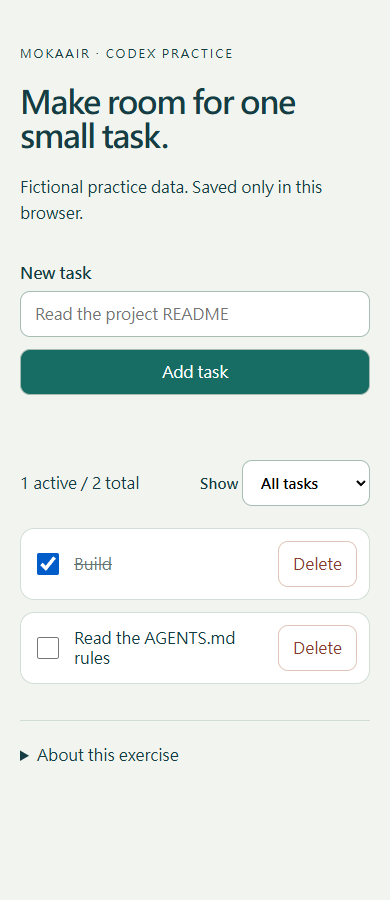
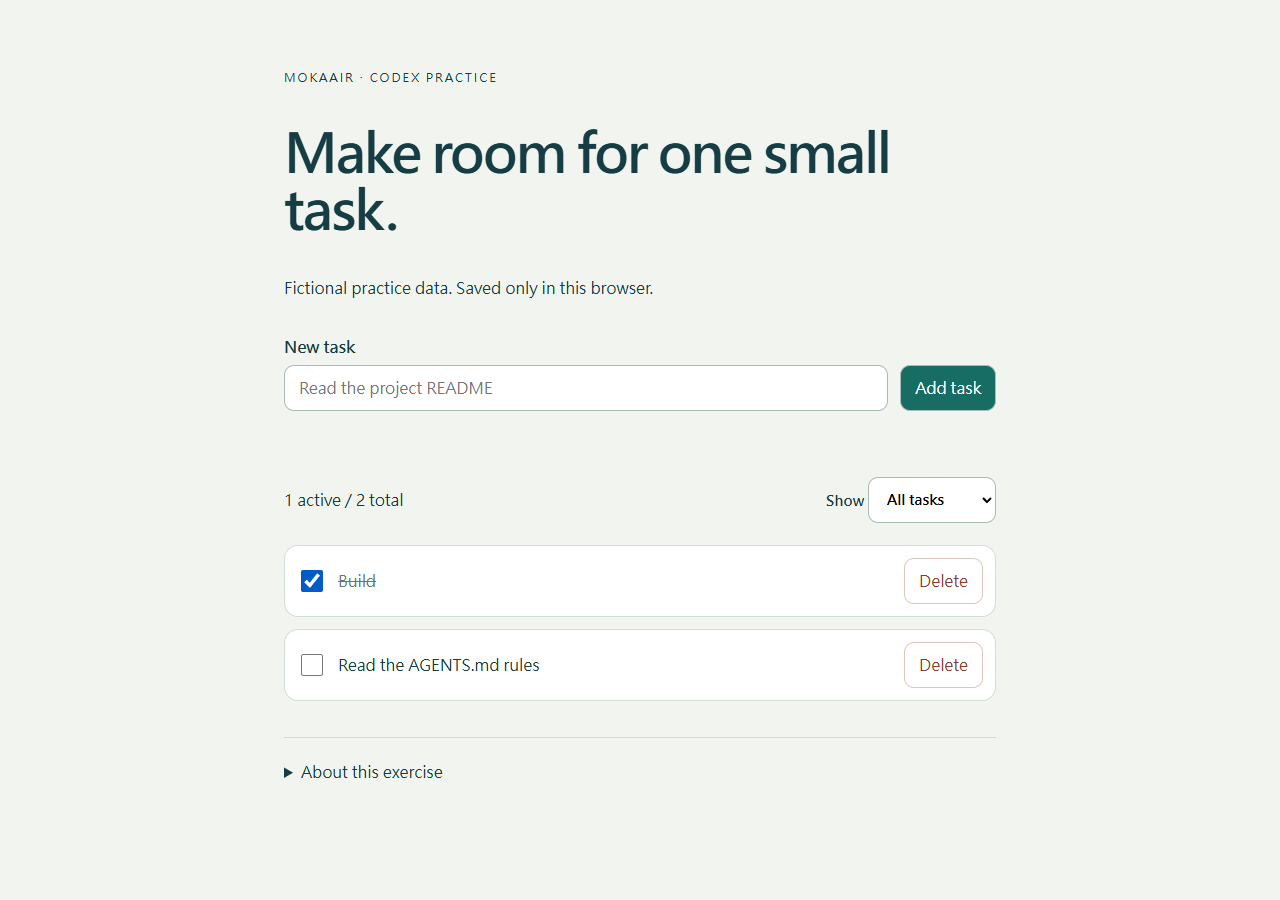
Open http://127.0.0.1:4173 and verify the heading, New task form and Show filter. Add Build and Read the AGENTS.md rules, then complete Build; expect 1 active/2 total. Profiles can have separate localStorage, so compare before/after in the same profile. For existing data, use an isolated practice profile or another port instead of clearing your everyday browser's storage.
If Codex runs on another host, 127.0.0.1 refers to that host. A hosted web task's localhost is not your computer either. Verify where the app and browser run and use the environment's supported preview/forwarding flow. Mobile Remote can review connected-computer work; this lesson does not expose the practice server to the internet. See Cross-device workflowCross-device handoff: files and environmentsTrack the conversation, host, directory and branch so a handoff continues the intended work.Read the full article.
Step 3: Capture and describe the target
Use responsive mode at 390×900 and 1280×900 CSS pixels with fixed zoom and the same two tasks. Capture the page area with Windows Snipping Tool, macOS region capture or the Linux screenshot utility, saving before-390.png and before-1280.png. Device scaling can alter PNG pixel dimensions, so separately record CSS viewport, zoom, browser version and date instead of inferring them from image dimensions.
# Visual check
Route: http://127.0.0.1:4173
Browser / version:
OS / date:
CSS viewport: 390 x 900, then 1280 x 900
Zoom:
State: Build complete; Read the AGENTS.md rules active
Before images:
Requested change: reduce header bottom spacing from 36px to 24px
Preserve: task data, labels, focus outline and control sizes
After images:
Behavior checks:
Unverified platforms:
Remove account areas, private tabs and notifications from the capture, taking a smaller region if needed. Do not relabel another platform's screenshot as a test of your platform. Redact personal data before sharing. Concept/generated images can describe a visual direction when labeled illustrations, but cannot prove an operation. For others' images, preserve source, author, license and attribution, with captions and alt text in the article's language.
Step 4: Annotate one specific change
First open the practice project and a new task in Codex desktop. For the CLI route, run codex from the practice-project folder and start a fresh interactive session. If desktop Annotation mode is available, select the region between heading and form, describe the spacing change and submit a request in the parent task. Otherwise attach the two before images and identify the gap in text. Saving a comment does not itself start a model edit; submit the task. Replace vague aesthetic requests with the desired value, preserved behavior and both viewport checks.
Use the attached before screenshots and the local practice page at http://127.0.0.1:4173.
In style.css, reduce the existing header bottom margin from 36px to 24px.
Keep the task data, labels, responsive form layout, 46px controls and visible focus outline unchanged.
Verify the actual page at 390x900 and 1280x900 CSS pixels with the same two tasks.
Check no horizontal page overflow, usable filtering, keyboard focus and persistence after reload.
Report the file diff and before/after evidence. If the browser is unavailable, identify that limitation instead of claiming visual verification.
header { margin-bottom: 24px; }
The reference edit replaces 36px with 24px in the existing rule instead of appending a duplicate that later CSS might override. Inspect the diff for unrelated changes to core.mjs/app.js or removed focus outlines. Desktop developer mode or browser inspection can check the computed header margin-bottom, providing more specific evidence than visual similarity alone. If unavailable, record the limitation and compare manually.
On your practice page, open browser developer tools and select Console. Confirm the current URL before running this read-only measurement. Record both viewport sizes: headerMarginBottom should change from 36px to 24px. A missing header returns null; verify the page and element instead of treating it as zero or a pass.
(() => {
  const header = document.querySelector('header');
  const page = document.documentElement;
  return {
    url: location.href,
    viewportWidth: page.clientWidth,
    headerMarginBottom: header ? getComputedStyle(header).marginBottom : null,
    horizontalOverflow: page.scrollWidth > page.clientWidth,
  };
})()
Expect horizontalOverflow to be false. It checks page width, not control usability, text readability or visible focus. Still perform the keyboard, long-title and persistence checks below. If Console was unavailable, record no measurement rather than copying expected values as observations. See getComputedStyle and scrollWidth for the value definitions.
Step 5: Verify in the page and restore
Reload and save after images at both viewports. Verify reduced spacing, input, Active showing one task, visible Tab focus and persistence of both original tasks. Add a near-100-character title and check wrapping without page overflow; short labels alone do not cover that boundary. Rerun core.test.mjs and record code tests separately from visual checks.
For unchanged appearance, check URL, server directory, saved CSS, cache and overrides. For a blank page, verify HTTP module loading rather than treating file:// restrictions as a regression. If browser operation is unavailable, report code edits with visual checks pending instead of generating an attractive after image as proof. Restore only the margin to 36px, inspect the diff and reload, then stop your practice server with Ctrl+C.
The record should identify the actual page, both sizes, edited file, tested behavior and untested platforms. Keep reader captures separate from existing reference images and label dates/sources. Built-in browser entry, annotations and permissions are documented from official sources without claiming operation of your account or every platform. Continue to Scheduling and automationScheduled tasks and remindersScheduled work needs a defined execution environment. A desktop task that reads local files requires the computer and app to be available at run time. Cloud work cannot directly read local data you have not supplied.Read the full article.
Back to the Codex learning hubCodex learning hub: tutorial directoryA planned 60-lesson, ten-unit Codex curriculum, from setup and your first task to MD instructions and advanced integrations. Find your next lesson by experience, platform, goal or command; unpublished entries show their status.Read the full article
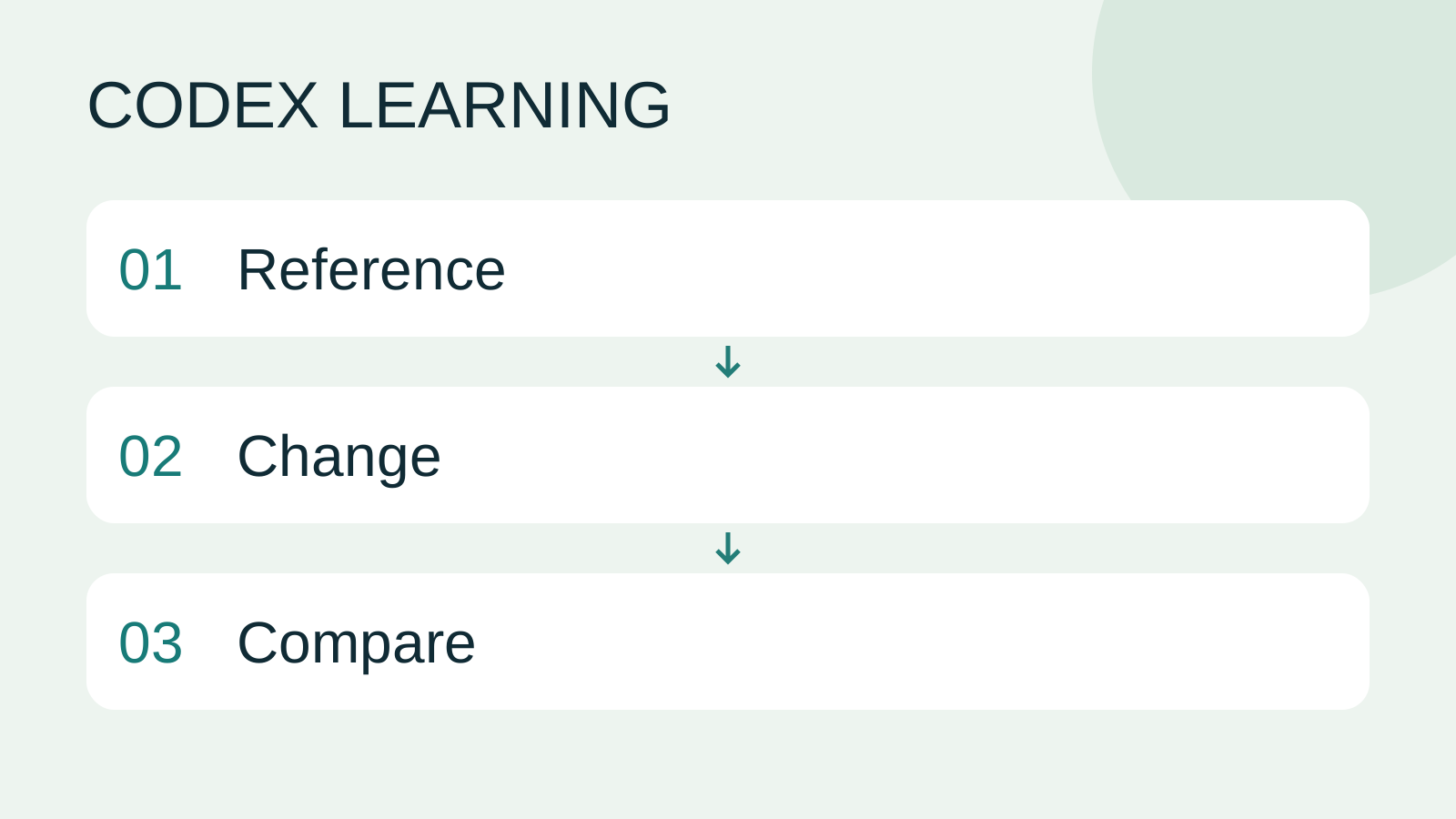
Read the full description
Reference to Change to Compare
Lifestyle
Codex learning hub: tutorial directory
A planned 60-lesson, ten-unit Codex curriculum, from setup and your first task to MD instructions and advanced integrations. Find your next lesson by experience, platform, goal or command; unpublished entries show their status.
Lifestyle
Worktrees and isolated tasks
A Git worktree gives one repository multiple working directories on different branches. It isolates file edits, but databases, ports and external services may still be shared. File isolation is not full resource isolation.
Lifestyle
Usage and efficiency: reducing rework
Record task conditions, model options, time and outcomes to reduce unnecessary retries and excess context.
Articles that cite this one
Latest travel guides

GuideTokyo
Where to Stay in Tokyo: Comparing Shinjuku, Ueno, Tokyo Station, Shibuya, Asakusa, Ikebukuro, and Ginza, Plus Airport Access, Accommodation Tax, and Luggage Delivery
Where should you stay in Tokyo? Compare Shinjuku, Ueno, Tokyo Station, Shibuya, Asakusa, Ikebukuro, and Ginza by the same criteria: access from Narita and Haneda, transit routes, nearby attractions, neighborhood character, and who each area suits. Includes a comparison table, a Yamanote Line diagram, Tokyo’s accommodation tax as verified in 2026/9 (changing to 3% in 2027/4), and Airport TA-Q-BIN luggage shipping rules.
- Budget
- Hotels

GuideTokyo
How to Choose Tokyo Transit Passes: Are Suica, Welcome Suica, the Tokyo Subway Ticket, and the JR Pass Worth It?
On a first Tokyo trip, start with an IC card and pay per ride (Welcome Suica has no deposit and is valid for 28 days). If you take four or more subway rides in a day, add a 72-hour Tokyo Subway Ticket for 2,000 yen; a JR Pass is never worthwhile if you stay in Tokyo and do not go to Kansai. See what TOURIST PASMO, Suica on iPhone, and the Tokyo Metro day pass do and do not cover, with a decision chart. Prices verified in September 2026.
- Transport
- Budget

GuideTokyo
Tokyo Disneyland and DisneySea Guide: Ticket Prices, Fantasy Springs, Disney Premier Access (DPA), Standby Pass, and Which Park to Choose for Your First Visit
Tokyo Disney one-day Passport prices vary: most weekdays in 9/2026 cost ¥9,900 and weekends ¥10,900. At 14:00 daily, tickets go on sale for the same date two months later. Free Priority Pass is no longer on the official service list; only paid Disney Premier Access (¥1,000–3,500 per person per use) shortens waits. Covers hours, the 25th anniversary, Standby Pass, Entry Request, Fantasy Springs access and first-visit park choice; checked on the official site in 9/2026.
- Itineraries
- Family
Sources
- Browser: preview, comments and permissions · Checked: