Lifestyle
MCP setup and connection checks
MCP connects Codex to tools and data. STDIO servers usually start as local processes; HTTP servers use a URL. Saving configuration only proves it exists: verify startup, authentication and an actual tool response.
About 15 min read · Practice 20 min
Advanced · Desktop / CLI / VS Code / JetBrains
Before you start
On this page
Back to the Codex learning hubCodex learning hub: tutorial directoryA planned 60-lesson, ten-unit Codex curriculum, from setup and your first task to MD instructions and advanced integrations. Find your next lesson by experience, platform, goal or command; unpublished entries show their status.Read the full article
Goal and preparation
Lessons and resources mentioned here: InstallationInstall and start Codex CLIChoose an installation platform, sign in, inspect a file, make a one-line change, verify it independently and resume the session. Includes a repeatable two-file exercise and a missing-file test.Read the full article
MCP lets clients invoke tools and receive context. Capabilities depend on the server: connecting documentation does not grant GitHub or local browser access. OpenAI Docs MCP searches and retrieves documentation without calling the OpenAI API on your behalf. Use it to practice retrieval acceptance; a later service that writes data needs its own tool and PermissionPermissions, sandbox, network and keysSandbox rules define technical access to files and networks; approval policy determines when the agent asks before acting. No prompt does not guarantee permission, and read access does not imply write access everywhere.Read the full article review.
Step 1: Choose transport and configuration location
| Type | Required information | Execution location |
|---|---|---|
| STDIO | Program and arguments | Local process started by the Codex host |
| Streamable HTTP | MCP endpoint URL | Network connection to the service |
| Plugin-provided MCP | Plugin installation and required connection | Depends on plugin and surface |
This exercise uses only Streamable HTTP. A website homepage is not necessarily its MCP endpoint; use the provider's documented address, and do not paste a STDIO command into a URL field.
Desktop, CLI and IDE clients on the same Codex host share MCP configuration. The default user file is ~/.codex/config.toml: .codex under the user directory on Windows and the home directory on macOS/Linux. Honor an existing custom CODEX_HOME. Trusted projects can also use .codex/config.toml; this exercise uses the user configuration instead of editing an unfamiliar project. See config.tomlConfigure Codex with config.tomlconfig.toml sets client options, while AGENTS.md describes working instructions. User settings live in Codex home; trusted projects can add .codex/config.toml. CLI overrides, project layers and managed requirements mean a single file does not prove the effective configuration.Read the full article.
Step 2: Inspect existing entries before adding
codex mcp list
Run the command in Windows PowerShell, macOS Terminal or a Linux terminal, outside the interactive codex session. Check for codexLearningDocs before adding it; inspect a same-name entry instead of overwriting it. You may reuse an existing working entry for the same official endpoint, recording that fact and preserving it during cleanup. Lists can contain private service URLs, so avoid publishing the entire output.
Before adding, open the actual user config.toml in an editor and save a dated backup without replacing an older backup. If it does not exist, record that state without creating an empty file. Make one change and preserve the diff. Backups may contain sensitive values; keep them locally outside Git. At cleanup, remove only the new entry rather than overwriting settings another task may have added since the backup.
codex mcp add codexLearningDocs --url https://developers.openai.com/mcp
codex mcp get codexLearningDocs
Expect get to show the name, HTTP transport and exact official URL. This proves only that configuration was saved, not reachability, tool discovery or a successful query. Tool counts can change; do not copy a fixed count from a tutorial. A zero exit from a management command is not retrieval evidence. If a command is absent, inspect codex mcp --help and the CLI update instructions.
Equivalent desktop and IDE steps
Without CLI, open Settings → MCP servers → Add server on desktop, enter codexLearningDocs, select Streamable HTTP, paste the same endpoint, save and choose Restart. In the IDE gear menu choose MCP servers → Add server with the same fields, save and Restart extension. Follow the equivalent steps in your available Windows, macOS or Linux client. If a Linux preview or version lacks this UI, use CLI without treating the missing button as a service failure.
[mcp_servers.codexLearningDocs]
url = "https://developers.openai.com/mcp"
The snippet represents the same configuration: choose CLI, UI or manual editing, not all three. Adding through CLI and pasting the same TOML table again can create an invalid duplicate table. For manual editing, merge only that section and restart the client. ChatGPT web and mobile do not read your computer's local config.toml; hosted capabilities use PluginsPlugins and connected servicesA plugin can distribute skills and MCP tools as an installable capability. Installing it, connecting an external account and successfully calling a tool are distinct stages. A listing does not establish access to your data.Read the full article. Local success does not configure the phone.
Step 3: Inspect tools and retrieve a source
/mcp
In a fresh desktop, CLI or IDE task/session, enter /mcp in the Codex composer to inspect the server and tools; it is not a shell command. You can also check MCP servers settings and observe tool activity in the new task. If authentication is requested, verify the public endpoint first. Other OAuth services may require Authenticate or codex mcp login with their name; do not add an arbitrary API key for this public service.
Use the codexLearningDocs MCP tools to find the official AGENTS.md instructions.
Read the relevant page and explain global versus project rules in three bullets.
Include the source URL and the section you checked.
If the MCP tools are unavailable, report that limitation instead of answering from memory.
Do not edit files or call paid APIs.
If reusing a server, replace the name in the prompt. Observe a search or retrieval tool activity and open the cited official page to verify that the section supports the explanation. Response wording can vary; acceptance concerns tool evidence, URL and content, not fixed wording or tool names. A correct answer without MCP is a general answer and does not complete this connection exercise.
Step 4: Disable, retest and remove
For the negative case, change an existing enabled value to false; add enabled = false once only when that key is absent. Never duplicate the key or table. The client disable control is also valid. Save, restart, then use /mcp and actual tool activity in a fresh desktop, CLI or IDE task/session to confirm the tools are unavailable. Old conversation text is not fresh retrieval. Restore the prior value, or remove only the key you added, restart and repeat the read.
codex mcp remove codexLearningDocs
codex mcp list
After removal, a fresh task should no longer list the new entry. This does not remove other servers, delete documents or revoke unrelated OAuth grants. Skip removal for a reused entry. If configuration was never changed, record that. For authenticated services, remove and logout serve different purposes; check MCP troubleshootingMCP connection diagnosis and recoveryInspect process, transport, authentication and tool discovery, preserve errors and verify a minimal operation.Read the full article instead of clearing every connection.
Failures and completion criteria
For a missing server, check configuration scope, name, enabled state and restart. For TOML parse errors, inspect duplicate tables and quotes without resetting the whole file. If configuration is correct but connection fails, verify the full URL, host network and service state, preserving a redacted error. If an answer lacks a source, request and verify the page. These four failures have different evidence; broadly relaxing permissions rarely explains them.
Record the actual client version, saved configuration, one sourced tool result and disable/removal of your added entry. Windows isolated-configuration and public-service protocol tests may be recorded separately, but do not establish desktop UI, macOS, Linux or your model-task execution. Unoperated surfaces are documented from official sources. Save results with the Connection templatePrompt, rules and handoff templatesChoose a prompt, rule or handoff template, fill its required fields and use the correct input location.Read the full article and continue to troubleshooting when needed.
Back to the Codex learning hubCodex learning hub: tutorial directoryA planned 60-lesson, ten-unit Codex curriculum, from setup and your first task to MD instructions and advanced integrations. Find your next lesson by experience, platform, goal or command; unpublished entries show their status.Read the full article
Read the full description
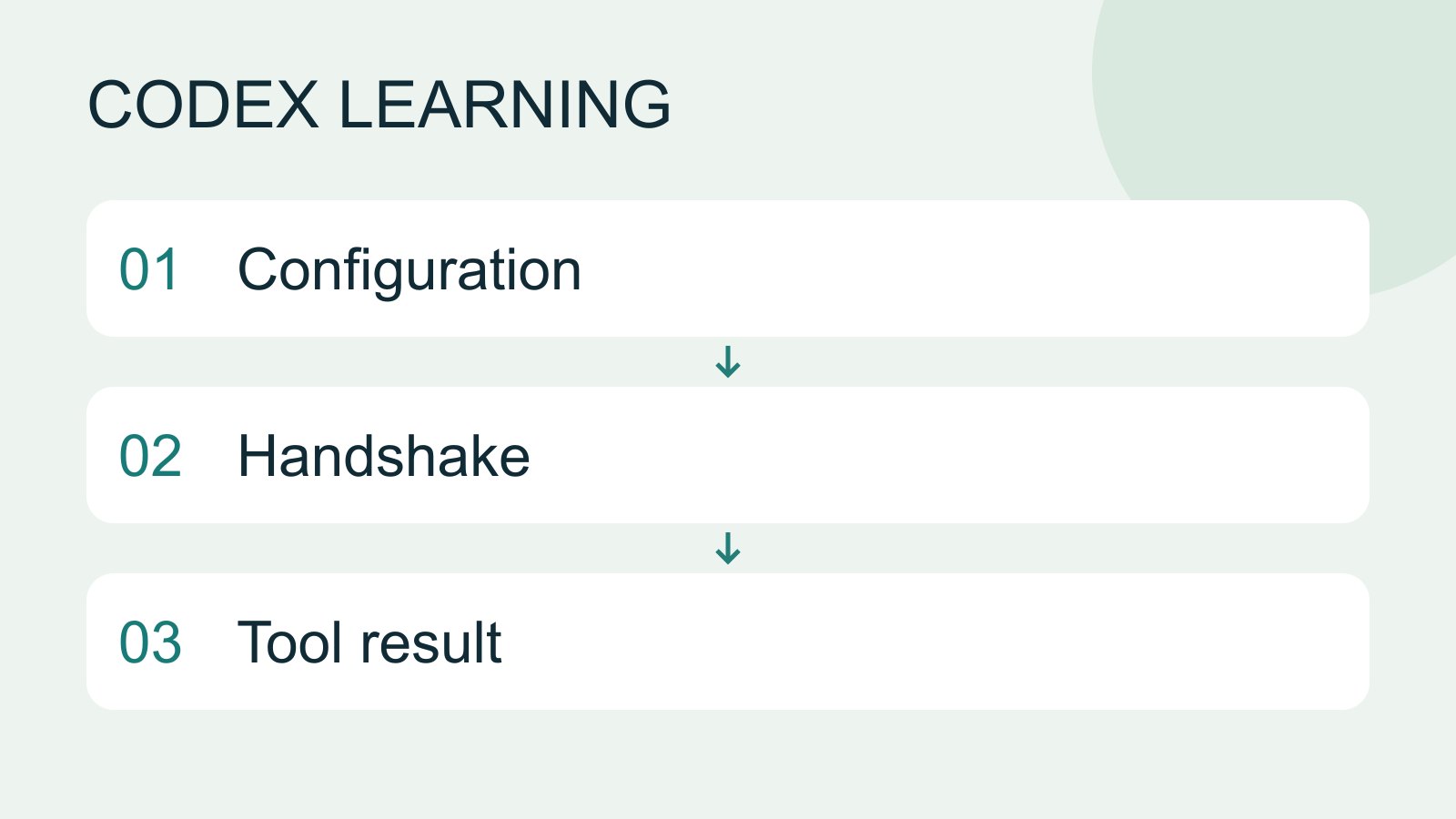
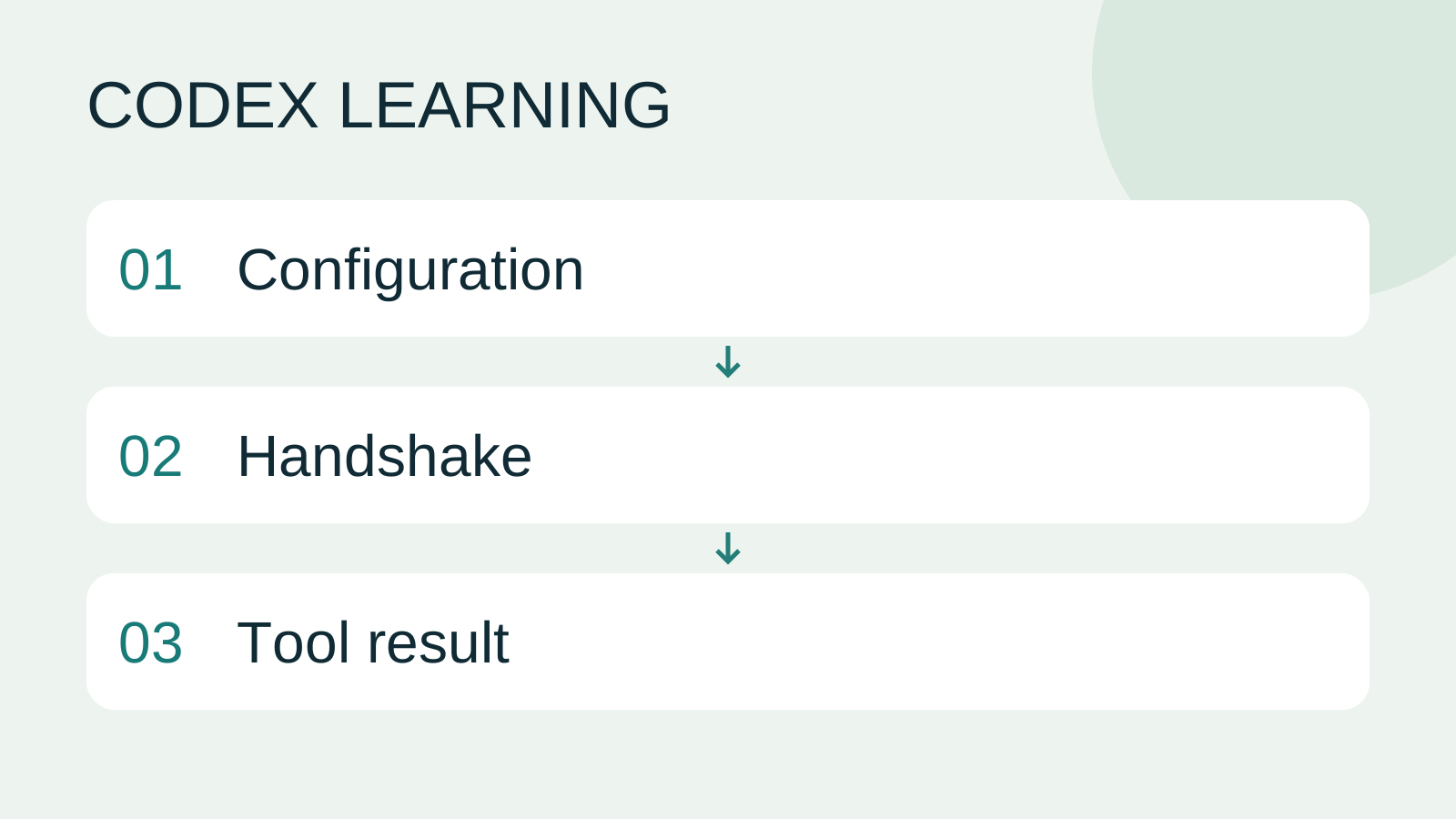
Configuration to Handshake to Tool result
Lifestyle
Codex learning hub: tutorial directory
A planned 60-lesson, ten-unit Codex curriculum, from setup and your first task to MD instructions and advanced integrations. Find your next lesson by experience, platform, goal or command; unpublished entries show their status.
Lifestyle
Worktrees and isolated tasks
A Git worktree gives one repository multiple working directories on different branches. It isolates file edits, but databases, ports and external services may still be shared. File isolation is not full resource isolation.
Lifestyle
Workshop: build a small website
Plan and build the Small Steps task website from brief.md, with adding, completing, deleting, filtering and local persistence. Separate HTML, CSS, data functions, UI events and tests, verify with Node and browser checks, and document restart and recovery steps.
Lifestyle
Usage and efficiency: reducing rework
Record task conditions, model options, time and outcomes to reduce unnecessary retries and excess context.
Articles that cite this one
Latest travel guides

GuideTokyo
Where to Stay in Tokyo: Comparing Shinjuku, Ueno, Tokyo Station, Shibuya, Asakusa, Ikebukuro, and Ginza, Plus Airport Access, Accommodation Tax, and Luggage Delivery
Where should you stay in Tokyo? Compare Shinjuku, Ueno, Tokyo Station, Shibuya, Asakusa, Ikebukuro, and Ginza by the same criteria: access from Narita and Haneda, transit routes, nearby attractions, neighborhood character, and who each area suits. Includes a comparison table, a Yamanote Line diagram, Tokyo’s accommodation tax as verified in 2026/9 (changing to 3% in 2027/4), and Airport TA-Q-BIN luggage shipping rules.
- Budget
- Hotels

GuideTokyo
How to Choose Tokyo Transit Passes: Are Suica, Welcome Suica, the Tokyo Subway Ticket, and the JR Pass Worth It?
On a first Tokyo trip, start with an IC card and pay per ride (Welcome Suica has no deposit and is valid for 28 days). If you take four or more subway rides in a day, add a 72-hour Tokyo Subway Ticket for 2,000 yen; a JR Pass is never worthwhile if you stay in Tokyo and do not go to Kansai. See what TOURIST PASMO, Suica on iPhone, and the Tokyo Metro day pass do and do not cover, with a decision chart. Prices verified in September 2026.
- Transport
- Budget

GuideTokyo
Tokyo Disneyland and DisneySea Guide: Ticket Prices, Fantasy Springs, Disney Premier Access (DPA), Standby Pass, and Which Park to Choose for Your First Visit
Tokyo Disney one-day Passport prices vary: most weekdays in 9/2026 cost ¥9,900 and weekends ¥10,900. At 14:00 daily, tickets go on sale for the same date two months later. Free Priority Pass is no longer on the official service list; only paid Disney Premier Access (¥1,000–3,500 per person per use) shortens waits. Covers hours, the 25th anniversary, Standby Pass, Entry Request, Fantasy Springs access and first-visit park choice; checked on the official site in 9/2026.
- Itineraries
- Family
Sources
- Model Context Protocol · Checked:
- OpenAI Docs MCP · Checked: