Lifestyle
Configure Codex with config.toml
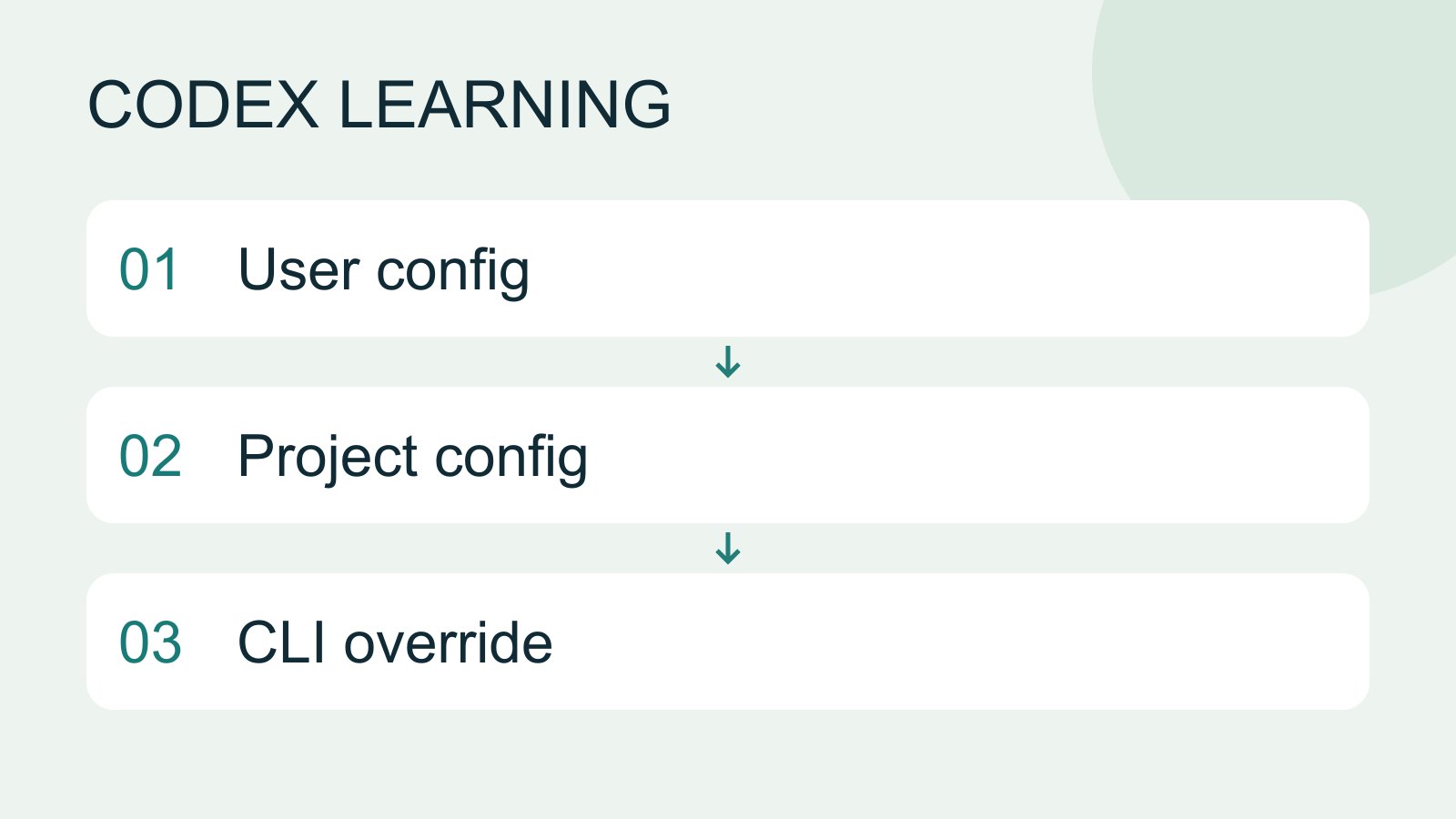
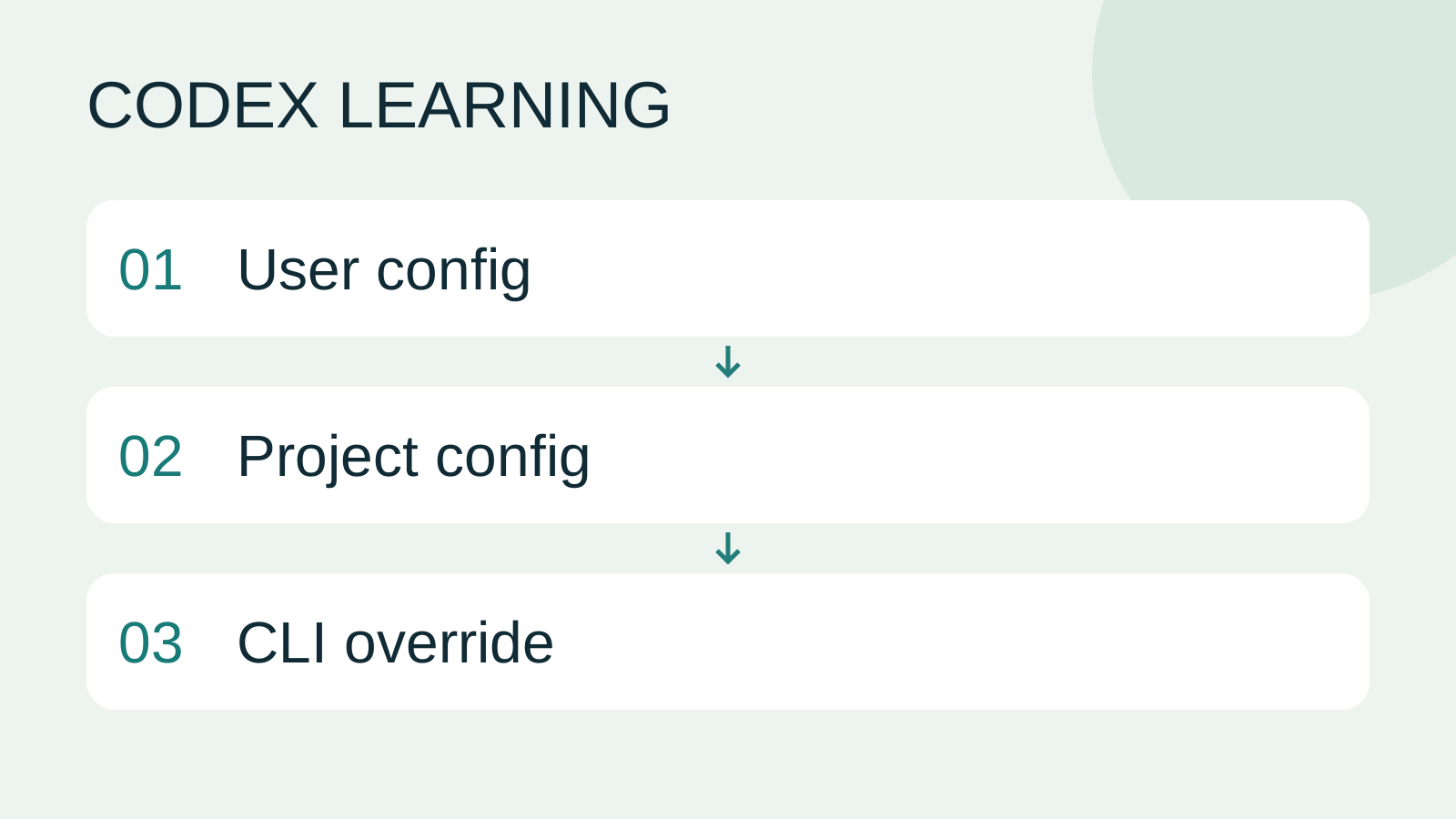
config.toml sets client options, while AGENTS.md describes working instructions. User settings live in Codex home; trusted projects can add .codex/config.toml. CLI overrides, project layers and managed requirements mean a single file does not prove the effective configuration.
About 12 min read · Practice 25 min
Practical · Desktop / CLI / VS Code / JetBrains
Before you start
On this page
Back to the Codex learning hubCodex learning hub: tutorial directoryA planned 60-lesson, ten-unit Codex curriculum, from setup and your first task to MD instructions and advanced integrations. Find your next lesson by experience, platform, goal or command; unpublished entries show their status.Read the full article
Goal and preparation
AGENTS.mdProject instructions with AGENTS.mdAGENTS.md supplies project instructions before Codex starts work. Global guidance and files along the project-root-to-working-directory path form an instruction chain. At the same level, AGENTS.override.md takes precedence. Keep rules concrete and verify what was actually loaded.Read the full article instructs the agent; config.toml configures the client. Mentioning a model in ordinary Markdown does not change the configured default. Un-commented prose in TOML may make it invalid. Learn location, verification and restoration with one low-impact option before adding other settings you need.
Distinguish user and project configuration
User configuration normally lives at .codex/config.toml under your home directory; check an existing CODEX_HOME override if present. Project configuration is .codex/config.toml inside a repository and loads only for trusted projects. Same filename, different scope. This exercise creates only the lab's file, without moving authentication, changing user defaults or altering system environment variables.
| System | Default user location | Lab location |
|---|---|---|
| Windows | .codex/config.toml under user folder | codex-config-lab/.codex/config.toml |
| macOS | ~/.codex/config.toml | Same lab-relative path |
| Linux/WSL | That Linux user's ~/.codex/config.toml | Lab path in that environment |
| IDE extension | Gear → Codex Settings → Open config.toml | Check the opened file's actual path |
Step 1: Record the starting state
Create a new codex-config-lab and note.txt with the line below. Verify the integrated terminal location using Get-Location in PowerShell or pwd on macOS/Linux, then run git init in this new lab to define the project root. Do not create project configuration yet. If that folder already belongs to another project, choose a new lab location instead of resetting it.
CONFIG-LAB-01
Start codex --cd . in the shell. For a trust prompt, verify it identifies the lab you just created. Inside interactive Codex, run the two slash commands separately; they are not shell commands. /debug-config shows configuration layers and enabled state, while /status checks session context. Record relevant paths/states without publishing full private diagnostics.
/debug-config
/status
If /debug-config is absent, inspect that version's / menu, use /exit to return to the shell and record codex --version. Update through its official installation source, restart CLI and check again. Do not invent a same-named shell command. If diagnostics remain insufficient, mark the effective setting unverified rather than relying on a model assurance. Save your baseline and use /exit.
Step 2: Add one reversible setting
Create .codex/config.toml through the project's file explorer. Verify it is inside .codex, not root config.toml or a .txt file. If it exists, make an identifiable backup, record the original value and modify the existing top-level web_search key without duplicating it. For a new lab file, use the complete sample below.
# Practice setting: disable the built-in web search tool.
web_search = "disabled"
Keep key/value spelling, use straight quotes for the string and # for comments. This is a top-level key: do not blindly append it below [features] or another table header, which changes subsequent key scope. Do not copy the website's surrounding backtick fence into the file. Save as UTF-8 plain text and recheck.
Step 3: Restart and identify the effective source
Launch a fresh codex --cd . from the lab without --search, -c or --profile overrides. Inspect /debug-config for an enabled project layer. If skipped as untrusted, verify the project's origin and follow the normal trust flow. Diagnostics may list layers from low to high precedence: read their labels and enabled state rather than treating the first row as the winner.
Compare effective settings or available-tool information with the file, then send the local-read request below. Expect CONFIG-LAB-01 and no search for this task; if the interface exposes the effective web_search value, it should be disabled. One task not searching proves only non-use, not successful configuration, so retain layer diagnostics as evidence.
Read note.txt from this practice project and report its exact line. Do not edit files, browse websites or call external services. If you cannot verify an effective setting from available diagnostics, say so rather than inferring it from the file alone.
This switch disables the built-in search tool, not every network path. Shell, browser, MCP and external services have their own permissions and settings; see permissions and sandboxingPermissions, sandbox, network and keysSandbox rules define technical access to files and networks; approval policy determines when the agent asks before acting. No prompt does not guarantee permission, and read access does not imply write access everywhere.Read the full article. This exercise neither starts services nor bypasses the setting through another network tool merely to demonstrate it.
Three meanings behind “no search occurred”
Worked case: A only sees disabled in the file; B also sees the project layer skipped as untrusted; C sees it enabled and the effective value disabled. None searched. A's effective value is unknown. B has a loading issue, not an applied project setting. C has diagnostic evidence for this setting, not proof that all network tools are blocked. Record file content, loaded state, effective value and task behavior separately; leave unsupported fields unverified.
Step 4: Restore and record the result
Exit CLI. If no file existed before, move the new config.toml outside the project's configuration directory as a backup. Otherwise restore only web_search's original value or remove only the newly added key. Restart and verify this override is gone and note.txt unchanged. The resulting search mode depends on remaining layers, not an assumed default.
File changed: codex-config-lab/.codex/config.toml
Original state: record whether the file/key existed.
Requested change: web_search = disabled
Loaded layer: record observed path and enabled/skipped state.
Effective value: record verified value, or unverified.
Local read: record actual note.txt result.
Restoration: record the restored file/key state and fresh-session check.
Troubleshooting and next steps
For startup failure, inspect the named TOML file/line for quotes, duplicate keys and table scope. For unchanged values, check path, trust, launch overrides and nearer project layers. For IDE/CLI disagreement, compare OS, user and directory, especially separate Windows and WSL homes. Diagnose the source before choosing reinstallation.
Enforced organization requirements differ from defaults; project keys cannot override forbidden values. Use model selectionChoose a model, effort and speedModel choice affects available capabilities and usage conditions; reasoning effort affects how much work the agent devotes to a problem. Compare quality on the same small task before increasing effort. Use the options currently exposed by your account rather than assuming a named model is universally available.Read the full article for models and reasoning rather than replacing provider/auth settings with a copied configuration bundle. Finish with baseline, enabled and restored records plus explicit unknowns. Continue to configuration troubleshootingConfiguration precedence and diagnosisTrace ineffective or conflicting settings, change one item at a time and keep a reversible record.Read the full article. File syntax can be checked independently; valid TOML is not proof every client loaded it.
Back to the Codex learning hubCodex learning hub: tutorial directoryA planned 60-lesson, ten-unit Codex curriculum, from setup and your first task to MD instructions and advanced integrations. Find your next lesson by experience, platform, goal or command; unpublished entries show their status.Read the full article
Read the full description
User config to Project config to CLI override
Lifestyle
Codex learning hub: tutorial directory
A planned 60-lesson, ten-unit Codex curriculum, from setup and your first task to MD instructions and advanced integrations. Find your next lesson by experience, platform, goal or command; unpublished entries show their status.
Lifestyle
Worktrees and isolated tasks
A Git worktree gives one repository multiple working directories on different branches. It isolates file edits, but databases, ports and external services may still be shared. File isolation is not full resource isolation.
Lifestyle
Workshop: build a small website
Plan and build the Small Steps task website from brief.md, with adding, completing, deleting, filtering and local persistence. Separate HTML, CSS, data functions, UI events and tests, verify with Node and browser checks, and document restart and recovery steps.
Lifestyle
Usage and efficiency: reducing rework
Record task conditions, model options, time and outcomes to reduce unnecessary retries and excess context.
Articles that cite this one
Latest travel guides

GuideTokyo
Where to Stay in Tokyo: Comparing Shinjuku, Ueno, Tokyo Station, Shibuya, Asakusa, Ikebukuro, and Ginza, Plus Airport Access, Accommodation Tax, and Luggage Delivery
Where should you stay in Tokyo? Compare Shinjuku, Ueno, Tokyo Station, Shibuya, Asakusa, Ikebukuro, and Ginza by the same criteria: access from Narita and Haneda, transit routes, nearby attractions, neighborhood character, and who each area suits. Includes a comparison table, a Yamanote Line diagram, Tokyo’s accommodation tax as verified in 2026/9 (changing to 3% in 2027/4), and Airport TA-Q-BIN luggage shipping rules.
- Budget
- Hotels

GuideTokyo
How to Choose Tokyo Transit Passes: Are Suica, Welcome Suica, the Tokyo Subway Ticket, and the JR Pass Worth It?
On a first Tokyo trip, start with an IC card and pay per ride (Welcome Suica has no deposit and is valid for 28 days). If you take four or more subway rides in a day, add a 72-hour Tokyo Subway Ticket for 2,000 yen; a JR Pass is never worthwhile if you stay in Tokyo and do not go to Kansai. See what TOURIST PASMO, Suica on iPhone, and the Tokyo Metro day pass do and do not cover, with a decision chart. Prices verified in September 2026.
- Transport
- Budget

GuideTokyo
Tokyo Disneyland and DisneySea Guide: Ticket Prices, Fantasy Springs, Disney Premier Access (DPA), Standby Pass, and Which Park to Choose for Your First Visit
Tokyo Disney one-day Passport prices vary: most weekdays in 9/2026 cost ¥9,900 and weekends ¥10,900. At 14:00 daily, tickets go on sale for the same date two months later. Free Priority Pass is no longer on the official service list; only paid Disney Premier Access (¥1,000–3,500 per person per use) shortens waits. Covers hours, the 25th anniversary, Standby Pass, Entry Request, Fantasy Springs access and first-visit park choice; checked on the official site in 9/2026.
- Itineraries
- Family
Sources
- Config basics · Checked:
- CLI configuration diagnostics · Checked:
- Web search · Checked: