Lifestyle
What is Codex? How it differs from ChatGPT
Codex is a coding agent that can inspect a project, edit files and run tools in a chosen environment. A model supplies its reasoning; a task is one assignment; a project groups related work and files. Unlike copying a code answer from chat into an editor, an agent can make the change in the workspace you selected.
About 10 min read · Practice 15 min
Beginner · Desktop / mobile / CLI / VS Code / JetBrains / cloud
On this page
Back to the Codex learning hubCodex learning hub: tutorial directoryA planned 60-lesson, ten-unit Codex curriculum, from setup and your first task to MD instructions and advanced integrations. Find your next lesson by experience, platform, goal or command; unpublished entries show their status.Read the full article
What you will be able to do
Understand four different roles
Codex is an agent that can read files, make changes and run commands when the appropriate tools and permissions are available. The model supplies reasoning; the task holds the request and conversation; the environment determines accessible files and tools. A more capable model will not correct a task pointed at the wrong folder. When asking for help, identify the interface, working directory and available tools first.
The distinction from ChatGPT is not simply the application name: current desktop documentation describes Codex work inside the ChatGPT desktop app. Check whether this conversation has a project, can use tools and produces actual file changes or only an answer. A general chat may also have tools; a constrained Codex environment may only support analysis. Judge the capabilities of this particular task rather than its icon or an old screenshot.
Local work uses a folder on the selected computer; cloud work uses a separately configured environment. Identical project names do not automatically synchronize uncommitted files. Mobile remote work also needs a reachable host. See choosing a platformChoosing a Codex platformCompare desktop, mobile, CLI, IDE and cloud scenarios, and identify where files and tools run.Read the full article to compare workflows. This lesson uses a local folder in desktop or CLI so that you can readily inspect the result.
First decide: what capabilities does the request need?
Without running a task, classify three scenarios. ① You paste ten lines and ask for an explanation. ② You want packing.txt on your computer changed so that you can open the result after closing the conversation. ③ You want changes in a configured GitHub repository environment for a later diff review. Which requires reading supplied text, local file access or access to a specific remote environment?
The answers are: ① The supplied text is sufficient; access to your whole folder is unnecessary. ② Select the correct local folder and confirm that tools can read and write it; a reply containing revised text is not evidence that the file changed. ③ Configure and select the remote repository and environment; do not assume it has read uncommitted local files. Continue with desktop basicsDesktop: Windows, macOS and LinuxThe desktop workspace combines tasks, files, terminals and change review. Current official downloads use the name ChatGPT desktop app; choose Codex inside it. Follow the separate installation path for your system. Linux is a preview with a specific support list, not a promise of compatibility with every distribution.Read the full article for the second case or cloud tasksCloud tasks and GitHubCloud tasks run in a remote environment configured for a repository. They suit longer delegated work, but cannot automatically see uncommitted files on your computer. Creating a pull request is distinct from merging or deploying it.Read the full article for the third. This exercise does not require setting up all three interfaces.
Prepare an independent practice folder
Make sure you can sign in to Codex. If it is not installed, complete desktop setupDesktop: Windows, macOS and LinuxThe desktop workspace combines tasks, files, terminals and change review. Current official downloads use the name ChatGPT desktop app; choose Codex inside it. Follow the separate installation path for your system. Linux is a preview with a specific support list, not a promise of compatibility with every distribution.Read the full article or CLI setupInstall and start Codex CLIChoose an installation platform, sign in, inspect a file, make a one-line change, verify it independently and resume the session. Includes a repeatable two-file exercise and a missing-file test.Read the full article. This exercise needs only a plain-text editor and terminal, not GitHub, an API key, Node.js or Python. Use your file manager to create codex-orientation in your documents folder. If that name already exists, choose a new one so that old work is preserved.
On Windows, show filename extensions and save from Notepad as All files with UTF-8. On macOS, use plain-text mode rather than RTF. On Linux, use a text editor and preserve filename case. Create the following two complete files in the new folder. Their extensions are .md and .txt; the filename labels outside the examples are not part of their contents.
File one: codex-orientation/README.md. This describes the project for people; a .md extension alone does not turn it into agent instructions.
# Orientation exercise

This folder contains a fictional packing list.
The list has exactly three items.
No website or package installation is required.
File two: codex-orientation/packing.txt. Put each item on its own line; a final newline is fine.
Notebook
Bottle
Umbrella
Step 1: select the folder and inspect it
In desktop, add codex-orientation as a project and create a task. In CLI, open a terminal in this folder and run codex. Opening the entire documents directory may expose unrelated files to the task; narrow the location to this exercise before pasting the prompt below. The English prompt is shared across all translations for comparable results; you may express the same request in your own language.
Inspect this practice folder without changing files.
Report the working directory, list the files, and read README.md and packing.txt.
Explain what this project contains. Cite the filenames supporting your answer.
If a requested file is missing, say so instead of guessing.
Expect two filenames, three items and an explanation that this is not an executable website. Compare the reported path and contents with your file manager. Wording may vary, but the answer must not add unsupported facts. If it only suggests commands for you to run, check whether this interface actually has file tools; instructions for doing work are not evidence that the work ran.
Step 2: request one checkable edit
In packing.txt, replace the line Umbrella with Raincoat.
Preserve the other two lines and leave README.md unchanged.
Do not add files, install tools, or run a website.
After editing, read packing.txt and report exactly what changed.
After allowing the relevant file edit, reopen packing.txt. The three lines should be Notebook, Bottle and Raincoat, with README.md unchanged and no packages or extra files. If a tool asks for access outside this folder, inspect the reason and narrow the task. This exercise does not need unrestricted access to the computer. See permissions and sandboxingPermissions, sandbox, network and keysSandbox rules define technical access to files and networks; approval policy determines when the agent asks before acting. No prompt does not guarantee permission, and read access does not imply write access everywhere.Read the full article for the actual controls.
Step 3: check failure handling and restore
Next ask it to read missing.txt without writing anything and report if the file does not exist. A correct result states that it is missing and leaves the original two files alone. This tests whether the agent guesses when evidence is absent, without deleting anything to manufacture an error. If it invents contents, ask it to inspect the directory again and correct the unsupported statements.
To restore the example, replace Raincoat with Umbrella in your editor, save and read it again. Do not reset an entire project or delete your documents directory. Interrupting a running task stops further work; text already written still needs checking and restoration. Closing a conversation does not undo file edits. Establish this habit before moving on to GitGit, branches, diffs and recoveryGit stores file history, branches organize changes and diffs show what changed. Codex can help, but you must verify that the changes belong to the task. Restoring an old conversation does not restore Git files.Read the full article.
Troubleshooting and independent practice
If the contents differ, check for another folder with the same name and unsaved editor changes before repeatedly switching models. If README.md is missing, show its full name and rule out README.md.txt, rich-text formatting and case differences. If you only see an old conversation, verify its computer and project instead of assuming that cloud work can see newly created local files.
Repeat independently: replace Bottle with Cup while preserving order and line count, then restore it. You are finished when you can locate the data, identify the actual changed file, verify all three lines and say which actions were not performed. Continue to your first projectFinish your first small projectUse an independent copy of the Small Steps todo website to change its heading and background. Identify the five practice files and compare the diff, core tests and two viewport widths while preserving behavior and data.Read the full article and writing a requestWrite a clear task requestA useful request explains the outcome, available context, boundaries and acceptance checks. 'Improve the page' could mean speed, appearance or accessibility. Convert it into observable behavior before adding more instructions.Read the full article to apply the same checks to a previewable website.
Interface and product terminology were checked against the desktop documentation and CLI documentation on 2026-09-14. This is an original text-file exercise; available tools and responses depend on your environment. The platform editing instructions are not presented as hands-on Codex tests on all three operating systems.
| Role | Meaning in this exercise |
|---|---|
| Agent | Uses tools to do the work |
| Model | Understanding and reasoning |
| Task | This request and conversation |
| Environment | Available files and tools |
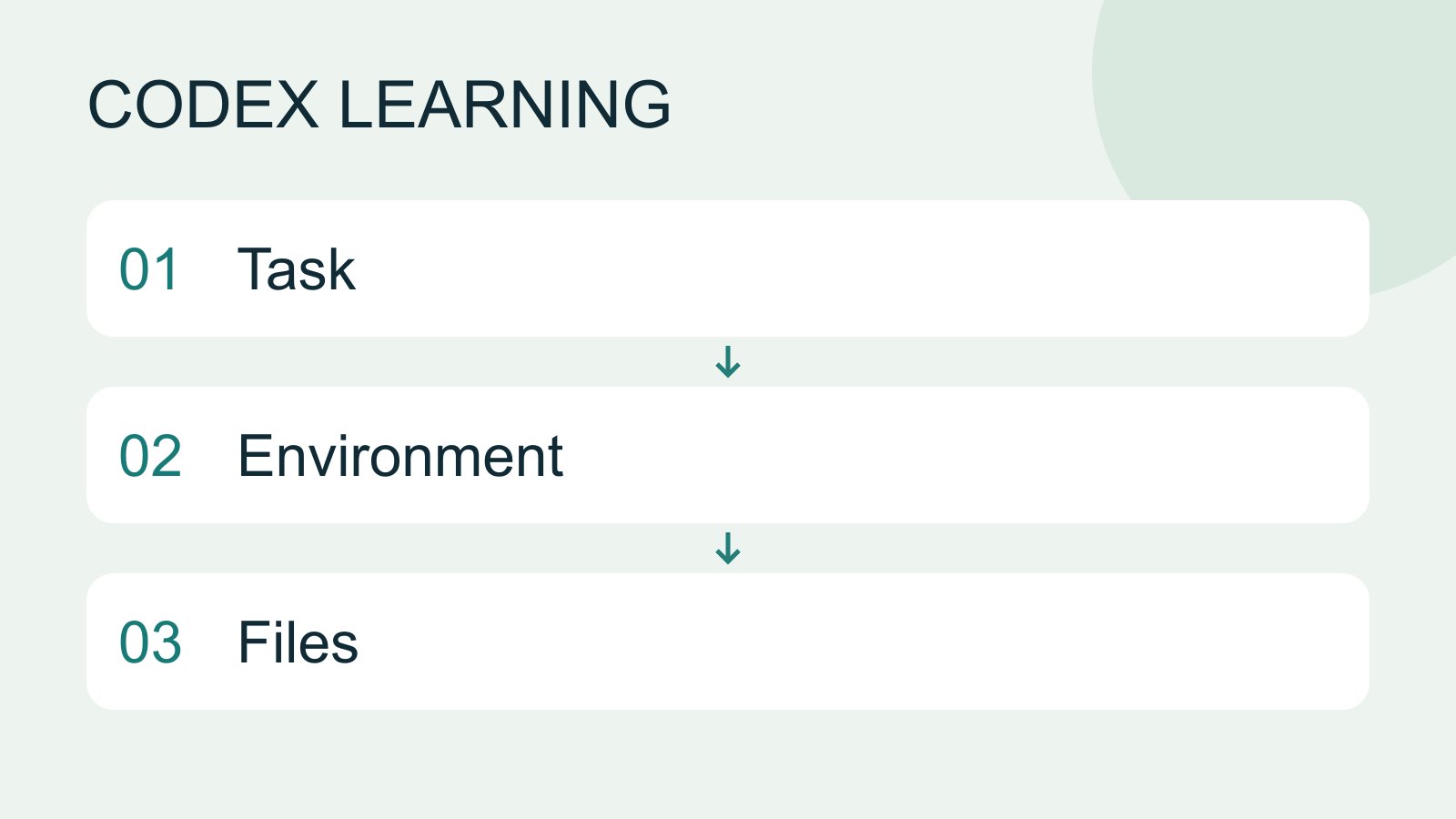
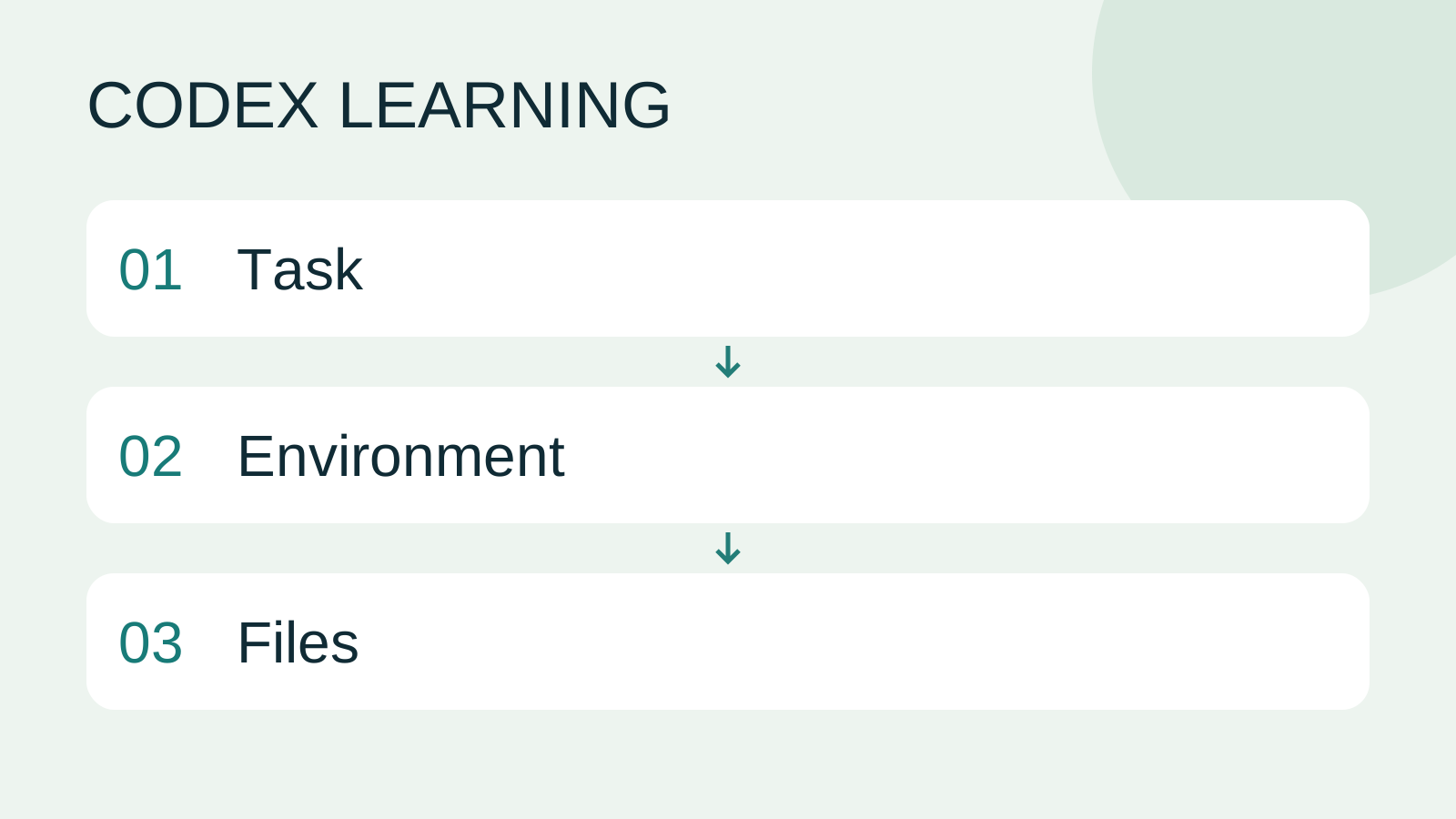
In the diagram, 01 is the task request, 02 the execution environment and 03 the verifiable file result. Match all three to locate the work.
Back to the Codex learning hubCodex learning hub: tutorial directoryA planned 60-lesson, ten-unit Codex curriculum, from setup and your first task to MD instructions and advanced integrations. Find your next lesson by experience, platform, goal or command; unpublished entries show their status.Read the full article
Read the full description
Task to Environment to Files
Lifestyle
Codex learning hub: tutorial directory
A planned 60-lesson, ten-unit Codex curriculum, from setup and your first task to MD instructions and advanced integrations. Find your next lesson by experience, platform, goal or command; unpublished entries show their status.
Lifestyle
Worktrees and isolated tasks
A Git worktree gives one repository multiple working directories on different branches. It isolates file edits, but databases, ports and external services may still be shared. File isolation is not full resource isolation.
Lifestyle
Workshop: build a small website
Plan and build the Small Steps task website from brief.md, with adding, completing, deleting, filtering and local persistence. Separate HTML, CSS, data functions, UI events and tests, verify with Node and browser checks, and document restart and recovery steps.
Lifestyle
Usage and efficiency: reducing rework
Record task conditions, model options, time and outcomes to reduce unnecessary retries and excess context.
Articles that cite this one
Latest travel guides

GuideTokyo
Where to Stay in Tokyo: Comparing Shinjuku, Ueno, Tokyo Station, Shibuya, Asakusa, Ikebukuro, and Ginza, Plus Airport Access, Accommodation Tax, and Luggage Delivery
Where should you stay in Tokyo? Compare Shinjuku, Ueno, Tokyo Station, Shibuya, Asakusa, Ikebukuro, and Ginza by the same criteria: access from Narita and Haneda, transit routes, nearby attractions, neighborhood character, and who each area suits. Includes a comparison table, a Yamanote Line diagram, Tokyo’s accommodation tax as verified in 2026/9 (changing to 3% in 2027/4), and Airport TA-Q-BIN luggage shipping rules.
- Budget
- Hotels

GuideTokyo
How to Choose Tokyo Transit Passes: Are Suica, Welcome Suica, the Tokyo Subway Ticket, and the JR Pass Worth It?
On a first Tokyo trip, start with an IC card and pay per ride (Welcome Suica has no deposit and is valid for 28 days). If you take four or more subway rides in a day, add a 72-hour Tokyo Subway Ticket for 2,000 yen; a JR Pass is never worthwhile if you stay in Tokyo and do not go to Kansai. See what TOURIST PASMO, Suica on iPhone, and the Tokyo Metro day pass do and do not cover, with a decision chart. Prices verified in September 2026.
- Transport
- Budget

GuideTokyo
Tokyo Disneyland and DisneySea Guide: Ticket Prices, Fantasy Springs, Disney Premier Access (DPA), Standby Pass, and Which Park to Choose for Your First Visit
Tokyo Disney one-day Passport prices vary: most weekdays in 9/2026 cost ¥9,900 and weekends ¥10,900. At 14:00 daily, tickets go on sale for the same date two months later. Free Priority Pass is no longer on the official service list; only paid Disney Premier Access (¥1,000–3,500 per person per use) shortens waits. Covers hours, the 25th anniversary, Standby Pass, Entry Request, Fantasy Springs access and first-visit park choice; checked on the official site in 9/2026.
- Itineraries
- Family
Sources
- ChatGPT desktop app · Checked:
- Codex CLI · Checked: