Lifestyle
What website maintenance involves: a routine for backups, updates, and incident reports
Website maintenance includes more than plugin updates: check content, accounts, backups, outgoing email, and expiring services. Using a small WordPress content site, this guide covers routine observation, pre- and post-update checks, restoration, and incident reports, with a worksheet for owners, editors, and maintainers. Set a schedule by update frequency, identify urgent cases, and keep records the next collaborator can use.
About 6 min read
The goal of website maintenance is to keep readers able to do what they came to do and ensure that someone knows how to respond when a problem occurs. Clearing update notices in the administration panel alone does not confirm that contact emails were sent, backups can be used, or former collaborators no longer have permissions. Maintenance needs a clear task list and an owner for every task.
The following example is a small WordPress site that publishes articles continuously. The suggested check intervals are an adjustable planning method, not a fixed service standard for every site. Transaction, booking, and membership sites tolerate data loss and downtime differently, so set backup frequency, monitoring, and recovery methods according to the actual service.
Break website maintenance into work that can be handed over
Divide the work into content, software, services, and accounts. Content includes information accuracy and links. Software includes WordPress, themes, and plugins. Services include hosting, domains, email, and backups. Accounts include administrators, collaborators, and third-party integrations. Assign an owner to each item instead of saying only that “someone looks after the website” while nobody checks email or domain expiry notices.
A content editor may not have permission to manage the server, and a hosting provider may not be responsible for repairing every third-party plugin. If you outsource managed service, list routine maintenance, incident response, and new features separately. You need to know who takes over when a problem occurs, what information you must provide, and which situations incur an additional charge before a site failure forces you to ask about the service boundary.
Set check intervals according to risk
A site with many daily updates and a rarely changed brochure site should not use the same backup plan merely because they run the same software. First ask how much new content you can afford to lose and how long an outage would cause harm, then choose backup, monitoring, and manual check frequencies. Important transaction data also requires payment and order consistency to be considered; occasionally downloading articles is not adequate protection.
Routine observation can start with the shortest visitor journey: can the home page open, can an important article be read, and does the contact entry point work? Periodic checks add outdated content, broken links, account permissions, and service expiry information. Security update notices, failed payment notices, and unusual sign-in alerts should be assessed separately when received rather than left until the scheduled monthly maintenance.
Prepare a recoverable state before updating
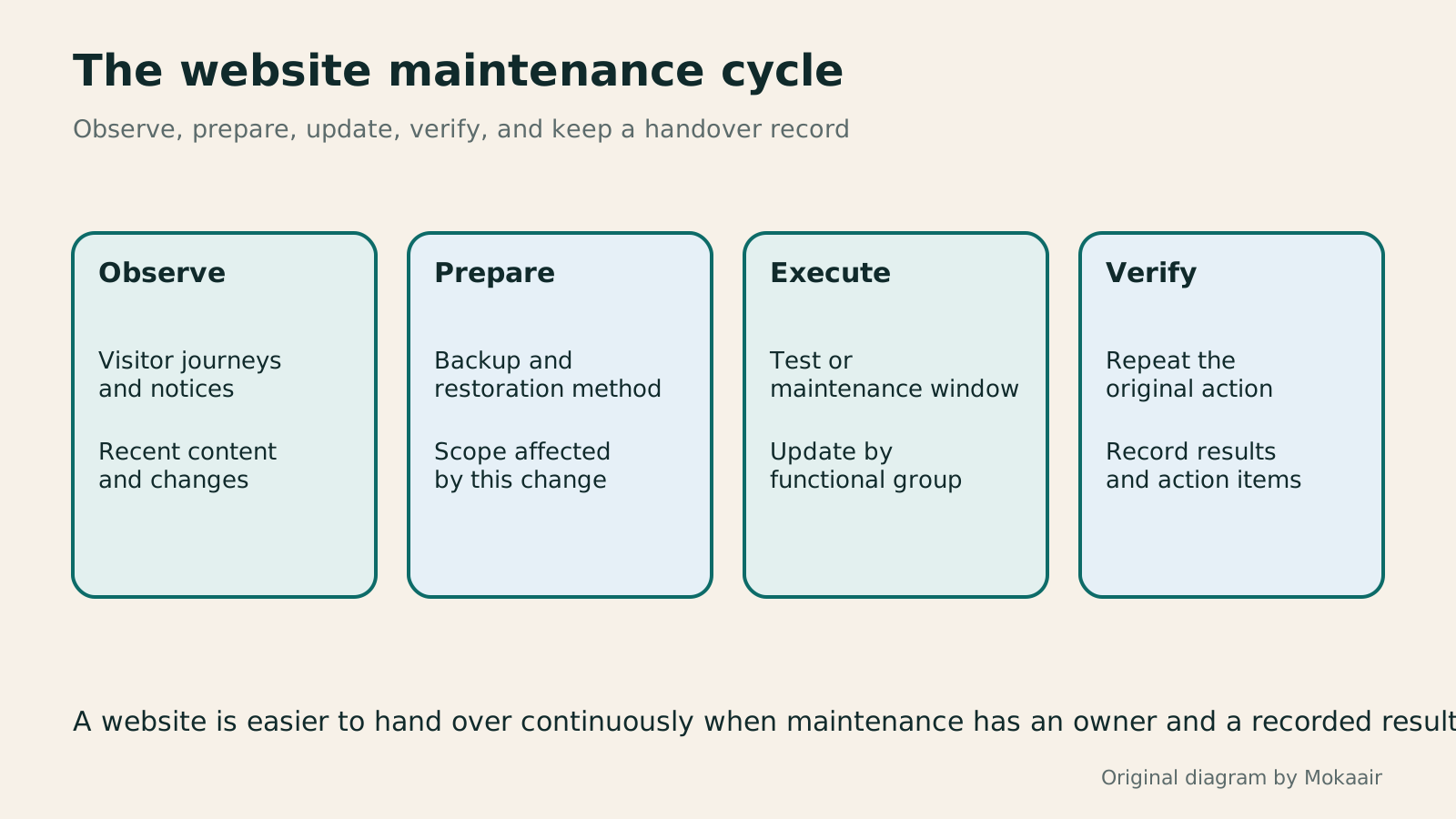
The official WordPress backup and update documentation advises keeping a backup before updating. Restoring a typical site requires both files and a database; neither replaces the other. Record the current versions, important settings, and backup location, then check whether the release notes mention compatibility or data changes. If a staging environment is available, verify important flows on an isolated copy first.
Do not add many new plugins, change the theme, and alter settings in one update, because locating the cause of a failure will be difficult. Work in groups of related functions and check the home page, articles, and primary forms after each group. If an update transforms data, replacing the program files with older versions may not be sufficient to recover; follow that product's official restoration instructions.
- Confirm the components to update, their current versions, and the release notes, then list affected pages or flows.
- Create and verify a backup, confirming that it includes the required files and database and that you know the actual restoration steps.
- Test first in a staging environment, or schedule an acceptable maintenance window, then update in groups of related functions.
- Afterward, complete the visitor journey, inspect error logs, and record the result. If there is a problem, recover with the prepared method.
A backup must be usable for recovery, not merely exist
Record the date, scope, and storage location of each backup. If the backup and production site are kept only in the same account or on the same host, you may lose access to both when that service is unavailable. Arrange an additional copy according to your data and management needs, and confirm who can read it so files containing account or customer information are not exposed as public downloads.
Run restoration exercises in an isolated environment. After restoration, check articles, media, menus, and required settings, and prevent the test site from sending production email or triggering real payments. Opening the home page does not prove complete success. If recent content, images, or essential settings are missing, investigate the backup scope and time instead of keeping only a note that says “restore succeeded.”
An incident report needs a time, reproduction steps, and impact
When the site behaves abnormally, first record the start time, affected URLs, the message you see, and recent changes. Before saying that it “does not work,” distinguish whether no visitor can enter, only sign-in fails, or one form cannot be submitted. This information helps the maintainer narrow the problem and prevents different people from changing unrelated settings at the same time.
Before sharing screenshots and log files, conceal passwords, keys, personal data, and unnecessary billing information. Preserve evidence from before and after the problem instead of deleting logs simply to tidy the display. When handling is complete, repeat the operation that originally failed and confirm the result as a normal visitor. An error-free administrator screen alone does not show that the user's problem has been resolved.
Regularly remove obsolete permissions and unused services
Whenever a collaborator joins, leaves, or changes duties, review account roles and external service authorizations. Before disabling unnecessary access, also check whether scheduled jobs, outgoing email, or backups depend on that account. For an unused plugin, investigate data retention and the consequences of removal before disabling or deleting it, so you do not remove a function the site still needs.
A maintenance record does not need to be a long report, but it should include what was done, the result, remaining actions, and the next owner. The site's reliability should not exist only in one person's memory. Use a record that content editors, technical maintainers, and the site owner can all understand, so the next person can distinguish completed work, items still awaiting verification, and issues under observation.
| Work | Example responsible role | Completion evidence |
|---|---|---|
| Content review | Content editor | Outdated information and links checked |
| Software update | Website maintainer | Versions, backup, and flow test results |
| Backup restoration | Website maintainer | Isolated-environment restoration record |
| Service renewal | Site owner or billing owner | Dates and payment method in the account |
| Permission handover | Site owner and maintainer | List of active accounts and integrations |
What happens when a domain or hosting plan expires: checklist before renewal or deactivationWhat happens when a domain or hosting expires: a checklist before renewal or shutdownDomains, hosting and email can expire separately, with different effects if unpaid. Check orders, expiry details and admin access before renewal, recovery eligibility after expiry, and data to save before closing or moving a site. Build a checklist in time order; manage the domain, site backups, email and external accounts separately. Avoid cancelling a service only to lose verification emails, or keeping a content export without images and site settings.Read the full article
Using HTTPS on a website: certificates, redirects, and mixed-content checks
Lifestyle
Changing domain registrars: transfer locks, authorization codes and keeping DNS working
Moving a domain to another registrar changes who manages its registration; it does not automatically move your website or email. This guide covers eligibility, common locks, authorization codes and the application process. DNS, nameserver and email checks help users in Taiwan hand over domains such as .com, while reminding them to check the separate rules for .tw and other extensions.
Lifestyle
Comparing WordPress hosting: assess providers with one requirements worksheet
To compare WordPress hosting, align site content, service responsibilities and billing periods before interpreting plan differences. This guide offers a worksheet and verification process, separates official specifications from your own measurements and unresolved conditions, and covers renewal, backups, support and exit costs. It is for users in Taiwan choosing their first host or considering a different provider, without ranking services by a single speed test or promotional monthly price.
Lifestyle
Setting up a Namecheap domain: connecting it to a website and email after registration
After buying a Namecheap domain, identify its DNS manager to connect your website and email. Official documentation explains Nameservers, Advanced DNS and Mail Settings, with two routes: change nameservers or keep the current DNS. This guide provides preparation checks, step-by-step verification and fault-reporting details for people using different domain, hosting and email providers, helping prevent accidental deletion of existing email records while bringing a website online.
Lifestyle
Managing a Gandi domain: registration, DNS and renewal checks
Gandi keeps registration, DNS, email and renewal settings in separate places. Based on current official documentation, this guide covers post-purchase checks, LiveDNS records, backups, transfers and what the 2026 Classic DNS migration means for existing users. Check your own account and build a domain register others can take over, avoiding outdated tutorial nameservers and the assumption that paying means your website and email are fully configured.
Articles that cite this one
- A beginner's SEO learning roadmap: make your site readable before measuring traffic and results
- Self-hosting WordPress fonts: files, licenses, and loading speed
- WordPress posts and pages: choose the right content type and URL
- How to back up WordPress: files, databases and restoration drills
- Build a WordPress test site on your computer: MAMP and preparing to go live
- Using WordPress admin: dividing content, design and administrator duties
- WordPress 7.1.2 Patches a Critical Core Vulnerability: Patched Versions by Branch and How to Check Your Site
- What to check before building or migrating a website with SiteGround
Latest travel guides

GuideTokyo
Where to Stay in Tokyo: Comparing Shinjuku, Ueno, Tokyo Station, Shibuya, Asakusa, Ikebukuro, and Ginza, Plus Airport Access, Accommodation Tax, and Luggage Delivery
Where should you stay in Tokyo? Compare Shinjuku, Ueno, Tokyo Station, Shibuya, Asakusa, Ikebukuro, and Ginza by the same criteria: access from Narita and Haneda, transit routes, nearby attractions, neighborhood character, and who each area suits. Includes a comparison table, a Yamanote Line diagram, Tokyo’s accommodation tax as verified in 2026/9 (changing to 3% in 2027/4), and Airport TA-Q-BIN luggage shipping rules.
- Budget
- Hotels

GuideTokyo
How to Choose Tokyo Transit Passes: Are Suica, Welcome Suica, the Tokyo Subway Ticket, and the JR Pass Worth It?
On a first Tokyo trip, start with an IC card and pay per ride (Welcome Suica has no deposit and is valid for 28 days). If you take four or more subway rides in a day, add a 72-hour Tokyo Subway Ticket for 2,000 yen; a JR Pass is never worthwhile if you stay in Tokyo and do not go to Kansai. See what TOURIST PASMO, Suica on iPhone, and the Tokyo Metro day pass do and do not cover, with a decision chart. Prices verified in September 2026.
- Transport
- Budget

GuideTokyo
Tokyo Disneyland and DisneySea Guide: Ticket Prices, Fantasy Springs, Disney Premier Access (DPA), Standby Pass, and Which Park to Choose for Your First Visit
Tokyo Disney one-day Passport prices vary: most weekdays in 9/2026 cost ¥9,900 and weekends ¥10,900. At 14:00 daily, tickets go on sale for the same date two months later. Free Priority Pass is no longer on the official service list; only paid Disney Premier Access (¥1,000–3,500 per person per use) shortens waits. Covers hours, the 25th anniversary, Standby Pass, Entry Request, Fantasy Springs access and first-visit park choice; checked on the official site in 9/2026.
- Itineraries
- Family
Sources
- Official WordPress backup documentation · Checked:
- Official WordPress update documentation · Checked:
- Official WordPress hardening guide · Checked: