Lifestyle
Using WordPress admin: dividing content, design and administrator duties
Taking over a WordPress site? Learn daily tasks: posts, pages, images, design and settings that need an administrator. This guide maps common menus and default roles, with steps to record changes, preview, publish and report faults so small teams can divide work clearly. Interfaces vary by theme, plugin and permissions; check the environment when a feature is missing instead of raising everyone's access.
About 7 min read
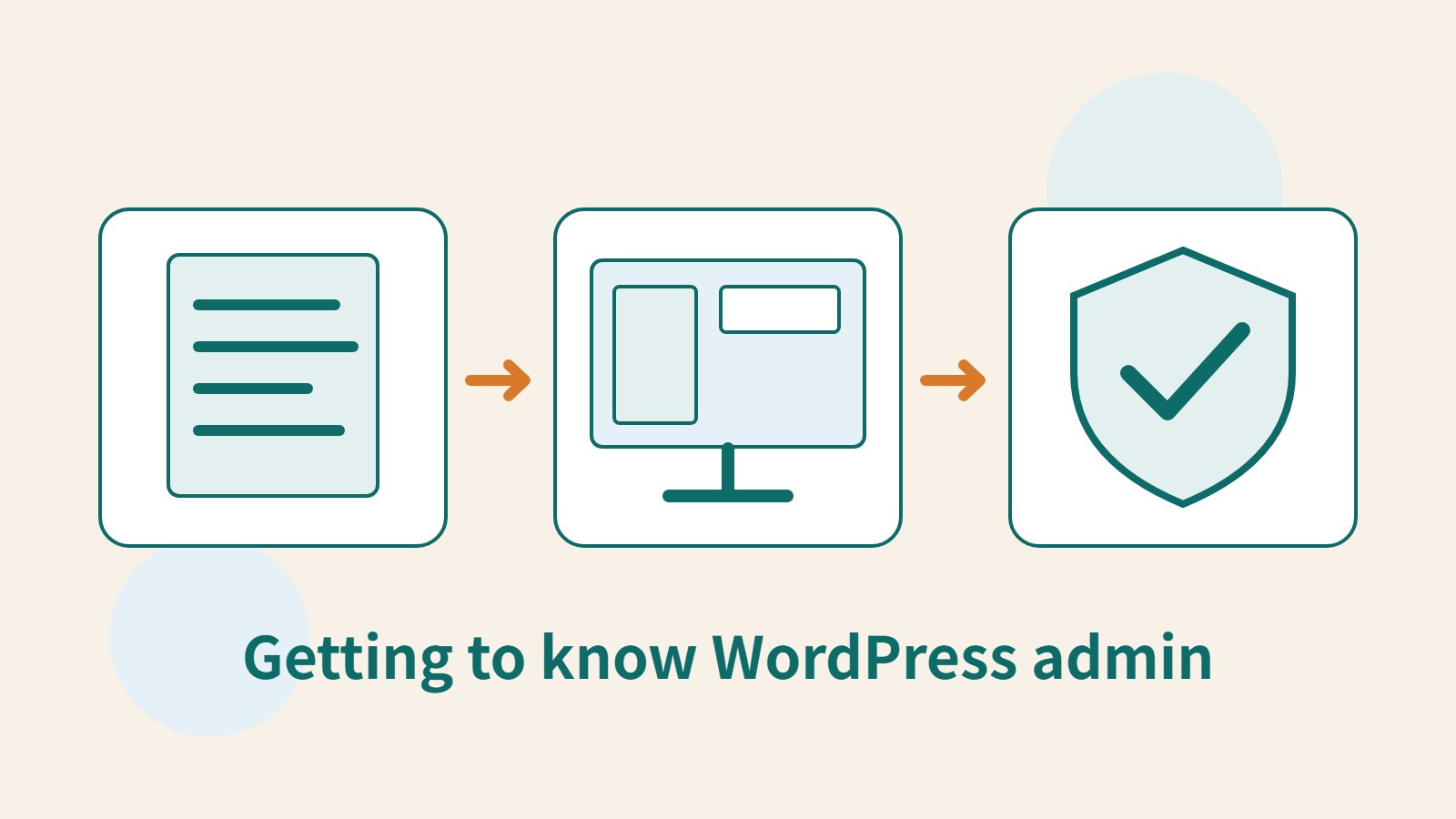
When taking over WordPress admin, you do not need to learn every button on the first day. Identify three daily tasks, such as updating announcements, correcting contact details and checking comments, and learn the relevant menus through those tasks. Separating content work from site-wide settings helps avoid changing the whole website just to revise a short passage.
Consider two people maintaining a club website together: one prepares event posts, and the other checks and publishes them. The workflow is based on official WordPress documentation, and the role descriptions assume a default single-site installation. Plugins, custom permissions and a Multisite network can change actual capabilities, so verify them against the site's current settings.
Confirm the website and account first
After signing in, check the URL, site name and current account. Similar-looking production and test sites are easy to confuse when you are busy; give the test site a clear label and use separate bookmarks. Even when entering WordPress through a hosting platform, confirm that you selected the correct website before making changes.
The administration area usually has a top toolbar, a navigation menu and a main workspace. The Dashboard shows content activity and site information, but some messages come from plugins or vendors. Before acting on promotions, installation prompts or warnings, identify their source and whether they are needed. Not every notice is an urgent requirement from WordPress core.
If a feature is missing, check your role, theme and plugins first. Some screens have adjustable display options, and block themes and classic themes may use different appearance controls. When sending a screenshot to the administrator, explain the task you need to perform. That makes it easier to find an appropriate solution than simply asking for every permission.
Find content controls by task
Posts suit content published over time, such as club event news. Pages suit more stable site information, such as how to join and contact details. The Media Library manages uploaded files, while Comments handles reader responses. Learn these four areas first, then explore categories, excerpts and other settings.
Before each edit, locate the right item by title, status or date, then open the editor. If titles are similar, check the URL and content before changing anything. Bulk editing saves time, but applying it to everything is unsuitable when you are new to the site. First check its effect on an item that will not disrupt operations, so you understand the scope.
When the club changes an event venue, correct the event page first, then check whether related announcements also need updating. Renaming an image in the Media Library does not change text inside the image. Nor should you update only the homepage excerpt while leaving old details on the full page. List every location that needs updating to avoid conflicting information.
Distinguish individual content from site-wide design
Body blocks in the post editor mainly affect that post. With a block theme, the Site Editor can manage templates, styles and shared structures. Changes to a header, footer or shared style may affect many pages. Before editing, identify whether you have selected post content, a template or a shared component, and review the change list when saving.
A site with a classic theme may use Customize, Widgets or the theme's own settings to change its appearance. A missing Site Editor does not mean the installation is broken; check the theme type first. If a page-builder plugin is installed, learn which pages it controls so mixing editing methods does not damage existing layouts.
For people who are not responsible for design, a useful initial agreement is to edit only content and images, leaving fonts, site-wide colors, navigation and templates to designated staff. This is a suggestion for dividing work, not a rule that content editors can never adjust design. When needs change, agree on specific permissions and acceptance checks.
Assign roles by responsibility, not seniority
Among the default roles, an Administrator manages a single site; an Editor can manage and publish posts, including those by other authors; an Author primarily manages and publishes their own posts; and a Contributor can prepare their own posts but cannot publish them. A Subscriber mainly manages their profile. This is an overview of default capabilities; plugins or administrators may alter them on an actual site.
If the club requires every announcement to be reviewed, do not automatically assign the Author role just because a colleague writes content: Authors can publish their own posts by default. First list the required capabilities, including uploading media, editing others' content, publishing and deleting. Then choose an appropriate role or reviewed permission configuration.
Give everyone their own account to support suspension, handover and accountability. If someone temporarily helps configure a plugin, agree to review whether they still need those permissions once the work is finished. Before deleting a user, resolve ownership of their content so you do not accidentally delete both a departing person's account and their posts. Keep a backup and obtain administrator confirmation when needed.
Use a consistent process for each change
Record what you intend to change, its original value and the expected result, then make a limited change. Save and preview content as a draft first where appropriate; remember that updates to already-public posts affect visitors. If a page has forms, buttons or external links, test the associated workflow as well as its layout, confirming the destination and how data are received.
Before changing plugins, themes or site-wide settings, confirm the backup and recovery method, and test on a staging site where appropriate. Avoid changing several dependent components at once, which makes faults hard to trace. Recording the time and items changed also helps other administrators avoid working on the same area simultaneously.
- Confirm the site, account, content URL and purpose; retain the original values or necessary backup.
- Make the smallest relevant change and check whether it affects one item or the whole site.
- Preview desktop and mobile layouts, and test links, forms and the signed-out state.
- Submit for review or publish according to your permissions, record the result and notify the person taking over.
Read Site Health and report problems
Site Health under Tools provides status checks and environment information to help you understand versions, plugins and settings. Its Info screen displays information; it is not a place to change every server setting. For recommended improvements, first understand the impact and who is responsible. Having no warnings does not replace testing forms, sign-in and content functionality.
When reporting a problem, include the URL, time, steps taken, error message and affected scope, with passwords and personal information redacted. If it started just after an update, include the updated items and backup location. This record gives the next person known facts to work from instead of making them guess which buttons you pressed.
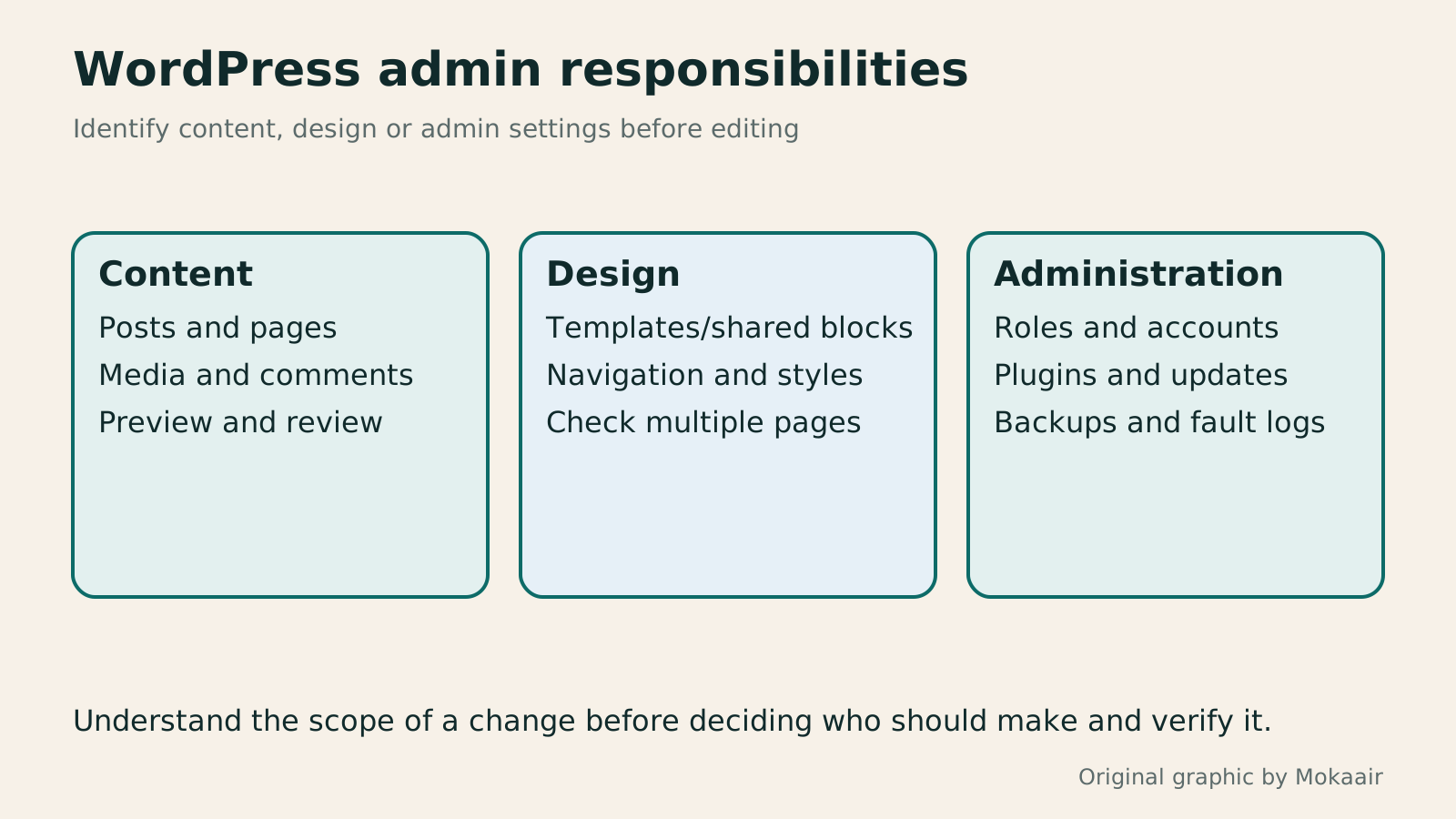
Read the full description
Original diagram dividing WordPress work into content updates, site-wide design and account administration.
| Daily task | Where to start | What to check |
|---|---|---|
| Add an announcement | Posts | Status, publishing permissions and URL |
| Correct contact details | Pages | Consistency across related pages |
| Replace an image | Media and the content editor | Where it is used and its license |
| Change site-wide design | Appearance or Site Editor | Effects on shared templates |
| Adjust permissions | Users | Required capabilities and content ownership |
| Check environment information | Tools → Site Health | Diagnostics are not all settings |
Building your first WordPress siteYour first WordPress site: from a test site to a public websiteYour first WordPress site needs more than a successful installation: its URL, content, email and backups must work too. Using a typical personal site, this guide covers accounts and information to prepare, automatic versus manual installation, basic admin settings, home-page and post organisation, and visitor tests before launch. The goal is a site someone else can maintain, not just a completion screen visible to its administrator.Read the full article
Planning website maintenanceWhat website maintenance involves: a routine for backups, updates, and incident reportsWebsite maintenance includes more than plugin updates: check content, accounts, backups, outgoing email, and expiring services. Using a small WordPress content site, this guide covers routine observation, pre- and post-update checks, restoration, and incident reports, with a worksheet for owners, editors, and maintainers. Set a schedule by update frequency, identify urgent cases, and keep records the next collaborator can use.Read the full article
Lifestyle
After a WordPress Move: Check Search Traffic, the Old Host, and Renewals
A completed WordPress move still needs checks that the new host is stable, search entry points work, backups can be used, and old services can safely stop. This guide provides a cutover observation checklist, a way to interpret search traffic, an inventory of old-host dependencies, and renewal closeout steps. Individual site owners and studios can retain the information needed for rollback without confusing temporary fluctuations, ending renewal, and immediately deleting a site.
Lifestyle
Move WordPress to a New Host Without Changing the Domain: Migration, Testing, and DNS Cutover
When WordPress moves to a new host, its URLs can stay the same, but files, the database, certificates, and external services still need a handoff. This guide covers preparation of the new host, restricted previews, the final data sync, and DNS cutover in order. A verification table and rollback criteria help individual site owners and studios keep their domain while moving hosts, without canceling the old service before recovery options are secure.
Lifestyle
Changing a WordPress Domain: Check Redirects, Search Signals, and Email
Changing a WordPress domain means handling internal URLs, redirects from old links, search signals, and email together. Starting with a URL mapping, this guide explains how to preview database replacements, check permanent redirects, test sending and receiving on the new domain, and monitor the change after launch. It helps personal brands and studios plan a name change without assuming that editing the WordPress site address completes the move.
Lifestyle
Moving from WordPress.com to Self-Hosted WordPress: Content, Media, and URLs
Before moving a WordPress.com site to self-hosted WordPress, check your plan, domain, and the handoff for each kind of content. This guide covers the options available to free and paid sites, XML export and import, verification of actual image files, subscriber migration, and when Site Redirect is available. It helps individual creators in Taiwan plan the move and identifies features and billing items that need separate attention after the new site is ready.
Articles that cite this one
Latest travel guides

GuideTokyo
Where to Stay in Tokyo: Comparing Shinjuku, Ueno, Tokyo Station, Shibuya, Asakusa, Ikebukuro, and Ginza, Plus Airport Access, Accommodation Tax, and Luggage Delivery
Where should you stay in Tokyo? Compare Shinjuku, Ueno, Tokyo Station, Shibuya, Asakusa, Ikebukuro, and Ginza by the same criteria: access from Narita and Haneda, transit routes, nearby attractions, neighborhood character, and who each area suits. Includes a comparison table, a Yamanote Line diagram, Tokyo’s accommodation tax as verified in 2026/9 (changing to 3% in 2027/4), and Airport TA-Q-BIN luggage shipping rules.
- Budget
- Hotels

GuideTokyo
How to Choose Tokyo Transit Passes: Are Suica, Welcome Suica, the Tokyo Subway Ticket, and the JR Pass Worth It?
On a first Tokyo trip, start with an IC card and pay per ride (Welcome Suica has no deposit and is valid for 28 days). If you take four or more subway rides in a day, add a 72-hour Tokyo Subway Ticket for 2,000 yen; a JR Pass is never worthwhile if you stay in Tokyo and do not go to Kansai. See what TOURIST PASMO, Suica on iPhone, and the Tokyo Metro day pass do and do not cover, with a decision chart. Prices verified in September 2026.
- Transport
- Budget

GuideTokyo
Tokyo Disneyland and DisneySea Guide: Ticket Prices, Fantasy Springs, Disney Premier Access (DPA), Standby Pass, and Which Park to Choose for Your First Visit
Tokyo Disney one-day Passport prices vary: most weekdays in 9/2026 cost ¥9,900 and weekends ¥10,900. At 14:00 daily, tickets go on sale for the same date two months later. Free Priority Pass is no longer on the official service list; only paid Disney Premier Access (¥1,000–3,500 per person per use) shortens waits. Covers hours, the 25th anniversary, Standby Pass, Entry Request, Fantasy Springs access and first-visit park choice; checked on the official site in 9/2026.
- Itineraries
- Family
Sources
- WordPress: Administration Screens · Checked:
- WordPress: Roles and Capabilities · Checked:
- WordPress: Site Editor · Checked:
- WordPress: Site Health Screen · Checked: