Lifestyle
WordPress categories, tags and menus: help readers find the next article
Categories, tags and navigation menus organize posts, connect details and provide entry points in different ways. Using a fictional home-cooking site, this guide explains naming and creating categories and tags, setting up navigation in block or classic themes, and checking mobile and keyboard use. It also covers what URLs and mappings to preserve when renaming, changing a slug, merging or deleting, so a growing site remains easy to explore without listing every post in an oversized menu.
About 7 min read
With twenty posts, someone may still find an item by scrolling down the home page. With two hundred, readers need clear signposts. Categories, tags and menus are all signposts, but solve different problems. Decide how readers want to search before configuring WordPress; this is easier to maintain than inventing a new tag whenever you publish.
This guide uses a fictional home-cooking site with quick dinners, meal preparation and cooking tips. The steps follow official WordPress documentation and distinguish block themes from classic menus. The category names are original examples; we make no claim that a particular taxonomy will increase traffic or copy another site's structure.
Categories group major topics; tags connect details
WordPress categories can have parent-child relationships and suit relatively stable topic groups. Tags have no such hierarchy and connect details across categories. A cooking site could make ‘Meal preparation’ a category and use ‘Freezer storage’ to connect relevant posts. Readers can then browse a broad topic or follow a shared detail from one article to another.
More categories and tags are not automatically better. Every new name adds maintenance and may create an archive with little content. Before adding one, ask whether an equivalent term already exists, whether several posts are likely to use it and whether readers will understand the name. A private shorthand known only to the author is usually a poor public entry point.
A post can belong to multiple categories, but use a consistent rule. Put a ‘fifteen-minute dinner’ mainly under Quick dinners. Add it to Cooking tips only if it actually teaches a technique. Checking every category merely for more exposure makes archive pages increasingly alike and leaves readers unsure what they will find.
Test the grouping on paper before building it in admin
List existing post titles and sort them into a small set of provisional categories. See whether many posts fit nowhere or every post fits everywhere. The first may mean the topics are too scattered; the second may mean the names are too vague. Adjust using ten to twenty representative posts before applying rules across the site.
In the Posts category management screen, create a name, slug, any needed parent category and description. The name is what readers see; the slug affects the category URL. They need not match exactly, but their relationship should be clear. A hierarchy should reflect content, not turn the category tree into an endlessly nested filing cabinet.
In the tag management screen, create names, slugs and descriptions without parent-child relationships. Choose one preferred term for synonyms: for example, use ‘Freezer storage’ consistently instead of mixing ‘Freezing’, ‘Frozen meals’ and ‘Put it in the freezer’ without a meaningful distinction. If the terms truly serve different tasks, document those definitions before keeping them.
- Select representative posts and draft a category scheme and tag naming rule.
- Create major groups under Posts → Categories; check names, slugs and parents.
- Create necessary detail terms under Posts → Tags and merge synonymous names.
- Assign posts to suitable groups, then open the archive pages to inspect the actual result.
Put only the main reader entry points in menus
A menu can link to pages, categories or other URLs; it need not list every post. A cooking site's main navigation could offer recipe categories, a preparation guide and About. Related links within an article can lead to specific posts. Decide priority and order deliberately instead of appending every new item until the menu becomes an arbitrary list.
Link text should preview the destination: ‘Meal preparation guide’ says more than ‘More information’. If an item only opens a submenu, make that behavior obvious; if it also links somewhere, test the tap action on mobile. A desktop hover test alone cannot establish that touch and keyboard navigation work.
The main menu, footer and in-article links can have different jobs. Put frequently needed content in the main entry points, less-used site information in the footer, and closely related posts near the relevant body text. This keeps the menu short without hiding important material.
Choose the editor that matches your theme
With a block theme, select or create a menu in the Site Editor's Navigation block and arrange links and submenus in List View. Check which menu you are editing, especially if the header and footer share one or have similar names. When adding a link, confirm its destination already has complete content; do not publish an empty page simply to fill out the menu.
A classic theme generally uses Appearance → Menus to add and drag items, then assign the menu to a location supplied by that theme. Creating a menu does not mean it is placed in the navigation visitors use. If you cannot find the expected control, check the theme documentation and your permissions before changing themes just to match an old tutorial screenshot.
After saving, inspect the home page, a post and other important templates in a signed-out window. On mobile, the menu should open, close and scroll, and submenus should respond to touch. Keyboard users must see focus and reach every link; enlarged text must not push the Close button or last item out of reach.
Treat display names and URL changes separately
Changing a category's visible name is different from changing its slug. The latter affects the archive URL; if your permalink structure includes categories, check whether post URLs change too. Before editing, record old and new URLs and where they are referenced, including menus, posts, buttons and messages already sent.
When merging categories, assign the posts you want to keep to the destination category first, verify the archive and only then remove obsolete names. Deleting a category or tag in WordPress does not delete its posts, but confirm where they end up, especially if a post belonged only to the deleted category. Pressing Delete is not the end of a content reorganization.
Give old URLs that still serve readers an appropriate redirect and update links you control, avoiding redirect chains. If an old category has no sensible replacement, consider what readers wanted there; do not send every old route to the home page. Sample both old and new URLs after the change and retain the results for the next cleanup.
Verify that readers can actually find content
Ask someone unfamiliar with the site to complete a simple task, such as finding a meal-preparation post about freezing. Observe where they start and which label gives them pause. Do not supply hints during the test: that would only prove that you know the path. If people repeatedly take a wrong turn, improve names and entry points before adding more categories.
Periodically inspect empty categories, duplicate tags and broken menu items, and check whether new posts follow the naming rules. Keep a short editing note describing each category's purpose and typical examples. Adjust the structure as content grows instead of creating a new branch for every unusual post.
Read the full description
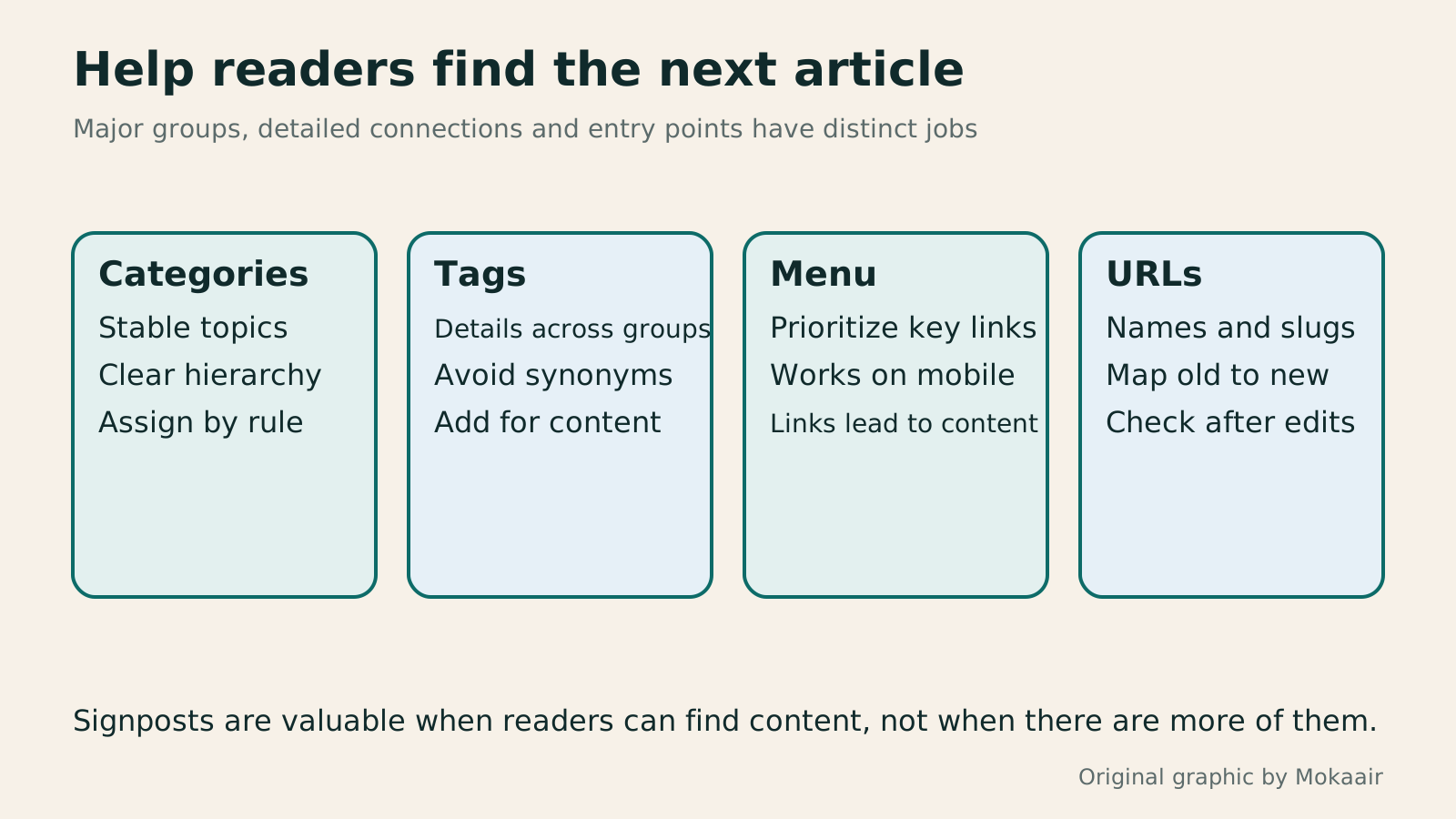
Original four-part navigation diagram of category, tag, menu and URL-maintenance work.
| Tool | Main job | Common confusion |
|---|---|---|
| Category | Major post group; may have hierarchy | Not the main menu itself |
| Tag | Connect details across categories; no hierarchy | No need for a new term per post |
| Navigation menu | Arrange key entry points and their order | Need not list every post |
| Display name | Help readers understand | Renaming need not change the slug |
| Slug | Identify part of a URL | Check old links after changing it |
Choosing between posts and pagesWordPress posts and pages: choose the right content type and URLWordPress posts and pages both hold text and images, but serve different purposes and are organized differently. Using a fictional community baking school, this guide explains when to use each, then covers blocks, excerpts, featured images, URLs and prepublication checks. Follow a repeatable workflow for your first item, and keep links stable when updating published content instead of assuming that a title edit leaves its URL and layout untouched.Read the full article
WordPress admin work boundariesUsing WordPress admin: dividing content, design and administrator dutiesTaking over a WordPress site? Learn daily tasks: posts, pages, images, design and settings that need an administrator. This guide maps common menus and default roles, with steps to record changes, preview, publish and report faults so small teams can divide work clearly. Interfaces vary by theme, plugin and permissions; check the environment when a feature is missing instead of raising everyone's access.Read the full article
Lifestyle
After a WordPress Move: Check Search Traffic, the Old Host, and Renewals
A completed WordPress move still needs checks that the new host is stable, search entry points work, backups can be used, and old services can safely stop. This guide provides a cutover observation checklist, a way to interpret search traffic, an inventory of old-host dependencies, and renewal closeout steps. Individual site owners and studios can retain the information needed for rollback without confusing temporary fluctuations, ending renewal, and immediately deleting a site.
Lifestyle
Move WordPress to a New Host Without Changing the Domain: Migration, Testing, and DNS Cutover
When WordPress moves to a new host, its URLs can stay the same, but files, the database, certificates, and external services still need a handoff. This guide covers preparation of the new host, restricted previews, the final data sync, and DNS cutover in order. A verification table and rollback criteria help individual site owners and studios keep their domain while moving hosts, without canceling the old service before recovery options are secure.
Lifestyle
Changing a WordPress Domain: Check Redirects, Search Signals, and Email
Changing a WordPress domain means handling internal URLs, redirects from old links, search signals, and email together. Starting with a URL mapping, this guide explains how to preview database replacements, check permanent redirects, test sending and receiving on the new domain, and monitor the change after launch. It helps personal brands and studios plan a name change without assuming that editing the WordPress site address completes the move.
Lifestyle
Moving from WordPress.com to Self-Hosted WordPress: Content, Media, and URLs
Before moving a WordPress.com site to self-hosted WordPress, check your plan, domain, and the handoff for each kind of content. This guide covers the options available to free and paid sites, XML export and import, verification of actual image files, subscriber migration, and when Site Redirect is available. It helps individual creators in Taiwan plan the move and identifies features and billing items that need separate attention after the new site is ready.
Articles that cite this one
Latest travel guides

GuideTokyo
Where to Stay in Tokyo: Comparing Shinjuku, Ueno, Tokyo Station, Shibuya, Asakusa, Ikebukuro, and Ginza, Plus Airport Access, Accommodation Tax, and Luggage Delivery
Where should you stay in Tokyo? Compare Shinjuku, Ueno, Tokyo Station, Shibuya, Asakusa, Ikebukuro, and Ginza by the same criteria: access from Narita and Haneda, transit routes, nearby attractions, neighborhood character, and who each area suits. Includes a comparison table, a Yamanote Line diagram, Tokyo’s accommodation tax as verified in 2026/9 (changing to 3% in 2027/4), and Airport TA-Q-BIN luggage shipping rules.
- Budget
- Hotels

GuideTokyo
How to Choose Tokyo Transit Passes: Are Suica, Welcome Suica, the Tokyo Subway Ticket, and the JR Pass Worth It?
On a first Tokyo trip, start with an IC card and pay per ride (Welcome Suica has no deposit and is valid for 28 days). If you take four or more subway rides in a day, add a 72-hour Tokyo Subway Ticket for 2,000 yen; a JR Pass is never worthwhile if you stay in Tokyo and do not go to Kansai. See what TOURIST PASMO, Suica on iPhone, and the Tokyo Metro day pass do and do not cover, with a decision chart. Prices verified in September 2026.
- Transport
- Budget

GuideTokyo
Tokyo Disneyland and DisneySea Guide: Ticket Prices, Fantasy Springs, Disney Premier Access (DPA), Standby Pass, and Which Park to Choose for Your First Visit
Tokyo Disney one-day Passport prices vary: most weekdays in 9/2026 cost ¥9,900 and weekends ¥10,900. At 14:00 daily, tickets go on sale for the same date two months later. Free Priority Pass is no longer on the official service list; only paid Disney Premier Access (¥1,000–3,500 per person per use) shortens waits. Covers hours, the 25th anniversary, Standby Pass, Entry Request, Fantasy Springs access and first-visit park choice; checked on the official site in 9/2026.
- Itineraries
- Family
Sources
- WordPress: Posts Categories screen · Checked:
- WordPress: Posts Tags screen · Checked:
- WordPress: Navigation block · Checked:
- WordPress: Appearance Menus Screen · Checked: