Lifestyle
Clearer Phone Document Scans: Lighting, Cropping, Page Order, and Checks Before Sending
Photographing paper with your phone does not finish a scan. From flattening the original and avoiding shadows to checking every page and the export format, make sure the recipient gets a readable file.
About 4 min read
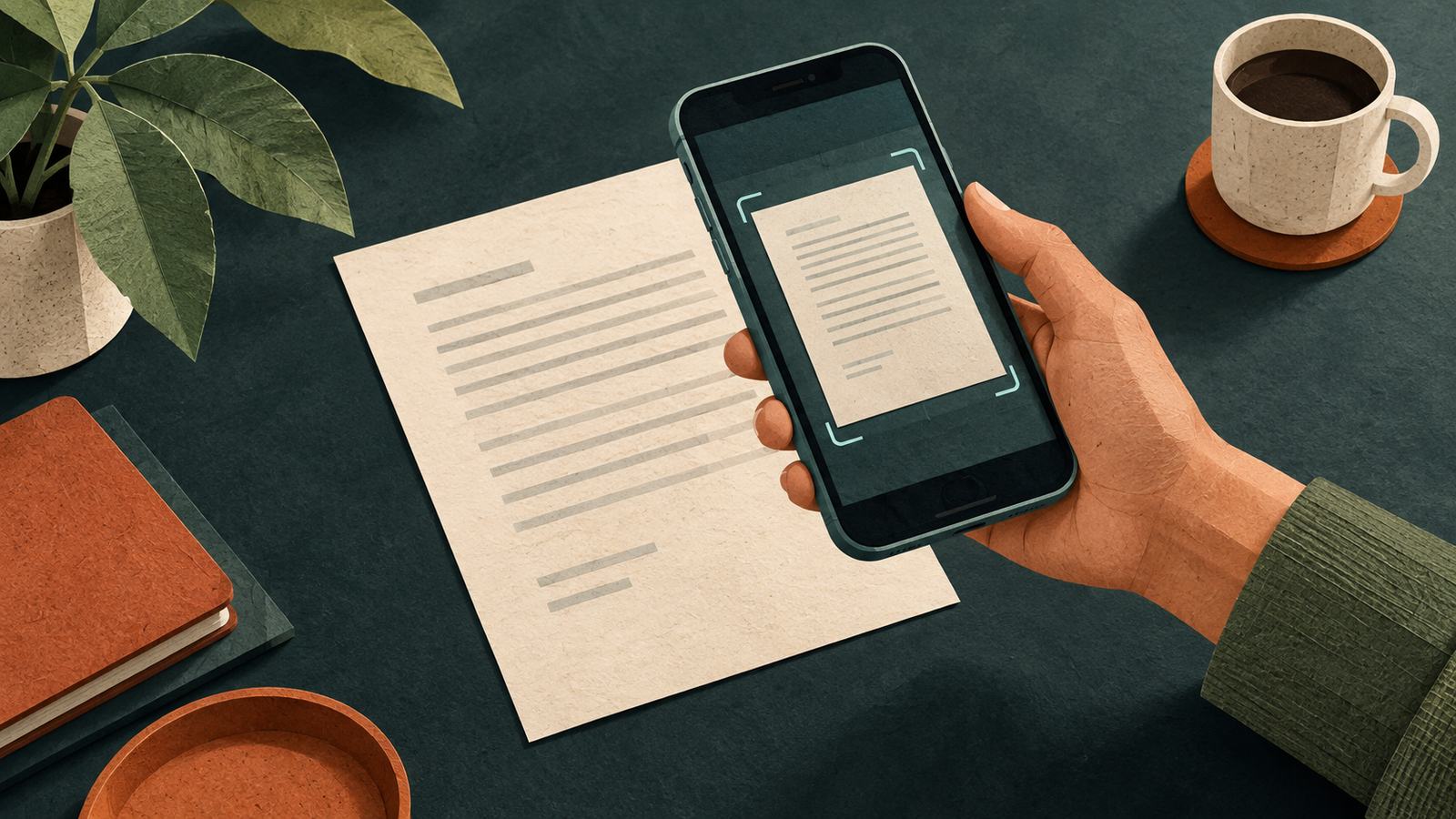
Discovering a cropped-off corner or reversed page order after sending a file usually means another round of replacement documents. Phone scanning is convenient, but success should mean that the recipient can clearly read the content they need. This guide covers a general document-capture workflow. It does not address signature validity, identity-document certification, or whether originals may be destroyed; check those requirements for the actual purpose.
Flatten the paper and use even lighting
Choose a background that contrasts with the paper so all four corners are easy to identify. Clear nearby clutter to keep other documents out of the shot. Position the light to avoid obvious glare and shadows, and keep the phone as parallel to the paper as possible. Creases, fingers covering the page, and glossy sleeves can interfere with readability. Adjusting the setup before taking the picture is more reliable than guessing at invisible text afterward.
Google Drive officially offers phone document scanning, including cropping, page adjustments, and saving. Android and iOS interfaces may differ, so follow the instructions for your device. On your first try, test with paper containing no sensitive information and confirm the output location and format before handling real documents. Whether a scanning service uploads to the cloud also depends on the account, permissions, and product settings. Do not assume every phone tool processes files only on the device.
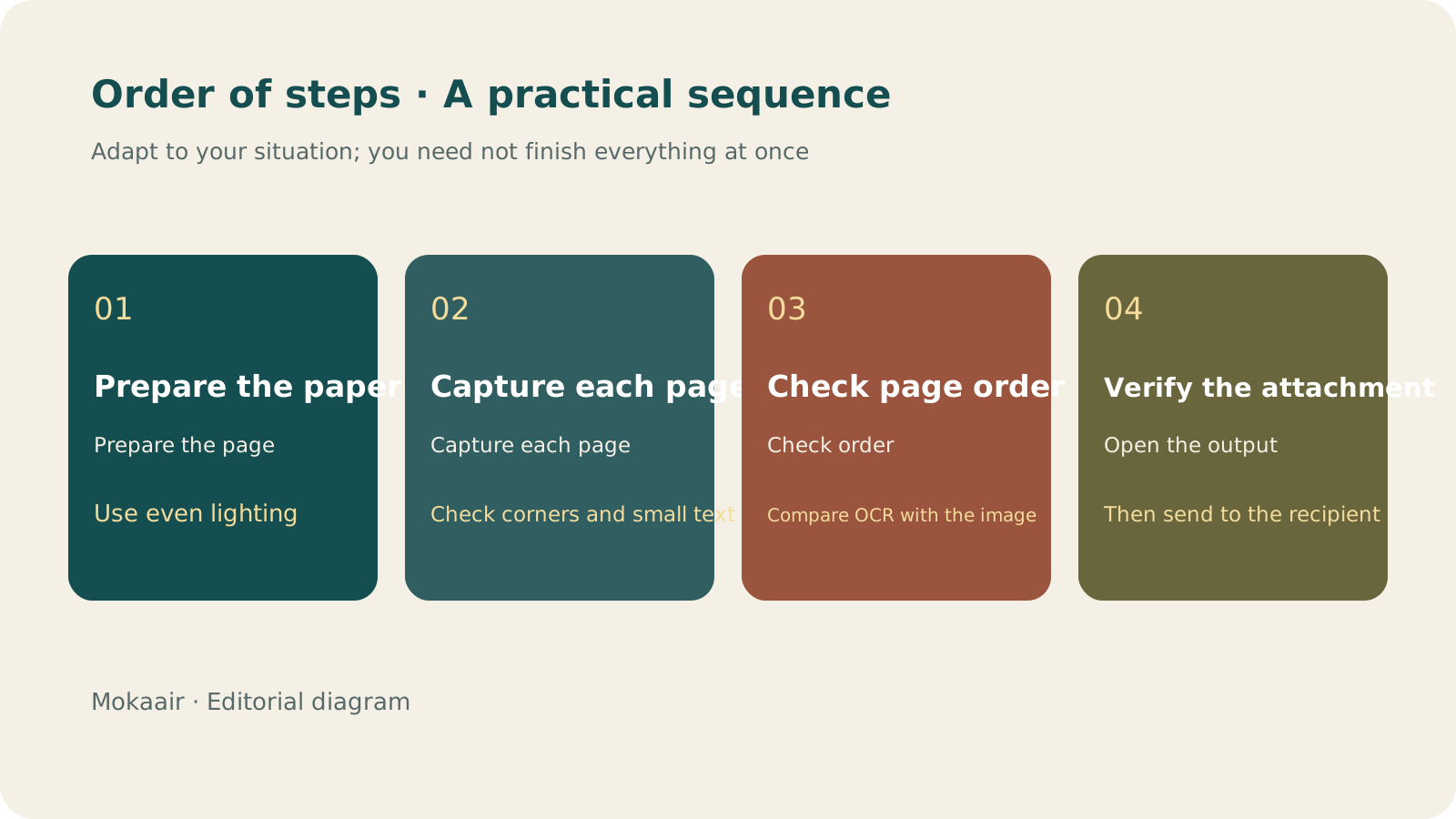
Read the full description
Check in order: prepare the paper, capture each page, check page order, and verify the attachment. An editorial guide, not a map or measured timing.
Check the edges after each page, before finishing the whole batch
| Check | What to look for | If there is a problem |
|---|---|---|
| Corners and edges | Whether stamps, annotations, and page numbers are complete | Crop again or retake the image |
| Text clarity | Zoom in on small text and numbers | Improve the lighting and refocus |
| Color and contrast | Whether faint text, handwriting, and marks are retained | Choose a suitable mode instead of blindly boosting contrast |
| Page order and orientation | Whether the sequence matches the paper original | Reorder or rotate before sending |
| Complete output | Open the actual exported file | Check the page count and attachment contents |
Automatic cropping is only a starting point. If a receipt, note, or binding edge sits beside the document, the system may not retain every part you need. Before adding pages to one finished file, check that their orientation is consistent. When both sides are needed, follow the order of the original instead of photographing only the side with a large heading. Every page should be readable, not just the cover.
Check recognized text too
If the tool offers text recognition, use it to help with searching or copying, but compare names, dates, amounts, and reference numbers with the original image. Recognition results should not automatically replace the original contents. Handwriting, stamps, and table cells in particular may be misread or missed. Before sending anything to another person, ask whether they need a PDF, images, a single file, or separate page files, then export accordingly.
Open the attachment itself before sending
Check the exact file you intend to send, not just the preview inside the app. Confirm its page count, filename, orientation, clarity, and whether unrelated private information has slipped in. When sharing a link, check that the recipient has appropriate access. If you use an email attachment instead, add a clear explanation and make sure you selected the correct version. Keep the paper original until you know it is no longer needed for subsequent uses.
- Test the tool and storage location first.
- Check the corners and small text on every page as you capture it.
- Compare recognized text with the original image; do not guess unclear characters.
- Open the actual attachment and check it again before sending.
Lost a Receipt After Photographing It? Make Purchase Records Searchable and Organize Warranty FoldersCan't Find a Receipt After Photographing It? Build Searchable Purchase and Warranty FoldersKeeping a photo is only the first step. Connect the product, purchase date, seller, order, and warranty information so that when you need after-sales support, you do not have to search your entire photo library.Read the full article
Lifestyle
GPT-6.1 Sol Launches: New Sol Version in the API, Codex and ChatGPT Work, Not in Chat
OpenAI launched GPT-6.1 Sol on September 29, 2026, with the API name gpt-6.1-sol. The launch rollout covers Codex and ChatGPT Work on Plus, Pro, Business, Enterprise and Edu (Enterprise and Edu need an administrator to enable it); Free and Go are not included at launch, and it is not in Chat (checked September 2026).
Lifestyle
Claude Sonnet 5.5 Launches: Same List Price as Sonnet 5, Available in the API, on Cloud Platforms and in Claude.ai
Anthropic launched Claude Sonnet 5.5 on September 28, 2026. API list prices are the same as Sonnet 5 ($2 per million input tokens, $10 per million output tokens). It is available in Claude.ai, the API and several cloud platforms, and higher-risk cybersecurity requests fall back to Sonnet 5 (checked September 2026).
Lifestyle
Claude Code Adds mods: TypeScript Functions in Plugins Change Its Behavior and Interface
On October 1, 2026, Anthropic introduced Claude Code mods: TypeScript or JavaScript functions that ship inside a plugin and run in the Claude Code process, and can rewrite prompts, manage tool calls and draw new interface. Anthropic says they work in the CLI and the desktop app and are not sandboxed; the documentation says v2.1.287 or later is required (checked October 2026).
Lifestyle
What to Do When Searches Get No Clicks: Rethinking Traffic Value Through Reader Tasks
Readers may find opening hours, phone numbers or brief answers on a search page without visiting a website. A non-click is not always a success, and site CTR cannot reveal the overall zero-click search rate. Using an original clothing alterations shop scenario, this article covers checks for search displays, business interactions and actual tasks, from finding information and comparing services to booking, with a comparison table, practical steps and original SVG diagrams.
Articles that cite this one
Latest travel guides

GuideTokyo
Where to Stay in Tokyo: Comparing Shinjuku, Ueno, Tokyo Station, Shibuya, Asakusa, Ikebukuro, and Ginza, Plus Airport Access, Accommodation Tax, and Luggage Delivery
Where should you stay in Tokyo? Compare Shinjuku, Ueno, Tokyo Station, Shibuya, Asakusa, Ikebukuro, and Ginza by the same criteria: access from Narita and Haneda, transit routes, nearby attractions, neighborhood character, and who each area suits. Includes a comparison table, a Yamanote Line diagram, Tokyo’s accommodation tax as verified in 2026/9 (changing to 3% in 2027/4), and Airport TA-Q-BIN luggage shipping rules.
- Budget
- Hotels

GuideTokyo
How to Choose Tokyo Transit Passes: Are Suica, Welcome Suica, the Tokyo Subway Ticket, and the JR Pass Worth It?
On a first Tokyo trip, start with an IC card and pay per ride (Welcome Suica has no deposit and is valid for 28 days). If you take four or more subway rides in a day, add a 72-hour Tokyo Subway Ticket for 2,000 yen; a JR Pass is never worthwhile if you stay in Tokyo and do not go to Kansai. See what TOURIST PASMO, Suica on iPhone, and the Tokyo Metro day pass do and do not cover, with a decision chart. Prices verified in September 2026.
- Transport
- Budget

GuideTokyo
Tokyo Disneyland and DisneySea Guide: Ticket Prices, Fantasy Springs, Disney Premier Access (DPA), Standby Pass, and Which Park to Choose for Your First Visit
Tokyo Disney one-day Passport prices vary: most weekdays in 9/2026 cost ¥9,900 and weekends ¥10,900. At 14:00 daily, tickets go on sale for the same date two months later. Free Priority Pass is no longer on the official service list; only paid Disney Premier Access (¥1,000–3,500 per person per use) shortens waits. Covers hours, the 25th anniversary, Standby Pass, Entry Request, Fantasy Springs access and first-visit park choice; checked on the official site in 9/2026.
- Itineraries
- Family