Lifestyle
WordPress booking systems: time slots, confirmation emails, and cancellation rules
A WordPress booking system must handle service hours, staff capacity, notifications, and cancellations together. This guide compares Amelia, Bookly, and WooCommerce Bookings for a Taiwanese studio, explains operating hours, buffers, and exceptional closures, then tests confirmation, rescheduling, and refunds as an ordinary customer so both staff and customers know when a booking is final.
About 7 min read
A photography consultation, craft workshop, and one-to-one lesson all appear to be a choice of date and time, but their real constraints differ. One needs instructor approval, another a minimum number of attendees, and another cleanup after the service. Putting a calendar on the website alone solves none of these problems.
Before building a booking system, write down the rules normally confirmed by phone. The plugin should show available slots under those rules, keep records, and send notifications. Staff also need a process for cancellations, failed payments, and unexpected closures.
Define whether the booking reserves a person, a place, or a resource
For a one-person photography consultation, allow 45 minutes plus 15 minutes to prepare afterward; one instructor can receive only one party at a time. A craft workshop may hold six people in one slot. If two instructors share a classroom, the room itself also limits bookings; separate staff availability is not enough.
For each service, list its duration, buffer, minimum and maximum attendance, staff member, location, and equipment. Say whether a group reserves the whole slot or unrelated customers may join the same slot. These details show whether a plugin’s capacity and resource features meet the need.
Also define the minimum advance notice, how many months ahead customers can book, and cancellation and rescheduling cutoffs. If staff cannot arrange someone at short notice this afternoon, do not display a slot one hour from now as immediately bookable. Online rules should match bookings taken by phone, at the desk, and through social messages.
Compare plugins and paid features against the workflow
Amelia organizes services, staff, and appointment management, making it a candidate for a studio’s scheduling needs. Bookly also supports booking and calendar integration, but Google Calendar synchronization has different modes; full two-way sync needs the corresponding plan or add-on. “Supports Google” does not mean every mode offers the same capability.
If products and payments already run through WooCommerce, consider WooCommerce Bookings. In its “requires confirmation” flow, the customer first requests a slot and receives a payment link after confirmation. This differs from paying and completing a booking immediately on button click, so both wording and notifications must reflect the state before and after approval.
Check whether each candidate has three required capabilities: capacity for people or resources, the payment method you need, and a customer route for cancellation or rescheduling. A free version displaying a basic form does not imply it includes every operational feature. Budget for licensing, notification-channel fees, and maintenance, then prototype one candidate.
Set regular and exceptional hours with Amelia
Set the correct city time zone in WordPress, such as Taipei, then decide whether to display times in the customer’s time zone. Cross-border online consultations should state the time basis on the booking page and confirmation email. For in-person services, make clear that the time is local to the venue so both parties interpret the same appointment consistently.
Create the service, assign staff and working hours, and set service duration and required buffers. Amelia’s time-slot step limits usable time increments. For a 45-minute service plus a 15-minute buffer, choose a step that supports those values, then check the actual start times shown to customers.
Handle days off and special working days separately. Amelia’s special days can override normal working hours, while days off still take priority and prevent booking. Before adding a makeup workday, check whether a day off is also configured. If the location changes at short notice, verify that the assigned staff member offers the service and has availability there; changing only the displayed address is insufficient.
- Set the site time zone and create services, staff, and locations.
- Enter service duration, buffer, capacity, and regular working hours.
- Add days off and special days, then check priority on exception dates.
- Use a customer account to inspect selectable slots and compare each with the written schedule.
Distinguish request submission, confirmation, and payment notices
After a booking is created, the page and email should state its current status. If manual approval is required, explain how and when staff will respond. For an immediately confirmed service, provide the date, time zone, location, service details, and preparation instructions. Do not title a pending-approval email “Booking confirmed” and prompt a customer to arrange travel prematurely.
Amelia has event-triggered and scheduled notifications. Creation, rescheduling, or cancellation may trigger a message immediately; a reminder one day ahead requires the scheduler to keep running. In testing, wait until the reminder’s scheduled time and verify that the site scheduler actually ran. One immediate confirmation email does not prove that the next-day reminder will arrive.
Test customer and staff notifications separately. Customers need an action route; staff need service details and tasks. Internal notes must not be emailed to customers. Collect only the phone number, name, and other fields required for the service. When payment fails, clearly say whether the slot remains held and what to do next.
Test capacity, calendar sync, and rescheduling
Have two ordinary customer accounts book the same slot in sequence and watch whether remaining capacity is correct. Amelia has a setting that can allow pending appointments beyond maximum capacity, and administrators may have permission to override limits. If the studio does not accept overbooking, align both settings and daily procedures with that rule.
When using an external calendar, check sync direction, which busy events block slots, and whether updates lag. Bookly’s documentation specifically warns that an all-day event marked free may not block a slot as expected. Test creating, changing, and deleting an event; seeing one appointment appear on a calendar is not enough to finish validation.
After a customer reschedules, check that the new slot is reserved, the old one released, and the date and location updated in notifications. Test multi-session purchases, group bookings, and one participant’s cancellation separately so a single action does not remove the whole group’s still-active bookings.
Make cancellation and refunds a traceable closing process
On the booking page, explain cancellation, rescheduling, lateness, and no-show rules, including contact routes and applicable time limits. Actual policy must suit the service and applicable rules; a plugin setting that limits a button does not replace a judgment about consumer rights.
After cancellation, verify the slot, order, and payment separately. Even when the screen says “Cancelled,” check whether the payment provider actually refunded it, how much, and whether the refund failed. With manual bank transfers, record the responsible person and outcome. After a refund, verify that notifications no longer tell the customer to attend.
Before opening bookings to the public, rehearse an unexpected closure: find affected appointments, contact and reschedule each customer, update the roster, and record the outcome. Routinely review the next week’s schedule, unconfirmed requests, and failed notifications so online booking reduces coordination instead of becoming another form staff must constantly watch.
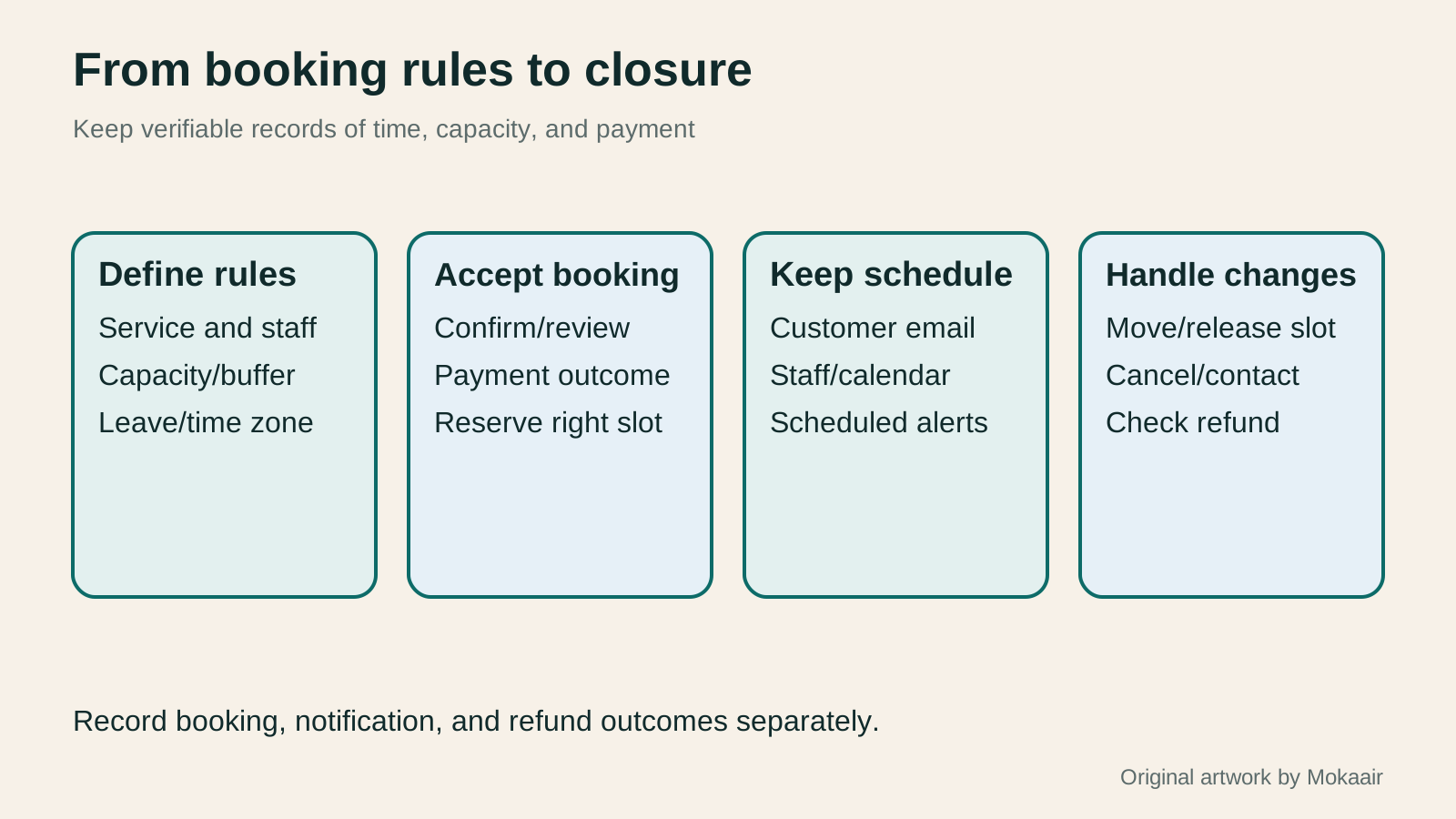
| Check | Test scenario | Question to answer |
|---|---|---|
| Time and buffer | Book two sessions in succession | Is cleanup time preserved? |
| Capacity and resources | Two people seek the same slot | Can overbooking or overlap be prevented? |
| Confirmation and payment | Pay only after approval | When is it confirmed and charged? |
| Notices and sync | Reschedule, then await a reminder | Do all notices show the new time? |
| Cancellation and refund | Cancel a paid booking | What happens to the slot and money? |
Check WordPress email deliveryWordPress email not arriving: SMTP, domain verification, and logsWhen WordPress password-reset messages or form notifications do not arrive, trace the website, sending service, and recipient system separately. Using WP Mail SMTP with Brevo, this guide explains sender identity, API connection, domain verification, test emails, and error logs. It helps Taiwan-based site owners build a traceable mail workflow instead of assuming that a successful send report means every message reached an inbox.Read the full article
Plan a website contact formWordPress contact forms: fields, spam protection, and delivery checksA contact form must be easy for visitors to complete and reliable for the site owner to receive and follow up. Using Contact Form 7, this guide covers field design, mail templates, reply addresses, Turnstile spam protection, and message storage with Flamingo. It gives Taiwan-based small-site owners phone and inbox checks so an on-screen success message is never mistaken for a completed contact process.Read the full article
Lifestyle
After a WordPress Move: Check Search Traffic, the Old Host, and Renewals
A completed WordPress move still needs checks that the new host is stable, search entry points work, backups can be used, and old services can safely stop. This guide provides a cutover observation checklist, a way to interpret search traffic, an inventory of old-host dependencies, and renewal closeout steps. Individual site owners and studios can retain the information needed for rollback without confusing temporary fluctuations, ending renewal, and immediately deleting a site.
Lifestyle
Move WordPress to a New Host Without Changing the Domain: Migration, Testing, and DNS Cutover
When WordPress moves to a new host, its URLs can stay the same, but files, the database, certificates, and external services still need a handoff. This guide covers preparation of the new host, restricted previews, the final data sync, and DNS cutover in order. A verification table and rollback criteria help individual site owners and studios keep their domain while moving hosts, without canceling the old service before recovery options are secure.
Lifestyle
Changing a WordPress Domain: Check Redirects, Search Signals, and Email
Changing a WordPress domain means handling internal URLs, redirects from old links, search signals, and email together. Starting with a URL mapping, this guide explains how to preview database replacements, check permanent redirects, test sending and receiving on the new domain, and monitor the change after launch. It helps personal brands and studios plan a name change without assuming that editing the WordPress site address completes the move.
Lifestyle
Moving from WordPress.com to Self-Hosted WordPress: Content, Media, and URLs
Before moving a WordPress.com site to self-hosted WordPress, check your plan, domain, and the handoff for each kind of content. This guide covers the options available to free and paid sites, XML export and import, verification of actual image files, subscriber migration, and when Site Redirect is available. It helps individual creators in Taiwan plan the move and identifies features and billing items that need separate attention after the new site is ready.
Latest travel guides

GuideTokyo
Where to Stay in Tokyo: Comparing Shinjuku, Ueno, Tokyo Station, Shibuya, Asakusa, Ikebukuro, and Ginza, Plus Airport Access, Accommodation Tax, and Luggage Delivery
Where should you stay in Tokyo? Compare Shinjuku, Ueno, Tokyo Station, Shibuya, Asakusa, Ikebukuro, and Ginza by the same criteria: access from Narita and Haneda, transit routes, nearby attractions, neighborhood character, and who each area suits. Includes a comparison table, a Yamanote Line diagram, Tokyo’s accommodation tax as verified in 2026/9 (changing to 3% in 2027/4), and Airport TA-Q-BIN luggage shipping rules.
- Budget
- Hotels

GuideTokyo
How to Choose Tokyo Transit Passes: Are Suica, Welcome Suica, the Tokyo Subway Ticket, and the JR Pass Worth It?
On a first Tokyo trip, start with an IC card and pay per ride (Welcome Suica has no deposit and is valid for 28 days). If you take four or more subway rides in a day, add a 72-hour Tokyo Subway Ticket for 2,000 yen; a JR Pass is never worthwhile if you stay in Tokyo and do not go to Kansai. See what TOURIST PASMO, Suica on iPhone, and the Tokyo Metro day pass do and do not cover, with a decision chart. Prices verified in September 2026.
- Transport
- Budget

GuideTokyo
Tokyo Disneyland and DisneySea Guide: Ticket Prices, Fantasy Springs, Disney Premier Access (DPA), Standby Pass, and Which Park to Choose for Your First Visit
Tokyo Disney one-day Passport prices vary: most weekdays in 9/2026 cost ¥9,900 and weekends ¥10,900. At 14:00 daily, tickets go on sale for the same date two months later. Free Priority Pass is no longer on the official service list; only paid Disney Premier Access (¥1,000–3,500 per person per use) shortens waits. Covers hours, the 25th anniversary, Standby Pass, Entry Request, Fantasy Springs access and first-visit park choice; checked on the official site in 9/2026.
- Itineraries
- Family
Sources
- Amelia service time and capacity · Checked:
- Amelia general settings and time zones · Checked:
- Amelia special working days · Checked:
- Amelia appointment capacity and status · Checked:
- Amelia appointment creation and administrator permissions · Checked:
- How Amelia notifications work · Checked:
- Bookly Google Calendar synchronization · Checked:
- WooCommerce Bookings confirmations and management · Checked: