Lifestyle
WordPress email not arriving: SMTP, domain verification, and logs
When WordPress password-reset messages or form notifications do not arrive, trace the website, sending service, and recipient system separately. Using WP Mail SMTP with Brevo, this guide explains sender identity, API connection, domain verification, test emails, and error logs. It helps Taiwan-based site owners build a traceable mail workflow instead of assuming that a successful send report means every message reached an inbox.
About 7 min read
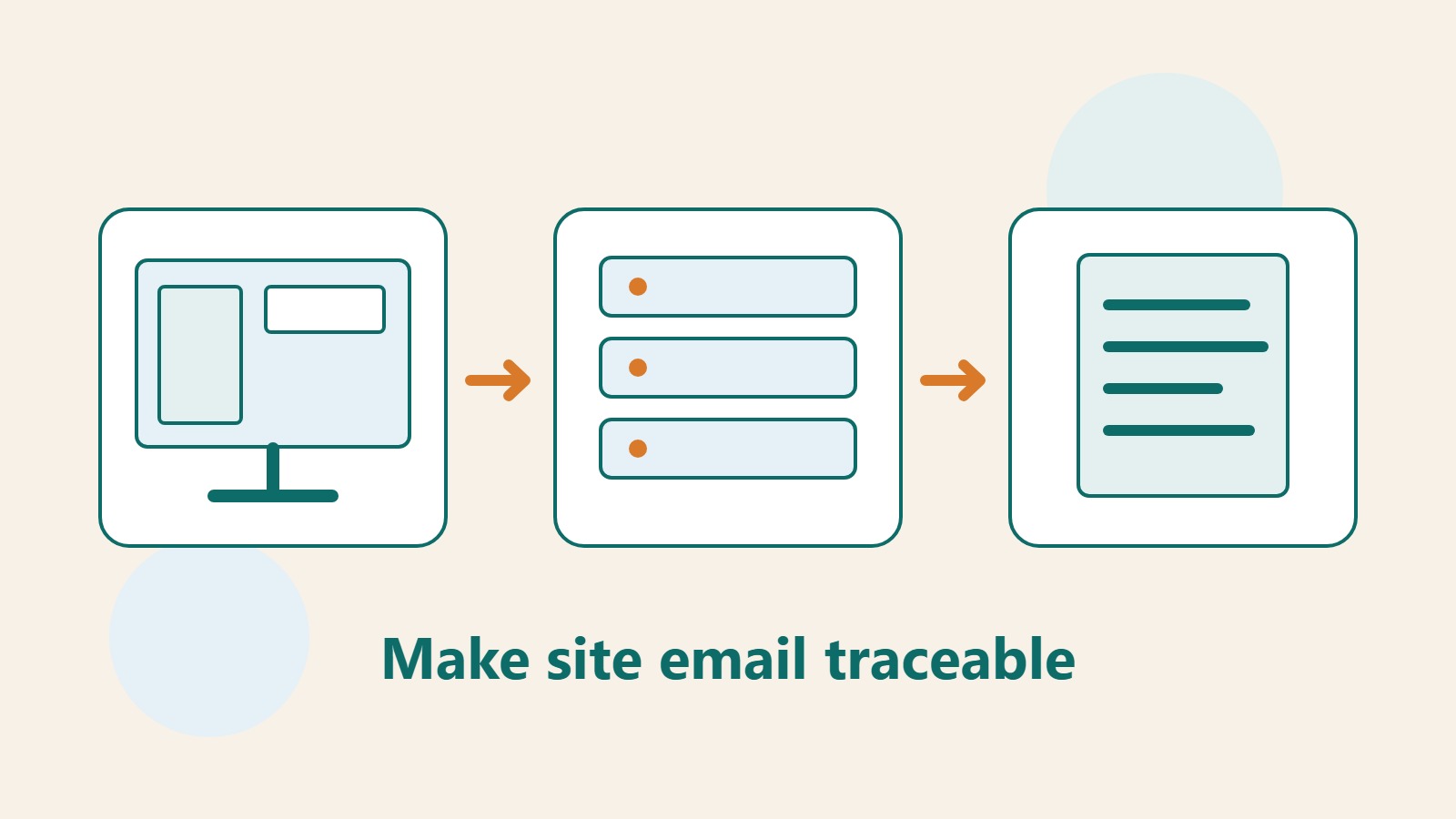
A customer says the confirmation never arrived, so the site owner clicks resend several times. The customer receives multiple copies the next day. To solve this kind of problem, first record one test message's time, recipient address, and purpose. Find where it stopped before deciding whether to resend it.
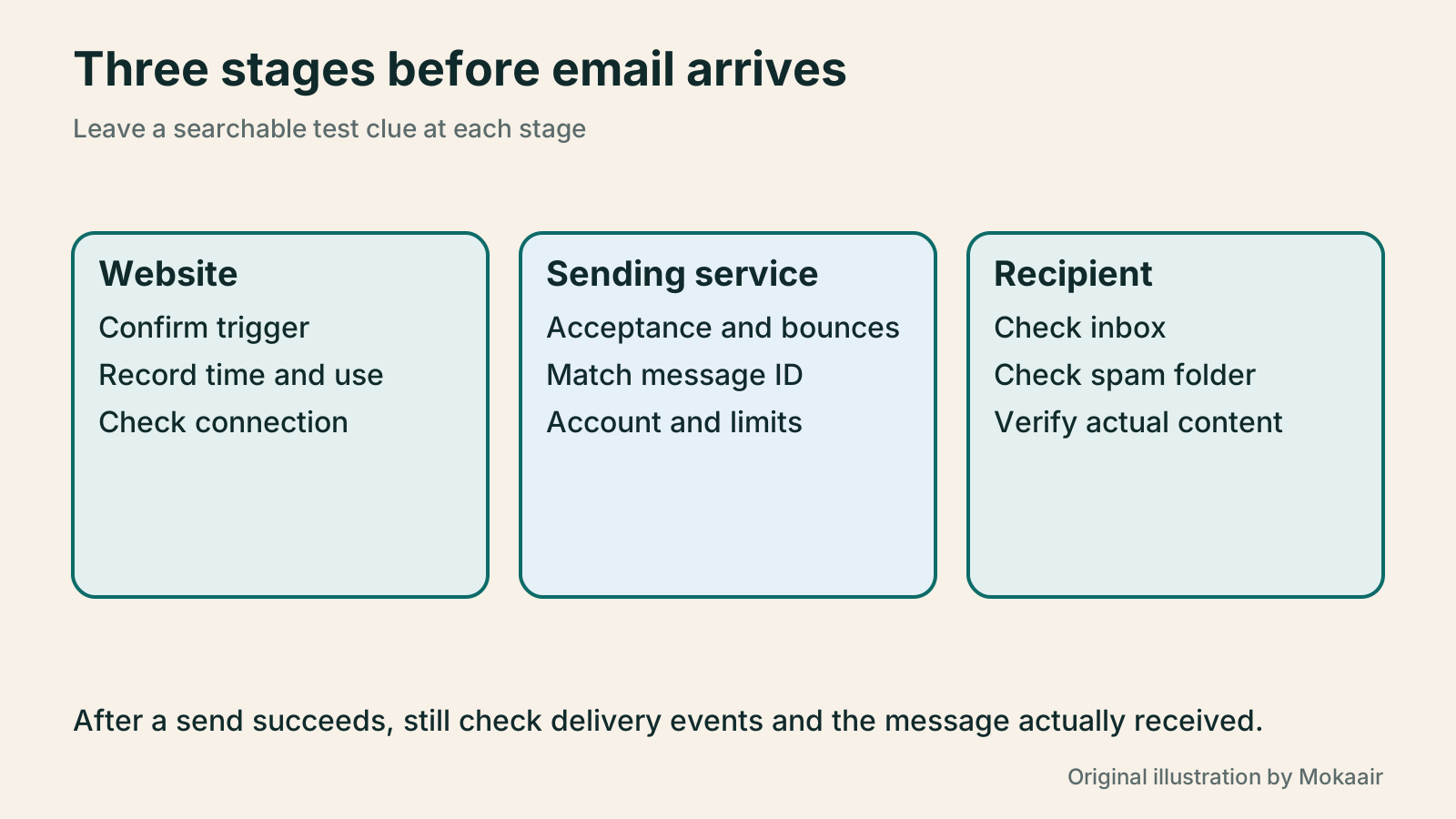
WordPress creating an email, an outside service accepting it, and the recipient system receiving it are separate events. This guide uses WP Mail SMTP and Brevo to illustrate a traceable setup for site messages such as password resets and notifications. Check the services and allowances available under your own account plan.
Map the site's sending routes first
List every feature that sends mail, such as registration, form notifications, comment alerts, and order messages. Record the sender, recipient, and trigger for each. If a plugin calls its own outside service directly, mark that route separately; do not assume one SMTP plugin takes over all site email.
Check for an existing mail plugin or hosting integration. When several tools change sender settings, it can be hard to tell which one took effect. Keep a record of the current settings, confirm the route to retain on a test site, then schedule the production change. Restrict recipients on the test site too, so member addresses copied from a backup are not used for a mass mailing.
A generic SMTP connection usually needs a host, port, encryption, and authentication settings. Brevo's dedicated mailer instead uses an API key. Although the plugin is named WP Mail SMTP, its selected service may not ask for an SMTP password; prepare the details specified by the official documentation for that mailer.
Prepare a recognizable, maintainable sender identity
Use a sender address on a domain you control and assign someone to handle replies. A consistent sender name can identify the studio or site across notifications. An external sending service does not automatically provide an inbox for everyday incoming mail; if people should reply, provide a working mailbox or a correct Reply-To address.
After creating a Brevo account, confirm that it is active and transactional email is available. Then add the domain matching From Email. Keep a sending subdomain consistent too; do not verify one domain and send from another. You do not control the public domain of a free email provider, so you cannot use it to complete your own DNS verification.
Before choosing a plan, estimate normal daily notifications, peaks, and retries. Assess large marketing campaigns separately from essential notices, and check the platform's limits and remaining allowance. This guide does not treat a particular free allowance as a long-term promise or recommend sending a large test batch.
Verify the domain using records generated for your account
Brevo is gradually introducing a new domain-setup flow; some accounts still show the older Authenticate interface. Choose automatic or manual verification according to the screen you have, and use the record names, types, and values generated for your account. The official guide lists a Brevo code, DKIM, and DMARC. DKIM may use a TXT record or two CNAME records, so do not copy another account's examples.
Find the service actually managing DNS before adding the requested records; the domain seller may not be the DNS provider. Save a screenshot or export of existing settings, then check each host name for control panels that append the domain twice. Email-sender verification does not require arbitrary changes to the website's A record or to the MX records used for incoming mail.
If the domain already has DMARC, understand its current policy first. Brevo says its automatic flow may ask to replace an existing record; use the manual flow if you do not want that replacement. Do not add conflicting records just to clear a warning. Run verification again in Brevo and confirm success, distinguishing DNS propagation time from a configuration error.
Connect WP Mail SMTP
In WP Mail SMTP Settings, set From Email and From Name, then choose Brevo as the mailer. If related site messages should all use the same sender address, consider Force From Email, but check whether it would affect features that need a different sender before enabling it. Configure reply addresses according to the actual service workflow.
Create an API key for this site in Brevo's SMTP & API settings and name it for its purpose. Keep it securely. Copy the complete key into WP Mail SMTP's API Key field; neither a masked value shown later nor an SMTP key is a substitute for the API key. Save and confirm that the selected mailer has not changed.
- Confirm domain verification and that the sender address matches the verified domain.
- Enter a valid key for the selected mailer, recording its purpose and creation date.
- Under Tools > Email Test, send one message to a test inbox you can inspect.
Use evidence to locate the failure
If Email Test reports an error, keep its time and error type, then inspect Debug Events under Tools. For a missing key, check the complete API key and account. Resolve account activation issues with the platform. Investigate the host's outbound network only for connection or timeout problems. Change one cause at a time rather than resetting DNS, switching providers, and altering the form together.
After the plugin reports success, check the real inbox and spam folder. If it has a sent record but nothing arrived, search Brevo Transactional Logs by recipient, time, or message ID. Sending, delivery, and later bounces represent different events; acceptance for sending does not mean a person has read the message.
Detailed WP Mail SMTP Email Log features require a paid version and differ from basic sending-error tracking. For long-term troubleshooting, compare the plugin and service logs available to you. If you retain email bodies or attachments, limit access and retention periods. Turn off extra debugging after the investigation so unnecessary data does not accumulate.
Test real features and keep a maintenance record
A test email is only the first check. Use test accounts to trigger password reset, registration notices, and a contact form, then confirm each message actually uses the new settings. Check link domains, sender name, Reply-To, and Chinese content; sample different receiving services and record arrival location and timing.
Before resending a message, check whether the service has already accepted or is still processing it. Avoid duplicate notices. For messages with expiring links, consider how new and old copies affect the user. Do not make manually forwarding a full password-reset link the standard support procedure.
Hand the maintenance owner a record of the sending-service account, domain records, key purpose, usage checks, and test dates. Retest essential functions after a host move, domain change, or key rotation. Confirm the new connection works before removing old keys and settings so site notices remain traceable.
| What you see | Check first | How to verify |
|---|---|---|
| Immediate key error on a test | Mailer, key type, and account | Replace with the correct credential and retest one message |
| Plugin sent but nothing arrived | Service events and recipient sorting | Match recipient, time, and message ID |
| Only one notice type fails | That feature's trigger and sender settings | Exercise that feature with a test account |
| Failure began after a move | New host connection and sender settings | Keep error events and trace each stage |
Build a complete contact-form workflowWordPress contact forms: fields, spam protection, and delivery checksA contact form must be easy for visitors to complete and reliable for the site owner to receive and follow up. Using Contact Form 7, this guide covers field design, mail templates, reply addresses, Turnstile spam protection, and message storage with Flamingo. It gives Taiwan-based small-site owners phone and inbox checks so an on-screen success message is never mistaken for a completed contact process.Read the full article
Check DNS records and where to edit them
Lifestyle
After a WordPress Move: Check Search Traffic, the Old Host, and Renewals
A completed WordPress move still needs checks that the new host is stable, search entry points work, backups can be used, and old services can safely stop. This guide provides a cutover observation checklist, a way to interpret search traffic, an inventory of old-host dependencies, and renewal closeout steps. Individual site owners and studios can retain the information needed for rollback without confusing temporary fluctuations, ending renewal, and immediately deleting a site.
Lifestyle
Move WordPress to a New Host Without Changing the Domain: Migration, Testing, and DNS Cutover
When WordPress moves to a new host, its URLs can stay the same, but files, the database, certificates, and external services still need a handoff. This guide covers preparation of the new host, restricted previews, the final data sync, and DNS cutover in order. A verification table and rollback criteria help individual site owners and studios keep their domain while moving hosts, without canceling the old service before recovery options are secure.
Lifestyle
Changing a WordPress Domain: Check Redirects, Search Signals, and Email
Changing a WordPress domain means handling internal URLs, redirects from old links, search signals, and email together. Starting with a URL mapping, this guide explains how to preview database replacements, check permanent redirects, test sending and receiving on the new domain, and monitor the change after launch. It helps personal brands and studios plan a name change without assuming that editing the WordPress site address completes the move.
Lifestyle
Moving from WordPress.com to Self-Hosted WordPress: Content, Media, and URLs
Before moving a WordPress.com site to self-hosted WordPress, check your plan, domain, and the handoff for each kind of content. This guide covers the options available to free and paid sites, XML export and import, verification of actual image files, subscriber migration, and when Site Redirect is available. It helps individual creators in Taiwan plan the move and identifies features and billing items that need separate attention after the new site is ready.
Articles that cite this one
Latest travel guides

GuideTokyo
Where to Stay in Tokyo: Comparing Shinjuku, Ueno, Tokyo Station, Shibuya, Asakusa, Ikebukuro, and Ginza, Plus Airport Access, Accommodation Tax, and Luggage Delivery
Where should you stay in Tokyo? Compare Shinjuku, Ueno, Tokyo Station, Shibuya, Asakusa, Ikebukuro, and Ginza by the same criteria: access from Narita and Haneda, transit routes, nearby attractions, neighborhood character, and who each area suits. Includes a comparison table, a Yamanote Line diagram, Tokyo’s accommodation tax as verified in 2026/9 (changing to 3% in 2027/4), and Airport TA-Q-BIN luggage shipping rules.
- Budget
- Hotels

GuideTokyo
How to Choose Tokyo Transit Passes: Are Suica, Welcome Suica, the Tokyo Subway Ticket, and the JR Pass Worth It?
On a first Tokyo trip, start with an IC card and pay per ride (Welcome Suica has no deposit and is valid for 28 days). If you take four or more subway rides in a day, add a 72-hour Tokyo Subway Ticket for 2,000 yen; a JR Pass is never worthwhile if you stay in Tokyo and do not go to Kansai. See what TOURIST PASMO, Suica on iPhone, and the Tokyo Metro day pass do and do not cover, with a decision chart. Prices verified in September 2026.
- Transport
- Budget

GuideTokyo
Tokyo Disneyland and DisneySea Guide: Ticket Prices, Fantasy Springs, Disney Premier Access (DPA), Standby Pass, and Which Park to Choose for Your First Visit
Tokyo Disney one-day Passport prices vary: most weekdays in 9/2026 cost ¥9,900 and weekends ¥10,900. At 14:00 daily, tickets go on sale for the same date two months later. Free Priority Pass is no longer on the official service list; only paid Disney Premier Access (¥1,000–3,500 per person per use) shortens waits. Covers hours, the 25th anniversary, Standby Pass, Entry Request, Fantasy Springs access and first-visit park choice; checked on the official site in 9/2026.
- Itineraries
- Family
Sources
- WP Mail SMTP: Brevo mailer · Checked:
- Brevo: existing domain-authentication flow · Checked:
- Brevo: new domain-setup flow · Checked:
- WP Mail SMTP: test email · Checked:
- WP Mail SMTP: sending debug guide · Checked:
- WP Mail SMTP: setup wizard and paid logging features · Checked:
- Brevo: transactional email logs · Checked: