Lifestyle
Before Resetting WordPress: Separate Content, Theme Settings, and Full Restore
Starting over in WordPress does not always require wiping the site. This guide compares style resets, content revisions, database resets, and full restores; explains the scope of WP Reset and the limits of its snapshots; and walks through a test site, backup checks, and acceptance after a reset. It helps ordinary users in Taiwan identify the actual problem and choose a suitably narrow action with a recovery plan.
About 7 min read
Contents
- 1. Turn “start over” into a specific outcome
- 2. Try content revisions or a style reset first
- 3. Understand what a database reset actually affects
- 4. Create an isolated test site and complete recovery data
- 5. Run the operation on the test site and check each result
- 6. Verify a restore before deciding what to do with production
After applying several templates, colors may be inconsistent and the homepage may contain duplicates. A “start over” button sounds tempting. Yet different resets in WordPress may change only a font or clear posts, accounts, and plugin data from the database. First define the state you need to return to.
Keeping posts while restoring the old colors is a different task from clearing a practice site. This guide uses a personal site under construction to start with the smallest affected scope, then explains preparation and checks when a database reset really is needed. If people still use the live site, rehearse on an isolated copy first.
Turn “start over” into a specific outcome
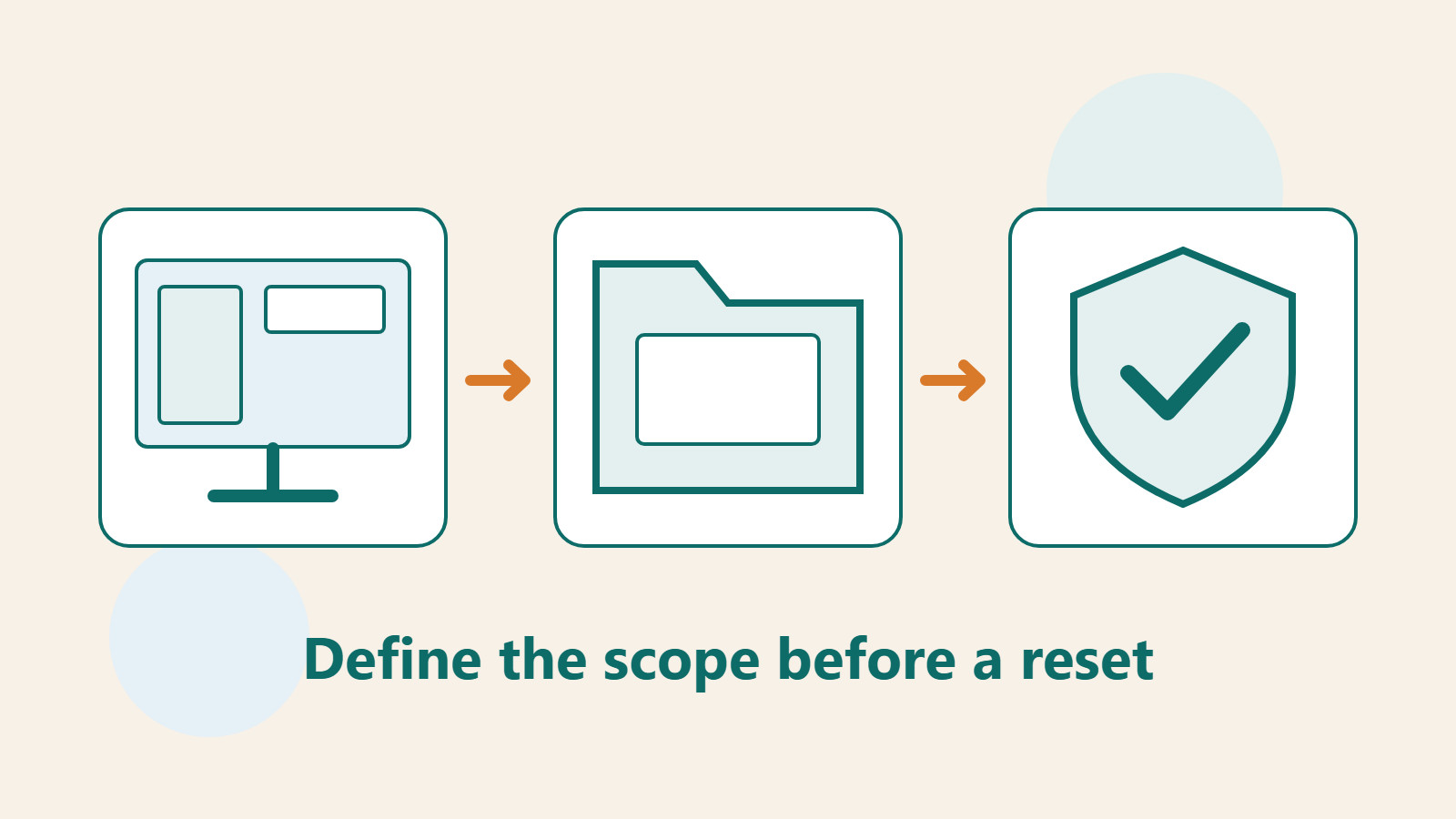
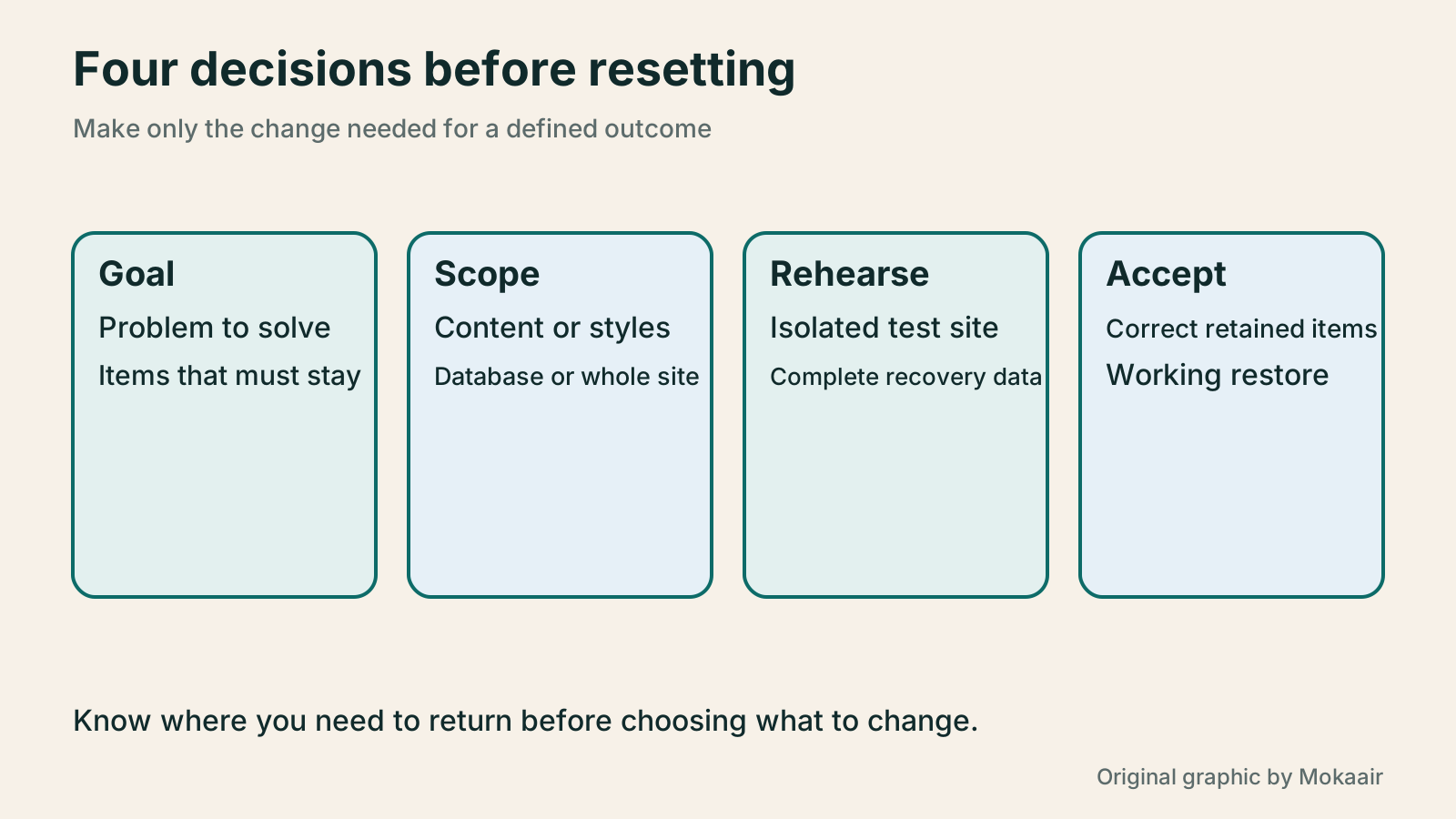
Write down the actual problem: incorrect text, unattractive styling, an unsuitable template layout, or practice data no longer needed. Then list everything that must survive, such as posts, media, accounts, form inquiries, and domain settings. These two lists determine the level of reset required.
If the homepage text is too large, changing one block may be enough. Wrong site-wide colors may call for style revisions; a deleted paragraph may call for a post revision. Restoring the whole site for every small issue may restore its appearance while overwriting content that others added in the meantime.
- Record the affected pages, the last known good time, and recent edits.
- List the content, accounts, and external-service settings that must be kept.
- State the expected result, such as keeping posts while restoring default theme styles.
Try content revisions or a style reset first
When a post or page is wrong, review available revisions and compare changes before choosing the version to restore. What revisions retain depends on site settings and content type. They are not a backup of every plugin record or uploaded file. If no suitable revision exists, assess another recovery method.
With a block theme, the site editor’s Styles panel can show style revisions or reset styles to their defaults. WordPress also documents resets of individual style settings. Preview typography, colors, and spacing, then confirm what will be saved. A style reset does not mean posts will be deleted, nor does it restore every customized template and plugin setting.
Classic themes, third-party page builders, and plugins may store settings separately. Do not assume that every button labeled Reset does the same thing. Read the specific tool’s instructions to learn whether it affects the current page, shared site settings, or other data, then test on a copy. Save the earlier values or screenshots for precise comparison.
Understand what a database reset actually affects
According to the official WP Reset plugin page, a basic reset affects posts, pages, comments, media database records, and related tables. Physical uploads may remain on disk but disappear from the Media Library. The plugin also offers other partial-deletion tools, so the basic reset’s treatment of files cannot be assumed for every operation.
WP Reset database snapshots exclude files and are mainly intended for development tests. If you retain only a snapshot and then delete images or theme files, restoring the database will not bring those files back. The developer also lists multisite compatibility cautions; this single-site workflow cannot be applied directly to a Multisite main site.
Resetting a database or reinstalling core code is not the same as resolving a security incident. Unknown accounts, suspicious code, or compromised external accounts require preserving evidence, determining impact, and fixing access rights. Clearing visible posts cannot prove that other problems are gone.
Create an isolated test site and complete recovery data
Make accessible file and database backups, store copies away from the original site, and make sure you know how to restore them. Also record the host version, connection settings, and important external integrations. Snapshots can help repeated experiments, but recovery preparation for live data must cover the full scope actually needed.
Set up a restricted test site, label it clearly, and confirm it has separate database and file locations. Changing only the URL while retaining the production database would still affect production. Cross-check the environment name, URL, and database mapping; the page title alone does not prove isolation.
Use controlled payment, notification, subscription, and synchronization settings on the test site. A plugin reactivated around the reset must not send test messages to real customers. Record which integrations were paused, which accounts can log in, and how they will be restored after rehearsal.
Run the operation on the test site and check each result
Open the verified tool page and read what this operation removes, what it keeps, and what will be enabled afterward. If using WP Reset, open its administration page from the Tools menu and follow the confirmation procedure shown by the current version. Do not skip confirmations or assume that an option shown in a tutorial is a default in every version.
Before running it, confirm that your backup can be read and record current content counts and test markers. After the reset, sign in again and inspect posts, media records, physical files, theme, and plugin states against expectations. If the goal was merely to clear practice content but data that must be kept still appears, stop further cleanup and return to the recovery plan.
- Verify the test environment, operation type, retained scope, and usable backup.
- Complete the tool’s required confirmation; wait for the outcome and note errors or messages.
- Compare kept and removed items with the pre-reset list, then test login and primary functions.
Verify a restore before deciding what to do with production
Rehearse a restore in an isolated environment and confirm that the backup brings back the expected posts, images, and settings. If files or permissions are missing, fill the gap before considering production. A successful reset alone does not show that the overall plan is safe; recovery ability is part of acceptance.
If production really needs the same change, schedule a maintenance window and preserve the latest data. Tell other administrators which updates must pause. Do not simply push an entire test database from several days ago onto production: new inquiries, memberships, or content added since the test need a fresh inventory first.
Accept the result against the original goal: posts that should remain are present, styles that should return are right, and necessary functions work. Then remove unneeded test copies and tool permissions while retaining the operation record and necessary backups. A reset is useful when it returns the site to a comprehensible, maintainable state, not when the dashboard merely looks empty.
If you are only learning a theme or plugin, make separate copies for future exercises and keep a clean starting point. Add one change at a time and record the result. This makes the cause of a visual change easier to find and reduces the need to reset all your work.
| Method | Typical scope | Do not assume |
|---|---|---|
| Content revision | Available history of a post or page | All plugin data and files can be restored |
| Style reset | The relevant block or site-wide style settings | All content, templates, and plugins start over |
| Database reset | Tables and records explicitly named by the tool | All disk files are deleted or recoverable |
| Database snapshot | Database state captured in the snapshot | Images and program files were backed up |
| Full backup restore | Files, database, and settings included in the backup | New data since the backup is merged automatically |
Verify that your WordPress backup can really be restoredHow to back up WordPress: files, databases and restoration drillsA successful backup message is not enough. Build a checklist for WordPress files, databases and off-site copies, then learn the UpdraftPlus and WPvivid controls, restore limitations and isolated drills needed to confirm recovery. Plan schedules, retained versions, configuration files and acceptance records so someone can restore a personal or studio website.Read the full article
Set up a local WordPress test siteBuild a WordPress test site on your computer: MAMP and preparing to go livePractise WordPress locally without affecting a live site. Using MAMP for Windows, learn about installation paths, ports, databases and WordPress setup, isolating test data and diagnosing connection problems. Prepare separate file and database exports before launch. This is a beginner's environment for editing and layouts; local success does not validate production hosting.Read the full article
Choose a suitable WordPress themeHow to Choose a WordPress Theme: Reading, Editing, and Long-Term MaintenanceChoose a WordPress theme by starting with readers' and editors' needs, then comparing the appearance of demo sites. This guide explains block, classic, and hybrid themes and provides checks for testing real content, portability, customization, and long-term maintenance. It is written for people in Taiwan building or redesigning a site. Use the same checklist for mobile navigation, articles, forms, and administration so an attractive template does not make daily updates difficult.Read the full article
Found this guide helpful? Share it with someone who needs it
Lifestyle
WordPress Performance Plugins: Caching, Images, and Feature Conflicts
WordPress performance plugins need settings matched to the actual site; enabling every option at once is unsafe. Using a small Taiwan-based course and shop site, this guide compares WP Rocket and NitroPack, divides responsibility for caching and images, and shows how to diagnose conflicts caused by CSS and JavaScript optimization. A comparison table, staged workflow, and original diagram help administrators retain a measurement baseline and verify forms, menus, and shopping flows.
Lifestyle
Handling WordPress Comment Spam: Review Rules and Akismet
Stopping spam in WordPress comments takes sensible moderation rules and a way to correct mistakes, as well as a plugin. This guide covers discussion settings, Akismet activation and plan eligibility, reporting spam, and rescuing legitimate comments. Its daily review checklist helps small-site owners reduce the workload while leaving room for readers with real questions to join the discussion.
Lifestyle
Build a personal blog with WordPress: from categories to your first post
To start a personal blog, decide what questions you want to answer over time, then plan the homepage, post list and basic pages. Using WordPress as an example, this guide develops a writing workflow from content categories and reading layouts through the first post and later updates. It also covers checks for post cards, pagination and comments. It is for readers in Taiwan who want to turn their notes into public content: finish a small but complete site first, then add features as needed.
Lifestyle
WordPress Social Login: Checking LINE, Google, and Facebook Connections
Adding LINE, Google, or Facebook login to WordPress takes more than a few buttons. This guide explains how the social-login plugin and provider applications divide the work, how to verify callback URLs, link existing accounts, assign registration roles, and prepare another route before disabling a provider. Using Nextend Social Login as an example, it helps Taiwan-based site owners confirm that ordinary visitors can actually reach their original member accounts.
Sources
- WordPress: content revisionsChecked:
- WordPress: Styles and resetsChecked:
- WP Reset: developer description of action scope and snapshot limitsChecked:
- WordPress: site backupsChecked:
Compiled from the references and verification dates listed above; fares, schedules, product features, and terms can change, so please confirm the latest details on the relevant official website before travelling, booking, or purchasing.