Lifestyle
Build a WordPress test site on your computer: MAMP and preparing to go live
Practise WordPress locally without affecting a live site. Using MAMP for Windows, learn about installation paths, ports, databases and WordPress setup, isolating test data and diagnosing connection problems. Prepare separate file and database exports before launch. This is a beginner's environment for editing and layouts; local success does not validate production hosting.
About 7 min read
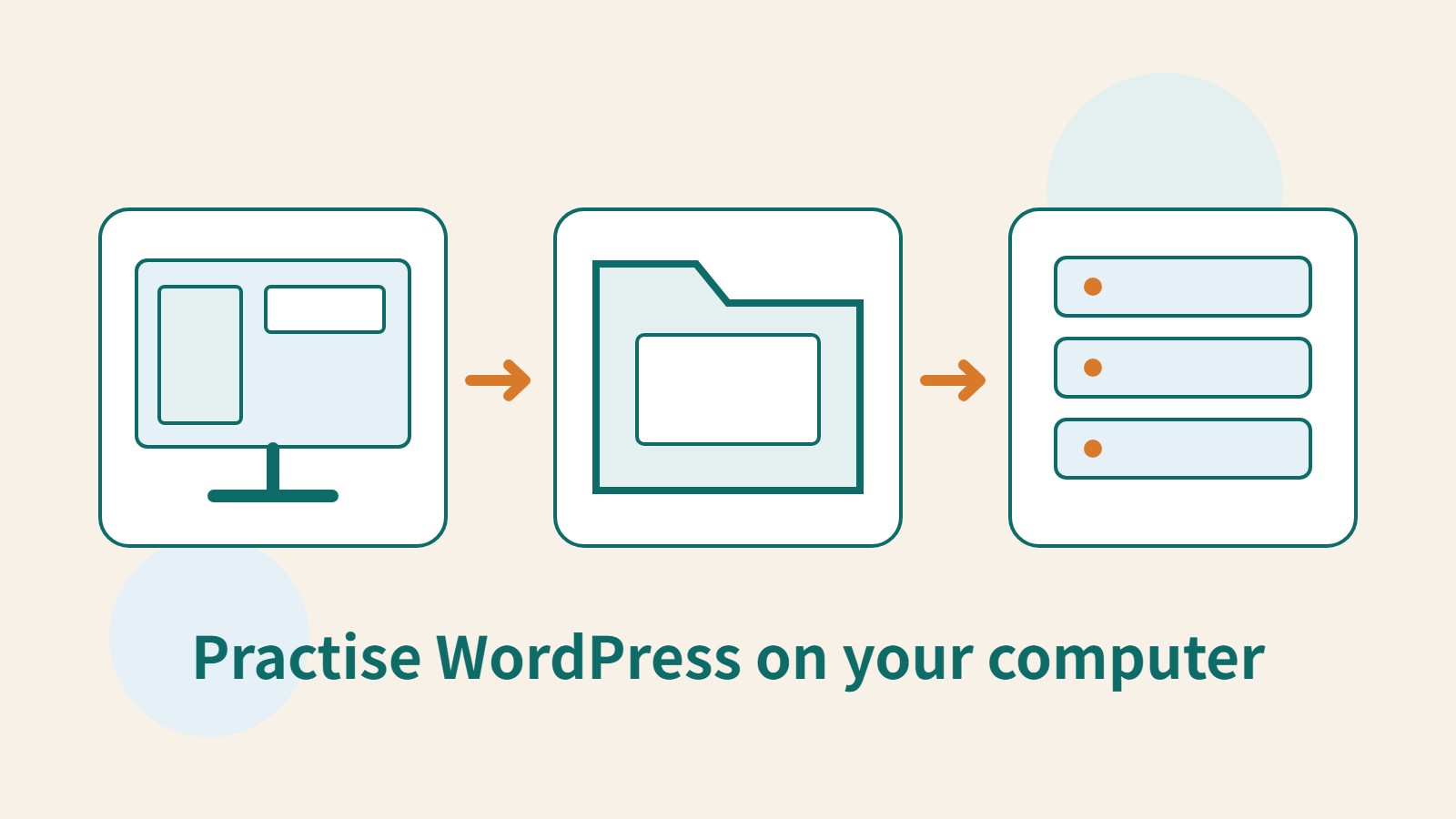
A local WordPress site is like a practice desk of your own: try changes to posts, themes and plugins, then inspect the results before deciding whether to bring them to the live site. Services on your computer run the website; the browser is simply the window through which you operate it. Understanding that distinction prevents you from mistaking a closed browser page for a stopped test environment.
This guide is based on MAMP's Windows documentation; the software was not installed in the environment used to prepare it. Interfaces and features on macOS and in MAMP PRO may differ, so use the corresponding documentation. The example is a practice reading-notes site, with fictional posts and test accounts rather than real member or customer data.
Distinguish website files, the database and services
The WordPress program, themes, plugins and uploaded images are files; posts, settings and other dynamic data are mostly stored in the database. The web server receives browsing requests and works with PHP and the database to produce pages. Copying a website folder alone usually does not preserve all its content, so record where both the files and database are stored from the outset.
MAMP brings the required local services together for practice or development. That does not mean it automatically provides a production domain, email, backups or ongoing maintenance. A reading-notes site can start with practising post structure, but public registration or notification emails still require separate setup and acceptance checks in a suitable production environment.
Install the version for your operating system
Download the appropriate version from MAMP's official website and first check the current system requirements and installation instructions. The Windows documentation recommends a location such as C:\MAMP, avoiding system folders with restricted permissions. If other web or database services already run on the computer, understand their purpose before removing an existing environment just to start a new tool.
After installation, record the MAMP version, selected PHP version, document root and ports, then start the services and open the start page. If the interface includes an entry for the PRO version, identify which product you are using; do not assume PRO-only features are included in the regular version. Do not copy a version number from an old tutorial to decide what to install now.
Local environments can consume disk space, especially when you create repeated sites or databases. Give each practice site a recognisable folder and database name, such as reading-practice, and record its purpose. Establishing this small habit helps prevent you from later deleting a site you need because you mistake it for old test files.
Create the database, then install WordPress
Follow the official process to download WordPress, extract it and place the required program files in your configured document root or a subfolder. Open phpMyAdmin from MAMP's start page and create a dedicated database. Its name need not match the example, but it must match what you subsequently enter during WordPress installation.
Open the local site's URL to reach the installer, then enter the database name, username, password and host. Use the port actually configured in your environment. MAMP's documentation uses localhost:8889 to illustrate a non-default MySQL port; the entry differs when using 3306. The database account and WordPress administrator serve different purposes and must not be confused.
Local documentation may use default database credentials for teaching convenience; those are not suitable security settings for a public service. Give the WordPress administrator a separate password as well, and clearly label the site as a test in its name. After setup, sign in to the dashboard, add a practice post and an image without sensitive information, then confirm they remain after saving and reopening them.
- Download MAMP and WordPress from their official websites and confirm the document root and service ports.
- Start MAMP and use phpMyAdmin to create a database dedicated to this site.
- Place WordPress in the intended directory, open the local URL and enter the database connection details.
- Create the site administrator and test sign-in, saving posts and displaying images.
Isolate external effects even when testing locally
localhost means the computer currently being used. Sending a localhost URL to a friend does not connect their browser to your site. Previewing from another device requires separate planning for network access and restrictions. A beginner's practice site does not need router forwarding or public services for this purpose; first complete the work on your own computer.
A test site with email, payment or external synchronisation features can still send outbound requests. Use test accounts and test modes, disable unnecessary notifications and avoid production credentials. When copying a live site to your computer, inspect scheduled jobs and integrations particularly carefully; a different URL does not guarantee that external services will be unaffected.
When you finish practising, stop the services in MAMP and, if necessary, confirm the application has exited. Closing the browser only stops you viewing the page; it does not automatically stop web and database services. On a shared computer, also consider whether other users can access your files and data. A local environment is not a safe for sensitive information.
Identify the layer responsible for an error
If the entire local URL is unreachable, first check whether the web service is running and the URL uses the right port, then investigate whether another application is occupying it. MAMP's ports can be changed, but update the URL or database settings you use accordingly. Do not reinstall WordPress every time: that may overwrite content you could still recover.
For a database connection error, check the database service, name, credentials and port. If the home page works but particular pages fail, check plugins, permalinks and error logs. Change only one thing at a time, keep its original value and record the result. When sharing error screenshots, conceal credentials and private computer paths and provide only the necessary information.
Keep complete migration materials when preparing to launch
WordPress's Tools export produces content data in WXR format. It is useful for moving content, but it is not a complete backup of all program files and the database. To retain the whole site's settings, also prepare files and the database according to your migration method, and confirm that plugins, themes, media and any required licences can be used in production.
Production hosting may use different PHP and database versions, file permissions, HTTPS, email and URLs. Plan URL replacement and acceptance checks before launch; do not give visitors links containing localhost. Keep the local copy and a recoverable backup first. Only tidy up the practice environment once posts, images, forms and sign-in all work on the live site.
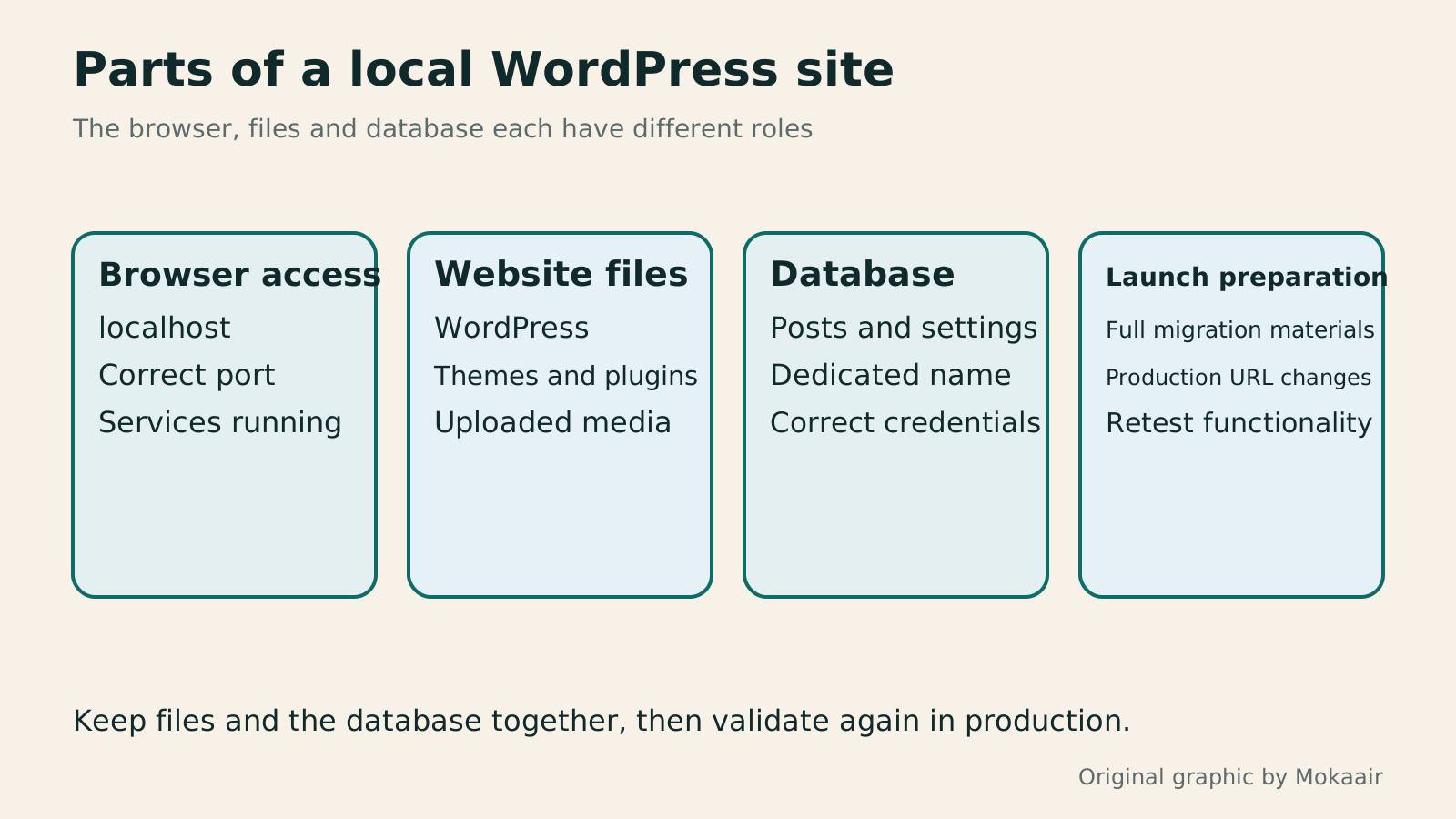
Read the full description
A diagram of four parts of a MAMP local environment: browser access, website files, the database and migration materials.
| Item | Local practice | Additional checks before going live |
|---|---|---|
| URL | localhost and local ports | Production domain and HTTPS |
| Data | Fictional posts and test accounts | Lawfully public content and access rights |
| Email and payments | Disabled or in test mode | Production settings and full acceptance checks |
| Export | Content export or complete migration materials | Media, settings and URL replacement |
| Operating time | Start and stop services yourself | Hosting maintenance and backup arrangements |
Build your first WordPress websiteYour first WordPress site: from a test site to a public websiteYour first WordPress site needs more than a successful installation: its URL, content, email and backups must work too. Using a typical personal site, this guide covers accounts and information to prepare, automatic versus manual installation, basic admin settings, home-page and post organisation, and visitor tests before launch. The goal is a site someone else can maintain, not just a completion screen visible to its administrator.Read the full article
Plan website maintenance and backupsWhat website maintenance involves: a routine for backups, updates, and incident reportsWebsite maintenance includes more than plugin updates: check content, accounts, backups, outgoing email, and expiring services. Using a small WordPress content site, this guide covers routine observation, pre- and post-update checks, restoration, and incident reports, with a worksheet for owners, editors, and maintainers. Set a schedule by update frequency, identify urgent cases, and keep records the next collaborator can use.Read the full article
Lifestyle
After a WordPress Move: Check Search Traffic, the Old Host, and Renewals
A completed WordPress move still needs checks that the new host is stable, search entry points work, backups can be used, and old services can safely stop. This guide provides a cutover observation checklist, a way to interpret search traffic, an inventory of old-host dependencies, and renewal closeout steps. Individual site owners and studios can retain the information needed for rollback without confusing temporary fluctuations, ending renewal, and immediately deleting a site.
Lifestyle
Move WordPress to a New Host Without Changing the Domain: Migration, Testing, and DNS Cutover
When WordPress moves to a new host, its URLs can stay the same, but files, the database, certificates, and external services still need a handoff. This guide covers preparation of the new host, restricted previews, the final data sync, and DNS cutover in order. A verification table and rollback criteria help individual site owners and studios keep their domain while moving hosts, without canceling the old service before recovery options are secure.
Lifestyle
Changing a WordPress Domain: Check Redirects, Search Signals, and Email
Changing a WordPress domain means handling internal URLs, redirects from old links, search signals, and email together. Starting with a URL mapping, this guide explains how to preview database replacements, check permanent redirects, test sending and receiving on the new domain, and monitor the change after launch. It helps personal brands and studios plan a name change without assuming that editing the WordPress site address completes the move.
Lifestyle
Moving from WordPress.com to Self-Hosted WordPress: Content, Media, and URLs
Before moving a WordPress.com site to self-hosted WordPress, check your plan, domain, and the handoff for each kind of content. This guide covers the options available to free and paid sites, XML export and import, verification of actual image files, subscriber migration, and when Site Redirect is available. It helps individual creators in Taiwan plan the move and identifies features and billing items that need separate attention after the new site is ready.
Articles that cite this one
Latest travel guides

GuideTokyo
Where to Stay in Tokyo: Comparing Shinjuku, Ueno, Tokyo Station, Shibuya, Asakusa, Ikebukuro, and Ginza, Plus Airport Access, Accommodation Tax, and Luggage Delivery
Where should you stay in Tokyo? Compare Shinjuku, Ueno, Tokyo Station, Shibuya, Asakusa, Ikebukuro, and Ginza by the same criteria: access from Narita and Haneda, transit routes, nearby attractions, neighborhood character, and who each area suits. Includes a comparison table, a Yamanote Line diagram, Tokyo’s accommodation tax as verified in 2026/9 (changing to 3% in 2027/4), and Airport TA-Q-BIN luggage shipping rules.
- Budget
- Hotels

GuideTokyo
How to Choose Tokyo Transit Passes: Are Suica, Welcome Suica, the Tokyo Subway Ticket, and the JR Pass Worth It?
On a first Tokyo trip, start with an IC card and pay per ride (Welcome Suica has no deposit and is valid for 28 days). If you take four or more subway rides in a day, add a 72-hour Tokyo Subway Ticket for 2,000 yen; a JR Pass is never worthwhile if you stay in Tokyo and do not go to Kansai. See what TOURIST PASMO, Suica on iPhone, and the Tokyo Metro day pass do and do not cover, with a decision chart. Prices verified in September 2026.
- Transport
- Budget

GuideTokyo
Tokyo Disneyland and DisneySea Guide: Ticket Prices, Fantasy Springs, Disney Premier Access (DPA), Standby Pass, and Which Park to Choose for Your First Visit
Tokyo Disney one-day Passport prices vary: most weekdays in 9/2026 cost ¥9,900 and weekends ¥10,900. At 14:00 daily, tickets go on sale for the same date two months later. Free Priority Pass is no longer on the official service list; only paid Disney Premier Access (¥1,000–3,500 per person per use) shortens waits. Covers hours, the 25th anniversary, Standby Pass, Entry Request, Fantasy Springs access and first-visit park choice; checked on the official site in 9/2026.
- Itineraries
- Family
Sources
- MAMP: installation on Windows · Checked:
- MAMP: installing WordPress on Windows · Checked:
- MAMP: port settings · Checked:
- WordPress: Tools export · Checked: