Lifestyle
Move a Local WordPress Site Online: Files, Database, and URL Replacement
After building a WordPress site on your computer, you still need to move its files, database, and settings to a live host. This guide compares content export, full-site migration, and supported host synchronization. It covers exporting from Local, preparing the live environment, replacing URLs, checking media, and testing email, accounts, and launch readiness so a personal portfolio moves from a local preview to a publicly usable site.
About 7 min read
Contents
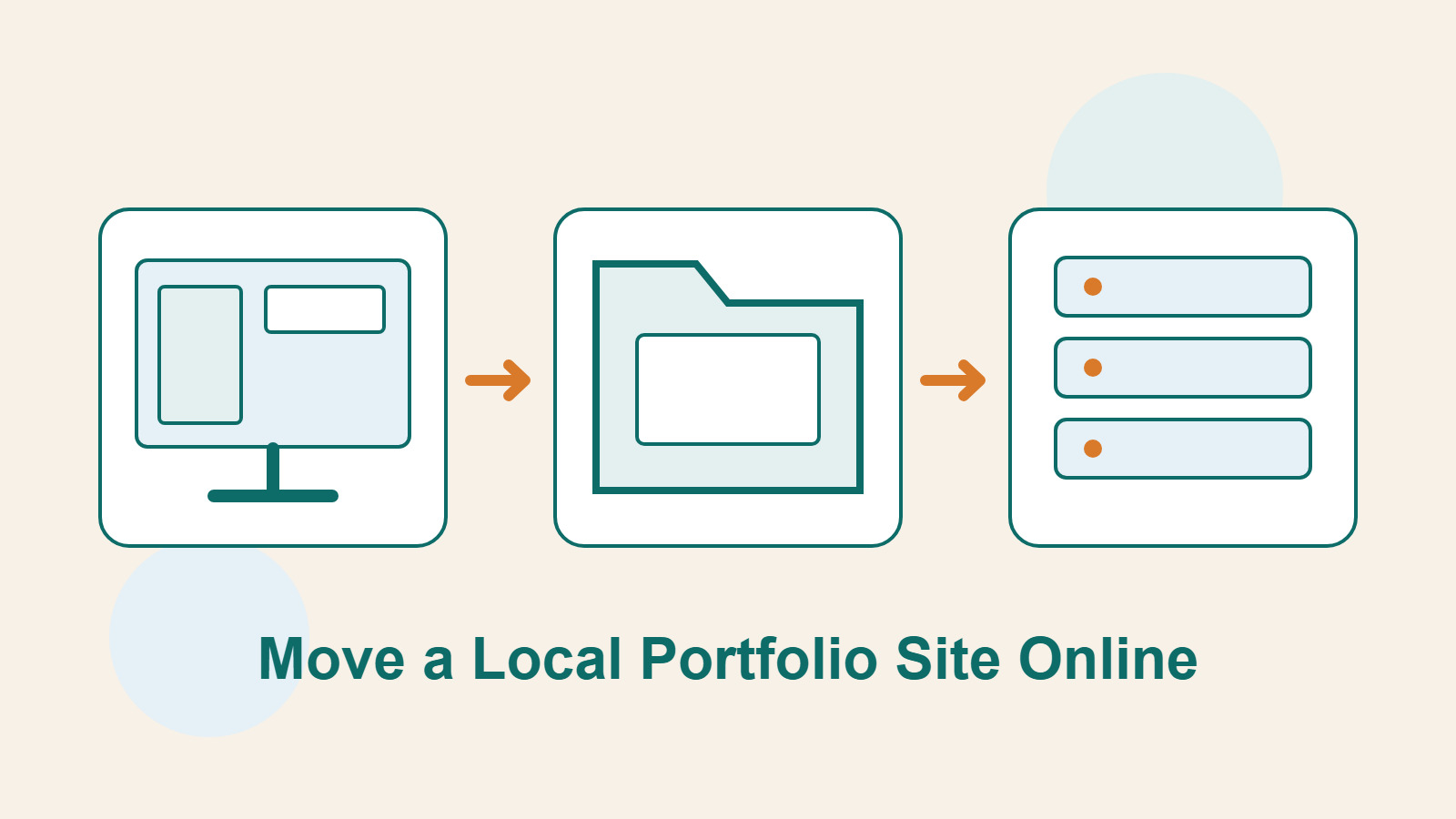
Your portfolio opens on your own computer, and the text, images, and contact form all seem fine. But a friend cannot open the URL you share. The site is not necessarily broken: localhost or a custom local domain only works in your environment. To publish the site, another computer that visitors can reach must serve it.
Three handoffs matter most: transfer the right data, change the settings for the live environment, and confirm that pages no longer depend on your computer. This guide assumes the first launch of a single WordPress site. If people already use the live site, its existing data needs separate handling; do not simply overwrite it with an older local database.
Decide what you need to move
If you only want to move a few posts to another site with an existing design, use WordPress Tools → Export to create a WXR-format XML file, then import it at the destination. This is suitable for handing over content. It does not package the host configuration, all program files, and physical media files into one archive.
To preserve an entire portfolio site, including its theme, plugins, uploaded images, and database settings, choose a full-site migration process. Another option is a local tool's synchronization feature for specific hosts. The official Local Connect feature currently supports Flywheel and WP Engine; do not assume every host offers the same one-click push.
- Check whether the destination is a new, empty site or already holds content that must be kept.
- Choose one route: content import, full-site migration, or synchronization with a compatible host.
- Save a local copy before making changes; if the destination has data, save its current state too.
Export a complete site from Local
According to Local's documentation, open and start the site you want to export, right-click it in the site list, select Export, and choose a location you can find later. The archive includes wp-content and a database export. wp-content contains media, plugins, and themes, but the archive is not a full image of your computer or live host.
Record the export time, filename, and site version, and confirm that the file was saved. Keep one untouched original instead of changing your only copy. For another local development tool, follow its documentation to locate the site files and SQL export. Copying the visible image folder alone does not replace a database export.
How the destination uses these files depends on its supported import process. A generic host may not recognize a Local archive. Read the host's migration instructions or the chosen plugin's documentation first, checking the required format, upload limits, and permissions. Two ZIP files are not necessarily interchangeable backup formats.
Compare the local and live environments
List the WordPress, PHP, and database versions and required extensions for the local and live environments side by side. Consult current WordPress hosting requirements and plugin requirements when selecting versions. Running locally does not guarantee compatibility with a host using different versions, especially with older plugins or custom code.
Database hostnames, accounts, passwords, and file paths usually differ. After importing the data, configure the connection using the live host's settings; do not retain the local database password or disk paths. Keep filename capitalization consistent, too: paths that appear to work in one local operating system may fail in another.
Prepare DNS and HTTPS for the live domain and use appropriate access restrictions during testing. Do not leave the entire site's permissions relaxed for the sake of an easy import. If an upload hits a limit, locate its source first, then use the host's supported method for splitting or transferring the data and adjust the relevant setting.
Check content against the live URL after import
Import the site files and database, then use the migration tool's URL replacement feature to change local addresses to the live address. A technician using WP-CLI can run search-replace with --dry-run first to inspect the proposed changes without writing them. Use a method that handles WordPress serialized data correctly; ordinary text replacement can corrupt settings.
Keep the content paths you need, while checking the home page, menus, post images, and background images for localhost, a local domain, or disk paths. A page builder's generated style files and caches may need regeneration according to its instructions. Changing the URL only under Settings → General does not update every location.
- Sign in at the live URL and confirm the editor can open and save a test draft.
- Check the real links for images, galleries, downloaded attachments, and filenames containing Chinese characters.
- Clear any relevant site caches, then open the main pages on another device.
Retest email and external integrations
Local's Mailpit captures test mail sent through the PHP mail() path so you can inspect it during development. That does not prove a real recipient receives email on the live site, nor does it mean every message sent through an external API is captured. Recheck the live email service's settings and test with an inbox you control.
Make a table of contact forms, subscriptions, payments, and third-party sign-in, recording their test and live modes separately. Confirm callback URLs, account permissions, and sender identity before controlled tests. Do not call a simulated payment success screen a completed real transaction. If the form stores inquiries, check both the saved record and notification delivery.
Local sites often use short test passwords or temporary administrators. Replace them and review account permissions before launch. Remove unneeded test content, sample users, and development tools, after confirming live pages do not depend on them. Keep secrets in an appropriate managed location, not in a publicly downloadable export or website post.
Stop the local site and test public access again
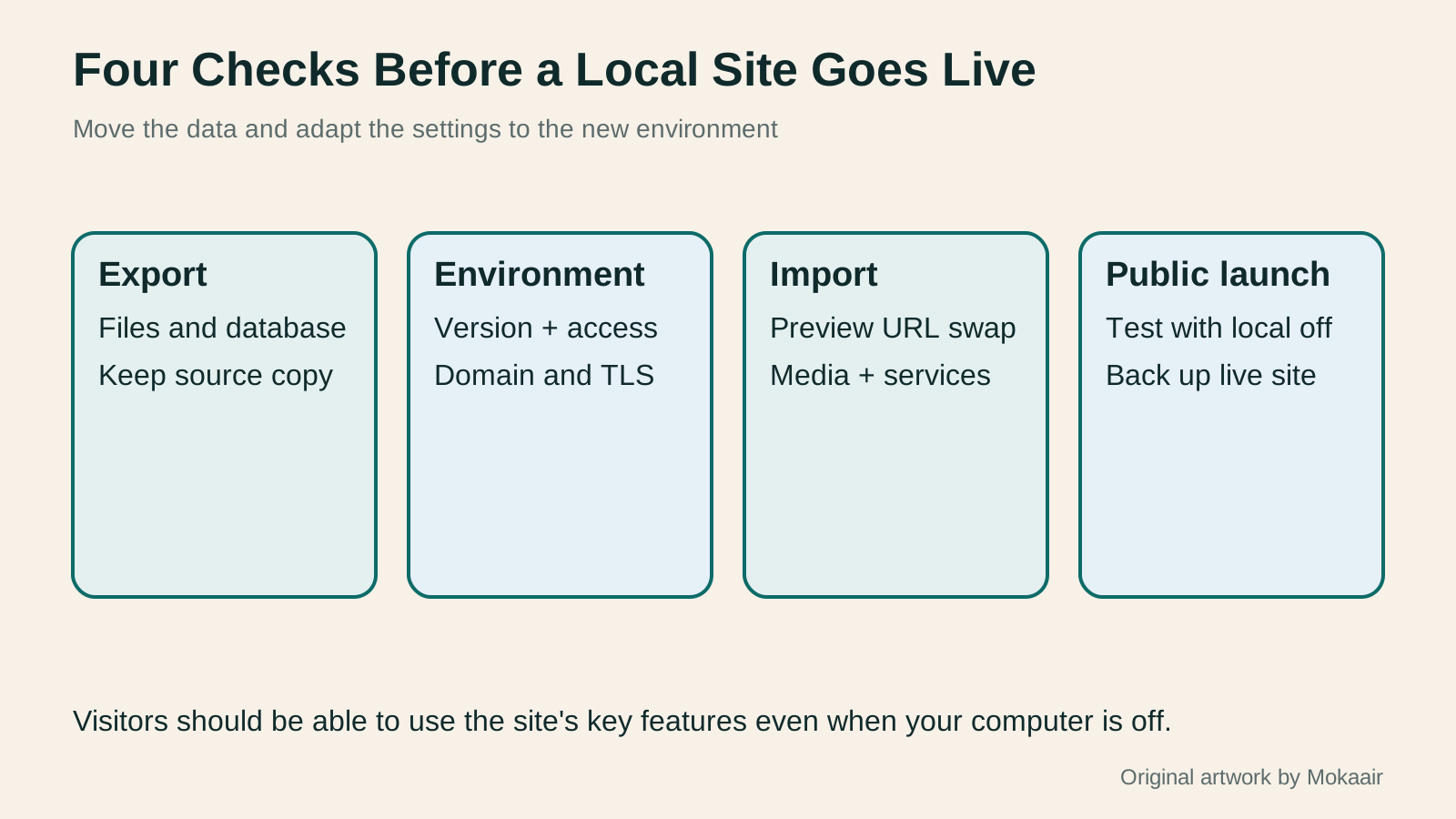
Stop the local web service, then open the live domain using mobile data or another device without local configuration. If images disappear, links return to the local site, or forms fail, something still depends on your computer. This test catches what 'it works on my machine' misses, but you still need page sampling and functional tests.
Before making the site public, remove test-only noindex settings that should not remain, and confirm the main navigation, contact details, and error pages work. Make a fresh backup on the live host and record the host, domain, plugin licenses, and maintenance owner. Document which environment will receive routine updates to prevent the two sites from diverging.
Once the live site has received real data, do not treat another full-site push from your computer as a routine update. Decide whether the change concerns code, layout, or content, and choose a method that preserves new live data. First launch and ongoing maintenance are different jobs; agree on the rules at handoff.
| Method | Suitable need | Check before transfer |
|---|---|---|
| WordPress XML export | Hand selected content to another site | Check media, layout, and settings separately |
| Complete file and database migration | Publish the whole local site for the first time | Destination data, tool format, and environment settings |
| Local Connect | Synchronize with an officially supported host | Currently supported hosts and what a push overwrites |
| Later partial updates | The live site has begun receiving real data | Sync only the parts that need to change |
Build a WordPress test site on your computer: MAMP and preparing to go liveBuild a WordPress test site on your computer: MAMP and preparing to go livePractise WordPress locally without affecting a live site. Using MAMP for Windows, learn about installation paths, ports, databases and WordPress setup, isolating test data and diagnosing connection problems. Prepare separate file and database exports before launch. This is a beginner's environment for editing and layouts; local success does not validate production hosting.Read the full article
How to back up WordPress: files, databases and restoration drillsHow to back up WordPress: files, databases and restoration drillsA successful backup message is not enough. Build a checklist for WordPress files, databases and off-site copies, then learn the UpdraftPlus and WPvivid controls, restore limitations and isolated drills needed to confirm recovery. Plan schedules, retained versions, configuration files and acceptance records so someone can restore a personal or studio website.Read the full article
HTTPS certificates for a live website
Found this guide helpful? Share it with someone who needs it
Lifestyle
Before Resetting WordPress: Separate Content, Theme Settings, and Full Restore
Starting over in WordPress does not always require wiping the site. This guide compares style resets, content revisions, database resets, and full restores; explains the scope of WP Reset and the limits of its snapshots; and walks through a test site, backup checks, and acceptance after a reset. It helps ordinary users in Taiwan identify the actual problem and choose a suitably narrow action with a recovery plan.
Lifestyle
WordPress Performance Plugins: Caching, Images, and Feature Conflicts
WordPress performance plugins need settings matched to the actual site; enabling every option at once is unsafe. Using a small Taiwan-based course and shop site, this guide compares WP Rocket and NitroPack, divides responsibility for caching and images, and shows how to diagnose conflicts caused by CSS and JavaScript optimization. A comparison table, staged workflow, and original diagram help administrators retain a measurement baseline and verify forms, menus, and shopping flows.
Lifestyle
Handling WordPress Comment Spam: Review Rules and Akismet
Stopping spam in WordPress comments takes sensible moderation rules and a way to correct mistakes, as well as a plugin. This guide covers discussion settings, Akismet activation and plan eligibility, reporting spam, and rescuing legitimate comments. Its daily review checklist helps small-site owners reduce the workload while leaving room for readers with real questions to join the discussion.
Lifestyle
Build a personal blog with WordPress: from categories to your first post
To start a personal blog, decide what questions you want to answer over time, then plan the homepage, post list and basic pages. Using WordPress as an example, this guide develops a writing workflow from content categories and reading layouts through the first post and later updates. It also covers checks for post cards, pagination and comments. It is for readers in Taiwan who want to turn their notes into public content: finish a small but complete site first, then add features as needed.
Sources
- Local: Importing and exporting sitesChecked:
- Local: Connect support and synchronizationChecked:
- Local: Testing email with MailpitChecked:
- WordPress: Tools ExportChecked:
- WP-CLI: search-replaceChecked:
- WordPress: Hosting compatibility requirementsChecked:
Compiled from the references and verification dates listed above; fares, schedules, product features, and terms can change, so please confirm the latest details on the relevant official website before travelling, booking, or purchasing.