Lifestyle
How to Choose a WordPress Theme: Reading, Editing, and Long-Term Maintenance
Choose a WordPress theme by starting with readers' and editors' needs, then comparing the appearance of demo sites. This guide explains block, classic, and hybrid themes and provides checks for testing real content, portability, customization, and long-term maintenance. It is written for people in Taiwan building or redesigning a site. Use the same checklist for mobile navigation, articles, forms, and administration so an attractive template does not make daily updates difficult.
About 7 min read
Theme demos usually use coordinated photos, short headlines, and carefully chosen copy. Your site may have long Chinese articles, portrait images, and complex tables. Choosing from a demo homepage alone can expose layout problems only after you start publishing. Testing with your own representative content is more useful than picking colors first and forcing the information into place later.
This guide uses a fictional lifestyle-knowledge blog to evaluate long articles, category listings, and a contact page. The comparison method is our own; descriptions of theme types and customization are checked against WordPress documentation. We do not rank brands or claim that an untested theme must be the fastest or best for search.
List the content you need to display first
List the page types your site will use: home, article, category archive, search, standard page, and contact form. Prepare one realistic example of each, including long titles, different image ratios, and multiple paragraphs. If you might later need a shop or member area, note it as a compatibility requirement without treating an undecided idea as a feature you must buy now.
Identify who will update the site. A single design-savvy administrator and a team that rotates publishing duties need different degrees of editing freedom. If each article only needs text and image changes, a stable template may be easier than many adjustable options. If you frequently make campaign pages, check whether layouts can be reused and shared settings protected.
Write requirements as observable outcomes: long Chinese headlines do not cover images, the mobile menu works, tables remain readable, and articles have no unwanted sidebar. These checks help eliminate unsuitable candidates without endlessly comparing dozens of appealing demos.
Understand how block and classic themes are edited
WordPress mainly supports block and classic themes. Block themes use block templates that can be adjusted through the Site Editor, including related templates and styles. Classic themes use a PHP template system, often with the Customizer, theme settings, or other tools. Some classic themes add block capabilities and are often called hybrid themes, but that is not a wholly separate third official type.
Do not judge by whether a category sounds new or old. Block themes can offer a consistent editing model, but the team still needs to distinguish content from templates. A classic theme may fit an established workflow, but its customization methods and update dependencies need checking. What matters is whether you can make routine changes and who can handle needs beyond the interface settings.
Practice three tasks in each candidate theme: edit an article, change navigation, and update the shared footer. Record how easy the entry points are to find, whether other pages are affected, and how to undo the changes. These tasks resemble future work more closely than a demo animation does.
Check appearance through reading and interaction
For Chinese content, check font size, line spacing, paragraph width, and whether links are recognizable. Heading levels should be clear without relying on color alone. Long tables, code snippets, and lists also need workable displays so mobile readers can reach important columns. Check that images and captions are not cropped unnecessarily.
Test navigation, search, and forms with a mouse, touch, and keyboard. Enlarge text and see whether menus are clipped, focus remains visible, or a fixed header hides content. A theme's advertised accessibility features are a starting point; your own content and plugins still require full acceptance testing. A label is not proof that the entire site passes.
Compare performance using identical content, plugins, and cache settings, and record test conditions. A faster demo may owe its speed to its images, hosting, or external scripts rather than the theme. Remove unneeded features first, then observe real pages. Do not delete information readers need merely to raise one score.
- Shortlist a few themes that meet essential requirements and add the same representative content to a test site.
- Check desktop and mobile versions of articles, listings, search, and forms.
- Practice content, navigation, and shared-area edits; record any difficult steps.
- Compare dependencies, maintenance, and exit options before scheduling the live switch.
Keep essential functionality separate from appearance
The WordPress Theme Handbook recommends separating presentation from important site functionality. If a theme provides a portfolio, special content, or another core capability, switching themes may remove its interface or display. Data still existing and visitors still being able to use it are different questions. Check alternative displays and migration steps before choosing.
Check which extra plugins, paid components, or external services a demo template requires. Importing one layout may introduce several dependencies along with future update and license costs. List each required item, check for tools doing the same job twice, and avoid counting only the theme's purchase price.
In a test copy, switch to another suitable theme and inspect article text, images, menus, and special content. Do not assume that exporting theme settings creates a universal format any other tool can read. If layouts need manual reconstruction, estimate the work and save the source content so a future redesign has a clear starting point.
Make customization survive the next update
Use built-in settings where they meet the need. When code changes are required, ask someone familiar with WordPress to choose the right approach. A child theme can manage customizations on top of a parent theme and prevent a parent update from overwriting direct file edits, but it still depends on that parent and needs compatibility checks after updates.
Styles, template edits, and file settings in a block theme may be stored in different places. Document which layer was changed during handover. A finished screenshot without original settings, required files, and recovery instructions is insufficient. Someone who only edits articles should also know which sitewide areas not to change casually.
For a paid theme, check the permitted number of sites, the update and support periods, and renewal terms. Keep legally obtained installation files and account details. For a free theme, check maintenance and documentation too; no purchase fee does not remove compatibility or handover costs. The real cost includes the work needed to keep the site usable.
Verify older content during a live redesign
Take a fresh backup before switching, record current pages and functions, and choose an appropriate time. A new theme may change menu locations, widgets, image display, or templates. Recheck these after switching instead of looking only at the latest article. Sample older content, especially pages built with special shortcodes or layouts.
Test main paths in a signed-out window, including forms, search, navigation, and related links, and watch for caches still serving the old design. If problems appear, follow the prepared recovery process while preserving new data. A suitable theme lets readers read, administrators update, and the next maintainer understand how to make changes.
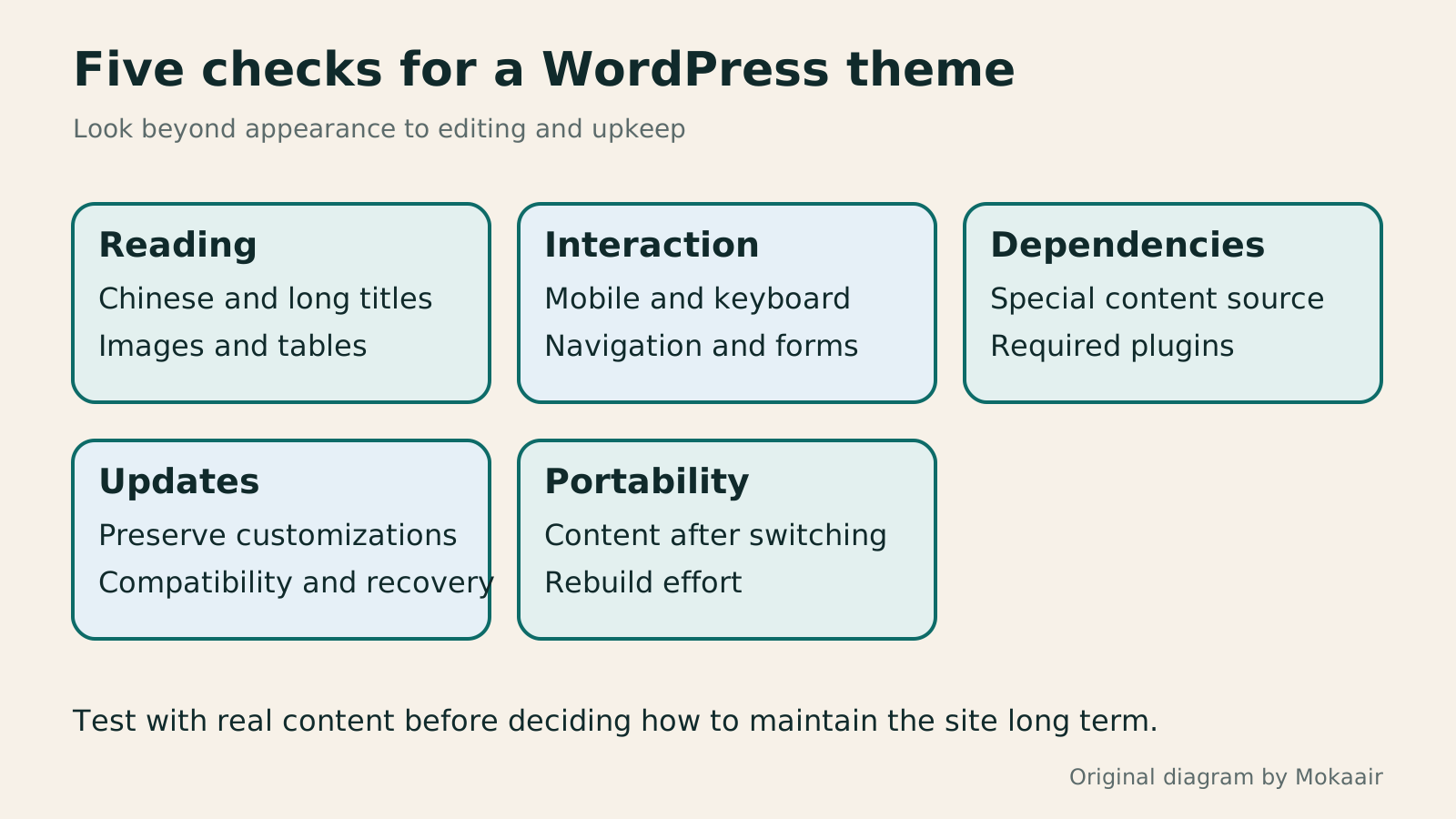
| Criterion | Question | Hands-on check |
|---|---|---|
| Reading | Is real content clear? | Chinese text, long titles, and images |
| Editing | Who handles routine updates? | Articles, navigation, and shared areas |
| Functionality | Which features depend on the theme? | Special content and plugin inventory |
| Maintenance | How are customizations preserved? | Updates, child theme, and documentation |
| Portability | How does the site carry on after a switch? | Text, media, and alternative layouts |
Installing and managing themes and pluginsInstall WordPress themes and plugins: sources, updates and deactivationBefore installing a WordPress theme or plugin, identify the problem, download source, compatibility and recovery method. This guide covers dashboard search, uploading an official ZIP, activation and acceptance checks, and explains the different effects of updating, deactivating and deleting. For people in Taiwan who maintain their own sites, a brief record of new features and long-term costs helps avoid duplicate tools, forgotten licenses and too many simultaneous production changes.Read the full article
Setting up sidebars and widgetsWordPress sidebars and widgets: arranging information and persistent blocksWordPress sidebars can hold search, an author profile and related content, but first ask whether they help readers. This guide distinguishes classic widgets, the block-based widgets editor and block themes. It covers adding, ordering, temporarily removing and checking content, and compares normal flow, sticky and fixed positioning. Check desktop, mobile and enlarged text so information blocks do not cover the article or forms and readers can follow a clear order when the site offers more routes.Read the full article
Lifestyle
After a WordPress Move: Check Search Traffic, the Old Host, and Renewals
A completed WordPress move still needs checks that the new host is stable, search entry points work, backups can be used, and old services can safely stop. This guide provides a cutover observation checklist, a way to interpret search traffic, an inventory of old-host dependencies, and renewal closeout steps. Individual site owners and studios can retain the information needed for rollback without confusing temporary fluctuations, ending renewal, and immediately deleting a site.
Lifestyle
Move WordPress to a New Host Without Changing the Domain: Migration, Testing, and DNS Cutover
When WordPress moves to a new host, its URLs can stay the same, but files, the database, certificates, and external services still need a handoff. This guide covers preparation of the new host, restricted previews, the final data sync, and DNS cutover in order. A verification table and rollback criteria help individual site owners and studios keep their domain while moving hosts, without canceling the old service before recovery options are secure.
Lifestyle
Changing a WordPress Domain: Check Redirects, Search Signals, and Email
Changing a WordPress domain means handling internal URLs, redirects from old links, search signals, and email together. Starting with a URL mapping, this guide explains how to preview database replacements, check permanent redirects, test sending and receiving on the new domain, and monitor the change after launch. It helps personal brands and studios plan a name change without assuming that editing the WordPress site address completes the move.
Lifestyle
Moving from WordPress.com to Self-Hosted WordPress: Content, Media, and URLs
Before moving a WordPress.com site to self-hosted WordPress, check your plan, domain, and the handoff for each kind of content. This guide covers the options available to free and paid sites, XML export and import, verification of actual image files, subscriber migration, and when Site Redirect is available. It helps individual creators in Taiwan plan the move and identifies features and billing items that need separate attention after the new site is ready.
Articles that cite this one
Latest travel guides

GuideTokyo
Where to Stay in Tokyo: Comparing Shinjuku, Ueno, Tokyo Station, Shibuya, Asakusa, Ikebukuro, and Ginza, Plus Airport Access, Accommodation Tax, and Luggage Delivery
Where should you stay in Tokyo? Compare Shinjuku, Ueno, Tokyo Station, Shibuya, Asakusa, Ikebukuro, and Ginza by the same criteria: access from Narita and Haneda, transit routes, nearby attractions, neighborhood character, and who each area suits. Includes a comparison table, a Yamanote Line diagram, Tokyo’s accommodation tax as verified in 2026/9 (changing to 3% in 2027/4), and Airport TA-Q-BIN luggage shipping rules.
- Budget
- Hotels

GuideTokyo
How to Choose Tokyo Transit Passes: Are Suica, Welcome Suica, the Tokyo Subway Ticket, and the JR Pass Worth It?
On a first Tokyo trip, start with an IC card and pay per ride (Welcome Suica has no deposit and is valid for 28 days). If you take four or more subway rides in a day, add a 72-hour Tokyo Subway Ticket for 2,000 yen; a JR Pass is never worthwhile if you stay in Tokyo and do not go to Kansai. See what TOURIST PASMO, Suica on iPhone, and the Tokyo Metro day pass do and do not cover, with a decision chart. Prices verified in September 2026.
- Transport
- Budget

GuideTokyo
Tokyo Disneyland and DisneySea Guide: Ticket Prices, Fantasy Springs, Disney Premier Access (DPA), Standby Pass, and Which Park to Choose for Your First Visit
Tokyo Disney one-day Passport prices vary: most weekdays in 9/2026 cost ¥9,900 and weekends ¥10,900. At 14:00 daily, tickets go on sale for the same date two months later. Free Priority Pass is no longer on the official service list; only paid Disney Premier Access (¥1,000–3,500 per person per use) shortens waits. Covers hours, the 25th anniversary, Standby Pass, Entry Request, Fantasy Springs access and first-visit park choice; checked on the official site in 9/2026.
- Itineraries
- Family
Sources
- WordPress: What a theme is and where functionality belongs · Checked:
- WordPress: Block themes · Checked:
- WordPress: Child themes · Checked:
- WordPress: Working with themes · Checked: