Lifestyle
Choosing a WordPress Page Builder: Blocks, Patterns, and Maintenance Costs
Choose a WordPress page builder by asking who makes daily edits, how much layout freedom is needed, and whether the site can be maintained or migrated. This guide compares native blocks, dedicated builders, and a split workflow. Build the same test page, check compatibility and shared patterns, then inspect what remains after disabling a tool. For people in Taiwan building or redesigning a site, these checks prevent dependence on a hard-to-handover tool chosen for its drag-and-drop features.
About 7 min read
A page builder lets you arrange text, images, and buttons directly. What matters in daily work, however, is whether the site stays consistent afterward, colleagues can avoid accidental sitewide changes, and someone can handle tool updates. Before choosing, imagine who will update the site six months later. That is more useful than judging how easy the first drag-and-drop session feels.
This guide uses a fictional course-information site to explain the trade-offs: routine articles need a reliable publishing flow, while occasional event pages need special layouts. Our comparison method is original, and feature descriptions were checked against WordPress and editor documentation. We have not benchmarked brand speeds and do not assume more paid components are better for everyone.
Separate content updates from layout design
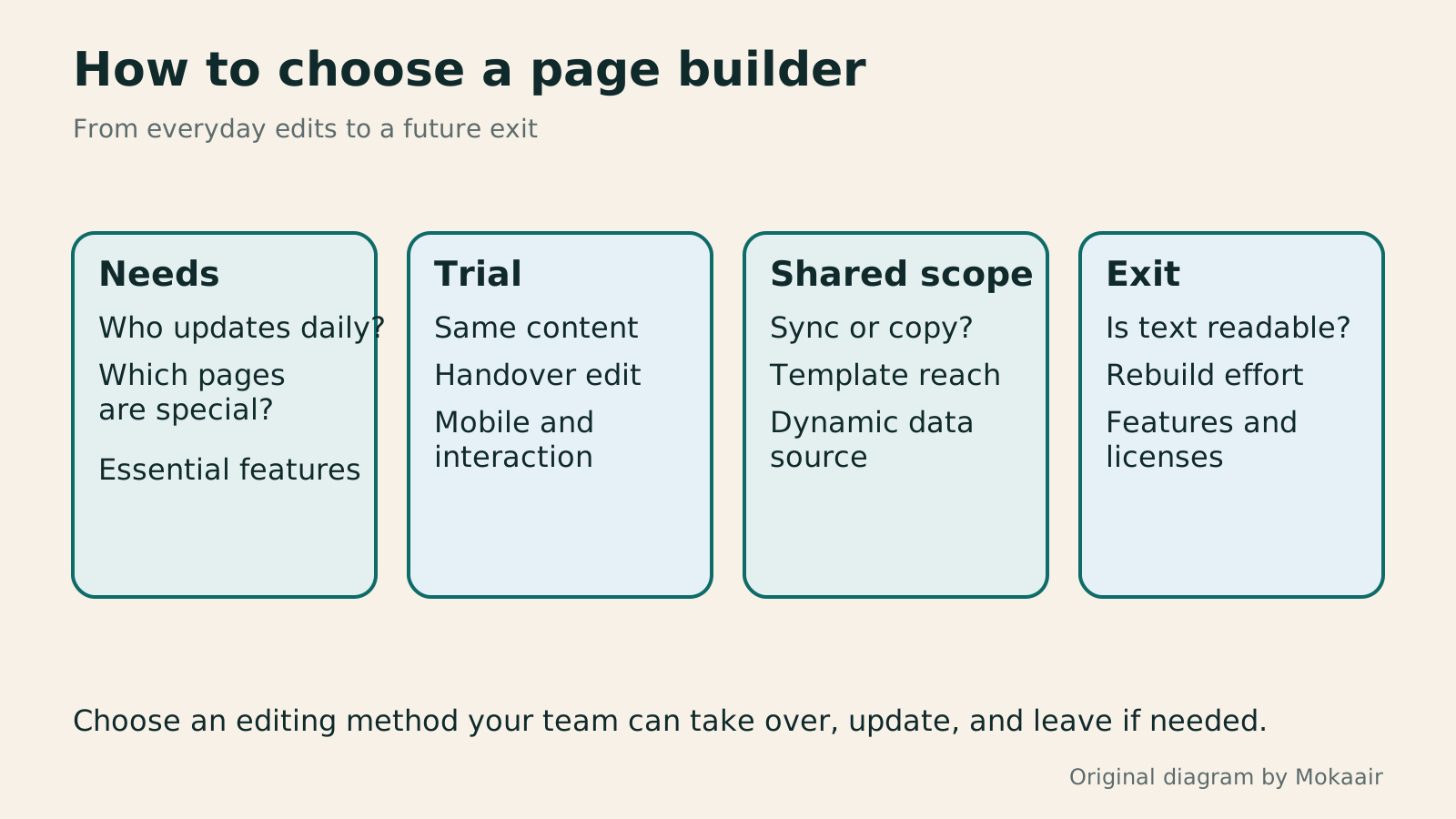
List common tasks: change a course date, replace an instructor photo, add a teaching article, and create an event page. The first few usually need easy-to-find content fields; an event page may need more design freedom. If every small edit requires working in a complicated canvas, daily maintenance comes to depend on a few specialists.
Decide who may change shared templates, colors, and fonts, and who only needs to edit content. Give the team clear roles and instructions; use appropriate permissions and locking where needed to reduce accidental changes. These limits are not meant to stop editing. They show which changes affect other pages.
List essential features such as multicolumn layouts, reusable patterns, forms, dynamic article lists, or sitewide templates. Check what your current tools can do before adding another one. Do not bring in an entire editing system for one decorative effect or treat an undecided future need as a reason to pay now.
Trade-offs between native blocks and dedicated builders
WordPress native blocks combine paragraphs, headings, images, and other blocks, and patterns let you reuse designs. For sites mainly made of articles and standard pages, trying native features first often reveals what is actually missing. Third-party block plugins still introduce compatibility and dependency work; a native-looking interface does not remove those costs.
Dedicated page builders commonly have their own component panel, canvas, and layout controls. Elementor's official guide, for example, describes editing through these areas. Such tools may offer useful design workflows, but check current product documentation for component eligibility, sitewide features, and version differences. Similar drag-and-drop interfaces do not imply identical storage or behavior when disabled.
You can also use native blocks for ordinary articles and a selected builder for special event pages, but document which editor owns each page. This split limits the dependency's reach while adding the learning and maintenance work of two systems. Avoid repeatedly switching editors on the same page to modify one layout unless you have verified a compatible workflow.
Test candidates with the same content
Prepare a page with a long heading, course introduction, three steps, an image, frequently asked questions, and an inquiry route. Build it in each candidate tool. Record completion time, points where documentation was needed, and effects that require an extra purchase. This tests your workflow; do not use different content and then declare one tool faster.
Ask the person who will actually take over to change a date, replace an image, and add one item. Watch whether they can find the right place. A designer knowing the tool does not mean a content editor will. If tiny changes regularly break spacing, clearer templates, naming, or editing limits may help more than replacing the entire toolset.
Test desktop and mobile layouts and enlarged text. Check that visual order matches reading order. Actually operate forms, menus, and interactive components instead of looking only at the editor's device preview. Previews help design, but fonts, caches, and external scripts can make the published page differ.
- List routine edits, special design needs, and essential features; shortlist a few tools.
- Build one page with identical content and record learning, paid add-ons, and customization needs.
- Have the future editor make real changes, then verify mobile, keyboard, and key interactions.
- Check disabling and migration in an isolated copy before deciding the tool's scope.
Understand the reach of shared patterns
Editing a WordPress synced pattern updates every place it is used; after detaching it, a copy can be edited independently. This helps with shared contact details, but changing synced content when you mean to change one course may affect other pages. Distinguish 'share one piece of content' from 'copy the same starting layout.'
Dedicated builders may also offer global styles, shared components, or templates; names and behavior vary by product. Give shared items clear names, record where they are used, and check the impact before saving. A label such as 'New Template 2' forces the next administrator to guess.
Check the text, images, and data source inside each pattern. Some templates contain fixed content; others read the current article or other dynamic data. A misplaced item can repeat one sample paragraph everywhere. Test with several real-world content lengths so the layout is not merely convincing for one example.
After disabling, inspect content, appearance, and functions
Disable the relevant builder or add-on in an isolated copy. Check whether text and images remain readable, whether layouts need rebuilding, and whether forms or dynamic content still work. Outcomes vary by product and component. Do not promise a one-click conversion with an identical result, or call migration free of cost merely because the text remains.
WordPress blocks can also render statically or dynamically; some content needs server-side code. After disabling the plugin that provides a block, usable stored content or a fallback depends on the implementation. That is why exit testing must cover the blocks you actually use, not just a tool's export claim.
Save original copy, legally usable images, important settings, and required exports, and identify which tools can read the export format. If special pages need manual rebuilding, estimate the page count and difficulty and migrate in batches. Do not use a live production site as a disabling experiment; prepare recovery and data-preservation steps first.
Include long-term maintenance in the decision
Costs include licenses, add-ons, renewals, learning, and maintenance time. Confirm the boundary between free and paid features, site limits, and update and support terms. Do not buy functions you do not currently need. If you use two editing methods, record the pages and versions each covers so neither gets missed during updates.
Regularly review unused components and duplicate plugins, and verify important pages before updates. When something fails, save the version, error message, and steps to reproduce it, then investigate one cause at a time instead of piling on more plugins. A suitable editor produces usable pages for readers and lets administrators keep making small, understandable changes.
| Approach | When to consider it | Main maintenance question |
|---|---|---|
| Native blocks | Mostly articles and fixed content | Third-party blocks still create dependencies |
| Dedicated builder | A specific design workflow is needed | Licensing, components, and exit costs |
| Split workflow | A few special pages | Two workflows and page ownership |
| Synced pattern | Shared details must change together | Edits affect every use |
| Independent pattern copy | Only the starting design is reused | Later changes must be made to each copy |
Choosing a WordPress themeHow to Choose a WordPress Theme: Reading, Editing, and Long-Term MaintenanceChoose a WordPress theme by starting with readers' and editors' needs, then comparing the appearance of demo sites. This guide explains block, classic, and hybrid themes and provides checks for testing real content, portability, customization, and long-term maintenance. It is written for people in Taiwan building or redesigning a site. Use the same checklist for mobile navigation, articles, forms, and administration so an attractive template does not make daily updates difficult.Read the full article
Installing and managing themes and pluginsInstall WordPress themes and plugins: sources, updates and deactivationBefore installing a WordPress theme or plugin, identify the problem, download source, compatibility and recovery method. This guide covers dashboard search, uploading an official ZIP, activation and acceptance checks, and explains the different effects of updating, deactivating and deleting. For people in Taiwan who maintain their own sites, a brief record of new features and long-term costs helps avoid duplicate tools, forgotten licenses and too many simultaneous production changes.Read the full article
Lifestyle
After a WordPress Move: Check Search Traffic, the Old Host, and Renewals
A completed WordPress move still needs checks that the new host is stable, search entry points work, backups can be used, and old services can safely stop. This guide provides a cutover observation checklist, a way to interpret search traffic, an inventory of old-host dependencies, and renewal closeout steps. Individual site owners and studios can retain the information needed for rollback without confusing temporary fluctuations, ending renewal, and immediately deleting a site.
Lifestyle
Move WordPress to a New Host Without Changing the Domain: Migration, Testing, and DNS Cutover
When WordPress moves to a new host, its URLs can stay the same, but files, the database, certificates, and external services still need a handoff. This guide covers preparation of the new host, restricted previews, the final data sync, and DNS cutover in order. A verification table and rollback criteria help individual site owners and studios keep their domain while moving hosts, without canceling the old service before recovery options are secure.
Lifestyle
Changing a WordPress Domain: Check Redirects, Search Signals, and Email
Changing a WordPress domain means handling internal URLs, redirects from old links, search signals, and email together. Starting with a URL mapping, this guide explains how to preview database replacements, check permanent redirects, test sending and receiving on the new domain, and monitor the change after launch. It helps personal brands and studios plan a name change without assuming that editing the WordPress site address completes the move.
Lifestyle
Moving from WordPress.com to Self-Hosted WordPress: Content, Media, and URLs
Before moving a WordPress.com site to self-hosted WordPress, check your plan, domain, and the handoff for each kind of content. This guide covers the options available to free and paid sites, XML export and import, verification of actual image files, subscriber migration, and when Site Redirect is available. It helps individual creators in Taiwan plan the move and identifies features and billing items that need separate attention after the new site is ready.
Latest travel guides

GuideTokyo
Where to Stay in Tokyo: Comparing Shinjuku, Ueno, Tokyo Station, Shibuya, Asakusa, Ikebukuro, and Ginza, Plus Airport Access, Accommodation Tax, and Luggage Delivery
Where should you stay in Tokyo? Compare Shinjuku, Ueno, Tokyo Station, Shibuya, Asakusa, Ikebukuro, and Ginza by the same criteria: access from Narita and Haneda, transit routes, nearby attractions, neighborhood character, and who each area suits. Includes a comparison table, a Yamanote Line diagram, Tokyo’s accommodation tax as verified in 2026/9 (changing to 3% in 2027/4), and Airport TA-Q-BIN luggage shipping rules.
- Budget
- Hotels

GuideTokyo
How to Choose Tokyo Transit Passes: Are Suica, Welcome Suica, the Tokyo Subway Ticket, and the JR Pass Worth It?
On a first Tokyo trip, start with an IC card and pay per ride (Welcome Suica has no deposit and is valid for 28 days). If you take four or more subway rides in a day, add a 72-hour Tokyo Subway Ticket for 2,000 yen; a JR Pass is never worthwhile if you stay in Tokyo and do not go to Kansai. See what TOURIST PASMO, Suica on iPhone, and the Tokyo Metro day pass do and do not cover, with a decision chart. Prices verified in September 2026.
- Transport
- Budget

GuideTokyo
Tokyo Disneyland and DisneySea Guide: Ticket Prices, Fantasy Springs, Disney Premier Access (DPA), Standby Pass, and Which Park to Choose for Your First Visit
Tokyo Disney one-day Passport prices vary: most weekdays in 9/2026 cost ¥9,900 and weekends ¥10,900. At 14:00 daily, tickets go on sale for the same date two months later. Free Priority Pass is no longer on the official service list; only paid Disney Premier Access (¥1,000–3,500 per person per use) shortens waits. Covers hours, the 25th anniversary, Standby Pass, Entry Request, Fantasy Springs access and first-visit park choice; checked on the official site in 9/2026.
- Itineraries
- Family
Sources
- WordPress: Block Editor · Checked:
- WordPress: Synced patterns · Checked:
- WordPress: Static and dynamic block rendering · Checked:
- Elementor: Main areas of the editor · Checked: