Lifestyle
WordPress posts and pages: choose the right content type and URL
WordPress posts and pages both hold text and images, but serve different purposes and are organized differently. Using a fictional community baking school, this guide explains when to use each, then covers blocks, excerpts, featured images, URLs and prepublication checks. Follow a repeatable workflow for your first item, and keep links stable when updating published content instead of assuming that a title edit leaves its URL and layout untouched.
About 7 min read
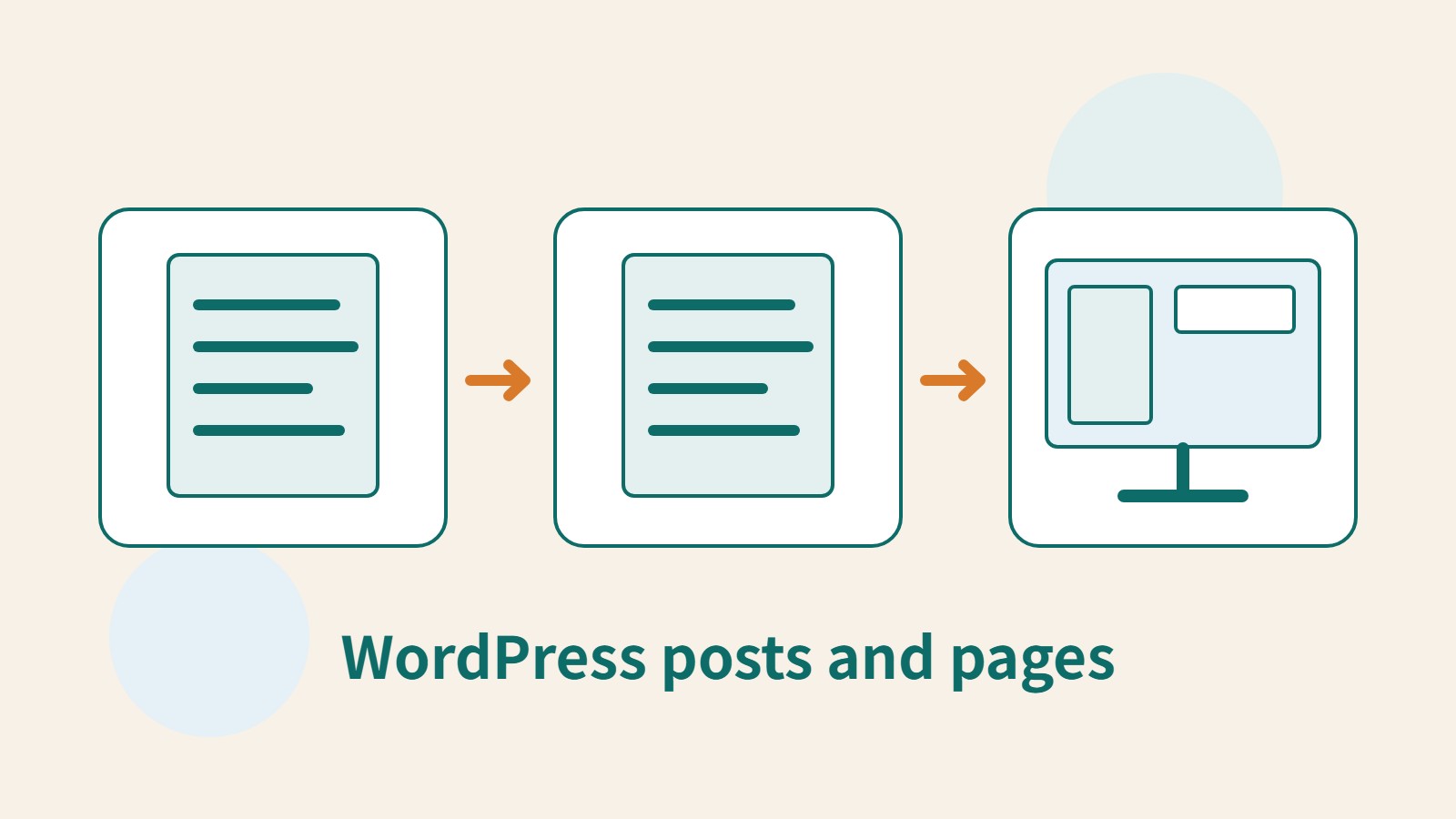
‘Registration is open for this week's class’ and ‘How to find our classroom’ can both be written as text, but readers look for them in different ways. The first changes with time; the second should remain easy to find. WordPress provides posts and pages so you can place content according to its role, rather than choosing whichever name sounds more formal.
The following workflow uses a fictional community baking school, from choosing a content type to checking a published item. The features were checked against official WordPress documentation; we did not test them in a signed-in site. A site with custom post types or a page builder may offer different choices. Understand the purpose first, then compare it with your own editor.
Choose by how readers will find the content
Posts suit an accumulating stream of news, tutorials or opinions. By default, they can appear in date order in a post list and be organized with categories and tags. Pages commonly hold About, services, contact and other standing information. They normally sit outside the ordinary post chronology and can have parent-child relationships. These are common defaults; plugins and themes can change the presentation.
The baking school could make a particular class announcement a post and its directions a page. Link from the announcement to the directions. When the address changes, update the directions first, then check whether the announcement repeats details that also need changing. Duplicating permanent information in every news item creates many places to chase down later.
Content changing over time does not automatically make it a post: pages can be revised continually too. Decide by its role on the site, not by how often you expect to edit it. Nor should you turn every page into a post solely in pursuit of search rankings. You still need to answer readers' questions, make the content findable and keep it reliable.
Draft the content structure before adjusting blocks
Create a draft from the Add New entry for posts or pages. Write a clear title and essential information, then arrange it with heading, paragraph, list and image blocks. For a class announcement, readers need to know whom it suits, when and where it happens, what to prepare and how to register. Put that information where it can be found in the body, not only inside an image.
Heading levels express the structure; do not skip levels merely because a font looks bigger. Give each paragraph one idea and use a numbered list for sequential steps. Add necessary explanation beside an image. Alternative text should describe what that image contributes here, rather than repeat a pile of keywords.
List View in the block editor helps confirm what is selected, especially before moving sections in a long article. Check whether you selected a group or shared item so dragging it does not move other blocks as well. Finish the content before fine-tuning spacing and decoration; this reduces repeated layout edits that overlook important information.
Check the excerpt and featured image separately
Post settings can provide an excerpt, which a theme may show in lists, search results or other previews. Explain what problem the item helps solve instead of merely repeating its title. A class announcement might state its topic and key conditions, but do not put all registration details only in the excerpt: some layouts will not show it.
The theme also determines how a featured image is used: it may appear in a post card or on the article itself. After setting one, inspect both the list and the article. Check that the subject is not cropped, any text remains legible and you have rights to use the image. A featured image and an image in the body can differ; changing one does not automatically update every placement.
If the excerpt or featured image is absent, first see whether the theme or template displays that content, then check caching. Do not upload several duplicates just to make an image appear. Avoid editing a site-wide template to fix one post unless you understand the effects on other pages.
Confirm the URL and hierarchy before publishing
A slug is the identifying part of a URL. You can usually view or adjust it in content settings, though the full URL also depends on permalink settings. Choose a clear, stable name that your team can recognize; do not change it whenever the title changes. Chinese and English slugs have different sharing and maintenance tradeoffs, with no single format that every site must follow.
A page URL may reflect its parent-page hierarchy. Changing the parent is more than tidying the admin list: check whether the complete URL changes. If a shared item moves, account for its old link, internal references and an appropriate redirect. Readers' bookmarks will not update themselves.
It is easiest to settle the URL and structure while new content is still private. For published content, save the old URL and list references in menus, buttons, newsletters and elsewhere before planning a change. If you only correct a typo in the title, check whether you can keep the URL and avoid unnecessary link maintenance.
Distinguish drafts, schedules and public visibility
A draft prepares content; Pending Review hands it to someone with the right permission; scheduling specifies when it is intended to go live. Check the site's timezone and date when scheduling, especially for an event deadline important to readers in Taiwan. A preview shows work in progress; it does not prove that ordinary visitors can see it.
Before publishing, check visibility, comment settings, author and other details. Then test the public URL in a signed-out window. Editors or administrators with permission may still view a private post; ‘private’ does not mean only its author can see it. On a multi-person site, check roles and the content's purpose before choosing visibility.
- Choose a post or page, create a draft and enter complete, verifiable information.
- Check block heading levels, excerpt, featured image, categories and full URL.
- Confirm publishing status and site timezone; preview desktop and mobile layouts.
- Have an authorized person publish, then verify links and registration in a signed-out window.
Keep revisions and a cue for the next review
WordPress revisions can help compare and restore content changes; how many remain depends on site settings. Examine the differences before restoring and decide which recent details should survive. Revisions do not replace a whole-site backup and do not necessarily restore every plugin's data or settings. Save the current content first if you are unsure of the scope.
After an event, mark it finished, remove expired registration links, and either keep a useful record or link to the next session. Give standing pages an owner and a regular review date. A note on when each item needs checking makes it less likely that your site will fill with accessible but unusable old information.
Read the full description
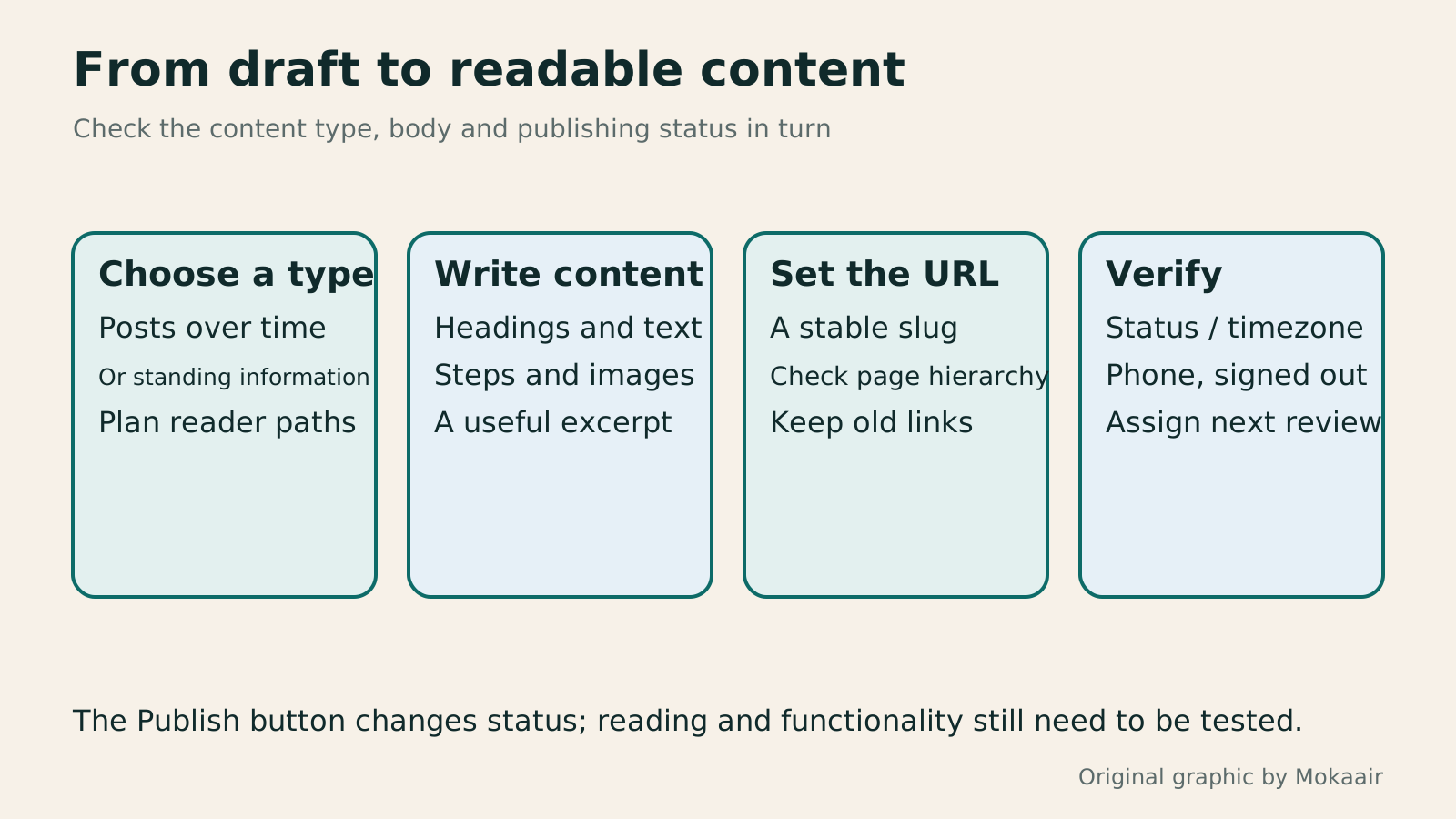
Four-stage diagram: choose a post or page, organize content, set the URL, and verify publication.
| Comparison | Post | Page |
|---|---|---|
| Typical use | News, tutorials, accumulating content | Services, contact, standing information |
| Organization | Date, categories and tags | Parent-child hierarchy and site navigation |
| Updates | Can revise existing content | Can also be updated continually |
| URL | Affected by slug and permalinks | Also check changes to the parent |
| Verification | Check list and article views | Check navigation and related entry points |
WordPress admin and division of workUsing WordPress admin: dividing content, design and administrator dutiesTaking over a WordPress site? Learn daily tasks: posts, pages, images, design and settings that need an administrator. This guide maps common menus and default roles, with steps to record changes, preview, publish and report faults so small teams can divide work clearly. Interfaces vary by theme, plugin and permissions; check the environment when a feature is missing instead of raising everyone's access.Read the full article
Routine website maintenanceWhat website maintenance involves: a routine for backups, updates, and incident reportsWebsite maintenance includes more than plugin updates: check content, accounts, backups, outgoing email, and expiring services. Using a small WordPress content site, this guide covers routine observation, pre- and post-update checks, restoration, and incident reports, with a worksheet for owners, editors, and maintainers. Set a schedule by update frequency, identify urgent cases, and keep records the next collaborator can use.Read the full article
Lifestyle
After a WordPress Move: Check Search Traffic, the Old Host, and Renewals
A completed WordPress move still needs checks that the new host is stable, search entry points work, backups can be used, and old services can safely stop. This guide provides a cutover observation checklist, a way to interpret search traffic, an inventory of old-host dependencies, and renewal closeout steps. Individual site owners and studios can retain the information needed for rollback without confusing temporary fluctuations, ending renewal, and immediately deleting a site.
Lifestyle
Move WordPress to a New Host Without Changing the Domain: Migration, Testing, and DNS Cutover
When WordPress moves to a new host, its URLs can stay the same, but files, the database, certificates, and external services still need a handoff. This guide covers preparation of the new host, restricted previews, the final data sync, and DNS cutover in order. A verification table and rollback criteria help individual site owners and studios keep their domain while moving hosts, without canceling the old service before recovery options are secure.
Lifestyle
Changing a WordPress Domain: Check Redirects, Search Signals, and Email
Changing a WordPress domain means handling internal URLs, redirects from old links, search signals, and email together. Starting with a URL mapping, this guide explains how to preview database replacements, check permanent redirects, test sending and receiving on the new domain, and monitor the change after launch. It helps personal brands and studios plan a name change without assuming that editing the WordPress site address completes the move.
Lifestyle
Moving from WordPress.com to Self-Hosted WordPress: Content, Media, and URLs
Before moving a WordPress.com site to self-hosted WordPress, check your plan, domain, and the handoff for each kind of content. This guide covers the options available to free and paid sites, XML export and import, verification of actual image files, subscriber migration, and when Site Redirect is available. It helps individual creators in Taiwan plan the move and identifies features and billing items that need separate attention after the new site is ready.
Articles that cite this one
Latest travel guides

GuideTokyo
Where to Stay in Tokyo: Comparing Shinjuku, Ueno, Tokyo Station, Shibuya, Asakusa, Ikebukuro, and Ginza, Plus Airport Access, Accommodation Tax, and Luggage Delivery
Where should you stay in Tokyo? Compare Shinjuku, Ueno, Tokyo Station, Shibuya, Asakusa, Ikebukuro, and Ginza by the same criteria: access from Narita and Haneda, transit routes, nearby attractions, neighborhood character, and who each area suits. Includes a comparison table, a Yamanote Line diagram, Tokyo’s accommodation tax as verified in 2026/9 (changing to 3% in 2027/4), and Airport TA-Q-BIN luggage shipping rules.
- Budget
- Hotels

GuideTokyo
How to Choose Tokyo Transit Passes: Are Suica, Welcome Suica, the Tokyo Subway Ticket, and the JR Pass Worth It?
On a first Tokyo trip, start with an IC card and pay per ride (Welcome Suica has no deposit and is valid for 28 days). If you take four or more subway rides in a day, add a 72-hour Tokyo Subway Ticket for 2,000 yen; a JR Pass is never worthwhile if you stay in Tokyo and do not go to Kansai. See what TOURIST PASMO, Suica on iPhone, and the Tokyo Metro day pass do and do not cover, with a decision chart. Prices verified in September 2026.
- Transport
- Budget

GuideTokyo
Tokyo Disneyland and DisneySea Guide: Ticket Prices, Fantasy Springs, Disney Premier Access (DPA), Standby Pass, and Which Park to Choose for Your First Visit
Tokyo Disney one-day Passport prices vary: most weekdays in 9/2026 cost ¥9,900 and weekends ¥10,900. At 14:00 daily, tickets go on sale for the same date two months later. Free Priority Pass is no longer on the official service list; only paid Disney Premier Access (¥1,000–3,500 per person per use) shortens waits. Covers hours, the 25th anniversary, Standby Pass, Entry Request, Fantasy Springs access and first-visit park choice; checked on the official site in 9/2026.
- Itineraries
- Family
Sources
- WordPress: Create pages · Checked:
- WordPress: Page/Post Settings sidebar · Checked:
- WordPress: WordPress Block Editor · Checked:
- WordPress: Revisions · Checked:
- WordPress: Set blog content visibility · Checked: