Lifestyle
Managing a Gandi domain: registration, DNS and renewal checks
Gandi keeps registration, DNS, email and renewal settings in separate places. Based on current official documentation, this guide covers post-purchase checks, LiveDNS records, backups, transfers and what the 2026 Classic DNS migration means for existing users. Check your own account and build a domain register others can take over, avoiding outdated tutorial nameservers and the assumption that paying means your website and email are fully configured.
About 7 min read
The first step in managing a Gandi domain is to identify the role of every item in your account. Domain registration handles the name and expiration date, DNS records determine how the website and email are resolved, and the email service has its own content and billing. Even when they appear in the same account, one working correctly does not mean that everything is ready.
This guide is for people taking over an existing domain or preparing to connect a new domain to a website. The procedures are based on public official documentation checked on 2026-9-14. Gandi is gradually migrating Classic DNS to LiveDNS, so the guide starts with checking the current situation, then sets out the order for routine changes, renewals and transfers.
Check the basic information when registering or taking over a domain
Before buying, use the official domain search to check the name, extension, availability and full checkout total. Record the initial registration period, renewal cost and extra services separately; do not base today's budget on prices or included benefits from years ago. When buying for a studio or company, first establish which organization's details and management account to use, then complete the order.
If you already own the domain, open the specific name through DOMAIN or the domain list and check its expiration date, registrant and contact information. If a reseller manages the domain, some operations and renewal notices may be handled through that reseller, so confirm who is responsible. Have the person taking over sign in themselves and find the support channel, rather than receiving only a website password without the ability to manage the actual domain.
Check the current DNS migration status first
On 2026-8-24, Gandi announced that domains using Classic DNS would gradually move to LiveDNS. In most cases, Gandi would copy the records and then switch the nameservers; special configurations may be handled separately. This is the provider's migration plan. It does not establish that your account has already switched, and the announcement's expectation of no interruption is not a result tested for this guide.
Look at the actual settings in the domain's Nameservers section and compare them with the official notices you received. If an old tutorial tells you to enter Classic DNS names, stop copying it and check the new documentation. The announcement says that domains previously sharing a single Classic DNS zone will each receive their own copy after migration. When you later change one domain, do not assume that the others will update automatically.
Edit records in the DNS service that is actually in use
When the domain uses Gandi LiveDNS, manage its records under DNS Records. If its nameservers point to another company, make changes at that service instead; old records left in Gandi may not be publicly effective. Confirm this prerequisite before adding or editing anything to avoid repeatedly saving changes in the wrong interface.
The official documentation provides a form-based mode and a text mode. Beginners should check each record's name, type, value and TTL individually. Text mode edits the entire zone and requires familiarity with the format. When your web host supplies A, AAAA or CNAME records, enter the details it actually requires rather than putting a full web page path into DNS. Obtain email records such as MX and TXT separately from your email provider.
Before making changes, save a backup according to the LiveDNS documentation or export the DNS records. Restoring an entire zone can also revert entries added later, so compare the differences first even if only one setting is wrong. A backup file helps reconstruct the configuration, but it is not a backup of website files or email and cannot restore deleted website content.
- Select the correct domain, inspect Nameservers, and identify the DNS service currently answering public queries.
- Save the original records and the time of the change. Mark the entries you intend to modify and whether they serve the website or email.
- Update records using the specific details supplied by each provider. After saving, compare every field and preserve other settings that are still in use.
- Query the DNS results, then test website pages and incoming and outgoing email. If something is wrong, first distinguish a DNS issue from a hosting or mailbox issue.
Check payment and notifications alongside automatic renewal
Gandi's official renewal documentation explains that you can adjust automatic renewal in the information section of the domain's Overview. In your own account, check whether it is enabled, which payment source applies and whether that source is usable. A previous successful payment does not guarantee that the next one will work. Expired payment methods, spending limits and account information problems are all worth resolving well before expiration.
Check renewal of the domain separately from other services. Extending the domain does not prove that email, hosting or additional services have also been extended; paying an email bill does not mean that the domain has been renewed either. After completing the order, check the processing result and updated expiration information, save the receipt and update your management register. If a reseller is responsible, ask them to confirm that the renewal actually completed.
Check extension rules and service dependencies before transferring
Before moving a domain to another registrar, check the procedure that applies to its extension and current status. Gandi's documentation says that the usual authorization code is available under the domain's Transfer out section, but some extensions use a different process. Consult the official documentation of both the current and new registrar for eligibility, required details, fees and timing. Do not assume that every domain can be transferred out immediately.
Treat the transfer authorization code as sensitive information and use it only within the trusted new registrar's process. Before changing registrars, also check whether DNS, email or other services depend on the original account. A domain transfer does not itself move website data or email. Arrange these dependencies separately and confirm that the new environment works before dealing with the old services, reducing the chance of something being missed during the handover.
Leave a traceable starting point for future management
Keep a short record for each domain, including the registrant, purpose, expiration date, DNS service, website location and responsible person. For each change, add the reason, old value, new value, time and verification result; store passwords and authorization codes securely elsewhere. Even for someone with only one website, this register can reduce the time spent rediscovering their own settings half a year later.
When a problem occurs, describe it in reproducible terms, such as ‘After changing DNS, the website works but email from external senders bounces,’ and attach the relevant records and error messages. Do not change every setting at once. Identify the affected service and where it is managed, preserve the original values and a way to revert, and give support or the next maintainer a clear basis for continuing the work.
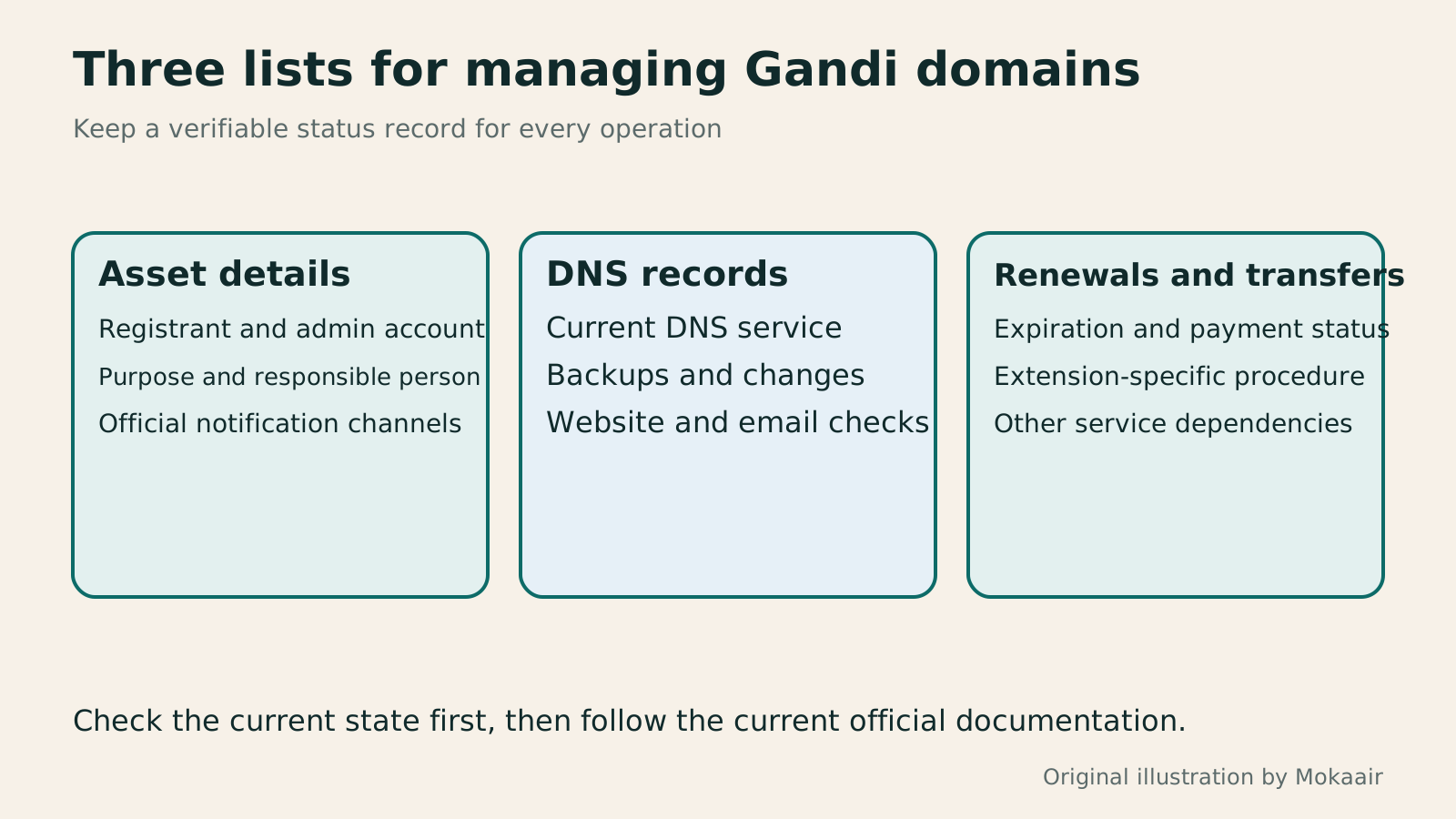
Read the full description
Gandi domain management is organized into three lists: asset details, DNS records, and renewals and transfers, each with information to retain.
| Task | Where or what to check | Evidence of completion |
|---|---|---|
| Register or take over | Registrant, account and order | The responsible person can sign in and view the domain |
| Change DNS records | Active Nameservers and DNS Records | Query results and website and email acceptance checks |
| Renew | Overview, payment and order | Renewal processing result and expiration information |
| Transfer out | Transfer out and extension rules | Confirmation from the new registrar and checks of dependent services |
Checking DNS settings: from A and CNAME to email records
What happens when a domain or hosting expires: checks before renewal or shutdownWhat happens when a domain or hosting expires: a checklist before renewal or shutdownDomains, hosting and email can expire separately, with different effects if unpaid. Check orders, expiry details and admin access before renewal, recovery eligibility after expiry, and data to save before closing or moving a site. Build a checklist in time order; manage the domain, site backups, email and external accounts separately. Avoid cancelling a service only to lose verification emails, or keeping a content export without images and site settings.Read the full article
Lifestyle
Changing domain registrars: transfer locks, authorization codes and keeping DNS working
Moving a domain to another registrar changes who manages its registration; it does not automatically move your website or email. This guide covers eligibility, common locks, authorization codes and the application process. DNS, nameserver and email checks help users in Taiwan hand over domains such as .com, while reminding them to check the separate rules for .tw and other extensions.
Lifestyle
Comparing WordPress hosting: assess providers with one requirements worksheet
To compare WordPress hosting, align site content, service responsibilities and billing periods before interpreting plan differences. This guide offers a worksheet and verification process, separates official specifications from your own measurements and unresolved conditions, and covers renewal, backups, support and exit costs. It is for users in Taiwan choosing their first host or considering a different provider, without ranking services by a single speed test or promotional monthly price.
Lifestyle
Setting up a Namecheap domain: connecting it to a website and email after registration
After buying a Namecheap domain, identify its DNS manager to connect your website and email. Official documentation explains Nameservers, Advanced DNS and Mail Settings, with two routes: change nameservers or keep the current DNS. This guide provides preparation checks, step-by-step verification and fault-reporting details for people using different domain, hosting and email providers, helping prevent accidental deletion of existing email records while bringing a website online.
Lifestyle
What happens when a domain or hosting expires: a checklist before renewal or shutdown
Domains, hosting and email can expire separately, with different effects if unpaid. Check orders, expiry details and admin access before renewal, recovery eligibility after expiry, and data to save before closing or moving a site. Build a checklist in time order; manage the domain, site backups, email and external accounts separately. Avoid cancelling a service only to lose verification emails, or keeping a content export without images and site settings.
Latest travel guides

GuideTokyo
Where to Stay in Tokyo: Comparing Shinjuku, Ueno, Tokyo Station, Shibuya, Asakusa, Ikebukuro, and Ginza, Plus Airport Access, Accommodation Tax, and Luggage Delivery
Where should you stay in Tokyo? Compare Shinjuku, Ueno, Tokyo Station, Shibuya, Asakusa, Ikebukuro, and Ginza by the same criteria: access from Narita and Haneda, transit routes, nearby attractions, neighborhood character, and who each area suits. Includes a comparison table, a Yamanote Line diagram, Tokyo’s accommodation tax as verified in 2026/9 (changing to 3% in 2027/4), and Airport TA-Q-BIN luggage shipping rules.
- Budget
- Hotels

GuideTokyo
How to Choose Tokyo Transit Passes: Are Suica, Welcome Suica, the Tokyo Subway Ticket, and the JR Pass Worth It?
On a first Tokyo trip, start with an IC card and pay per ride (Welcome Suica has no deposit and is valid for 28 days). If you take four or more subway rides in a day, add a 72-hour Tokyo Subway Ticket for 2,000 yen; a JR Pass is never worthwhile if you stay in Tokyo and do not go to Kansai. See what TOURIST PASMO, Suica on iPhone, and the Tokyo Metro day pass do and do not cover, with a decision chart. Prices verified in September 2026.
- Transport
- Budget

GuideTokyo
Tokyo Disneyland and DisneySea Guide: Ticket Prices, Fantasy Springs, Disney Premier Access (DPA), Standby Pass, and Which Park to Choose for Your First Visit
Tokyo Disney one-day Passport prices vary: most weekdays in 9/2026 cost ¥9,900 and weekends ¥10,900. At 14:00 daily, tickets go on sale for the same date two months later. Free Priority Pass is no longer on the official service list; only paid Disney Premier Access (¥1,000–3,500 per person per use) shortens waits. Covers hours, the 25th anniversary, Standby Pass, Entry Request, Fantasy Springs access and first-visit park choice; checked on the official site in 9/2026.
- Itineraries
- Family
Sources
- Gandi: announcement of the Classic DNS migration to LiveDNS · Checked:
- Gandi: editing, backing up and exporting DNS records · Checked:
- Gandi: automatic renewal · Checked:
- Gandi: finding the transfer authorization code · Checked: