Lifestyle
Choosing Between RGB and CMYK: Screens, Print, and File Export
The same event artwork can look vivid on a website but different on a printed flyer. Using original community swap market materials, this article explains RGB, CMYK, color profiles, and soft proofing, with web and print export steps, a handoff comparison table, and original diagrams. It helps general users check the purpose and print conditions before choosing a conversion method, avoiding confusion between profile assignment and conversion or delivery after merely renaming a file.
About 8 min read
Contents
- 1. RGB and CMYK Describe Different Color Components
- 2. Color Profiles Define How Color Values Are Interpreted
- 3. Distinguish Assign Profile from Convert to Profile
- 4. Prepare Separate Web and Print Versions
- 5. Preview Differences with Soft Proofing; Get Print Proofs for Important Jobs
- 6. Check Color, Dimensions, and Version Together at Handoff
A community swap market needs an online promotional image and a printed flyer. The organizer sends out the same file, only to receive questions about its color mode, profile, and export settings. RGB and CMYK are indeed a common dividing line, but an actual handoff also requires knowing where the image will appear and who is responsible for color conversion.
This article uses these original market materials to demonstrate how to organize the files, drawing on Adobe's official color documentation consulted on 2026-9-14. No physical print proofs or equipment tests were performed, and it does not prescribe universal settings for any print shop. The examples focus on clearly stating the file's purpose, conversion conditions, and responsibility for acceptance checks.
RGB and CMYK Describe Different Color Components
RGB describes colors through red, green, and blue channels and is commonly used for screens and digital images. CMYK describes colors through printing channels such as cyan, magenta, yellow, and black and is common in four-color printing workflows. When you view a CMYK image on a screen, the software still has to convert its colors into a form the screen can display; it does not literally make the screen emit ink.
The range of RGB colors varies with the specified color space. CMYK is also affected by printing equipment, inks, paper, and conditions. Simply saying that a file is RGB or CMYK therefore does not provide the full picture. When handing it off, it is best to include the color profile and intended use so the recipient does not interpret the same values under different assumptions.
Photos and graphics for the market's online image can first be edited in an RGB workflow, while the print version should be prepared according to the printer's specifications. If the photos still need multiple rounds of editing, keep an editable original and create an output copy. Do not repeatedly convert the same file back and forth between modes expecting its colors to return automatically to their original state.
Color Profiles Define How Color Values Are Interpreted
Color profiles describe the color characteristics of a color space or device, helping software that supports color management convert and display colors. sRGB is a common color space for web images, while print profiles should match the actual output conditions. Finding a profile available for download online does not mean it is suitable for your paper or printing workflow.
The same RGB numbers can represent different colors under different profiles. If a source file has no embedded profile, do not consider it repaired simply by choosing a setting that temporarily makes it look good. First determine which tool produced the file, which working space was used at the time, and whether it has undergone conversion to reduce the risk of misinterpretation.
For a typical organizer, the most useful handoff information is the original file, current mode, current profile, and intended use. If you cannot confirm these details, honestly mark them as unknown and ask the production team to help verify them. Do not send only a screenshot through a messaging app to check color differences, as it cannot fully preserve the original file's color-processing conditions.
Distinguish Assign Profile from Convert to Profile
Photoshop's Assign Profile command assigns a profile without changing the document's color values. Instead, it changes how those values are interpreted, so the appearance may change significantly. Convert to Profile converts the values according to the destination color space. The two address different problems, so assigning a new profile must not be treated as a routine output conversion.
Suppose the market photo is known to use a particular RGB color space and you now need a web version. You can use Convert to Profile on a copy, select the intended sRGB destination, and preview the result. If you are dealing with a missing or incorrect profile, first confirm the source. Do not arbitrarily assign another space just to make the colors more vivid.
Adobe's current desktop documentation places both commands under the Edit menu. During conversion, you can select the destination profile and related conversion options. Names may differ slightly between versions or interface languages. After the operation, check the document's actual state and save it in a format that supports embedded profiles, rather than relying only on which menu item you clicked.
Prepare Separate Web and Print Versions
For the web version, first confirm the pixel dimensions, aspect ratio, and format required by the publishing destination, then export using a suitable RGB color space. Adobe's public guidance for general web images recommends sRGB as a starting point. This choice makes compatibility and handoff easier; it does not mean modern screens and browsers can only handle sRGB.
For the print version, first obtain the printer's file specifications: whether it accepts PDF or another format, whether RGB objects may be retained, who handles conversion, and which output profile and PDF settings are required. Some workflows handle color conversion later in the process, so having the author convert every print file to CMYK first cannot be treated as the only approach.
A single PDF can contain different objects in RGB, CMYK, grayscale, or spot colors. The file extension itself does not mean the colors have been standardized. Nor can you assume that every placed image has undergone the same conversion simply because the layout document is set to CMYK. After export, the document's contents still need to be checked against the delivery specifications.
- Confirm the web and print uses, and obtain the actual specifications from the publishing destination and printer.
- Save the original editable file and check its current mode and color profile.
- Create separate copies for each use, then convert, export, and embed profiles as agreed.
- Reopen and inspect the finished files, obtain proofs if needed, and deliver the version and color-processing record.
Preview Differences with Soft Proofing; Get Print Proofs for Important Jobs
Soft proofing uses a specified output profile to preview how a document's colors will appear under particular output conditions. Photoshop's official method is to configure Proof Setup under View, then toggle the preview with Proof Colors. This preview does not mean the original image has been converted to print colors.
The reliability of a soft proof depends on the monitor, the monitor and output profiles, and ambient light. An uncalibrated monitor or a profile that does not match the paper can cause the preview to differ from the finished print. If the market artwork includes product or brand colors that need to be identified accurately, arrange suitable proofs with the printer. Do not approve colors solely from a phone screen.
Colors outside the destination output's gamut need to be mapped during conversion, and their original vividness may not be preserved. If you notice changes, first confirm the profile and conversion conditions, then adjust the output copy. Do not simply keep increasing saturation, as this may cause other areas to lose tonal gradation without resolving the actual cause.
Check Color, Dimensions, and Version Together at Handoff
Color mode and resolution are separate issues. Converting an image to CMYK does not add missing detail, and increasing the value in the resolution field of an image with few pixels does not provide more real image information. Print dimensions, effective image resolution, bleed, and trim positions should all be checked against the finished product and the printer's requirements.
Give the web and print versions clearly named separate files, accompanied by their completion date, intended use, profile, and whether color conversion has been performed. If text or photos change, export again and update the version. Do not give an old print PDF and a new web image the same ambiguous final-version name, increasing the chance of using the wrong one.
Finally, reopen the actual delivery file and inspect its images, text, page range, and color state, and confirm which version the recipient is using. For spot colors, overprinting, total ink coverage, or special paper stocks, have the printer check these issues according to its workflow. A clear handoff helps the finished product come closer to expectations more effectively than guessing a universal set of CMYK values.
Read the full description
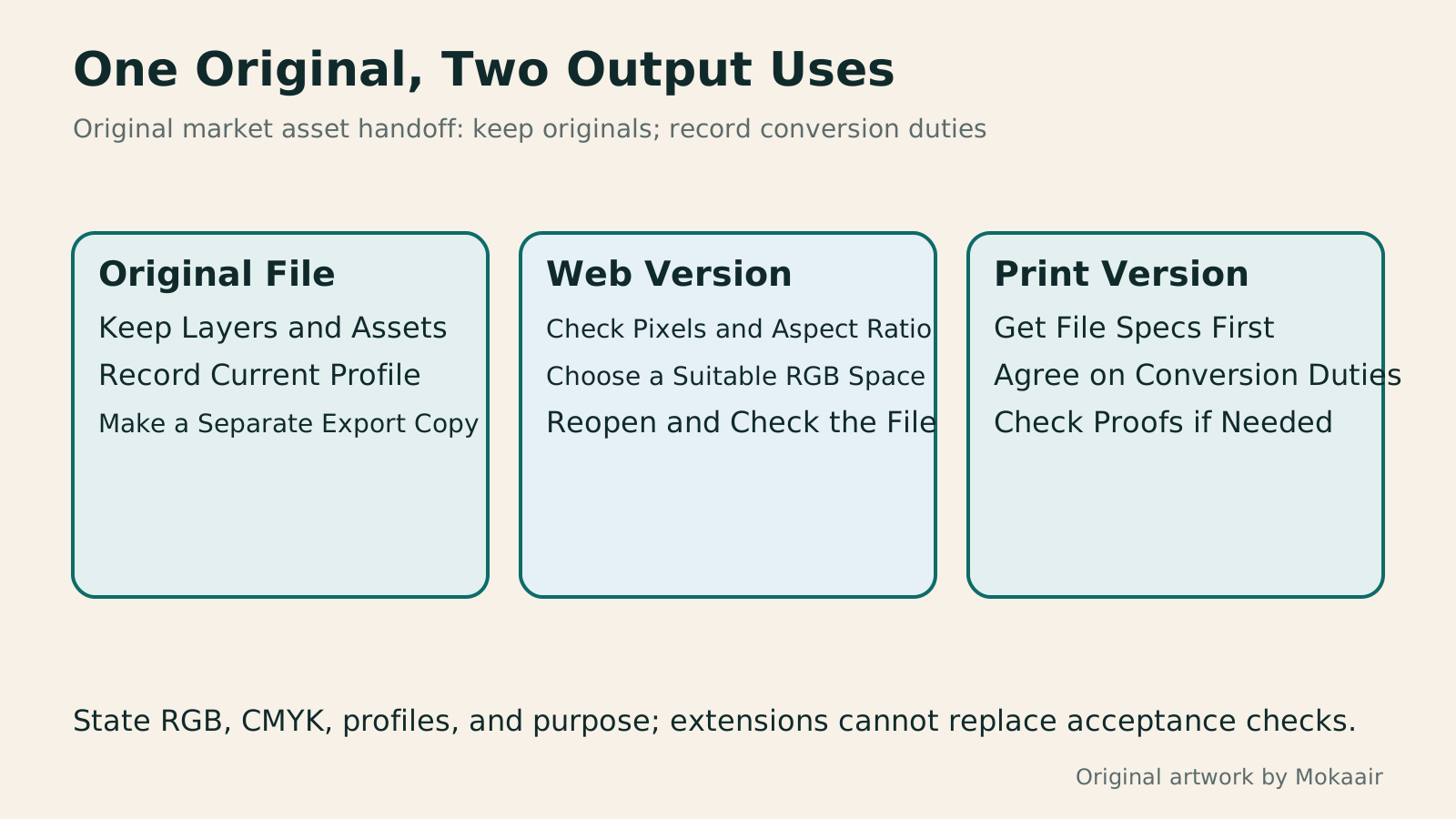
Three cards explain preserving the original, exporting for the web, and handing off for print, without treating a screen illustration as an actual printed color proof.
| Item | Main Use | Common Point of Confusion |
|---|---|---|
| RGB image | Screen and digital image work | The color space still needs to be known |
| CMYK image | Matching a four-color printing workflow | Output conditions may vary |
| Assign Profile | Correcting or specifying how values are interpreted | Does not change the original color values |
| Convert to Profile | Converting colors to the destination space | Results depend on the destination and options |
| Soft proofing | Simulating specified output conditions | A preview is not an actual conversion |
| PDF for print delivery | Carrying layout and output information | May contain objects in multiple color spaces |
Establish Website Color and Contrast Rules FirstBuilding a Website Color System: Hue, Lightness, and ReadabilityWebsite colors need more than an attractive palette: text, buttons, and states must stay clear across pages. Using an original home repair course site, this article explains hue, chroma, lightness, color relationships, and semantic roles, then calculates text contrast from actual color codes. Steps, a comparison table, and original diagrams help beginners build maintainable color rules, while treating color psychology as a design hypothesis to test.Read the full article
Organize the Information Hierarchy in Your LayoutInformation Hierarchy in Web Layouts: Whitespace, Alignment, and Reading OrderA busy page can leave readers unsure where to look first, usually calling for a revised information hierarchy. Using an original used-book swap event page, this article adjusts the main task, heading levels, grid alignment, whitespace, and action buttons step by step, and explains visual versus programmatic reading order. A comparison table, practical steps, and original diagrams help readers turn tidy layouts into pages they can read, understand, and use.Read the full article
Include Handoff Conditions in the Project WorkflowHow to Start a Web Design Project: Requirements, Content, and Acceptance Testing in OrderBuilding your first website often stalls over unclear requirements, content, and acceptance criteria, rather than colors. Using an original neighborhood repair studio example, this guide covers user interviews, content preparation, prototyping, development, and handover, with deliverables for each stage. Steps, a comparison table, learning resources, and original diagrams help readers building or commissioning a site turn “Is it finished?” into tasks they can verify.Read the full article
Found this guide helpful? Share it with someone who needs it
Lifestyle
www, Subdomains, and Subdirectories: Choosing a Website URL Structure
Whether to use www or put a blog at blog.example.com or example.com/blog/ depends on platform support and maintenance. This article explains hostnames and paths, then compares content roles, DNS settings, HTTPS certificates, and URL consistency for subdomains and subdirectories. An original decision table and launch checklist help small websites in Taiwan build URL structures that are easy to use, manage, and hand over.
Lifestyle
Before Hiring a Web Design Agency: The Brief, Quotes and Deliverables Checklist
Before hiring a web design agency, define your site's audience, key actions and deliverables so you can compare quotes. Using a small studio as an example, this guide covers page and template counts, content duties, feature specs, mobile and accessibility checks, account and source-file handover, and post-launch maintenance terms. An editable requirements checklist helps reduce extra costs and communication gaps; no agency recommendations are included.
Lifestyle
How to Start a Web Design Project: Requirements, Content, and Acceptance Testing in Order
Building your first website often stalls over unclear requirements, content, and acceptance criteria, rather than colors. Using an original neighborhood repair studio example, this guide covers user interviews, content preparation, prototyping, development, and handover, with deliverables for each stage. Steps, a comparison table, learning resources, and original diagrams help readers building or commissioning a site turn “Is it finished?” into tasks they can verify.
Lifestyle
Website Caching and CDNs: Which Layer to Clear When Updates Do Not Appear
A website may be updated while phones still show old content because caches remain in different places. Using a Taiwan studio's business-hours update, this article explains browser, WordPress/hosting and CDN roles, cache responses, expiry times and targeted purging. An ordered procedure, comparison table and original diagram help site managers trace old versions while keeping account and shopping workflows correct.
Articles that cite this one
Sources
- Adobe: RGB and CMYK Color ModesChecked:
- Adobe: Assigning and Converting Color ProfilesChecked:
- Adobe: Color Management for Web ImagesChecked:
- Adobe: Soft Proofing and Its LimitationsChecked:
- Adobe Acrobat: PDF Color Conversion and Object ManagementChecked:
Compiled from the references and verification dates listed above; fares, schedules, product features, and terms can change, so please confirm the latest details on the relevant official website before travelling, booking, or purchasing.