Lifestyle
Changing a WordPress Domain: Check Redirects, Search Signals, and Email
Changing a WordPress domain means handling internal URLs, redirects from old links, search signals, and email together. Starting with a URL mapping, this guide explains how to preview database replacements, check permanent redirects, test sending and receiving on the new domain, and monitor the change after launch. It helps personal brands and studios plan a name change without assuming that editing the WordPress site address completes the move.
About 7 min read
You have changed the brand name and registered a new domain. The next step is usually not to edit the WordPress site address immediately. Images in posts, old social posts, search results, form notifications, and work email may still point to the former name. Create a mapping so every old entry point has a defined destination.
Imagine a craft studio switching to a domain that is easier to remember while keeping its existing tutorials. A practical outcome is that an old article link opens the same article at its new address, editors can still log in, and someone receives customer inquiries sent to the old mailbox. The steps below follow those three paths.
Map old URLs to a destination for every page
Build an inventory from the sitemap, post list, common navigation, and pages people actually visit. Include images and downloadable files. If only the domain changes, retain the existing paths initially to simplify mapping. If you also reorganize categories or remove posts, record the new destination and reason for each item.
For example, the old /workshop/ page should lead to the new course page, rather than sending every old article to the home page. When combining several posts, redirect to a new page that truly covers their information. A deleted page without a reasonable replacement should return an appropriate not-found response. Whether readers can find what they came for is the test of a sound mapping.
- List old URLs for posts, pages, media, downloads, and important external links.
- Assign a new URL to each and record why it is retained, combined, or removed.
- Sample the home page, popular inner pages, Chinese-character paths, and links with query parameters.
Back up first, then preview database URL replacement
The WordPress site address is only one setting. Post content, plugin options, and page builders may store absolute URLs elsewhere. Back up files and the database, then use a migration tool that understands WordPress data formats on a restricted copy. A plain text replacement of the domain throughout an SQL dump can damage serialized data.
If a technical operator uses WP-CLI, its official search-replace command handles serialized data and offers --dry-run to report changes without writing them. Verify the table scope and the old and new URLs, then examine the expected replacement count. Do not include every table automatically, especially when other sites share the same database.
Replace only site URLs that need to change. The bare domain might also occur in email addresses, historical records, or external-service settings, so do not rename every occurrence indiscriminately. Afterwards, inspect custom theme files, CSS, menus, and plugin caches to ensure the rendered site no longer fetches resources from the old address.
Keep HTTPS working on both the old and new domains
The new domain needs correct DNS records and a valid certificate. If the old domain used HTTPS, it also needs a valid connection throughout the redirect period. The browser establishes a secure connection before receiving a redirect response. If the old certificate expires, visitors may see a warning before they can reach the new site.
Have the host or site administrator configure permanent redirects from the approved mapping, then test each old URL’s response and final destination. Google recommends server-side permanent redirects, such as 301 or 308, that reach the final page as directly as possible. Avoid rules that bounce between the apex domain, www, HTTP, and HTTPS.
- Choose one consistent canonical-address strategy for the new domain’s apex and www names.
- Test whether each type of old URL reaches its intended new page, not merely whether it redirects.
- Check images, downloads, and forms for loops, missing paths, or security warnings.
Update search signals and links you control
Canonical URLs, sitemaps, and internal links on new pages should point to the new domain. Before going public, remove any indexing blocks that were only for testing. The Search Console Change of Address tool has eligibility rules; for a true move between domains, verify both properties and complete the checks required by Google.
The tool does not create redirects and cannot update every search result instantly. Google recommends keeping redirects for as long as possible, generally at least a year. Business cards, bookmarks, and third-party links still in use may justify longer support. A site move can cause temporary fluctuations; do not promise that rankings will recover within a few days.
Schedule updates to entry points you can edit: social profiles, newsletter footers, business listings, partner sites, and QR Code images in documents. Prioritize heavily used or transaction-critical items, and record an owner and completion date. Direct links to the new domain spare readers an extra wait and simplify later maintenance even while old links redirect.
Treat email as a separate service to verify
A website redirect does not automatically turn an old.example mailbox into a new.example mailbox. Ask your mail provider how to add the new domain and manage accounts or aliases, then set the MX records and sender authentication it requires. Google Workspace, for example, has a separate process for changing the primary domain and retaining old-domain aliases; WordPress settings cannot replace it.
List everyday mailboxes, form senders, reply-to addresses, and account-recovery mailboxes. Arrange to keep receiving at old addresses, tell customers about the new ones, and send test messages from an external mailbox to both domains. Confirm receipt, replies, and displayed sender addresses. For forwarding, verify delivery to the destination inbox rather than merely a saved setting.
Do not change every employee login account on the same day without a handoff list. Some third-party services identify users by email; a renamed account may need reverification or administrator changes. Identify who relies on an old address so a successful website move does not lock administrators out.
Monitor the switch through real problems
After launch, check failed URLs, form notices, and old and new inboxes regularly, and connect each issue to the URL mapping. If a post loses traffic, first check that its old URL reaches the correct page, that the new page can be indexed, and that its images and content are complete before exploring other causes.
Keep someone responsible for renewing the old domain and its certificate, as well as maintaining the redirect service. If you must roll back, first preserve content and inquiries added on the new site, then choose which settings to restore. Do not overwrite all new data with an old backup. Keep the cutover log, account entry points, and verification results together so the next administrator knows which old services must stay active.
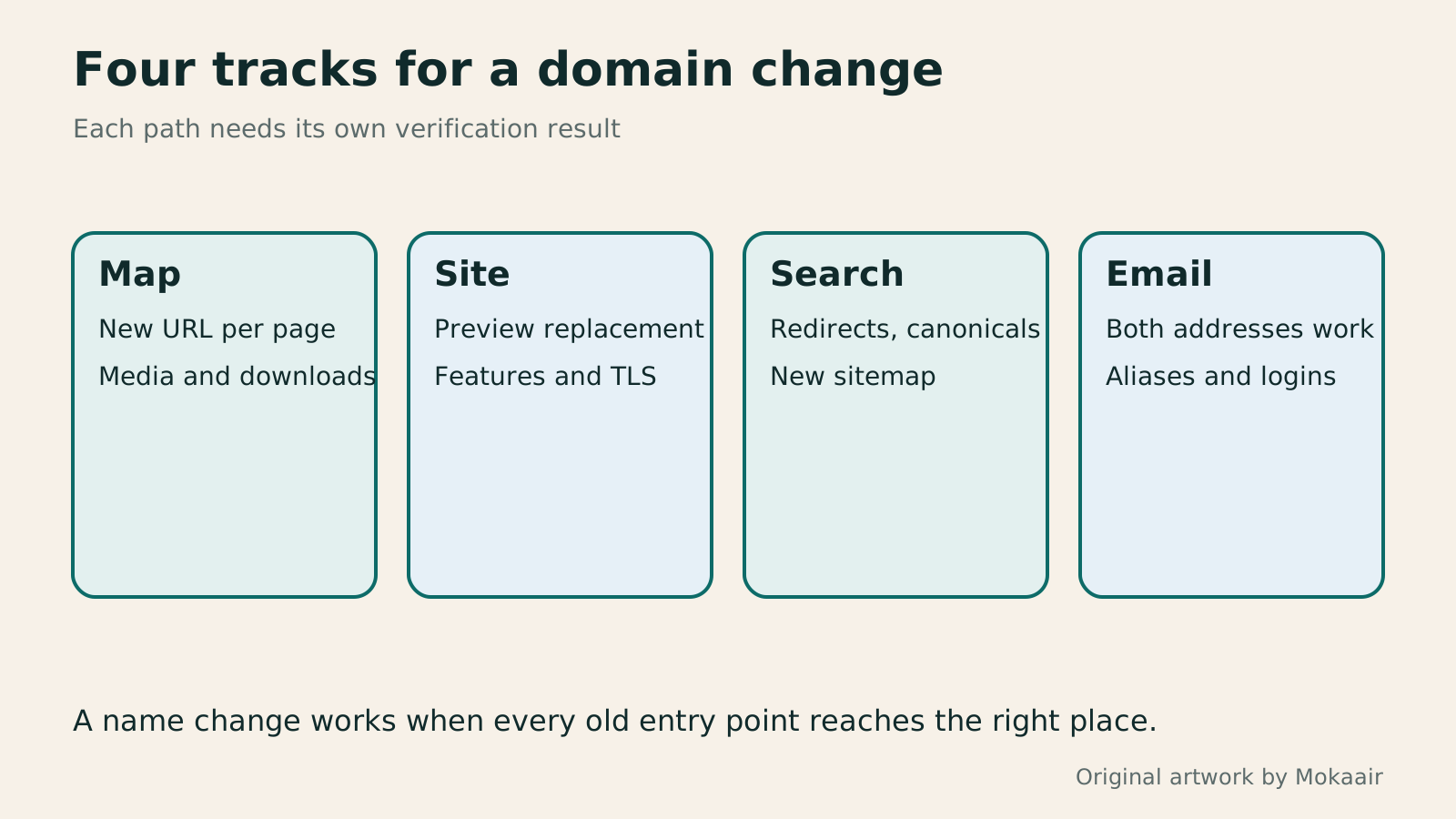
| Verification path | What to check | Common omission |
|---|---|---|
| Old post to new post | Destination matches the original content | Sending everything to the home page |
| Browsing the new site | Links, images, downloads, and canonical URLs | Still loading resources from the old domain |
| Search and indexing | New sitemap, verification, and indexable pages | Leaving test noindex settings enabled |
| Work email | Receiving, replying, and authentication on both domains | Assuming a web redirect forwards mail |
| Long-term maintenance | Old domain, certificate, and redirect service | Retiring old entry points as soon as the new site works |
Moving hosts without changing the URLMove WordPress to a New Host Without Changing the Domain: Migration, Testing, and DNS CutoverWhen WordPress moves to a new host, its URLs can stay the same, but files, the database, certificates, and external services still need a handoff. This guide covers preparation of the new host, restricted previews, the final data sync, and DNS cutover in order. A verification table and rollback criteria help individual site owners and studios keep their domain while moving hosts, without canceling the old service before recovery options are secure.Read the full article
Checking website backup and restorationHow to back up WordPress: files, databases and restoration drillsA successful backup message is not enough. Build a checklist for WordPress files, databases and off-site copies, then learn the UpdraftPlus and WPvivid controls, restore limitations and isolated drills needed to confirm recovery. Plan schedules, retained versions, configuration files and acceptance records so someone can restore a personal or studio website.Read the full article
Managing domain and hosting renewalsWhat happens when a domain or hosting expires: a checklist before renewal or shutdownDomains, hosting and email can expire separately, with different effects if unpaid. Check orders, expiry details and admin access before renewal, recovery eligibility after expiry, and data to save before closing or moving a site. Build a checklist in time order; manage the domain, site backups, email and external accounts separately. Avoid cancelling a service only to lose verification emails, or keeping a content export without images and site settings.Read the full article
Lifestyle
After a WordPress Move: Check Search Traffic, the Old Host, and Renewals
A completed WordPress move still needs checks that the new host is stable, search entry points work, backups can be used, and old services can safely stop. This guide provides a cutover observation checklist, a way to interpret search traffic, an inventory of old-host dependencies, and renewal closeout steps. Individual site owners and studios can retain the information needed for rollback without confusing temporary fluctuations, ending renewal, and immediately deleting a site.
Lifestyle
Move WordPress to a New Host Without Changing the Domain: Migration, Testing, and DNS Cutover
When WordPress moves to a new host, its URLs can stay the same, but files, the database, certificates, and external services still need a handoff. This guide covers preparation of the new host, restricted previews, the final data sync, and DNS cutover in order. A verification table and rollback criteria help individual site owners and studios keep their domain while moving hosts, without canceling the old service before recovery options are secure.
Lifestyle
Moving from WordPress.com to Self-Hosted WordPress: Content, Media, and URLs
Before moving a WordPress.com site to self-hosted WordPress, check your plan, domain, and the handoff for each kind of content. This guide covers the options available to free and paid sites, XML export and import, verification of actual image files, subscriber migration, and when Site Redirect is available. It helps individual creators in Taiwan plan the move and identifies features and billing items that need separate attention after the new site is ready.
Lifestyle
WordPress booking systems: time slots, confirmation emails, and cancellation rules
A WordPress booking system must handle service hours, staff capacity, notifications, and cancellations together. This guide compares Amelia, Bookly, and WooCommerce Bookings for a Taiwanese studio, explains operating hours, buffers, and exceptional closures, then tests confirmation, rescheduling, and refunds as an ordinary customer so both staff and customers know when a booking is final.
Articles that cite this one
Latest travel guides

GuideTokyo
Where to Stay in Tokyo: Comparing Shinjuku, Ueno, Tokyo Station, Shibuya, Asakusa, Ikebukuro, and Ginza, Plus Airport Access, Accommodation Tax, and Luggage Delivery
Where should you stay in Tokyo? Compare Shinjuku, Ueno, Tokyo Station, Shibuya, Asakusa, Ikebukuro, and Ginza by the same criteria: access from Narita and Haneda, transit routes, nearby attractions, neighborhood character, and who each area suits. Includes a comparison table, a Yamanote Line diagram, Tokyo’s accommodation tax as verified in 2026/9 (changing to 3% in 2027/4), and Airport TA-Q-BIN luggage shipping rules.
- Budget
- Hotels

GuideTokyo
How to Choose Tokyo Transit Passes: Are Suica, Welcome Suica, the Tokyo Subway Ticket, and the JR Pass Worth It?
On a first Tokyo trip, start with an IC card and pay per ride (Welcome Suica has no deposit and is valid for 28 days). If you take four or more subway rides in a day, add a 72-hour Tokyo Subway Ticket for 2,000 yen; a JR Pass is never worthwhile if you stay in Tokyo and do not go to Kansai. See what TOURIST PASMO, Suica on iPhone, and the Tokyo Metro day pass do and do not cover, with a decision chart. Prices verified in September 2026.
- Transport
- Budget

GuideTokyo
Tokyo Disneyland and DisneySea Guide: Ticket Prices, Fantasy Springs, Disney Premier Access (DPA), Standby Pass, and Which Park to Choose for Your First Visit
Tokyo Disney one-day Passport prices vary: most weekdays in 9/2026 cost ¥9,900 and weekends ¥10,900. At 14:00 daily, tickets go on sale for the same date two months later. Free Priority Pass is no longer on the official service list; only paid Disney Premier Access (¥1,000–3,500 per person per use) shortens waits. Covers hours, the 25th anniversary, Standby Pass, Entry Request, Fantasy Springs access and first-visit park choice; checked on the official site in 9/2026.
- Itineraries
- Family
Sources
- WordPress: Migration settings · Checked:
- WP-CLI: search-replace and dry-run · Checked:
- Google Search Central: Site moves with URL changes · Checked:
- Search Console: Change of Address tool · Checked:
- Google Workspace: Change your primary domain · Checked: