Lifestyle
Move WordPress to a New Host Without Changing the Domain: Migration, Testing, and DNS Cutover
When WordPress moves to a new host, its URLs can stay the same, but files, the database, certificates, and external services still need a handoff. This guide covers preparation of the new host, restricted previews, the final data sync, and DNS cutover in order. A verification table and rollback criteria help individual site owners and studios keep their domain while moving hosts, without canceling the old service before recovery options are secure.
About 7 min read
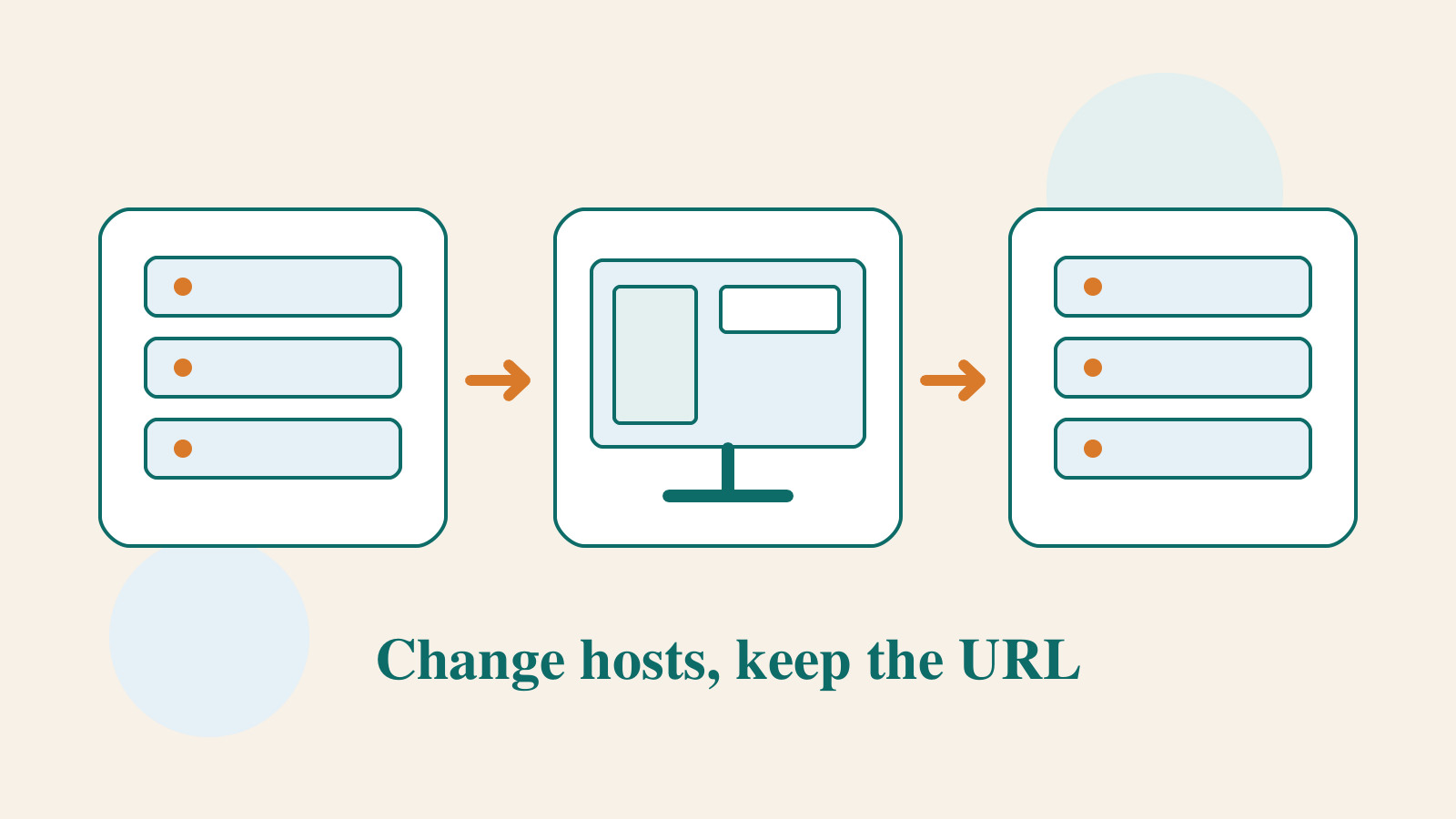
A studio has used its website for years and wants a different host without reprinting business cards or changing article URLs. A move like this can usually keep the domain and paths; what changes is the hosting environment that serves the site. Test the new site first, then direct traffic to it. That makes problems easier to identify than changing DNS at the outset.
The most underestimated part is often not file size but data that keeps arriving during the move. After the first copy, the old site may receive another comment or inquiry. If the new site is also open, records can be split between them. The process below treats this last data handoff as its own step, so you know both where the site went and where its newest records ended up.
Make a handoff checklist and define the scope
List the old host, new host, domain registrar, and DNS provider. One company may fill all four roles, or each may be separate. Changing only the web host does not necessarily require transferring the domain registration. If you also change nameservers, inspect the entire DNS zone, not just the website IP address.
Record the WordPress, PHP, and database versions, disk usage, and main plugins. List email, scheduled jobs, outbound mail, CDN, and third-party callback URLs separately. Check the migration plugin’s actual version and configuration to see what it carries. One export file does not mean every service in the hosting control panel has been handed over.
- Confirm who can log in to the old host, new host, DNS, and backup storage.
- Save the current DNS records and a full site backup, and document how to retrieve them.
- Choose a cutover window and notify people who update the site or process orders.
Create a testable copy on the new host
Prepare the site space, database, and required software versions on the new host. Then import files and database using the host migration service or chosen tool. If the database connection must change, use values supplied by the new host; do not overwrite them with the old host’s credentials. Check whether custom server rules also apply to the new environment.
For a host move with unchanged URLs, the site’s stored public address should remain the same. UpdraftPlus provides a separate official procedure for this case and warns against arbitrary database URL replacement. A temporary preview URL may change links or login behavior. Ask the hosting provider which preview method preserves the production address.
Restrict access to the copy, and disable real payments, notifications, and other outward writes. In particular, scheduled jobs must not send email from both environments at once. Record the isolation method and which functions must be restored at launch so necessary services are not left disabled.
Confirm that you are actually seeing the new host
Identical browser pages make it easy to mistake the old site for the new one. Use the host’s preview entry point, or ask someone comfortable with computer configuration to temporarily map the domain to the new IP in the local hosts file. This affects only the test computer; it does not change DNS for the world. Remove the test mapping afterwards.
Place a restricted identification marker on the new site, then check the new host’s access logs to confirm requests arrive there. HTTPS certificates also need to work; bypassing a browser warning is not an acceptable launch condition. If the host requires domain verification before issuing a certificate, use its supported verification method.
- Open the home page, posts, images, downloads, and login page; confirm none bounce back to a temporary URL.
- Try search, menus, forms, and required functions; verify notices reach a test inbox.
- Check mobile layout, old post permalinks, and error pages; save a list of problems.
Handle the last difference in data
The first copy is useful for checking functionality, but the production cutover needs a defined data point. For a site with little activity, coordinate a window to pause publishing and interaction, make a final backup and import, then compare the latest content. If transactions continue, have someone familiar with that system design synchronization and deduplication; do not overwrite the whole database.
When pausing functions, give visitors a clear message with an expected return time and contact method. Save record counts, the most recent item time, and relevant identifiers on both sides of the cutover, but keep personal data out of public documents. Verify consistency before re-enabling writes, so testing does not create a fresh difference.
Switch DNS and check what different networks see
Choose a suitable TTL through the DNS service in advance to shorten later adoption of new records. Cached old values do not vanish as soon as you press Save. At cutover, change only the planned web records. Check the apex domain, www, IPv4, and IPv6 for old targets, while preserving mail records still in use.
Before launch, remove the test site’s access restrictions and any indexing block used only for testing, then enable required integrations. Check from home and mobile networks and compare logs on both hosts. Google’s host-move guidance also recommends watching traffic on both sides. One computer working does not prove all visitors have switched.
Define rollback conditions before you retire the old host
Agree before cutover which problems require rollback, such as failure to submit an essential service, missing data, or many broken inner pages. If DNS must point back, inventory and save data created on the new host first; otherwise, content received moments ago may disappear when traffic returns to the old site. Rollback is a data handoff, not merely changing an IP address.
Keep an incident log with discovery time, URL, network used, expected result, and actual result. Give each issue one owner. If several people change DNS, plugins, and host settings at once, a problem that was once easy to locate becomes hard to reproduce.
Only after the new host serves traffic reliably, the old site has no visitors or services needing attention, and a new-environment backup has succeeded should you plan to stop the old host. If the old plan also carries email or DNS, hand off those services first. Stopping renewal and deleting service immediately may have different effects; read the billing page before acting.
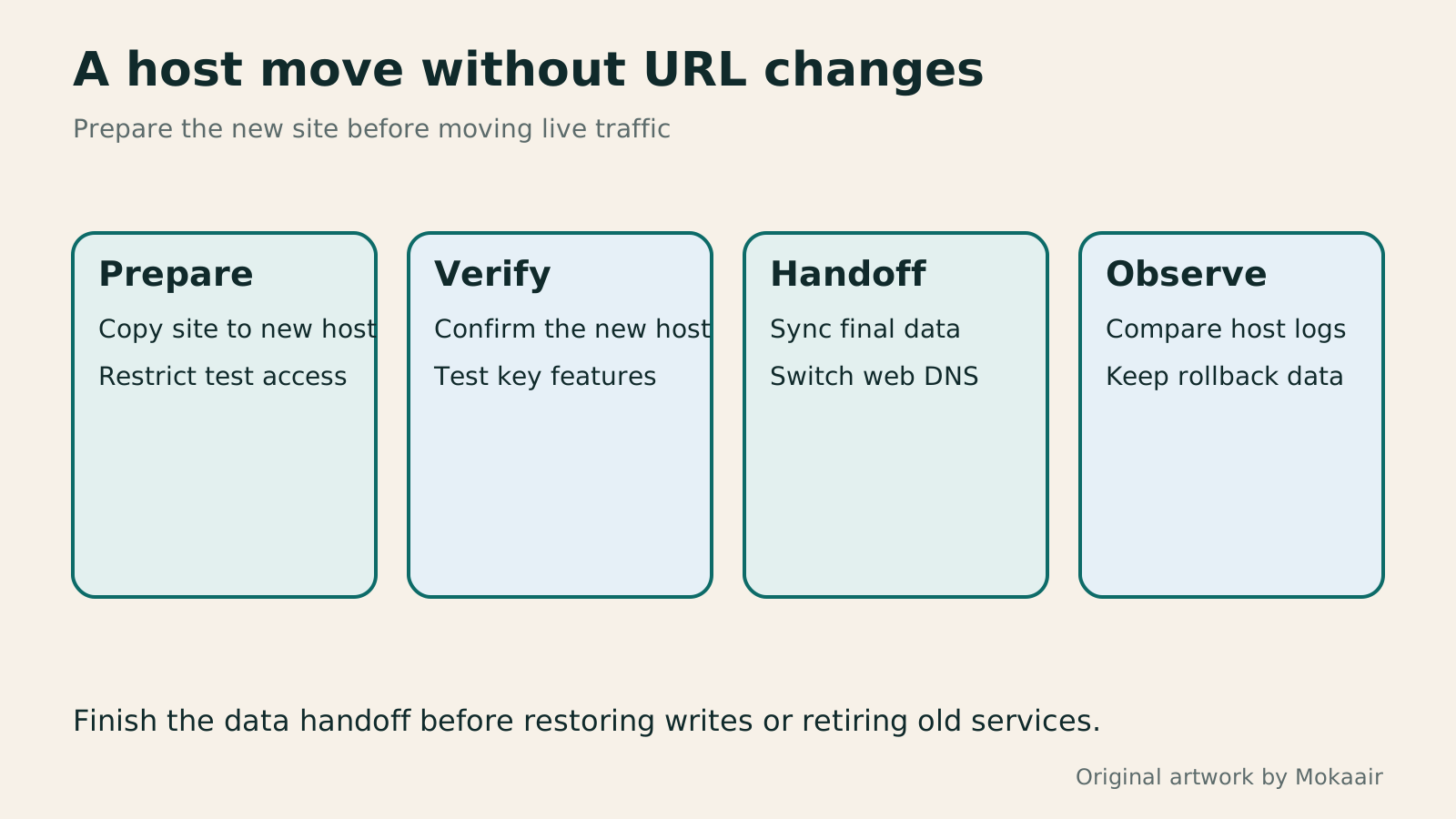
| Stage | Evidence to see | Not yet complete if |
|---|---|---|
| Copy created | Full files, database, and correct settings on the new host | Only an upload-success message |
| Preview verification | Requests reach the new host and key functions work | Only the home page looks the same |
| Data handoff | Latest records match and the write window is clear | New data after the first copy is ignored |
| DNS cutover | Different networks and logs show traffic moving | Only one computer was refreshed |
| Old-site closeout | Dependencies are handed over and a new backup works | Every old service is canceled once the site opens |
Create a restorable website backup firstHow to back up WordPress: files, databases and restoration drillsA successful backup message is not enough. Build a checklist for WordPress files, databases and off-site copies, then learn the UpdraftPlus and WPvivid controls, restore limitations and isolated drills needed to confirm recovery. Plan schedules, retained versions, configuration files and acceptance records so someone can restore a personal or studio website.Read the full article
Understand DNS records and resolution problems
Set up the website HTTPS certificate
Lifestyle
After a WordPress Move: Check Search Traffic, the Old Host, and Renewals
A completed WordPress move still needs checks that the new host is stable, search entry points work, backups can be used, and old services can safely stop. This guide provides a cutover observation checklist, a way to interpret search traffic, an inventory of old-host dependencies, and renewal closeout steps. Individual site owners and studios can retain the information needed for rollback without confusing temporary fluctuations, ending renewal, and immediately deleting a site.
Lifestyle
Changing a WordPress Domain: Check Redirects, Search Signals, and Email
Changing a WordPress domain means handling internal URLs, redirects from old links, search signals, and email together. Starting with a URL mapping, this guide explains how to preview database replacements, check permanent redirects, test sending and receiving on the new domain, and monitor the change after launch. It helps personal brands and studios plan a name change without assuming that editing the WordPress site address completes the move.
Lifestyle
Moving from WordPress.com to Self-Hosted WordPress: Content, Media, and URLs
Before moving a WordPress.com site to self-hosted WordPress, check your plan, domain, and the handoff for each kind of content. This guide covers the options available to free and paid sites, XML export and import, verification of actual image files, subscriber migration, and when Site Redirect is available. It helps individual creators in Taiwan plan the move and identifies features and billing items that need separate attention after the new site is ready.
Lifestyle
WordPress booking systems: time slots, confirmation emails, and cancellation rules
A WordPress booking system must handle service hours, staff capacity, notifications, and cancellations together. This guide compares Amelia, Bookly, and WooCommerce Bookings for a Taiwanese studio, explains operating hours, buffers, and exceptional closures, then tests confirmation, rescheduling, and refunds as an ordinary customer so both staff and customers know when a booking is final.
Articles that cite this one
Latest travel guides

GuideTokyo
Where to Stay in Tokyo: Comparing Shinjuku, Ueno, Tokyo Station, Shibuya, Asakusa, Ikebukuro, and Ginza, Plus Airport Access, Accommodation Tax, and Luggage Delivery
Where should you stay in Tokyo? Compare Shinjuku, Ueno, Tokyo Station, Shibuya, Asakusa, Ikebukuro, and Ginza by the same criteria: access from Narita and Haneda, transit routes, nearby attractions, neighborhood character, and who each area suits. Includes a comparison table, a Yamanote Line diagram, Tokyo’s accommodation tax as verified in 2026/9 (changing to 3% in 2027/4), and Airport TA-Q-BIN luggage shipping rules.
- Budget
- Hotels

GuideTokyo
How to Choose Tokyo Transit Passes: Are Suica, Welcome Suica, the Tokyo Subway Ticket, and the JR Pass Worth It?
On a first Tokyo trip, start with an IC card and pay per ride (Welcome Suica has no deposit and is valid for 28 days). If you take four or more subway rides in a day, add a 72-hour Tokyo Subway Ticket for 2,000 yen; a JR Pass is never worthwhile if you stay in Tokyo and do not go to Kansai. See what TOURIST PASMO, Suica on iPhone, and the Tokyo Metro day pass do and do not cover, with a decision chart. Prices verified in September 2026.
- Transport
- Budget

GuideTokyo
Tokyo Disneyland and DisneySea Guide: Ticket Prices, Fantasy Springs, Disney Premier Access (DPA), Standby Pass, and Which Park to Choose for Your First Visit
Tokyo Disney one-day Passport prices vary: most weekdays in 9/2026 cost ¥9,900 and weekends ¥10,900. At 14:00 daily, tickets go on sale for the same date two months later. Free Priority Pass is no longer on the official service list; only paid Disney Premier Access (¥1,000–3,500 per person per use) shortens waits. Covers hours, the 25th anniversary, Standby Pass, Entry Request, Fantasy Springs access and first-visit park choice; checked on the official site in 9/2026.
- Itineraries
- Family