Lifestyle
After a WordPress Move: Check Search Traffic, the Old Host, and Renewals
A completed WordPress move still needs checks that the new host is stable, search entry points work, backups can be used, and old services can safely stop. This guide provides a cutover observation checklist, a way to interpret search traffic, an inventory of old-host dependencies, and renewal closeout steps. Individual site owners and studios can retain the information needed for rollback without confusing temporary fluctuations, ending renewal, and immediately deleting a site.
About 7 min read
The new site opens and the migration tool reports completion, so canceling the old host can feel like the next step. Yet the old environment may still provide email, DNS, redirects, or downloadable files. The new site may have passed only a home-page check while form notifications and recent data remain unverified. Closeout means resolving each of these remaining dependencies.
Think of the closeout document as a handover record: which service moved, who verified it, what still needs to stay, and when payment can stop. This guide begins after cutover and does not repeat the file-copy procedure. It focuses on observable evidence so you can retire old services with confidence and assign ongoing care for the new site.
Record the cutover time and comparison baseline
Write down the actual cutover date, time zone, primary URL, old and new hosts, and the scope of changes. Did you only change hosts, or also change the domain, layout, or form provider? Each scope calls for different observations. Without this baseline, a traffic change several days later is hard to interpret because you may not remember which settings changed together.
Save the pre-migration list of key pages, results of important function tests, and available traffic and error logs. Compare matching time periods and conditions; weekdays differ from weekends, and promotion days from ordinary days. If you also changed analytics tools or tag settings, note that too, so a measurement change is not mistaken for a real loss of visitors.
- Create a cutover log with the time, URL, and every item changed together.
- Keep verification baselines for the home page, popular posts, forms, and download pages.
- Assign someone to review results daily and provide a contact for failure of key functions.
Check functions before traffic curves
Start with what visitors actually do: open a post, search the site, download a file, submit a form, or complete a required login. Check on a phone and different networks, not only your usual browser. Record the URL, time, action, and result for each test, and keep reproducible steps for failures.
Compare logs from old and new hosts to confirm production traffic is gradually served by the new environment. When requests still reach the old site, identify whether they are normal visitors, scheduled callbacks, forgotten download links, or something else. Request totals alone are not enough to decide when to stop it, especially if the old host also provides other services.
Check whether data remains split between the two sites, such as a final comment or form submitted to the old site. Once those records are saved and handled, prevent unnecessary new writes there. Do not overwrite the running new site with the old database; content added after cutover could be erased. Plan any merge by data type.
Use search reports to locate issues without jumping to conclusions
Search Console Performance reports show clicks and impressions by page, query, device, and date. Compare the same group of important pages first to distinguish a site-wide change from a decline in a few posts. If the domain changed too, inspect data for both properties rather than only the new site’s newly accumulating figures. Recent data may still be collecting, so a single hour is not a sound basis for a conclusion.
“Not indexed” in an indexing report does not always signal an error. Deleted pages, legitimate duplicate URLs, and intentionally private content can have valid reasons to be excluded. For an important URL that should be public, use URL Inspection to check its state, including whether a test noindex setting, wrong canonical, or broken redirect remains.
For example, if a popular craft tutorial suddenly loses traffic, open the old link and see whether it reaches the correct new article. Then check its text, images, and indexability. If the technical path is sound, examine the queries and comparison periods. These steps narrow the cause; timing alone does not prove that the host changed search rankings.
Give the new environment its own backups and owner
A pre-migration backup reflects one moment on the old host. Once the new site is active, it needs its own backup schedule, off-site storage, and restoration method. Create a new-environment backup manually first and confirm you can retrieve all the data, then check that the later schedule runs as intended. If backups still go to the old host, retiring it could also remove your recovery path.
Keep the necessary pre-migration copies, cutover logs, and configuration differences. Label filenames with the environment and time. Give each backup a purpose and retention owner rather than collecting archives no one can identify. Restrict access to copies containing personal data, and process them according to your internal retention policy when their period ends.
The person taking over should at least know the login entry point, incident contact, new backup location, and update window. Document who manages plugin licenses, form email, and scheduled jobs. A site may run correctly yet still lack a complete handoff if only the person who moved it knows those settings.
Decide service by service what can stop
Inventory hosting, email, DNS, domain, certificates, CDN, and redirects in the old account. Mark each item as “moved,” “still in use,” or “needs confirmation.” Changing hosts does not mean the domain should stop renewing. After a domain change, the old domain may still need to redirect links and receive mail, so the entire old account is not one expense to cancel.
There is no universal rule to delete the old site a fixed number of days after moving. First confirm that important features are stable, the old environment no longer handles required requests or data, the new backup works, and each dependent service has a destination. For unresolved items, assign a next review date and owner; that avoids both premature deletion and indefinite neglect.
Ask the provider what stopping renewal, deleting a website, deleting a plan, and requesting a refund each do. Under Hostinger’s official guidance checked for this article, turning off auto-renewal keeps service through the end of the term, while an eligible refund that is processed ends the service. These buttons are not interchangeable billing cleanup actions.
Finish the billing check and preserve closeout evidence
Before stopping a service, download any website files, database, and mail you still need. Make sure the only backup is not in the account about to expire. Hostinger’s site-deletion instructions also say to save data first and offer an option concerning associated email. Read each current screen during the operation rather than copying button locations or choices from an old tutorial.
After each action, save the service name, action date, confirmation, and last available date. A billing page saying auto-renewal is off is different from showing that this term is fully paid. Check what was paid and whether add-ons are billed separately. A website being unused does not mean every charge has ended.
End the closeout document with a short status: key functions pass on the new environment; old items that must remain and why; services already stopped; the new backup; and the maintenance owner. For outstanding work, state the next step and acceptance condition. The same record can guide a future host change, a new administrator, or a billing inquiry.
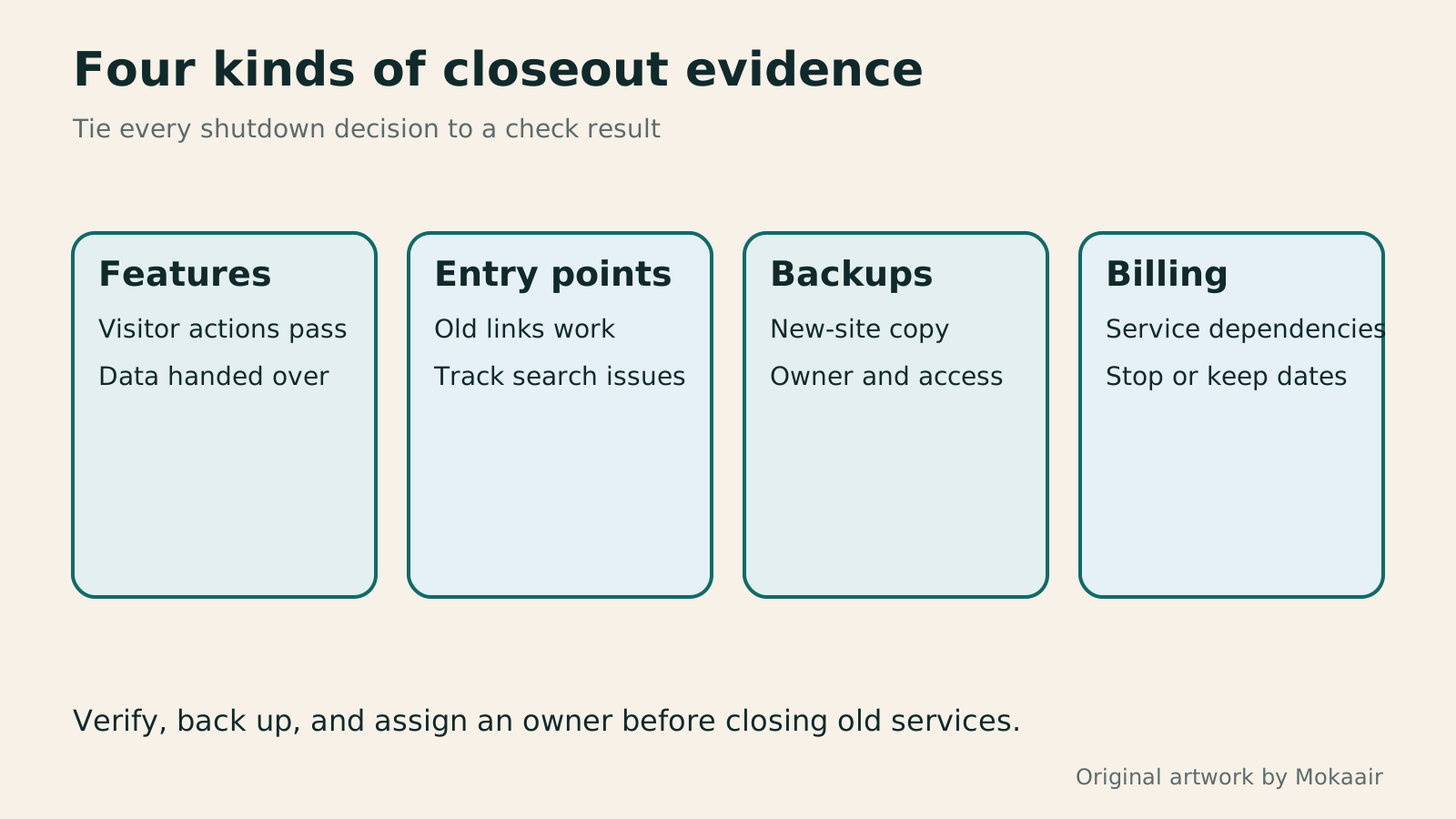
| Area to check | Evidence before closeout | If it must stay |
|---|---|---|
| Website and data | Key functions work and cutover data is handed over | Record the problem, impact, and owner |
| Search entry points | Important old links and new pages work | Track exact URLs and reasons for indexing status |
| Recovery ability | A new-environment backup is available and verifiable | Keep necessary old copies and settings |
| Old-service dependencies | DNS, mail, and redirects each have a destination | Record why they stay and the next review date |
| Billing | Renewals, stop dates, and add-ons are checked | Schedule the next action on a calendar |
Move hosts while keeping the same URLMove WordPress to a New Host Without Changing the Domain: Migration, Testing, and DNS CutoverWhen WordPress moves to a new host, its URLs can stay the same, but files, the database, certificates, and external services still need a handoff. This guide covers preparation of the new host, restricted previews, the final data sync, and DNS cutover in order. A verification table and rollback criteria help individual site owners and studios keep their domain while moving hosts, without canceling the old service before recovery options are secure.Read the full article
Hand off search and mail when changing domainsChanging a WordPress Domain: Check Redirects, Search Signals, and EmailChanging a WordPress domain means handling internal URLs, redirects from old links, search signals, and email together. Starting with a URL mapping, this guide explains how to preview database replacements, check permanent redirects, test sending and receiving on the new domain, and monitor the change after launch. It helps personal brands and studios plan a name change without assuming that editing the WordPress site address completes the move.Read the full article
Back up the new environmentHow to back up WordPress: files, databases and restoration drillsA successful backup message is not enough. Build a checklist for WordPress files, databases and off-site copies, then learn the UpdraftPlus and WPvivid controls, restore limitations and isolated drills needed to confirm recovery. Plan schedules, retained versions, configuration files and acceptance records so someone can restore a personal or studio website.Read the full article
Lifestyle
Move WordPress to a New Host Without Changing the Domain: Migration, Testing, and DNS Cutover
When WordPress moves to a new host, its URLs can stay the same, but files, the database, certificates, and external services still need a handoff. This guide covers preparation of the new host, restricted previews, the final data sync, and DNS cutover in order. A verification table and rollback criteria help individual site owners and studios keep their domain while moving hosts, without canceling the old service before recovery options are secure.
Lifestyle
Changing a WordPress Domain: Check Redirects, Search Signals, and Email
Changing a WordPress domain means handling internal URLs, redirects from old links, search signals, and email together. Starting with a URL mapping, this guide explains how to preview database replacements, check permanent redirects, test sending and receiving on the new domain, and monitor the change after launch. It helps personal brands and studios plan a name change without assuming that editing the WordPress site address completes the move.
Lifestyle
Moving from WordPress.com to Self-Hosted WordPress: Content, Media, and URLs
Before moving a WordPress.com site to self-hosted WordPress, check your plan, domain, and the handoff for each kind of content. This guide covers the options available to free and paid sites, XML export and import, verification of actual image files, subscriber migration, and when Site Redirect is available. It helps individual creators in Taiwan plan the move and identifies features and billing items that need separate attention after the new site is ready.
Lifestyle
WordPress booking systems: time slots, confirmation emails, and cancellation rules
A WordPress booking system must handle service hours, staff capacity, notifications, and cancellations together. This guide compares Amelia, Bookly, and WooCommerce Bookings for a Taiwanese studio, explains operating hours, buffers, and exceptional closures, then tests confirmation, rescheduling, and refunds as an ordinary customer so both staff and customers know when a booking is final.
Latest travel guides

GuideTokyo
Where to Stay in Tokyo: Comparing Shinjuku, Ueno, Tokyo Station, Shibuya, Asakusa, Ikebukuro, and Ginza, Plus Airport Access, Accommodation Tax, and Luggage Delivery
Where should you stay in Tokyo? Compare Shinjuku, Ueno, Tokyo Station, Shibuya, Asakusa, Ikebukuro, and Ginza by the same criteria: access from Narita and Haneda, transit routes, nearby attractions, neighborhood character, and who each area suits. Includes a comparison table, a Yamanote Line diagram, Tokyo’s accommodation tax as verified in 2026/9 (changing to 3% in 2027/4), and Airport TA-Q-BIN luggage shipping rules.
- Budget
- Hotels

GuideTokyo
How to Choose Tokyo Transit Passes: Are Suica, Welcome Suica, the Tokyo Subway Ticket, and the JR Pass Worth It?
On a first Tokyo trip, start with an IC card and pay per ride (Welcome Suica has no deposit and is valid for 28 days). If you take four or more subway rides in a day, add a 72-hour Tokyo Subway Ticket for 2,000 yen; a JR Pass is never worthwhile if you stay in Tokyo and do not go to Kansai. See what TOURIST PASMO, Suica on iPhone, and the Tokyo Metro day pass do and do not cover, with a decision chart. Prices verified in September 2026.
- Transport
- Budget

GuideTokyo
Tokyo Disneyland and DisneySea Guide: Ticket Prices, Fantasy Springs, Disney Premier Access (DPA), Standby Pass, and Which Park to Choose for Your First Visit
Tokyo Disney one-day Passport prices vary: most weekdays in 9/2026 cost ¥9,900 and weekends ¥10,900. At 14:00 daily, tickets go on sale for the same date two months later. Free Priority Pass is no longer on the official service list; only paid Disney Premier Access (¥1,000–3,500 per person per use) shortens waits. Covers hours, the 25th anniversary, Standby Pass, Entry Request, Fantasy Springs access and first-visit park choice; checked on the official site in 9/2026.
- Itineraries
- Family
Sources
- Google: Monitor traffic after a host change · Checked:
- Search Console: Performance report · Checked:
- Search Console: Indexing report and valid exclusions · Checked:
- Hostinger: Canceling service and auto-renewal · Checked:
- Hostinger: Save data before deleting a website · Checked: