Lifestyle
Moving from WordPress.com to Self-Hosted WordPress: Content, Media, and URLs
Before moving a WordPress.com site to self-hosted WordPress, check your plan, domain, and the handoff for each kind of content. This guide covers the options available to free and paid sites, XML export and import, verification of actual image files, subscriber migration, and when Site Redirect is available. It helps individual creators in Taiwan plan the move and identifies features and billing items that need separate attention after the new site is ready.
About 7 min read
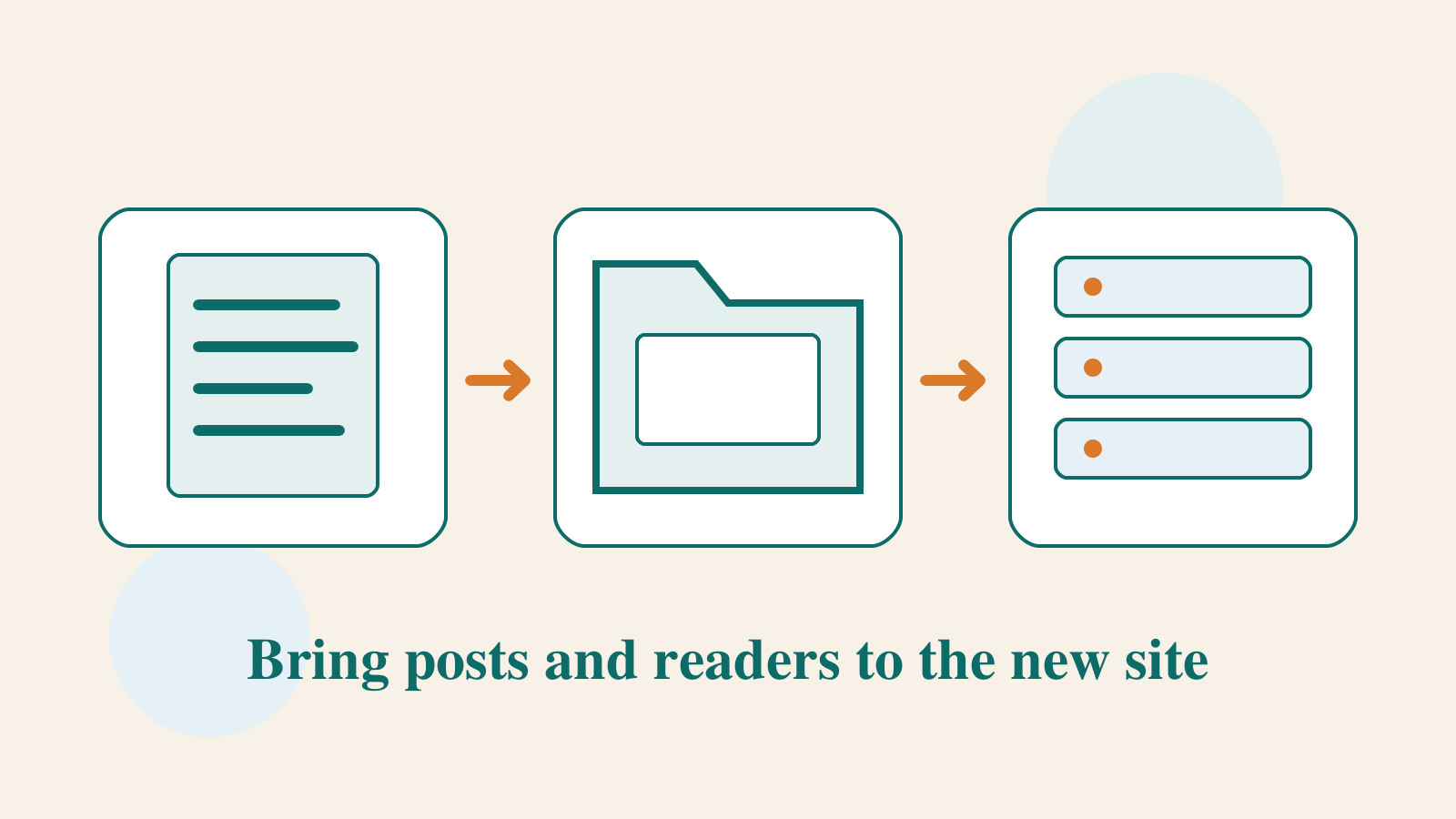
After writing on WordPress.com for some time, you may want to run WordPress on a host you manage. Both platforms let you publish posts, but one export will not automatically preserve the design, images, subscriber relationships, and old URLs. Break those parts down before moving so you know what can transfer directly and what must be rebuilt.
Suppose you have collected personal stories and want to keep their dates, comments, and photos while changing the reading layout. A content export may suit that goal better than cloning the whole site. If you also need plugin settings and the overall design, assess a compatible whole-site migration method. Choose a process by the handoff it achieves, rather than the age of the site or how much you paid.
Start with your current plan and address
Note whether the site uses the free plan or a paid plan, whether plugins are installed, and whether its public address is a .wordpress.com subdomain or a domain you own. According to the official guidance checked for this article, every paid WordPress.com plan can install plugins; a free site must upgrade. The older rule that only Business can install plugins no longer applies.
Plugin access does not make every migration tool compatible, and paid plans do not all offer the same full-backup download features. First check what the old site can export and what the new host can import, then choose a tool. List posts, media, layouts, forms, subscribers, and the domain separately, including anything with no automatic transfer route.
- Record the plan, plugin activation, current public URL, and where the domain is managed.
- List the posts, media, comments, and extra features that must be retained.
- Choose a content export or a compatible whole-site migration, then prepare the new host and a test environment.
Use XML for content and keep the old site available for media
In WordPress.com, go to Tools → Export, select all content or a defined subset, and download the export. XML mainly stores text content and media references; it does not contain the actual image files, theme design, or plugins. A large export may arrive as an archive containing several XML files. Include every file in your import checklist.
The destination importer needs access to media on the old site to copy files referenced by the XML. Official guidance says the old site must remain publicly accessible; do not delete it or make it private before the transfer finishes. If it already contains material that must not be public, ask support about another transfer method instead of exposing confidential content just to retrieve images.
You can remove unwanted material before exporting, but do not rush to permanently delete drafts or comments merely to reduce file size. Keep the original export, then process smaller batches by date or content type and record each range. If a batch fails, you can identify what to retry without reimporting the entire site.
Import to the self-hosted site, then check authors and content
Install a suitable WordPress environment on the new host, create the required administrator accounts, and arrange backups. Under Tools → Import, choose WordPress, install or run the importer as prompted, select an XML file, map authors, choose the attachment option, and run it. Screen labels may vary by version or language; follow the current importer prompts.
Test a small, recognizable subset first. Check that dates, categories, tags, comments, and author assignments match expectations before importing the remaining batches. A completion message only means the process ended. Sample long posts, unusual characters, galleries, and embeds too. Special blocks used on the old site may need corresponding plugins on the new one.
If the import times out or partly fails, save the error, filename, and number of imported items, then investigate. Do not keep pressing Retry without knowing the current state. Compare post and media inventories first; if needed, validate the process again on a clean test copy before the production import.
An image appearing is not proof of where its file lives
Compare media inventories and counts on both sites. Sample actual image URLs, original-size files, featured images, and downloadable attachments. A page can look fine while it still loads images directly from the old site; those images may break when that site stops serving files. Confirm local copies in the new site’s media library and storage, rather than relying on what you can see on the page.
You can separately save original media files for safekeeping. WordPress.com offers different media-export routes depending on plan and plugin status: sites without plugins can use the media export under Tools, while plugin-enabled plans must use the applicable official plugin or backup route. A media archive does not replace the post XML; each serves a different purpose.
Make a sampling checklist for the most important content, such as the home-page hero, a post with many images, one PDF, and one video. Record the old item, its new location, and the test result so gaps have a clear owner. Keep captions and alternative text when rebuilding the layout; otherwise, migrated content loses context for readers.
Handle subscribers and old URLs separately
Email subscribers do not move automatically when you import post XML. If you use Jetpack subscriptions, check that both sites are connected and that you meet the ownership requirements of its official migration tool. The guidance distinguishes email subscribers from WordPress.com Reader followers, and the tool does not transfer like counts. Do not promise that every interaction will carry over.
If you used your own domain and its URLs will remain unchanged, you can point that domain to the new host. That is different from transferring the domain to another registrar. Consider paid Site Redirect only when you need to send an old .wordpress.com address to an external site. Current official guidance says this feature is unavailable on sites with plugins installed or hosting features activated, so check the account state first.
If the site qualifies for Site Redirect, check that the new site uses matching post paths. The official setup begins with an HTTP destination; the new site must correctly redirect to HTTPS itself. Testing only the home page is insufficient: old social post links, date-based paths, and download entry points all need sensible destinations. If the feature is unavailable, ask official support about alternatives.
Only after the handoff, review old subscriptions and maintenance
Once content, media, forms, subscriptions, and old links work on the new site, review paid items you no longer need on the old one. Plans, domains, email, and redirects may be billed separately. Record each renewal date, reason to retain the service, and effect of cancellation, so canceling a site plan does not remove an entry point still in use.
A self-hosted site needs a named owner for updates, backups, accounts, and incident response. Document how to access the new host, where backups are stored, and how content is updated. Create a restorable backup in the new environment. Keep the old export, image copies, and migration log for now so you can investigate older material later.
Finally, test the path a normal reader takes: open an old shared post, read the article, open an image, and send a contact form or subscribe. Only when that sequence works have you handed off the reader relationship. An importer saying “complete” is just one step in the move.
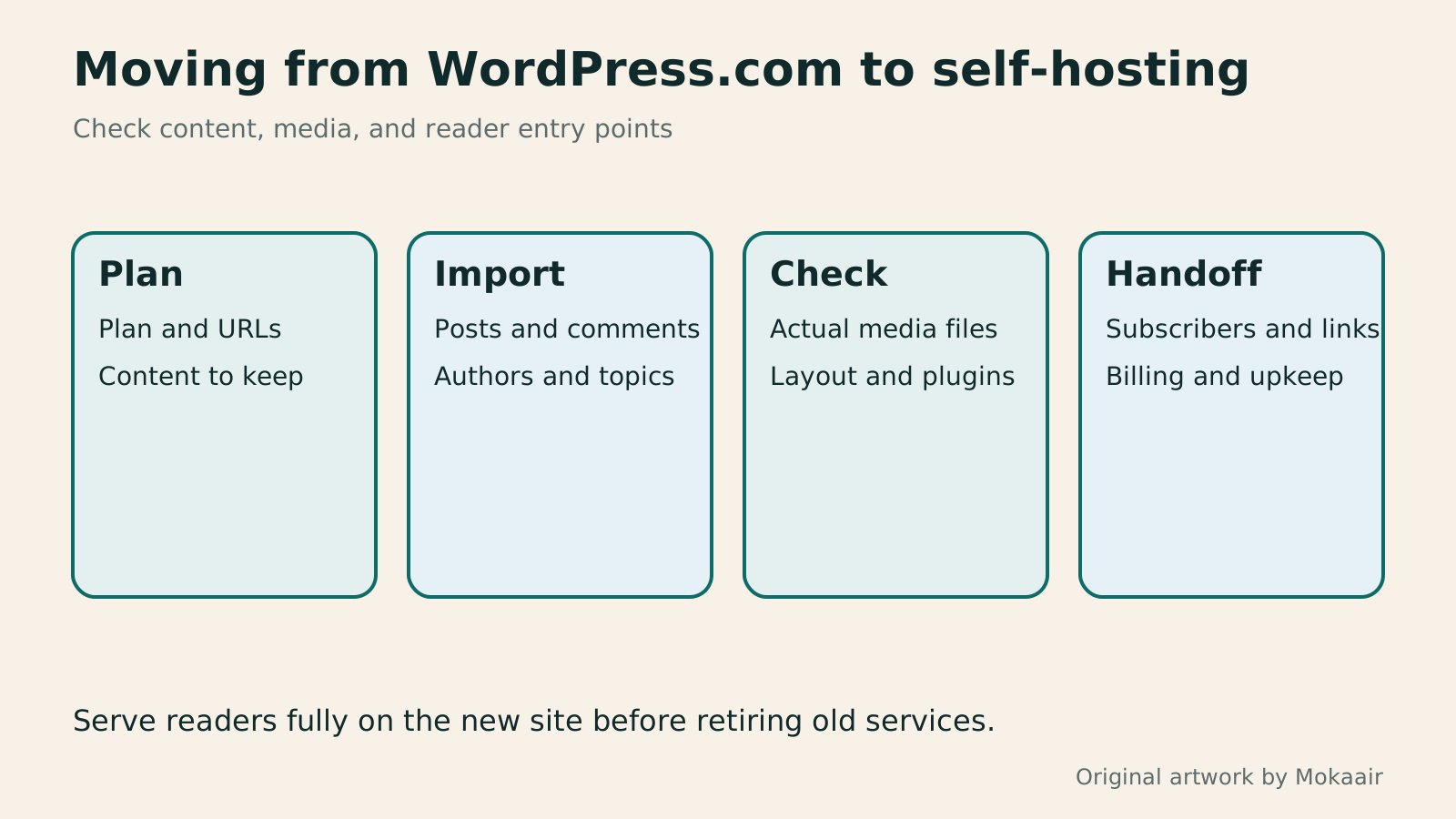
| Item | Common handoff method | Check separately |
|---|---|---|
| Posts and comments | Export XML, then use the WordPress importer | Dates, authors, categories, and special blocks |
| Images and attachments | Retrieve from the old site and create local copies | Actual storage location and file completeness |
| Layout and plugins | Rebuild or use a compatible whole-site migration | Licenses, settings, and functionality |
| Subscribers | Jetpack migration when eligible | Ownership and different follower types |
| Old URLs | Point your domain or use an appropriate redirect service | Account eligibility and inner-page paths |
Choosing between WordPress.com and self-hosted WordPressWordPress.com or self-hosted WordPress: balancing maintenance, costs and controlWordPress.com and WordPress.org share an ecosystem, but their services, maintenance duties and features differ. For personal blogs and small business sites, this guide compares hosting, self-hosting, plugins, backups, support and migration. It clarifies paid-plan plugin installation using official information available at the check date, so you can compare total costs and real workflows instead of an outdated free-versus-paid split.Read the full article
Moving hosts while keeping your domainMove WordPress to a New Host Without Changing the Domain: Migration, Testing, and DNS CutoverWhen WordPress moves to a new host, its URLs can stay the same, but files, the database, certificates, and external services still need a handoff. This guide covers preparation of the new host, restricted previews, the final data sync, and DNS cutover in order. A verification table and rollback criteria help individual site owners and studios keep their domain while moving hosts, without canceling the old service before recovery options are secure.Read the full article
Moving a site to a new domainChanging a WordPress Domain: Check Redirects, Search Signals, and EmailChanging a WordPress domain means handling internal URLs, redirects from old links, search signals, and email together. Starting with a URL mapping, this guide explains how to preview database replacements, check permanent redirects, test sending and receiving on the new domain, and monitor the change after launch. It helps personal brands and studios plan a name change without assuming that editing the WordPress site address completes the move.Read the full article
Lifestyle
After a WordPress Move: Check Search Traffic, the Old Host, and Renewals
A completed WordPress move still needs checks that the new host is stable, search entry points work, backups can be used, and old services can safely stop. This guide provides a cutover observation checklist, a way to interpret search traffic, an inventory of old-host dependencies, and renewal closeout steps. Individual site owners and studios can retain the information needed for rollback without confusing temporary fluctuations, ending renewal, and immediately deleting a site.
Lifestyle
Move WordPress to a New Host Without Changing the Domain: Migration, Testing, and DNS Cutover
When WordPress moves to a new host, its URLs can stay the same, but files, the database, certificates, and external services still need a handoff. This guide covers preparation of the new host, restricted previews, the final data sync, and DNS cutover in order. A verification table and rollback criteria help individual site owners and studios keep their domain while moving hosts, without canceling the old service before recovery options are secure.
Lifestyle
Changing a WordPress Domain: Check Redirects, Search Signals, and Email
Changing a WordPress domain means handling internal URLs, redirects from old links, search signals, and email together. Starting with a URL mapping, this guide explains how to preview database replacements, check permanent redirects, test sending and receiving on the new domain, and monitor the change after launch. It helps personal brands and studios plan a name change without assuming that editing the WordPress site address completes the move.
Lifestyle
WordPress booking systems: time slots, confirmation emails, and cancellation rules
A WordPress booking system must handle service hours, staff capacity, notifications, and cancellations together. This guide compares Amelia, Bookly, and WooCommerce Bookings for a Taiwanese studio, explains operating hours, buffers, and exceptional closures, then tests confirmation, rescheduling, and refunds as an ordinary customer so both staff and customers know when a booking is final.
Latest travel guides

GuideTokyo
Where to Stay in Tokyo: Comparing Shinjuku, Ueno, Tokyo Station, Shibuya, Asakusa, Ikebukuro, and Ginza, Plus Airport Access, Accommodation Tax, and Luggage Delivery
Where should you stay in Tokyo? Compare Shinjuku, Ueno, Tokyo Station, Shibuya, Asakusa, Ikebukuro, and Ginza by the same criteria: access from Narita and Haneda, transit routes, nearby attractions, neighborhood character, and who each area suits. Includes a comparison table, a Yamanote Line diagram, Tokyo’s accommodation tax as verified in 2026/9 (changing to 3% in 2027/4), and Airport TA-Q-BIN luggage shipping rules.
- Budget
- Hotels

GuideTokyo
How to Choose Tokyo Transit Passes: Are Suica, Welcome Suica, the Tokyo Subway Ticket, and the JR Pass Worth It?
On a first Tokyo trip, start with an IC card and pay per ride (Welcome Suica has no deposit and is valid for 28 days). If you take four or more subway rides in a day, add a 72-hour Tokyo Subway Ticket for 2,000 yen; a JR Pass is never worthwhile if you stay in Tokyo and do not go to Kansai. See what TOURIST PASMO, Suica on iPhone, and the Tokyo Metro day pass do and do not cover, with a decision chart. Prices verified in September 2026.
- Transport
- Budget

GuideTokyo
Tokyo Disneyland and DisneySea Guide: Ticket Prices, Fantasy Springs, Disney Premier Access (DPA), Standby Pass, and Which Park to Choose for Your First Visit
Tokyo Disney one-day Passport prices vary: most weekdays in 9/2026 cost ¥9,900 and weekends ¥10,900. At 14:00 daily, tickets go on sale for the same date two months later. Free Priority Pass is no longer on the official service list; only paid Disney Premier Access (¥1,000–3,500 per person per use) shortens waits. Covers hours, the 25th anniversary, Standby Pass, Entry Request, Fantasy Springs access and first-visit park choice; checked on the official site in 9/2026.
- Itineraries
- Family
Sources
- WordPress.com: Export content · Checked:
- WordPress.com: Current plugin plans · Checked:
- WordPress: Import tools · Checked:
- WordPress.com: Media export and plan differences · Checked:
- WordPress.com: Site Redirect eligibility · Checked:
- Jetpack: Subscriber migration requirements and steps · Checked: