Lifestyle
How to set up image lazy loading: show important content first
Image lazy loading reduces downloads not needed at first, but delaying the hero image can make important content appear later. Using users in Taiwan reading a long craft tutorial as an example, this article explains the native loading attribute, load priority, reserved image space, and WordPress plugin responsibilities. Steps, a scenario comparison table, and original diagrams establish checks from page top to bottom for both reading and search-engine readability.
About 8 min read
Contents
- 1. First distinguish initially visible images from those needed later
- 2. The native loading attribute controls deferral, not priority
- 3. Reserve space first to keep images from shifting the body text
- 4. Decide who handles loading in WordPress and the editor
- 5. Search-engine readability cannot depend on readers clicking first
- 6. Check results with slow and fast reading scenarios
A tutorial for making a wooden storage box has twenty step-by-step images. When readers first open the page, they usually do not need to download images for the last few steps immediately. Lazy loading lets images temporarily out of view load later, leaving resources for the content at hand, provided the images still appear reliably when needed.
The point of this setting is to allocate loading times, not delay every image. First identify the initial viewport, body content, and hidden sections, then address image space and tool responsibilities. Finally, check the actual reading sequence to determine whether deferring downloads really helps.
First distinguish initially visible images from those needed later
Hero images, product photos, or essential diagrams visible upon entering a page should usually load normally. Google specifically advises against lazy loading content that may be above the fold, especially large images that affect LCP. Readers need to see the finished project first to decide whether this storage box tutorial suits them.
Step-by-step images farther down, supplementary photos later in the article, and other images far from the viewport are the main candidates for lazy loading. Classify them according to the actual layout: the third image displayed side by side on desktop may sit much farther down on mobile. Conversely, a mobile-specific hero image may be hidden on desktop.
Do not decide solely by the order of images in HTML. First inspect the main layouts and commonly used screen widths, identify assets visible immediately upon entry, and then exclude them from lazy loading or set them to load normally. If promotional banners can change the layout, include that state in your checks to prevent settings from becoming unsuitable after a layout update.
The native loading attribute controls deferral, not priority
A standard img can use loading=lazy to let the browser download the image as it approaches the viewport. loading=eager means normal loading, which is also the usual behavior when no value is specified. The browser decides how close is close enough. Do not treat a pixel distance from an old tutorial as a permanent threshold for every device.
eager does not mean an image will necessarily finish loading before other normally loaded images; fetchpriority is a separate hint about loading priority. Engineers can assess whether to use high for an important LCP image, but it does not remove the deferral conditions set by lazy. Enabling both options does not guarantee that the hero image will appear immediately.
If your site already generates correct native markup, there is usually no need to add a separate lazy-loading library just for ordinary images. Special effects, older environments, or cases requiring finer control can be assessed separately, but document the added dependencies and maintenance approach to avoid stacking mechanisms that rewrite one another behind otherwise simple images.
Reserve space first to keep images from shifting the body text
Before an image downloads, the browser still needs to know how much space to reserve. The width and height of an img help determine its aspect ratio so the layout can allocate space first; responsive styles then scale the displayed image to fit its container. These dimensions should match the asset's aspect ratio. Do not enter two arbitrary numbers just to eliminate a warning.
If a tall image suddenly appears while readers are viewing the dimensions in the storage box tutorial, it may push the body text away or even cause someone to press a different button. A small image file does not prevent this shift; the problem is that space was not reserved. During checks, observe text positions before and after images appear, rather than looking only at a screenshot taken after everything has loaded.
Missing dimensions can also cause the browser to misjudge image positions, resulting in unexpected download behavior. Galleries and long lists especially need their actual layout inspected. If images are cropped to a fixed aspect ratio, the layout can reserve an appropriate container, but still check that mobile images are not stretched out of shape or cropped in ways that remove essential details.
Decide who handles loading in WordPress and the editor
Check whether the theme, image plugins, acceleration plugins, and CDN each provide lazy loading. Turning off an option in one plugin does not mean the public page no longer has lazy markup; other features may still add it during output. Inspect the actual img first, then trace it back to the tool responsible for the setting.
For example, on a site using NitroPack while retaining Smush for image compression, NitroPack's official compatibility documentation requires disabling Smush's lazy-loading feature. This division of responsibilities applies to a specific tool combination and does not mean all image compression should be disabled. When making adjustments, retain any compression and asset-management features still needed.
If the editor implements the main visual as a CSS background, the loading attribute for img cannot be applied directly to it. Image backgrounds, carousels, and hidden sections need handling according to their actual implementation. General administrators can first list images that appear too late or never appear, then ask engineers to assess them. This avoids adding identically named options throughout the admin interface without any effect.
- Choose a representative article and list images in the initial viewport, later body content, and hidden sections.
- Check the loading markup actually output and confirm that only the intended tool handles it.
- Load important images in the initial viewport normally, defer later images, and reserve space with the correct aspect ratio.
- Clearly document the changes, then read from page top to bottom to check image appearance and layout stability.
Search-engine readability cannot depend on readers clicking first
Google Search does not click or scroll like a person to trigger content, so lazy loading must not depend solely on those user actions to add important information to the page. Official guidance recommends approaches such as viewport detection and checking that images intended for display actually load in the corresponding states.
When using URL Inspection in Search Console, examine the rendered HTML and check that each image's actual URL appears in the src of its img. If only a custom data field or placeholder image remains, with the actual file substituted only after a click, ask an engineer to investigate. This check provides evidence of readability, not a guarantee that the image will be indexed.
Infinite scrolling also involves how additional content is discovered and cannot be treated solely as an image setting. If the site keeps loading another batch of articles, provide separate, stable pagination URLs and links that can be accessed directly. Deferred image downloads and whether the next batch of content has its own entry point are two issues that need separate verification.
Check results with slow and fast reading scenarios
First examine the initial load in a controlled test environment: whether the important hero image appears promptly, whether lower images are actually deferred, and whether the hero image's LCP worsens. Then scroll slowly through the article to confirm that each step-by-step image is available when you reach it. Do not assume all images have finished loading just because the browser's loading spinner stops.
Next, jump quickly to a later part of the article, expand collapsed sections, or switch carousel slides. Watch for prolonged blank areas, loading errors, or sudden content shifts. Browsers may handle hidden images differently, so spot-check important layouts in the environments you actually support. When limiting network speed, record the settings so the test can be reproduced later.
Save the initial viewport, evidence of later images appearing, download records, and metrics before and after the changes. If there is no clear benefit, or images become readable later as a result, revisit the scope and timing. Good lazy loading should let readers finish reading naturally, rather than leave key images missing from a how-to guide just to reduce initial requests.
Read the full description
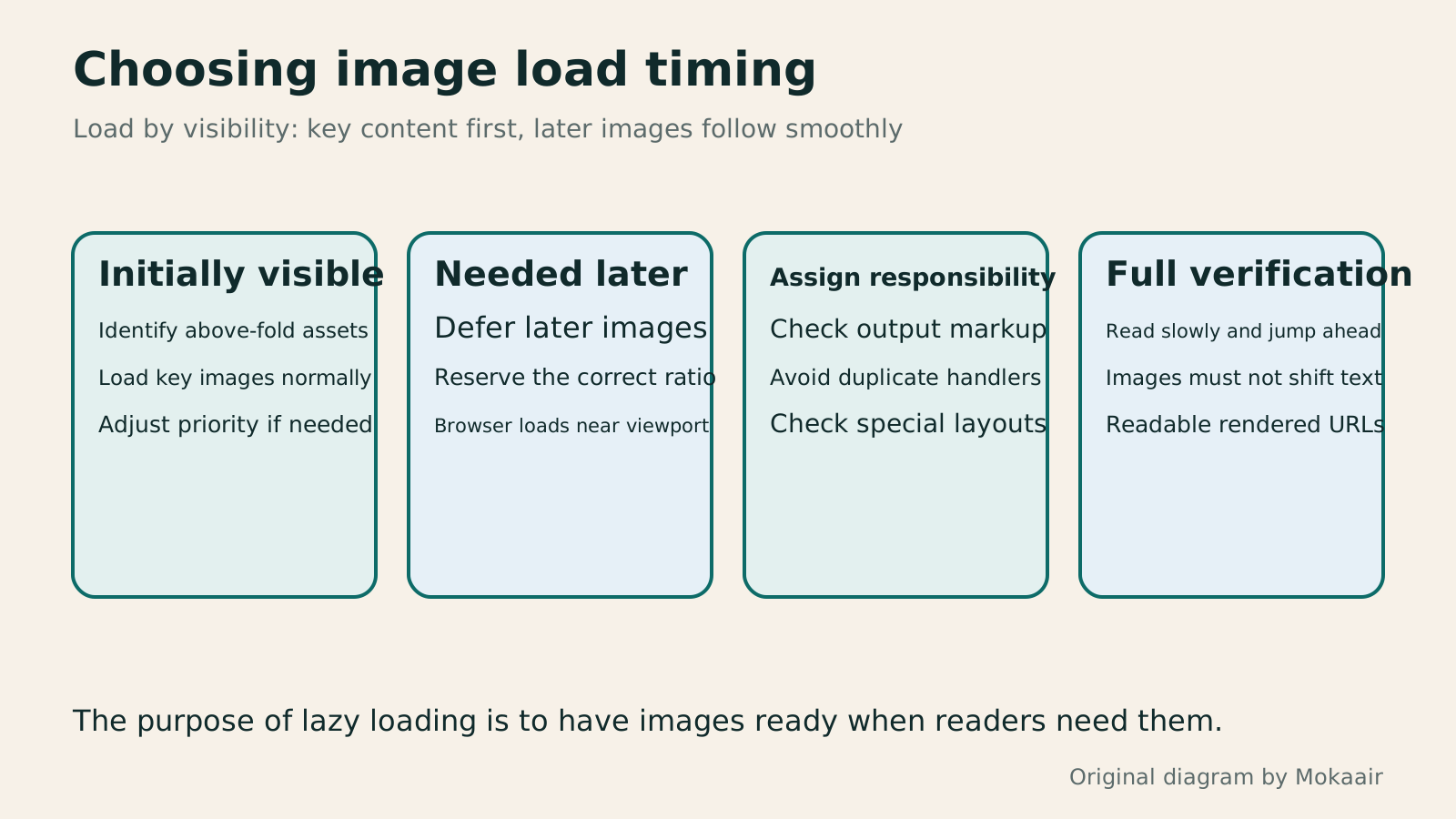
Four sections check, in order, initially visible assets, deferral and dimensions of later images, a single loading handler, and full-article reading and search-engine readability.
| Image scenario | Usual approach | What to verify |
|---|---|---|
| Hero or LCP image in the initial viewport | Load normally and assess priority | Main content appears promptly |
| Step-by-step images later in the article | Defer downloads and reserve space first | Clear and available when readers reach them |
| Carousel or collapsible section | Handle according to actual display behavior | Works after switching or expanding |
| CSS background image | Handle separately through the background implementation | img attributes do not apply directly |
| Infinite loading of the next content batch | Provide separate, stable pagination entry points | Content is directly accessible and discoverable |
Establish a workflow for image files and alternative textHow to prepare website images: Size, alt text, and search readabilityClear, useful website images take more than a compression plugin. Starting from a typical website editor's workflow in Taiwan, this guide covers each image's purpose, dimensions and format, file name, alt text, WordPress upload checks, and the scope of Smush. An original herb-repotting example, checklist, and comparison table show how to keep masters, review images individually, and test the public page for readers and search systems.Read the full article
Verify WordPress acceleration settings one by oneWordPress Performance Plugins: Caching, Images, and Feature ConflictsWordPress performance plugins need settings matched to the actual site; enabling every option at once is unsafe. Using a small Taiwan-based course and shop site, this guide compares WP Rocket and NitroPack, divides responsibility for caching and images, and shows how to diagnose conflicts caused by CSS and JavaScript optimization. A comparison table, staged workflow, and original diagram help administrators retain a measurement baseline and verify forms, menus, and shopping flows.Read the full article
Identify LCP and layout-shift bottlenecksHow to Improve Core Web Vitals: Find Bottlenecks in Real User DataWhen Core Web Vitals flags red items, first identify the affected devices, page groups, and user actions. Using a small course website in Taiwan as an example, this article explains the experience issues behind LCP, INP, and CLS, the roles of real user data and lab tests, reproduction records for engineers, and checks after fixes. A comparison table and original diagrams help avoid major site changes based on a single score.Read the full article
Found this guide helpful? Share it with someone who needs it
Lifestyle
www, Subdomains, and Subdirectories: Choosing a Website URL Structure
Whether to use www or put a blog at blog.example.com or example.com/blog/ depends on platform support and maintenance. This article explains hostnames and paths, then compares content roles, DNS settings, HTTPS certificates, and URL consistency for subdomains and subdirectories. An original decision table and launch checklist help small websites in Taiwan build URL structures that are easy to use, manage, and hand over.
Lifestyle
Before Hiring a Web Design Agency: The Brief, Quotes and Deliverables Checklist
Before hiring a web design agency, define your site's audience, key actions and deliverables so you can compare quotes. Using a small studio as an example, this guide covers page and template counts, content duties, feature specs, mobile and accessibility checks, account and source-file handover, and post-launch maintenance terms. An editable requirements checklist helps reduce extra costs and communication gaps; no agency recommendations are included.
Lifestyle
How to Start a Web Design Project: Requirements, Content, and Acceptance Testing in Order
Building your first website often stalls over unclear requirements, content, and acceptance criteria, rather than colors. Using an original neighborhood repair studio example, this guide covers user interviews, content preparation, prototyping, development, and handover, with deliverables for each stage. Steps, a comparison table, learning resources, and original diagrams help readers building or commissioning a site turn “Is it finished?” into tasks they can verify.
Lifestyle
Website Caching and CDNs: Which Layer to Clear When Updates Do Not Appear
A website may be updated while phones still show old content because caches remain in different places. Using a Taiwan studio's business-hours update, this article explains browser, WordPress/hosting and CDN roles, cache responses, expiry times and targeted purging. An ordered procedure, comparison table and original diagram help site managers trace old versions while keeping account and shopping workflows correct.
Sources
- Google: Browser-native image lazy loadingChecked:
- MDN: img loading and dimension attributesChecked:
- Google Search guide to lazy-loaded contentChecked:
- NitroPack and other lazy-loading toolsChecked:
Compiled from the references and verification dates listed above; fares, schedules, product features, and terms can change, so please confirm the latest details on the relevant official website before travelling, booking, or purchasing.