Lifestyle
WordPress Security Maintenance: Dividing Account, Update, and Plugin Responsibilities
WordPress security depends on accounts, updates, firewalls, and backups working together. Starting from a small site’s real responsibilities, this guide explains least privilege, the features and limits of free Wordfence, recovery planning for two-factor authentication, and checks for learning mode and alerts. Practical steps and a comparison table help Taiwan-based site owners put someone in charge of each protection task and keep tracking the results.
About 7 min read
Contents
A studio website is managed by three people but has seven administrator accounts, including two belonging to contractors whose projects ended. Even with a security plugin, those extra entry points remain. Before adding defenses, write down who can enter, who updates the software, and who responds when something goes wrong.
The goal of security maintenance is to reduce risk and preserve recovery options; no plugin guarantees that a site will never have a problem. Wordfence is used below to illustrate features alongside WordPress’s official guidance. This is not a vendor ranking, and a clean scan is not a complete security certification.
List who controls each part of the site
Record the owners of WordPress, hosting, the domain, backup storage, and the administrator mailbox. They may use different accounts, but each can affect the site. Confirm the current responsible person can still sign in to every entry point, and update recovery contacts to an inbox that actually receives notices.
Someone who writes routine posts usually does not need to install plugins; a contributor may not need to publish independently. Give people separate accounts and roles matched to their work, then remove unneeded access when a project ends. Before changing roles, handle post ownership and handoff records; do not delete content that must be retained just to tidy the user list.
- Record each service account’s owner, work purpose, and recovery contact.
- Review administrators and use lower-privilege accounts for routine editing.
- Confirm the access end date and revocation method for contractors, and keep a handoff record.
Updates must include backups and functional checks
Inventory the core software, themes, and plugins in use, and check official update and compatibility notices. Modified software from an unknown source is a poor foundation for a production site. Plan replacements for components that have stopped receiving maintenance but still serve important functions. Consider removing unused tools as well, so there is less to track later.
Before a significant update, confirm that a complete backup is available, and test login, forms, and key pages on a copy. Security fixes sometimes need priority; do not defer them indefinitely while waiting for perfect testing. If an immediate patch is impossible, ask the maintainer to assess temporary limits on affected features and record a definite deadline.
Automatic updates reduce omissions, but someone still needs to read failure notices and check outcomes. In a maintenance list, distinguish automatically updated components from integrations requiring manual verification, and assign an owner. A plugin list showing “up to date” does not cover the host’s PHP, the backup process, or administrators’ computers.
Understand what Wordfence can protect
According to the official documentation checked on the stated date, free Wordfence includes a firewall, scanning, and two-factor authentication. New firewall rules and malware signatures arrive thirty days later than for paying customers. That difference can inform your choice, but it cannot be translated into a guarantee that your site is safe or certain to be attacked.
After installation, first verify the notification address, current firewall status, and ability to complete a scan. Then read the file paths and changes behind each finding. Customized code can also differ from the original files. Do not delete or overwrite every difference on sight; save a copy and ask the maintainer which changes were intentional.
If the host already supplies some protection, place its responsibilities beside the plugin’s in one table. Host backups, firewall blocking, and WordPress account checks address different problems. Before adding a tool, confirm compatibility and resource needs. More installations do not automatically produce clearer responsibilities.
Set up two-factor authentication and plan for a lost phone
In Wordfence Login Security, open 2FA settings for your own account, add it to a TOTP-compatible authenticator, save the recovery codes, and enter the current code to enable it. Keep the original login window open while testing the password and code in a second browser; logging yourself out immediately could remove your route to adjust the settings.
Store recovery codes where only authorized people can reach them, separately from everyday site instructions. The official documentation says each code can be used once and generating new codes invalidates the old set. During handoff, confirm how they are stored. Do not paste the QR code, secret key, or recovery codes into a work group visible to many people.
Custom login pages need extra testing. The official guidance warns that some third-party login forms may be incompatible; WooCommerce account pages have an integration option that must still be tested after enabling it. Passing 2FA in the dashboard does not mean the member entrance, social login, or every other connection method is automatically controlled in the same way.
After learning mode, confirm protection is on
Wordfence learning mode can allowlist some requests that look like attacks to reduce false blocks. Not all firewall protection is fully active during that period. According to the official guidance, do not use learning mode as the response when the site is under attack or has just been compromised.
When configuring it under suitable conditions, test routine actions such as saving posts, uploading images, and submitting forms. Review the allowlist, then switch back to Enabled and Protecting. If you enable learning mode manually, set an end date or schedule a clear manual shutoff; otherwise it may keep accepting new allowed requests unnoticed.
If a real visitor is blocked, record the time and action, then check the reason in logs such as Live Traffic. Add a narrow exception only after confirming the action is legitimate. Do not turn off all protection because of one form issue, or allowlist a request you do not understand at a stranger’s direction.
Assign a person to handle each alert
Track failed updates, unknown administrators, suspicious files, and repeated login failures separately, with an owner and response for each notice. An editor may report unusual behavior, while a maintainer handles file repair or hosting restrictions. Clear assignments keep an alert from sitting in a shared inbox because everyone assumes someone else took it.
If you suspect a compromise, preserve necessary records, restrict affected entry points, and contact a maintainer who knows the site. Changing passwords and restoring files may be parts of the response, but you also need to establish the impact and whether the entry point was fixed. A scan that finds nothing for now is no substitute for incident investigation.
After each handoff or major new feature, recheck accounts, alerts, access to backups, and login recovery. A maintenance log should at least record the last check date and the next action. A security tool’s score can be a reference, but completed fixes and verifiable procedures make later follow-up possible.
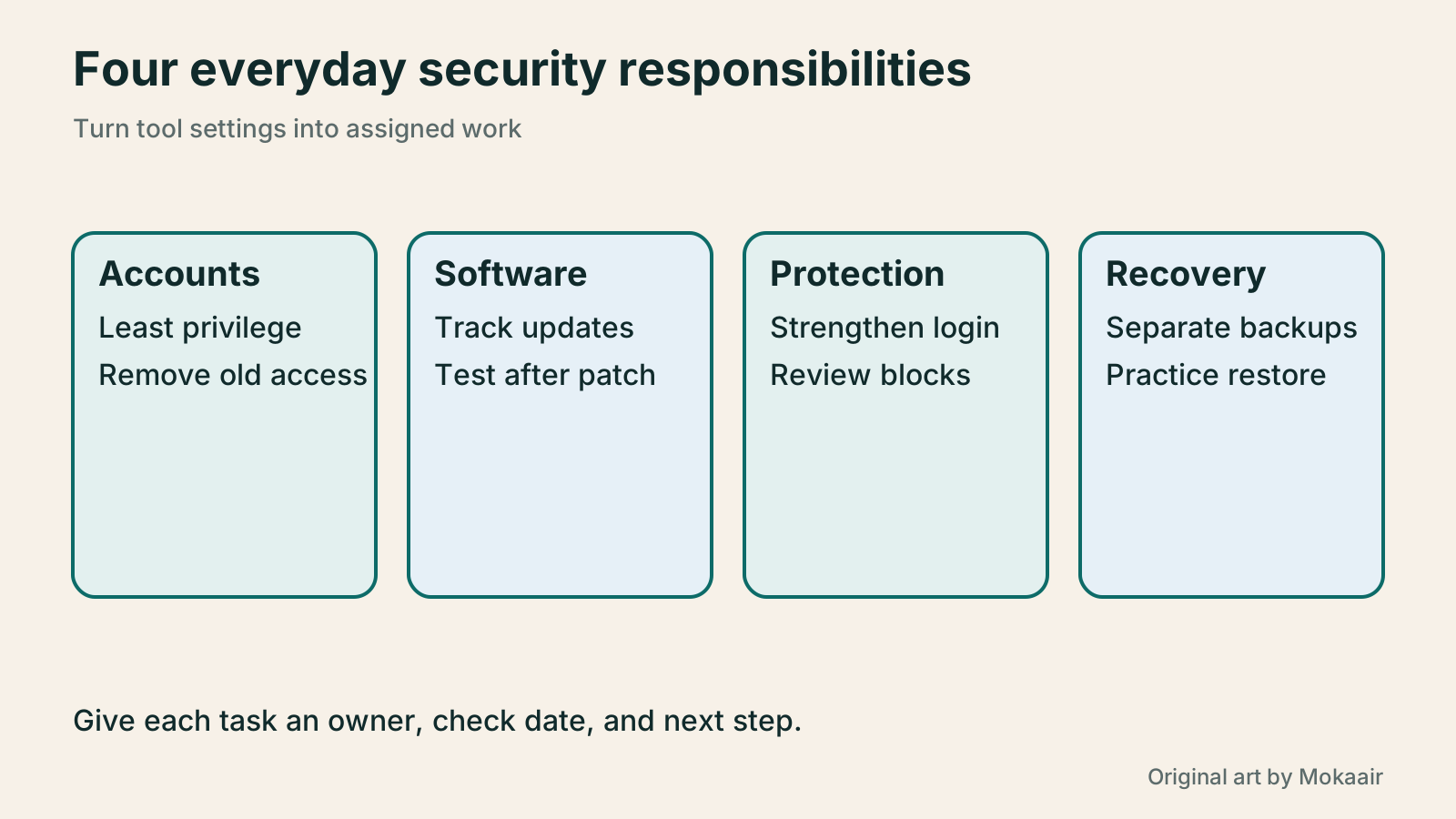
| Task | Main purpose | What still needs attention |
|---|---|---|
| Least privilege | Limit what each account can do | Regularly revoke access for people who have left |
| Updates | Fix software and compatibility issues | Back up and check functions afterward |
| Firewall | Handle requests using rules | Confirm its state and investigate false blocks |
| Two-factor authentication | Strengthen login checks on supported entrances | Test recovery codes and other entrances |
| Backups | Provide a route to recover data | Store a separate copy and rehearse restoration |
What website maintenance involves: a routine for backups, updates, and incident reportsWhat website maintenance involves: a routine for backups, updates, and incident reportsWebsite maintenance includes more than plugin updates: check content, accounts, backups, outgoing email, and expiring services. Using a small WordPress content site, this guide covers routine observation, pre- and post-update checks, restoration, and incident reports, with a worksheet for owners, editors, and maintainers. Set a schedule by update frequency, identify urgent cases, and keep records the next collaborator can use.Read the full article
How to back up WordPress: files, databases and restoration drillsHow to back up WordPress: files, databases and restoration drillsA successful backup message is not enough. Build a checklist for WordPress files, databases and off-site copies, then learn the UpdraftPlus and WPvivid controls, restore limitations and isolated drills needed to confirm recovery. Plan schedules, retained versions, configuration files and acceptance records so someone can restore a personal or studio website.Read the full article
Found this guide helpful? Share it with someone who needs it
Lifestyle
Before Resetting WordPress: Separate Content, Theme Settings, and Full Restore
Starting over in WordPress does not always require wiping the site. This guide compares style resets, content revisions, database resets, and full restores; explains the scope of WP Reset and the limits of its snapshots; and walks through a test site, backup checks, and acceptance after a reset. It helps ordinary users in Taiwan identify the actual problem and choose a suitably narrow action with a recovery plan.
Lifestyle
WordPress Performance Plugins: Caching, Images, and Feature Conflicts
WordPress performance plugins need settings matched to the actual site; enabling every option at once is unsafe. Using a small Taiwan-based course and shop site, this guide compares WP Rocket and NitroPack, divides responsibility for caching and images, and shows how to diagnose conflicts caused by CSS and JavaScript optimization. A comparison table, staged workflow, and original diagram help administrators retain a measurement baseline and verify forms, menus, and shopping flows.
Lifestyle
Handling WordPress Comment Spam: Review Rules and Akismet
Stopping spam in WordPress comments takes sensible moderation rules and a way to correct mistakes, as well as a plugin. This guide covers discussion settings, Akismet activation and plan eligibility, reporting spam, and rescuing legitimate comments. Its daily review checklist helps small-site owners reduce the workload while leaving room for readers with real questions to join the discussion.
Lifestyle
Build a personal blog with WordPress: from categories to your first post
To start a personal blog, decide what questions you want to answer over time, then plan the homepage, post list and basic pages. Using WordPress as an example, this guide develops a writing workflow from content categories and reading layouts through the first post and later updates. It also covers checks for post cards, pagination and comments. It is for readers in Taiwan who want to turn their notes into public content: finish a small but complete site first, then add features as needed.
Articles that cite this one
Sources
- Hardening WordPress securityChecked:
- Wordfence Free featuresChecked:
- Wordfence two-factor authenticationChecked:
- Wordfence learning modeChecked:
- WordPress roles and capabilitiesChecked:
Compiled from the references and verification dates listed above; fares, schedules, product features, and terms can change, so please confirm the latest details on the relevant official website before travelling, booking, or purchasing.