Lifestyle
WordPress Member Registration: Forms, Verification, and Account Recovery
A visible form is only the first step in WordPress member registration. Using Ultimate Member, this guide connects role assignment, email activation, manual review, password resets, and profile visibility. It also explains when LoginPress helps with the appearance of the login page. A full acceptance sequence and troubleshooting table help Taiwan-based site owners build a clear, recoverable membership flow without collecting more data than needed.
About 7 min read
Contents
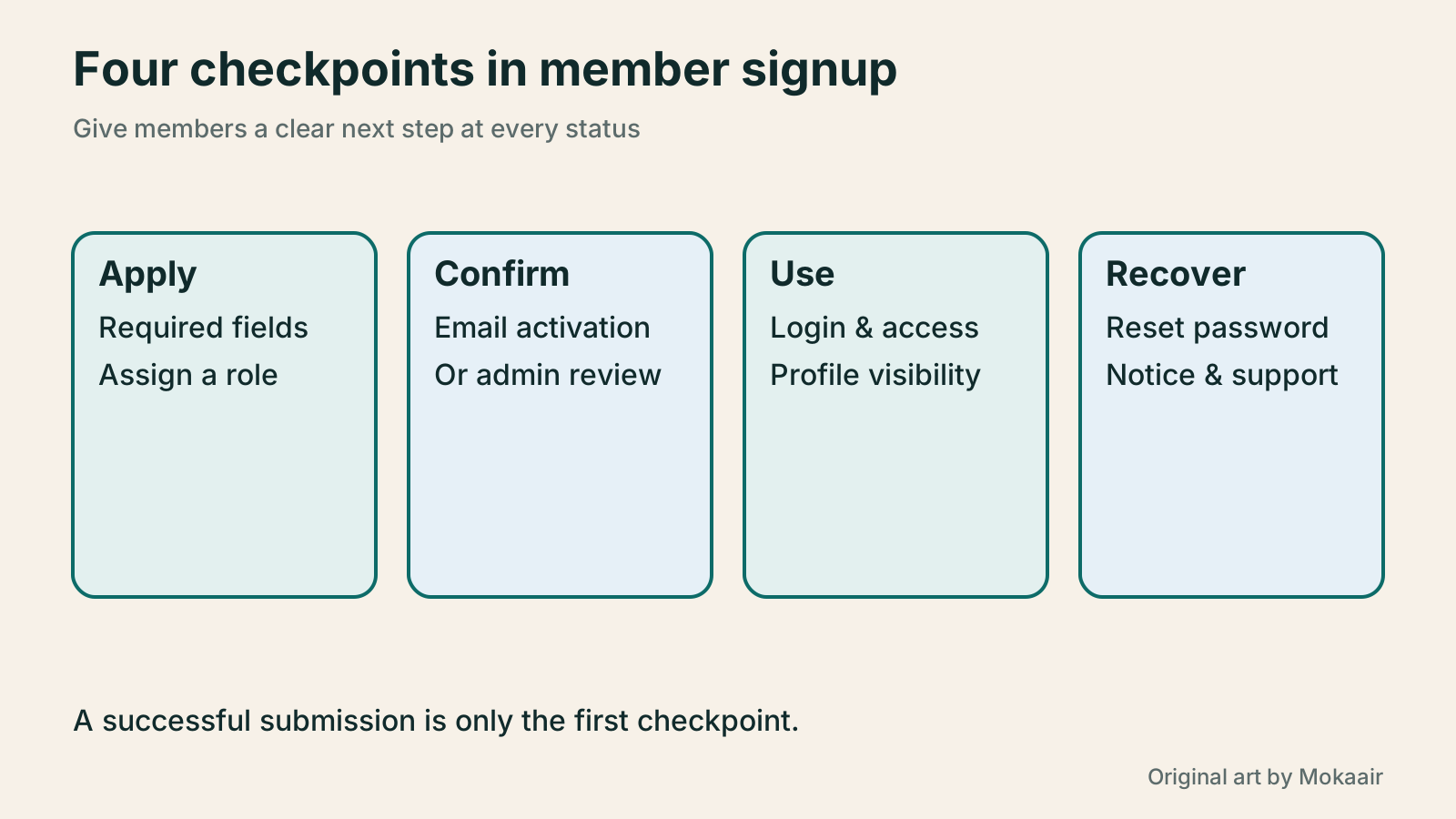
A reading club wants participants to register before downloading handouts. The easiest thing to overlook is not the form color but what happens after submission. If members never receive activation emails, administrators do not know who is awaiting review, or the password-reset link returns to the login page, a membership site that looks finished will not work.
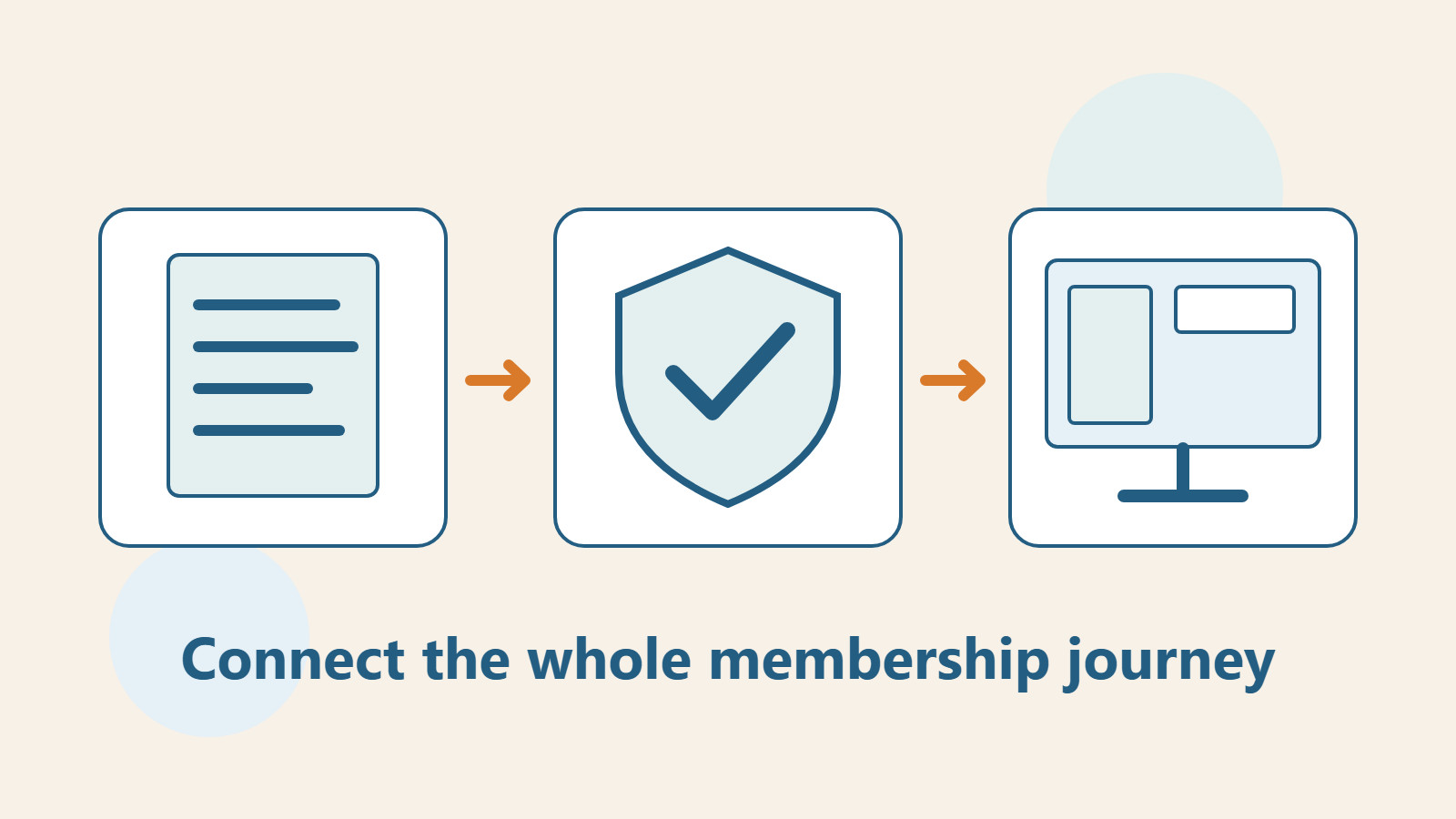
Map the path through registration, identity confirmation, login, profile changes, and account recovery before choosing tools. This guide uses Ultimate Member to explain the member flow and LoginPress to cover the separate job of styling the login page. It does not assume both plugins must be installed, or that a polished login page means the membership rules are complete.
Decide who can join and which data you need
Write the joining rule in one sentence, such as “Any reader can apply and receives ordinary membership after confirming their email address.” If officers must approve applications, name the reviewer and the criteria. Do not give every applicant site-management powers from the start; membership and admin access are separate decisions.
Keep only fields that support the process. A reading club that sends notices may not need an address, date of birth, or company name; a display name can also differ from a contact name. Explain in advance which details appear on a profile and which are visible only to managers, so applicants understand their use before submitting.
- List the joining criteria, post-registration role, and content access needed.
- For each field, record its purpose, why it is required, and who can see it.
- Choose email activation, manual review, or another process, and assign someone to handle it.
Create the registration form and required pages
In Ultimate Member, create a registration form under Forms and place its generated shortcode on the corresponding page after configuring the fields. Set the role for that form explicitly, or check Registration Default Role. Settings may move between versions; use the current dashboard and the official General/Users documentation as your reference.
The plugin needs matching pages for login, registration, account, profile, and password reset; keeping only the registration page is insufficient. Follow the official Default Pages guidance to create and verify each page mapping, preserving required shortcodes. If you customize page URLs, check every button and email link to ensure it still points to the right place.
Check caching on member pages as well. The official guidance says Account, Login, Password Reset, Register, and User pages should not be cached. Review the cache plugin, host, and CDN settings together. Test with separate accounts so one person’s details or state cannot reach another through a shared cached page.
Make activation and review states clear
Ultimate Member role settings can require email activation or administrator review. Email activation also needs the corresponding Account Activation Email template enabled. For manual review, check both the applicant’s pending-review message and the notification that tells an administrator to review. If you turn off the emails while leaving the rule on, applicants may not know what to do next.
An email-activation page can say, “We received your application. Open the activation link in your inbox.” A manual-review page should explain the wait and provide a contact route. Show login instructions only after actual approval; do not display the same success message for every state. Confirming that an inbox works is also not the same as verifying a person’s real-world identity.
An administrator who adds a user directly in the dashboard may trigger a separate setting that approves the account automatically. The plugin offers an option to bypass role-registration rules for accounts created in the admin area, so acceptance testing must begin with the real front-end form. A dashboard-created account cannot prove that activation and review work for ordinary visitors.
Make sure password recovery completes
From a signed-out window, choose Forgot Password, enter your own test account, and confirm that the reset email reaches the expected inbox, its link opens the correct page, and the new password works afterward. Ultimate Member has notifications for both password reset and password change; check their templates and page settings rather than testing only the general welcome email.
Also test duplicate applications, input errors, and expired or already-used links. Record whether the screen provides an understandable next step. Behavior can vary by version or customization, so adjust the wording to match observed results. Never ask a user for their original password in a support reply or post an activation or reset link in a public comment.
If email does not arrive, check whether the plugin triggered a notification, whether the sending service accepted it, and the recipient’s spam folder. Treat “sent” and “received” as separate findings: a success message alone does not prove delivery. Keep de-identified timestamps and error summaries so a maintainer can investigate.
Check login appearance and member data separately
LoginPress can style the login form, password-recovery form, buttons, and messages. If you only need to brand an existing WordPress login page, start by evaluating that scope. If you use Ultimate Member front-end forms, configure their own appearance first; do not assume LoginPress will also control every third-party form.
Make field labels, error reasons, and return links easy to see, and do not let an oversized background image squeeze the mobile form. Use consistent names for the registration, login, and password-recovery entries, so a new member need not guess whether “Account Center” and “Member Login” lead to the same place.
Ultimate Member form fields have Visibility and Privacy controls for different display modes and audiences. Inspect the member directory and profile too, viewing each as a visitor, the account owner, and another member. Data collected on a form is not necessarily suitable for public display; do not judge the visibility rule only from an administrator’s view.
Use one acceptance checklist for the whole lifecycle
Complete a fresh front-end registration, activate or approve it according to the chosen process, then log in, open restricted content, change permitted fields, log out, and reset the password. Create another account that remains unactivated or is rejected, and confirm it cannot use restricted features. Use recognizable fake test names to keep these records separate from real members.
If the site supports account deletion or data requests, explain where to start, who is responsible, and what the process covers. The membership plugin, form logs, email service, and backups may each retain different data. Deleting one account does not justify promising that every system immediately has no record. Write guidance for the actual service process and review it regularly.
Before opening registration, save a summary of settings, email templates, page mappings, and the acceptance date. Repeat the sequence when changing the mail service, URLs, or login tool. More registrations show that people completed a form; usable membership still depends on activation, login, and recovery working end to end.
| Where it gets stuck | Check first | Acceptance result |
|---|---|---|
| Cannot log in after submitting the form | Account state and assigned role | Prompt is clear and follows the selected rule |
| Activation email does not arrive | Template, sending, and delivery records | Link completes activation |
| Manual review has no progress | Admin notice and pending list | Approval and rejection are traceable |
| Password reset keeps looping back | Reset page and email URL | New password works for login |
| Someone else sees profile data | Field privacy, directory, and caching | Each identity sees only permitted details |
Set WordPress member and editor roles
WordPress Security Maintenance: Dividing Account, Update, and Plugin ResponsibilitiesWordPress Security Maintenance: Dividing Account, Update, and Plugin ResponsibilitiesWordPress security depends on accounts, updates, firewalls, and backups working together. Starting from a small site’s real responsibilities, this guide explains least privilege, the features and limits of free Wordfence, recovery planning for two-factor authentication, and checks for learning mode and alerts. Practical steps and a comparison table help Taiwan-based site owners put someone in charge of each protection task and keep tracking the results.Read the full article
Found this guide helpful? Share it with someone who needs it
Lifestyle
Before Resetting WordPress: Separate Content, Theme Settings, and Full Restore
Starting over in WordPress does not always require wiping the site. This guide compares style resets, content revisions, database resets, and full restores; explains the scope of WP Reset and the limits of its snapshots; and walks through a test site, backup checks, and acceptance after a reset. It helps ordinary users in Taiwan identify the actual problem and choose a suitably narrow action with a recovery plan.
Lifestyle
WordPress Performance Plugins: Caching, Images, and Feature Conflicts
WordPress performance plugins need settings matched to the actual site; enabling every option at once is unsafe. Using a small Taiwan-based course and shop site, this guide compares WP Rocket and NitroPack, divides responsibility for caching and images, and shows how to diagnose conflicts caused by CSS and JavaScript optimization. A comparison table, staged workflow, and original diagram help administrators retain a measurement baseline and verify forms, menus, and shopping flows.
Lifestyle
Handling WordPress Comment Spam: Review Rules and Akismet
Stopping spam in WordPress comments takes sensible moderation rules and a way to correct mistakes, as well as a plugin. This guide covers discussion settings, Akismet activation and plan eligibility, reporting spam, and rescuing legitimate comments. Its daily review checklist helps small-site owners reduce the workload while leaving room for readers with real questions to join the discussion.
Lifestyle
Build a personal blog with WordPress: from categories to your first post
To start a personal blog, decide what questions you want to answer over time, then plan the homepage, post list and basic pages. Using WordPress as an example, this guide develops a writing workflow from content categories and reading layouts through the first post and later updates. It also covers checks for post cards, pagination and comments. It is for readers in Taiwan who want to turn their notes into public content: finish a small but complete site first, then add features as needed.
Articles that cite this one
Sources
- Ultimate Member registration formsChecked:
- Ultimate Member approval and notificationsChecked:
- Ultimate Member default pagesChecked:
- Ultimate Member email settingsChecked:
- Ultimate Member approval for accounts created in the admin areaChecked:
- Ultimate Member field visibilityChecked:
- LoginPress login form customizationChecked:
Compiled from the references and verification dates listed above; fares, schedules, product features, and terms can change, so please confirm the latest details on the relevant official website before travelling, booking, or purchasing.