Lifestyle
How to Fix Website Sharing Previews: Open Graph Titles, Images, and Caches
After changing a website's cover, social media may still show the old image because of page tags, image access, or platform caches. This article covers Open Graph title, description, URL, and image fields, showing how to check WordPress's actual output, spot plugin conflicts, and check previews with platform tools. An original troubleshooting table and image composition tips help Taiwan website administrators fix sharing cards without repeatedly changing article URLs.
About 8 min read
Contents
- 1. First Confirm the Full URL Being Shared
- 2. Make the Title and Description Clear on the Card Itself
- 3. Images Must Be Accessible and Work When Reduced or Cropped
- 4. Inspect the Actual HTML to Find Setting Sources and Conflicts
- 5. Recheck Each Platform and Distinguish New from Existing Posts
- 6. Add Preview Checks to Your Article Publishing Workflow
An article may look normal on your website, yet its sharing card shows the site logo, an old title, or text with half of it cropped off. Readers may misunderstand the content before they even click. Sharing previews are usually assembled from information the platform reads from the webpage, rather than screenshots of the entire page you see.
Start troubleshooting with three pieces of evidence: the webpage's current tags, the image file those tags point to, and the card actually displayed by the platform. First identify which differs from what you expect, then edit the corresponding location. This helps you avoid repeatedly changing the cover without ever changing the actual data source.
First Confirm the Full URL Being Shared
Record the full URL you actually paste into social media, including HTTPS, www, the path, and any required parameters. The article URL, admin preview link, and media attachment page are different locations. Testing one does not mean another will display the same content. If the URL redirects, also record the final destination page.
The basic Open Graph fields include og:title, og:type, og:image, and og:url. They describe the title, content type, representative image, and the object's main URL, respectively. og:description can add one or two sentences of explanation. These details usually appear in the page's head; adding a few lines to the article body will not make them take effect.
og:url should reflect the main URL for this content, rather than pointing every article to the homepage. It may point to the same location as the canonical URL used for search, but the two serve different purposes and cannot replace each other. Check this layer first to understand which page the platform treats as the same shared content.
Make the Title and Description Clear on the Card Itself
A sharing title can start with the article's central question, so readers know what they will get by clicking without seeing the entire body. For example, "Organizing Family Photos for the First Time: Sort Before Backing Up" makes the content easier to judge than simply "My Latest Thoughts." The description should add the scope and intended audience, rather than repeat the title.
If the platform or SEO plugin has dedicated social fields, check whether they override the article title, excerpt, or featured image. Editing the opening of the article does not necessarily change a social description that has already been set. Create a field map recording the default sources and manual override locations, so future editors know where to make updates.
Multilingual websites also need to check the current page's language. Open Graph's og:locale joins the language and region with an underscore, such as zh_TW, unlike the hyphen commonly used in hreflang. Do not copy one set of fields unchanged into another configuration. The card text should still match the actual page.
Images Must Be Accessible and Work When Reduced or Cropped
og:image should point to the URL of an actual image file, not a media management page, a local path on your computer, or a download page that requires login. Checking whether it opens in a browser session where you are not logged in is a basic starting point. If the platform still cannot retrieve it, check server responses, access restrictions, and the platform's diagnostic messages, rather than relying only on seeing the image while logged in.
The protocol also provides fields for image format, width, height, and alternative text. The dimensions must match the file. og:image:alt describes the image's contents; it is not a second piece of promotional copy. The protocol allows multiple og:image entries, but each image must remain paired with its dimension data. Do not let two plugins interleave and mix their information.
Keep the subject near the center, keep key wording short, and leave space around it. Different platforms, placements, and devices may display images differently, so no single size can guarantee they will never be cropped. For an article about organizing family photos, for example, use images of albums and folders as the main subject, rather than shrinking the entire checklist onto the cover.
- Confirm that the image URL is publicly accessible and that its response contains the expected image.
- Compare the file's actual width and height with the dimensions in the tags.
- View the image at a smaller size to check text readability, and try narrower and wider crops.
- Check the card on the platform where you plan to share it, and record whether the subject and text remain intact.
Inspect the Actual HTML to Find Setting Sources and Conflicts
View the article's page source in your browser, search for og:title and og:image, and read the values currently being output. If you use Jetpack, its official troubleshooting documentation also recommends first checking the Open Graph tags it generates, then checking whether other plugins have taken over. A selected cover in the admin interface does not prove the public HTML has been updated.
If you find two different titles or an outdated image, inspect the feature settings in your theme, SEO plugins, and sharing tools. First decide which one will produce the output, then disable overlapping features through the method it supports. Do not start by disabling all plugins, especially if the site relies on them for forms, membership, or other services.
If the site's cache still serves old HTML, address the affected pages first, then fetch them again. The image itself may also have a separate cache. When replacing a file's contents without changing its name, verify which version is actually being served. A new image asset can use a new file URL, but keep the article's main URL stable instead of repeatedly moving the article for the sake of its card.
Recheck Each Platform and Distinguish New from Existing Posts
Once the page and image are both correct, check them with the platform's tools. Jetpack's official workflow directs you to Facebook Sharing Debugger to inspect scraping errors; follow the available options and login requirements shown at the time. A correct preview on one third-party site does not mean all social platforms have updated.
On LinkedIn, enter the URL you plan to share into Post Inspector to check whether the preview reads the correct content. Its official guidance explicitly states that this refresh affects preview information used by new posts, while previews in existing posts remain unchanged. Therefore, record whether you saw the result in a new post draft or in existing content.
If a platform does not offer the same refresh tool, follow its current documentation and support methods rather than applying another platform's fixed waiting time. You also do not need to repeatedly publish posts just to test. First check through available preview or draft workflows, then confirm the card and link destination before actually publishing.
Add Preview Checks to Your Article Publishing Workflow
When an article is finished, check its social title, short description, representative image, main URL, and image alternative text, then spot-check the public output. If an article uses a generic site image, it should be a deliberate choice, not an unnoticed result of leaving the image field blank. Keep asset licensing information with the files so they can be replaced and reused later.
A verification checklist can record the article URL, output tags, image version, platform, check date, and result. When a card looks wrong, first classify the cause: incorrect values at the source, an inaccessible image, poor cropping, or old information retained by the platform. These four causes need different fixes; they cannot all be dismissed as "the cache hasn't been cleared yet."
Finally, follow the card's link to the article and confirm that the title's promise matches the content. A good sharing preview should give readers an accurate expectation of the article, rather than using unrelated images to increase clicks. Keeping a small set of records that can be rechecked helps you quickly find the right sequence of checks after a redesign, plugin change, or image update.
Read the full description
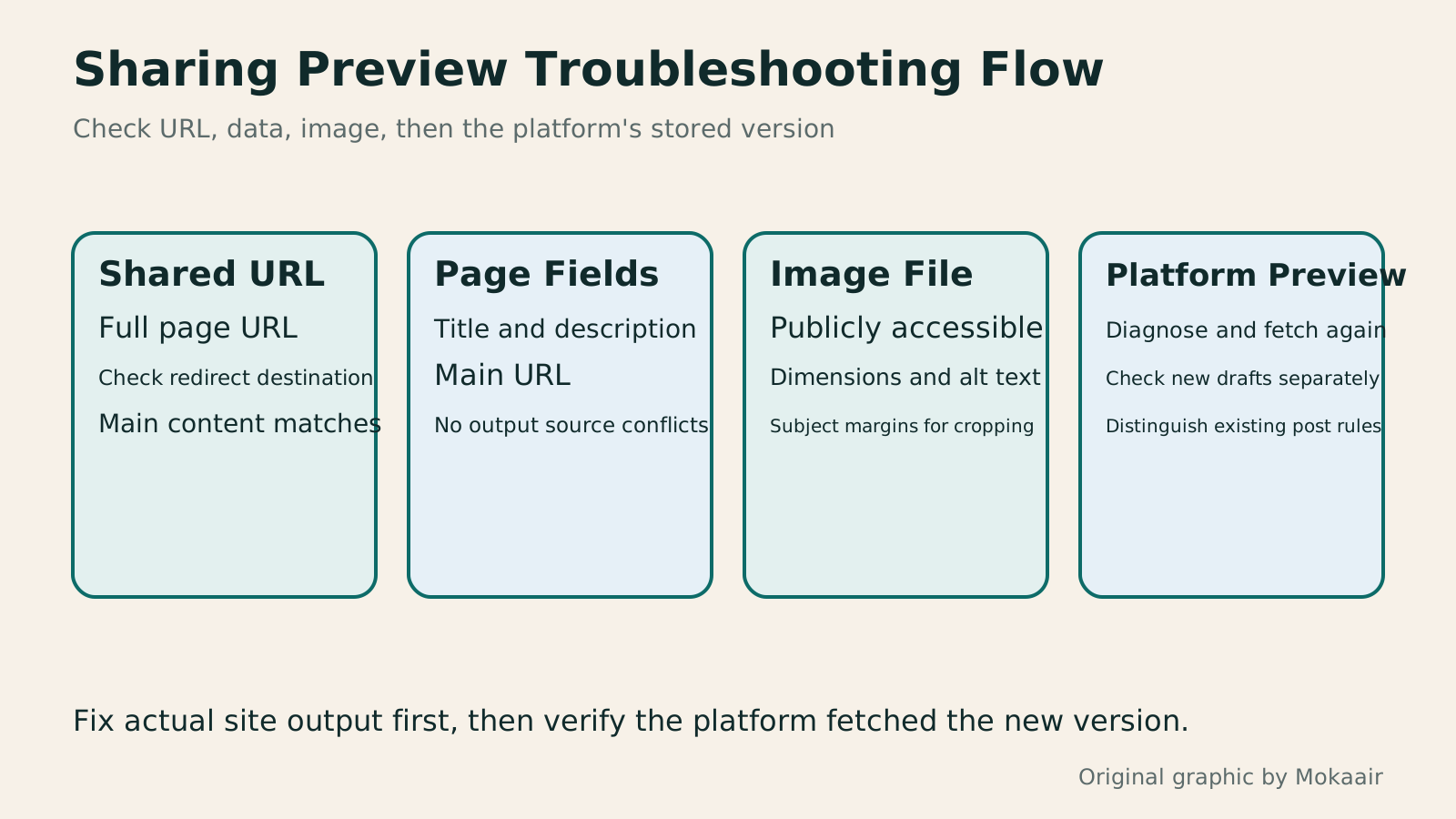
Four panels show how to verify the shared URL, read OG fields, check the image, and inspect platform previews, with separate results for new and existing posts.
| Observed Problem | Check First | Next Step |
|---|---|---|
| Incorrect card title or description | OG values in the public HTML | Adjust the value source or override fields |
| Missing or incorrect image | og:image and the image response | Fix the URL and access issues |
| Cropped text | Original image composition and platform preview | Adjust safe margins and the amount of text |
| Site updated, platform still outdated | The platform's fetch and cache details | Refresh with the tool, then test a new draft |
| An existing post still shows the old image | Platform rules for existing posts | Keep results for new previews separate |
First Make the Article Title's Scope ClearHow to write article titles: Show search readers the scope and purposeA useful title tells readers before they click what problem an article addresses, when it applies, and what information they will get. Using original rewrites of everyday tutorials, this guide checks the topic, purpose, limits, and evidence behind title promises. It explains why the page heading, HTML title, and Google search title may differ, then offers prepublication checks and post-change observation without stuffing keywords, claiming tests that never happened, or adding an unverified year.Read the full article
Understand Structured Data and Search ValidationHow to Add Structured Data: From Visible Content to Search ValidationStructured data can help search engines understand pages, but adding code does not guarantee a special search appearance. Starting with the roles of Schema.org types and JSON-LD, this article covers visible content mapping, article fields, platform output sources, and differences between Schema Markup Validator and the Rich Results Test. An original field table and validation workflow help Taiwan website administrators build maintainable markup based on real content.Read the full article
Confirm How the Main URL Relates to Its Versions
Found this guide helpful? Share it with someone who needs it
Lifestyle
www, Subdomains, and Subdirectories: Choosing a Website URL Structure
Whether to use www or put a blog at blog.example.com or example.com/blog/ depends on platform support and maintenance. This article explains hostnames and paths, then compares content roles, DNS settings, HTTPS certificates, and URL consistency for subdomains and subdirectories. An original decision table and launch checklist help small websites in Taiwan build URL structures that are easy to use, manage, and hand over.
Lifestyle
Before Hiring a Web Design Agency: The Brief, Quotes and Deliverables Checklist
Before hiring a web design agency, define your site's audience, key actions and deliverables so you can compare quotes. Using a small studio as an example, this guide covers page and template counts, content duties, feature specs, mobile and accessibility checks, account and source-file handover, and post-launch maintenance terms. An editable requirements checklist helps reduce extra costs and communication gaps; no agency recommendations are included.
Lifestyle
How to Start a Web Design Project: Requirements, Content, and Acceptance Testing in Order
Building your first website often stalls over unclear requirements, content, and acceptance criteria, rather than colors. Using an original neighborhood repair studio example, this guide covers user interviews, content preparation, prototyping, development, and handover, with deliverables for each stage. Steps, a comparison table, learning resources, and original diagrams help readers building or commissioning a site turn “Is it finished?” into tasks they can verify.
Lifestyle
Website Caching and CDNs: Which Layer to Clear When Updates Do Not Appear
A website may be updated while phones still show old content because caches remain in different places. Using a Taiwan studio's business-hours update, this article explains browser, WordPress/hosting and CDN roles, cache responses, expiry times and targeted purging. An ordered procedure, comparison table and original diagram help site managers trace old versions while keeping account and shopping workflows correct.
Articles that cite this one
Sources
- The Open Graph ProtocolChecked:
- Official Jetpack Social Troubleshooting and OG OutputChecked:
- LinkedIn: Refresh a URL with Post InspectorChecked:
Compiled from the references and verification dates listed above; fares, schedules, product features, and terms can change, so please confirm the latest details on the relevant official website before travelling, booking, or purchasing.