Lifestyle
A Kit newsletter workflow: forms, segments, and automated emails
Kit forms, Tags, Segments, automated emails, and one-time Broadcasts serve different purposes; finishing setup does not prove that subscribers receive the right messages. Using an original clothing-repair newsletter, this guide explains the confirmation switches, Tag and Segment logic, how a Sequence connects to a Visual Automation, and tests before sending. It distinguishes list imports from public forms and includes a comparison table and diagram for small creators to verify the workflow.
About 8 min read
Contents
- 1. Map the relationship between forms, subscribers, and emails
- 2. Do not confuse the two confirmation switches
- 3. Use Tags for states and Segments for conditions
- 4. Automated emails need active messages, a sequence, and an entry point
- 5. Choose Broadcast email delivery and web publication separately
- 6. Test failure cases before expanding the list
A clothing-repair creator wants new readers to receive a tool introduction first, then lessons on patching holes or replacing buttons according to their interests. If the emails are written but the signup entry point is not connected, readers may receive nothing. If entry and segmentation are connected incorrectly, they may receive unrelated lessons together. The key in Kit is to give each object a clear job.
This original repair newsletter is an example based on Kit's official documentation checked on September 14, 2026. Interface names follow that documentation. We did not sign in to a user's account, import a real list, or send an actual email; check the automation features available to your own plan and account.
Map the relationship between forms, subscribers, and emails
A Form collects subscriptions; a Landing Page is a signup page you can share on its own. Kit keeps subscribers in one list and organizes them with Tags and Segments. A new interest does not require a separate, disconnected list. Plan the data around what readers need so that you do not create duplicate maintenance work.
The example newsletter starts with only two preferences, patching holes and replacing buttons, and lets readers choose. Form copy should clearly say that they will receive introductory lessons and later repair content. Do not offer only a downloadable image while quietly adding people to long-term promotions. Make the name field optional if it is not needed; collecting less information also reduces personalization mistakes.
First make a mapping table with each entry point's name, data fields, matching Tag, email expected after confirmation, and way to unsubscribe. This is your team's design record, not a guarantee generated by Kit. Whenever you add an entry point or partner campaign, check where its new data flows in the existing workflow.
Do not confuse the two confirmation switches
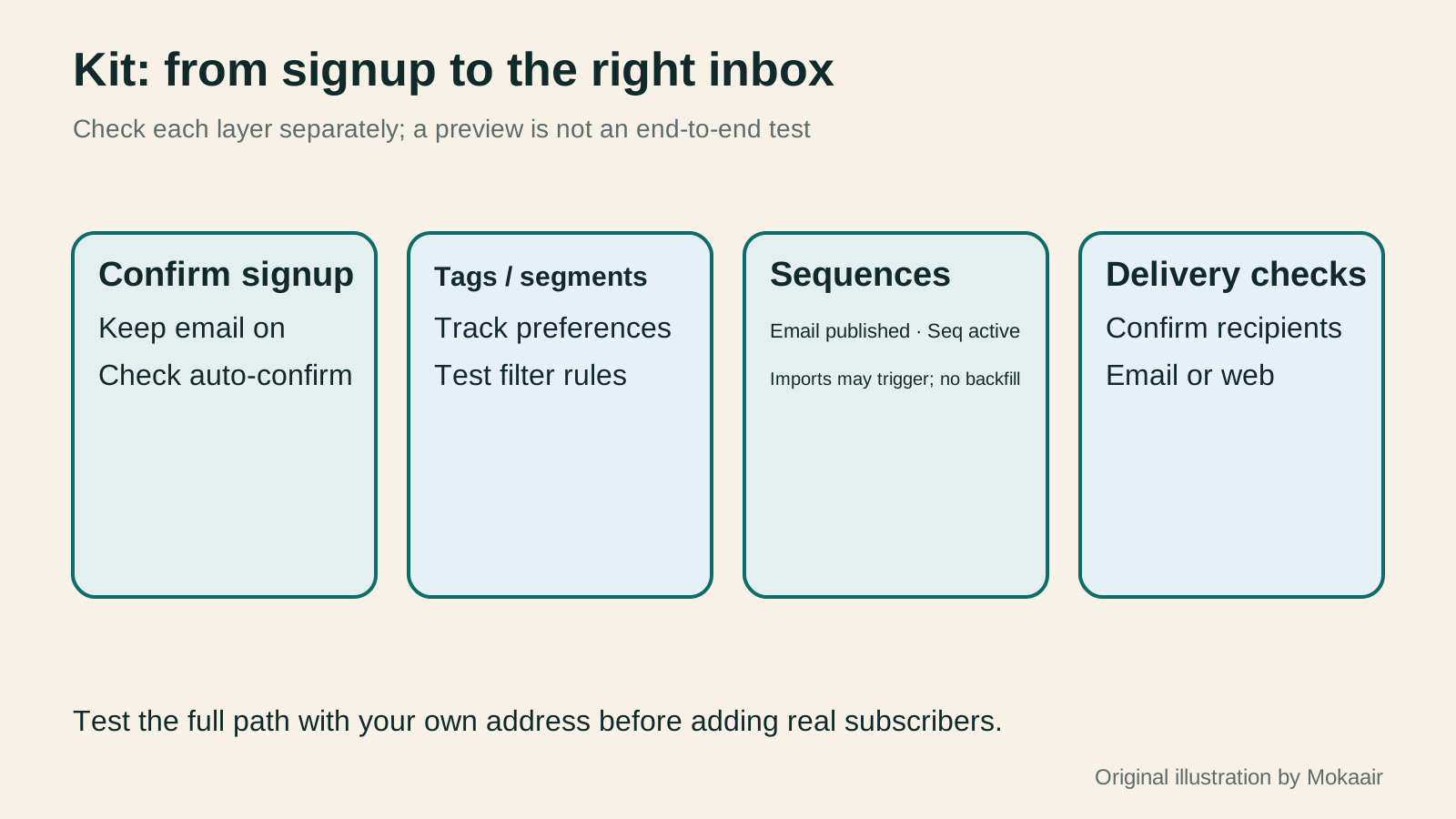
Under the current official instructions, open the Confirmation Email tab in the Settings for a Form or Landing Page. To retain double opt-in, check Send confirmation email and leave Auto-confirm new subscribers unchecked. If the latter is checked, a reader becomes confirmed automatically without clicking the confirmation button.
After clicking the confirmation button, readers can be sent to a URL or offered a file download. The original repair lesson could lead to a tool-list page that clearly confirms the subscription, describes later emails, and explains how to leave. A successful download does not imply consent to every use of the data. Do not remove a promised confirmation step merely to shorten the flow.
A public form and an import are different entry points. Kit's guidance says subscribers imported into a form are automatically confirmed, even when that form uses double opt-in; the import does not send them a new confirmation email. Before moving an existing list, verify the original choices and data source. Importing is not a way to obtain fresh subscription consent.
Use Tags for states and Segments for conditions
A Tag attaches a label to a subscriber and generally remains until someone or an automation removes it. A Segment dynamically includes or excludes people according to its filters. The repair newsletter can use Tags to record an interest in patching or button replacement, then combine conditions in a Segment to select the readers for a particular issue.
For example, an email might be intended only for readers interested in patching who have not finished the introductory lesson. Write that condition in plain language before configuring it. Test with records that meet both conditions, only one, and neither. A plausible estimated audience size does not prove that AND, OR, and exclusion logic is correct.
A Tag can trigger a Visual Automation; a Segment itself cannot be used directly as the same kind of trigger. If readers need different paths based on combined conditions, use supported conditions inside the automation. Keep interest Tags distinct from completion-state Tags so receiving one lesson does not imply that a reader never wants the topic again.
Automated emails need active messages, a sequence, and an entry point
A Sequence is a scheduled set of emails. A Visual Automation moves subscribers into a workflow in response to events, such as adding someone to a Sequence after they join a form. You can begin with original lessons introducing tools, preparing an exercise, and avoiding common mistakes, then connect the new signup entry point to that set of emails. Many branches are not needed at the start.
Each email in a Sequence must be Published, the Sequence itself must be Active, and the Visual Automation has its own activation state. Saving email text, seeing a message in the Sequence, and connecting the workflow lines are different completion checks. If one is missing, repeatedly resending a confirmation email is not a diagnosis.
Kit warns that an automation does not retroactively process every subscriber from before activation. Importing into a form or Tag that triggers it, however, may cause imported subscribers to enter the workflow. When adding lessons or moving a list, check entry points and schedules first, then use an address you control for testing. Do not send existing readers through the whole welcome series again by default.
Choose Broadcast email delivery and web publication separately
A Broadcast suits one-time content, such as a notice about this month's repair meetup. Kit currently allows delivery as an email, publication as a web page, or both. After writing the subject, preview text, and body in the draft, check the delivery choice in the publishing settings. A private notice should not become a public page because that option was overlooked.
The default recipients are all confirmed subscribers, so verify the filters, exclusions, and count every time you send to a Segment. The example meetup notice could go only to readers interested in its topic, but a Tag is not permanent proof that someone wants every related email. Also check the sender address, time zone, and scheduled time so test settings do not remain in the final send.
Kit provides desktop, mobile, and specific-subscriber previews and can send a test email. Some personalization and Link Trigger behavior do not work fully in a normal preview email. For end-to-end testing, make a separate version addressed only to an address you control, verify its recipient scope, and then check link behavior. A good-looking preview does not validate every automation.
Test failure cases before expanding the list
Test a form submission without confirmation, a completed confirmation, a reader with both preferences, someone who already received the lesson, and a person asking to unsubscribe. Record which emails each case should and should not receive, then inspect subscriber status and workflow position. Before testing, ensure the test entry point is not connected to real subscribers, so verification does not disturb an active Sequence.
To verify a sending domain, go to Verified Sending Domains in Kit's Email settings and use the DNS records Kit provides. Someone authorized to maintain DNS should verify the hostnames and values before returning to Kit to confirm them; do not copy records from another domain. Domain verification is part of sender identity and delivery setup, not a promise that every message will reach the primary inbox.
If a reader does not receive an email, check confirmation status first, then whether the entry point triggered after activation, the Sequence schedule and exclusions, and finally delivery status. Find the first step that differs from the expected path before changing settings. Change only what explains the problem and keep a record of tests and fixes for the next maintainer.
- Describe every entry point, preference, email, and exit condition in plain language.
- Set the confirmation email on the form and check the auto-confirm switch and post-confirmation destination.
- Create Tags and Segments, set each Sequence email to Published and the Sequence itself to Active, then connect and enable the Visual Automation.
- Test subscription states, recipient scope, and actual links before scheduling the real send.
| Kit object | Main responsibility | Mistake to avoid |
|---|---|---|
| Form / Landing Page | Subscription entry point and confirmation settings | Assuming an import will also perform double opt-in |
| Tag | Record a preference or workflow state | Assuming a Tag permanently satisfies every sending condition |
| Segment | Dynamically group people by conditions | Using it directly as an automation trigger |
| Sequence | Send a scheduled set of emails | Assuming a saved email draft is guaranteed to send |
| Visual Automation | Connect entry points, actions, and conditions | Assuming activation processes every past subscriber |
| Broadcast | One-time email or web content | Assuming email delivery and public web publication are always one action |
Starting a newsletter: consent, content, and delivery metricsStarting a newsletter: consent, content, and delivery metricsBefore sending a newsletter, establish why readers subscribed, where addresses came from, and whether people can leave easily. Using an original neighborhood-walking group as an example, this guide covers the content promise, signup confirmation, sender verification, tool selection, and interpreting results after a send. It distinguishes opens, clicks, and completed event registrations. Steps, a comparison table, and an original diagram help small teams run a newsletter they can maintain.Read the full article
Planning a Content Marketing Calendar Around Reader Questions and UpdatesPlanning a Content Marketing Calendar Around Reader Questions and UpdatesA content marketing calendar does more than assign publication dates to headlines. It also schedules reader questions, asset production, fact-checking and ownership of updates. Using a fictional fabric shop, this guide turns customer-service questions into an idea bank and plans articles, diagrams and short posts together. A four-week schedule, production steps and an original diagram show how to allow time for review and maintenance, then test whether each piece helps readers complete a task.Read the full article
Use consistent link tags to identify where email traffic came from.
Found this guide helpful? Share it with someone who needs it
Lifestyle
How to Read the BCG Matrix: Uses and Limits of Product Portfolio Analysis
The BCG matrix maps product portfolios by market growth and relative share; stars, cash cows, question marks and dogs do not establish actual profit. An original home goods store example shows how to define markets, check comparison periods and denominators, understand model assumptions, and allocate resources using costs, turnover and customer needs. Includes a four-category table, practical steps, original diagrams and options when reliable market data is lacking.
Lifestyle
How to Use the Ansoff Matrix: Four Options for Expanding Products and Markets
The Ansoff matrix maps four growth paths using existing or new products and markets: market penetration, market development, product development and diversification. An original canvas goods studio example shows how to define the current business and compare the capabilities and evidence each path needs. A comparison table, steps and original diagrams turn growth ideas into small, testable plans, without treating the model as a success-rate table.
Lifestyle
How to Write Marketing Copy: Clarify Value, Conditions, and Next Steps
Marketing copy should explain who it suits, its value, conditions, and what happens next. Using an original journal-binding workshop example, this article revises information hierarchy, features and benefits, evidence for claims, and action buttons step by step. A before-and-after table and original diagrams show how to retain appeal without overstating promises, and check that prices, limits, images, and links align before publication.
Lifestyle
Customer Journeys and Marketing Funnels: Find Where Readers Drop Off
Customer journeys explain touchpoints and needs; marketing funnels count people at each step using consistent criteria. Using an original bicycle repair booking example, this article explains how to map online and offline contacts, define completion events, calculate step conversion rates, and set up GA4 open or closed funnels. A calculation table, practical steps, and original diagrams help identify improvement hypotheses to test without mistaking data gaps for causes of customer drop-off.
Articles that cite this one
Sources
- Kit: confirmation email and auto-confirm settingsChecked:
- Kit: what Tags and Segments doChecked:
- Kit: confirmation and automation effects of importing subscribersChecked:
- Kit: creating and sending an email SequenceChecked:
- Kit: Visual Automation entry points and activationChecked:
- Kit: creating, sending, and publishing a BroadcastChecked:
- Kit: sending only to a test subscriber and preview limitationsChecked:
- Kit: verifying a sending domainChecked:
Compiled from the references and verification dates listed above; fares, schedules, product features, and terms can change, so please confirm the latest details on the relevant official website before travelling, booking, or purchasing.