Lifestyle
Connect Mailchimp to WordPress: MC4WP forms and audience sync
Adding a Mailchimp signup form to WordPress means handling the API connection, audience fields, confirmation email, and unsubscribe status together. Using an original book-exchange site as an example, this guide covers basic MC4WP setup, form testing, interest updates, the limits of Premium User Sync, and the unsubscribe-form feature removed in recent versions. Steps, a comparison table, and original diagrams help site maintainers avoid duplicate messages and mistaken assumptions about syncing.
About 7 min read
Contents
- 1. Distinguish WordPress, MC4WP, and Mailchimp first
- 2. Protect the API key when connecting the account
- 3. Match form fields to the audience structure
- 4. Test data updates and subscription status separately
- 5. Adjust unsubscribe flows for recent plugin versions
- 6. Use one test matrix to check both systems
A secondhand-book exchange site wants visitors to subscribe to a monthly reading list while members update their preferred book categories. These are two separate tasks: explicitly enrolling visitors in the newsletter and keeping existing data accurate. Treating them as automatic enrollment of every member risks sending mail to people who never subscribed.
This guide uses an original book-exchange site and MC4WP, WordPress.org, and Mailchimp documentation checked on September 14, 2026. MC4WP is a third-party plugin, not a product developed by Mailchimp. We did not install the plugin, connect an account, or send email for this guide.
Distinguish WordPress, MC4WP, and Mailchimp first
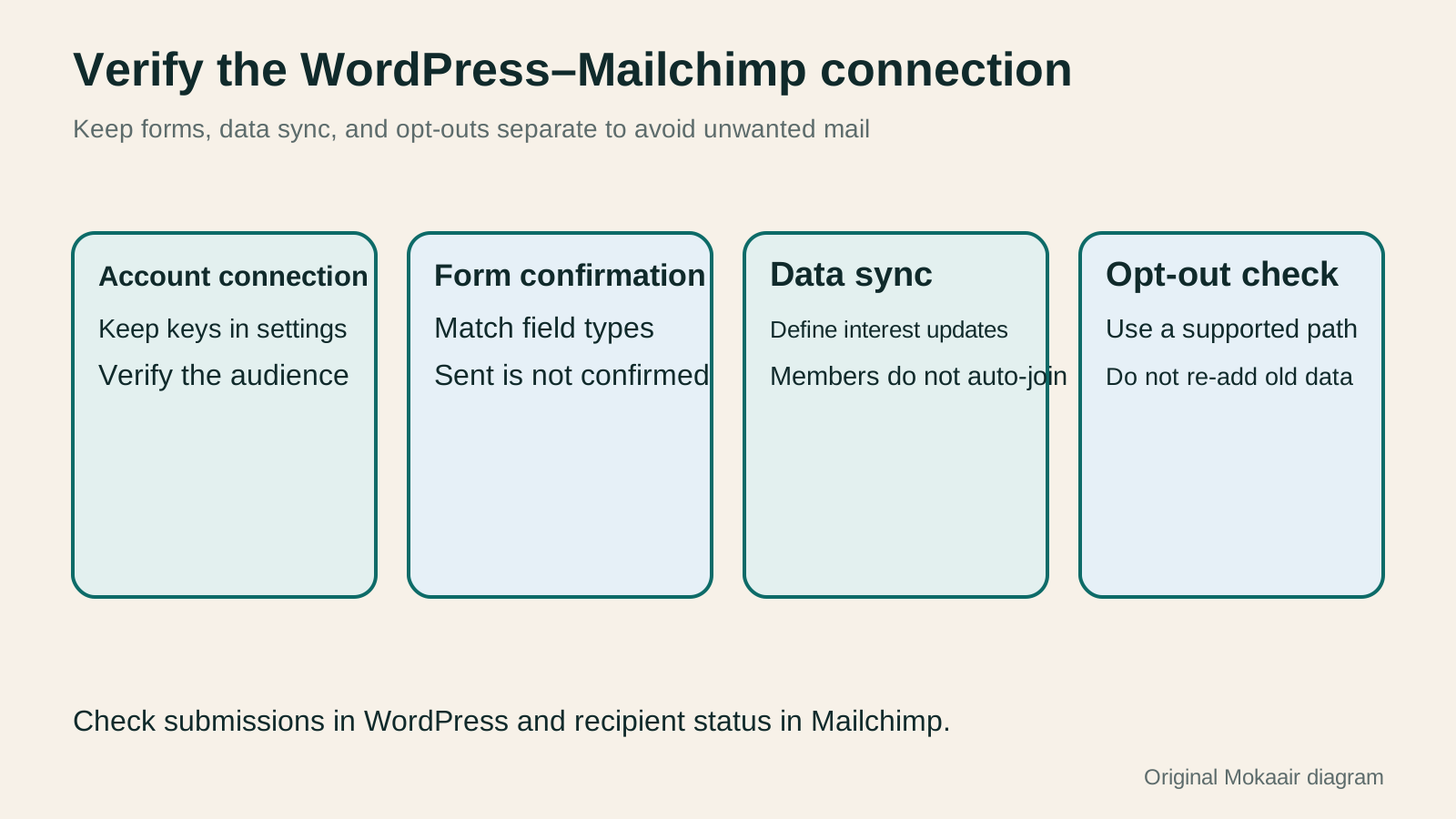
WordPress holds the website and member data; MC4WP provides signup forms and supported integrations; Mailchimp manages audiences and sends marketing email. Map where data enters, which audience receives it, and who determines subscription status. A Connected label proves the connection worked, not that every field was mapped correctly.
The sample site can start with one main audience and use interests and segments for different book categories. Mailchimp maintains audiences separately. An address in two audiences can receive the same campaign twice if each audience is mailed. Creating a separate audience for every site category also fragments maintenance and unsubscribe handling.
Free MC4WP can create a basic signup form. Premium adds capabilities such as multiple forms and User Sync. A Mailchimp account plan and a plugin license are separate purchases; one does not include the other. List the features you need and check current plans rather than treating old tutorial prices or feature lists as promises.
Protect the API key when connecting the account
Search WordPress plugins for MC4WP: Mailchimp for WordPress, verify the author and source, then install and activate it. Create a Marketing API key in Mailchimp with a recognizable purpose and enter it under MC4WP > Mailchimp in WordPress. Name the key for the site and its use so you can identify the integration later.
Mailchimp shows the full key only when it is created; you cannot retrieve that same full value later. Store it securely. Never paste it into article HTML, public JavaScript, screenshots, or support forums. If it leaks or the integration is retired, revoke it through the official process and repair affected connections.
After connecting, verify the audience is not a test list or another brand's list. If Mailchimp fields change, refresh audience information in the plugin so the form sees the new structure. If the site appears disconnected, inspect the account, error message, and current settings before creating multiple new keys at random.
Match form fields to the audience structure
Edit the form under MC4WP > Forms. Use the field builder to generate fields in Mailchimp's required format, then place them on the intended page. The sample reading list initially collects only email and optional fiction or essay preferences; the existence of other audience fields is no reason to request birthdays and addresses. Required-field settings must match Mailchimp.
The plugin's shortcode can place a form in a post or page. Use the actual form ID shown in your installation, not an example number from a tutorial. If the site uses a page builder, cache, or theme, verify layout and submission on one test page before adding the form elsewhere; that keeps failures easier to trace.
For double opt-in, set Use double opt-in to Yes in the form's Mailchimp Settings. Tell readers to look for a confirmation message after submitting. During acceptance, inspect pending and subscribed states separately. A website success message confirms the result of the submission flow, not that the address was confirmed or will receive the next issue.
Test data updates and subscription status separately
MC4WP's update existing subscribers setting can update an existing subscriber with new form data. If replace interest groups is also enabled, decide whether new interests replace or add to old ones. A reader who originally chose fiction and later checks only essays will retain only essays under replacement, or both under addition. The choice must match what the form tells the reader.
Premium User Sync synchronizes WordPress member data with matching contacts already in Mailchimp. The developer explicitly says it does not automatically subscribe or unsubscribe members: it updates matching addresses already present in the selected audience. A new membership or changed nickname is therefore not a newsletter signup.
With User Sync's webhook option, changes made in Mailchimp can also flow back to WordPress. Before enabling two-way sync, decide which system owns each field, which values may be written back, and test conflicting values. Do not send roles, phone numbers, or other personal data merely because the integration allows it.
Adjust unsubscribe flows for recent plugin versions
In March 2026, the MC4WP developer announced that version 4.12.0 removed unsubscribe handling through plugin forms. After updating, an old form no longer performs its former unsubscribe action. The old design did not verify ownership of the address; adding another form field does not restore that removed feature.
For an unsubscribe entry point on the site, the developer recommends the audience's Mailchimp-hosted unsubscribe page. In the newsletter, use Mailchimp's proper unsubscribe link, such as its *|UNSUB|* merge tag. A website address-entry flow and a personalized email link are different processes; do not claim every unsubscribe must wait for another confirmation email.
Verify the recipient status after an unsubscribe and ensure a site sync or reimport of old data does not silently restore it. If a reader asks to stop receiving marketing from this brand, check whether the address exists in multiple audiences. Independent tool records are no reason to handle a clear opt-out in only one small part of the brand's mailings.
Use one test matrix to check both systems
Use addresses you control to test a new signup, invalid format, missing required fields, pending confirmation, repeat submission, preference update, and unsubscribe. For each case record the expected website message, Mailchimp status, and field values. This reveals whether the fault is display, submission, mapping, or later confirmation instead of merely saying the form is broken.
If the site also integrates Contact Form 7, verify that entry point's activation, audience, and subscription choice separately; testing only MC4WP's own form is insufficient. A contact form should not subscribe every inquirer by default. This guide uses a clear optional signup so ordinary inquiries can be sent without joining the newsletter.
Before a real send, inspect actual recipients and duplicate campaigns in Mailchimp, and check website links and unsubscribe behavior in the message. The site plugin imports data; the sending service still handles sender domain, content, and delivery. A working form is only the start. The integration is complete when the whole subscription lifecycle behaves as expected.
- Verify the plugin source, connect the correct Mailchimp account, and secure the key.
- Choose the main audience, match fields and double opt-in, then start on one test page.
- Define whether preferences replace or add, the scope of User Sync, and any two-way updates.
- Test opt-outs, duplicate addresses, and every form entry point before confirming actual recipients.
| Visible result | What it confirms | What still needs checking |
|---|---|---|
| MC4WP shows Connected | The API connection works | Whether audience and fields are correct |
| Form submission succeeds | The submission flow completed | Whether the confirmation link was clicked |
| Member data was updated | WordPress data changed | Matching contact and synchronized fields |
| User Sync is enabled | Sync settings exist | It does not automatically subscribe members |
| Plugin updated to a recent version | The software version changed | Whether the old unsubscribe form was replaced |
| An address appears once in one list | No duplicate in that list | Other audiences or campaigns may send again |
Starting a newsletter: consent, content, and delivery metricsStarting a newsletter: consent, content, and delivery metricsBefore sending a newsletter, establish why readers subscribed, where addresses came from, and whether people can leave easily. Using an original neighborhood-walking group as an example, this guide covers the content promise, signup confirmation, sender verification, tool selection, and interpreting results after a send. It distinguishes opens, clicks, and completed event registrations. Steps, a comparison table, and an original diagram help small teams run a newsletter they can maintain.Read the full article
A Kit newsletter workflow: forms, segments, and automated emailsA Kit newsletter workflow: forms, segments, and automated emailsKit forms, Tags, Segments, automated emails, and one-time Broadcasts serve different purposes; finishing setup does not prove that subscribers receive the right messages. Using an original clothing-repair newsletter, this guide explains the confirmation switches, Tag and Segment logic, how a Sequence connects to a Visual Automation, and tests before sending. It distinguishes list imports from public forms and includes a comparison table and diagram for small creators to verify the workflow.Read the full article
Measure website actions that actually succeeded
Found this guide helpful? Share it with someone who needs it
Lifestyle
Before Resetting WordPress: Separate Content, Theme Settings, and Full Restore
Starting over in WordPress does not always require wiping the site. This guide compares style resets, content revisions, database resets, and full restores; explains the scope of WP Reset and the limits of its snapshots; and walks through a test site, backup checks, and acceptance after a reset. It helps ordinary users in Taiwan identify the actual problem and choose a suitably narrow action with a recovery plan.
Lifestyle
WordPress Performance Plugins: Caching, Images, and Feature Conflicts
WordPress performance plugins need settings matched to the actual site; enabling every option at once is unsafe. Using a small Taiwan-based course and shop site, this guide compares WP Rocket and NitroPack, divides responsibility for caching and images, and shows how to diagnose conflicts caused by CSS and JavaScript optimization. A comparison table, staged workflow, and original diagram help administrators retain a measurement baseline and verify forms, menus, and shopping flows.
Lifestyle
Handling WordPress Comment Spam: Review Rules and Akismet
Stopping spam in WordPress comments takes sensible moderation rules and a way to correct mistakes, as well as a plugin. This guide covers discussion settings, Akismet activation and plan eligibility, reporting spam, and rescuing legitimate comments. Its daily review checklist helps small-site owners reduce the workload while leaving room for readers with real questions to join the discussion.
Lifestyle
Build a personal blog with WordPress: from categories to your first post
To start a personal blog, decide what questions you want to answer over time, then plan the homepage, post list and basic pages. Using WordPress as an example, this guide develops a writing workflow from content categories and reading layouts through the first post and later updates. It also covers checks for post cards, pagination and comments. It is for readers in Taiwan who want to turn their notes into public content: finish a small but complete site first, then add features as needed.
Sources
- WordPress.org: MC4WP plugin and developerChecked:
- MC4WP: Connect a Mailchimp account with an API keyChecked:
- Mailchimp: API keys and securityChecked:
- MC4WP: Create a signup formChecked:
- MC4WP: Double opt-in settingsChecked:
- MC4WP: Replacing and adding interestsChecked:
- MC4WP: User Sync scope and two-way updatesChecked:
- MC4WP: Removal of unsubscribe-through-form supportChecked:
- Mailchimp: Why a subscriber receives the same campaign more than onceChecked:
- Mailchimp: Unsubscribe handling and audience scopeChecked:
- MC4WP: Subscription choice in Contact Form 7Checked:
Compiled from the references and verification dates listed above; fares, schedules, product features, and terms can change, so please confirm the latest details on the relevant official website before travelling, booking, or purchasing.