Lifestyle
WordPress 500 Error: Find the Cause in the Logs
When WordPress suddenly shows a 500 error, record the affected paths and recent changes before narrowing the cause with error logs. This guide explains how to interpret recovery mode, isolate plugins, and assess PHP memory and server settings. It gives Taiwan-based site owners a sequence for gathering evidence safely, reversing one change at a time, and checking real functions after recovery, so they can share useful details with hosting support without repeatedly reinstalling and risking data.
About 6 min read
Contents
The homepage opens, but submitting a form returns 500; or a plugin was just updated and both the site and admin area stop responding. The same error screen can come from different places. The number alone cannot identify a broken plugin. Start by building a timeline you can verify.
Using a small studio’s WordPress site as an example, this guide divides the work into recording, locating, making the smallest reversible change, and checking functions. These steps are based on official documentation; they have not been tested on your site. Hosting-panel labels and available permissions still depend on your provider.
Preserve the failure scene and recent changes first
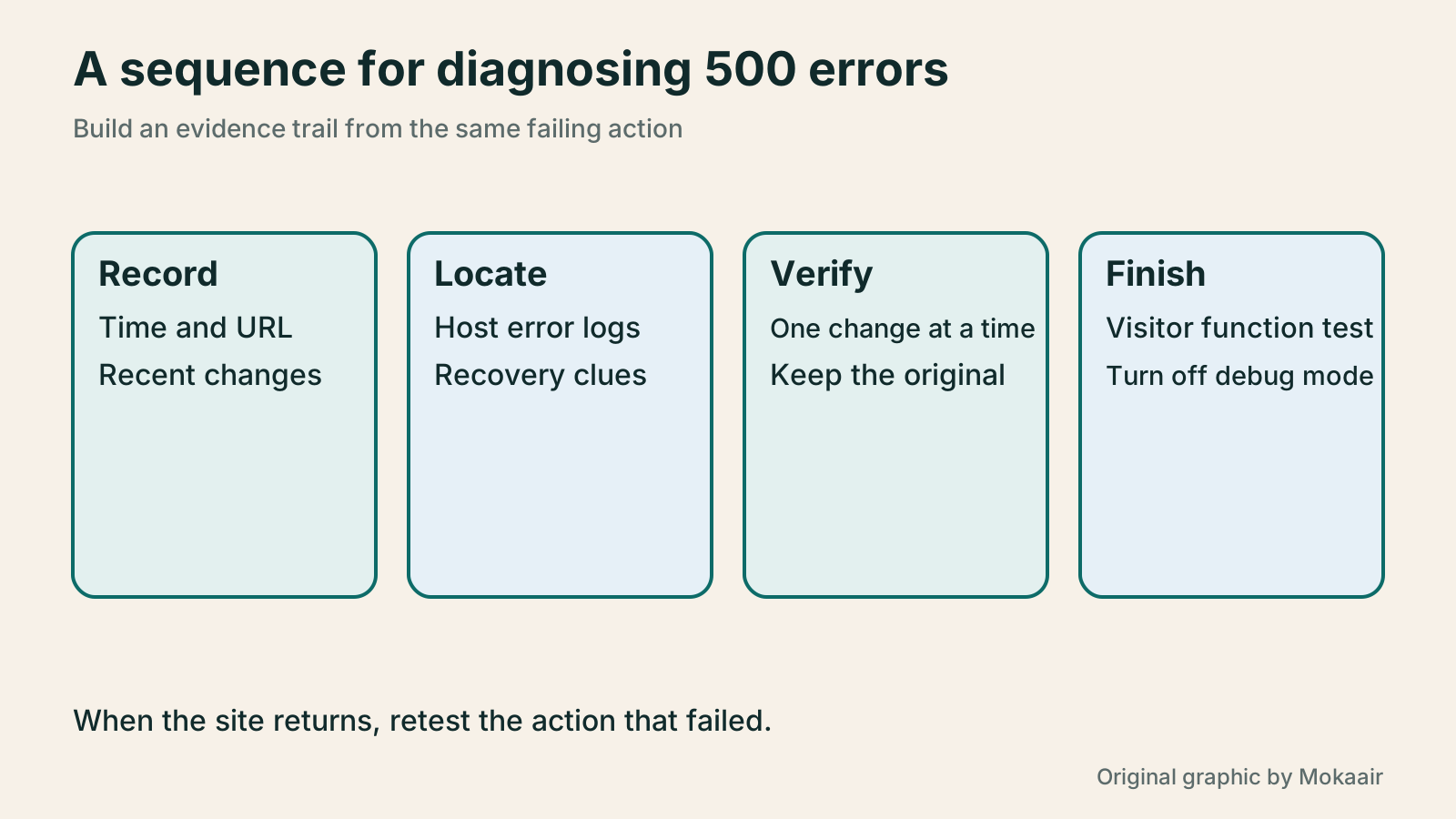
Record when you first noticed the problem, including the time zone, affected URL, action taken, and whether you were signed in. Rather than writing only “the site is down,” record “at 2 p.m. Taiwan time, a visitor submitted the inquiry form and saw 500, while the homepage still opened.” That gives you an event to match in server logs.
List changes between the last known good state and the failure: plugin updates, a PHP switch, theme code, a migration, or hosting rules. Save the current files and database state first so later adjustments do not erase the only clue. If the site handles orders or registrations, tell the owner what is affected and pause actions that could repeatedly create uncertain results.
- Capture the error screen and URL, and remove personal information before sharing the screenshot.
- Test the homepage, a single post, the login page, and the failing function separately; record success or failure.
- List recent changes and the time of the existing backup, then choose one likely cause to test first.
If a recovery notice arrives, check its clues
For some fatal PHP errors during ordinary page loads, WordPress emails a recovery-mode link to the administrator address. It is not an entry point for every 500 error, scheduled task, or server failure. No email also does not rule out a plugin issue: the mail process may not have loaded or delivery may have failed.
Check the site and context in the email, then use the link to sign in and read its failed-component hint. In recovery mode, suspension of the problem component mainly applies to the current administrator session; it does not mean ordinary visitors have recovered. If you deactivate the component, that changes site settings, so also check which functions it affects.
Use logs to locate the actual failure
Start with the PHP or web-server error log provided by your host and look for messages at the same time. If WordPress debugging is needed, prefer a test copy where the problem can be reproduced. WP_DEBUG_LOG works only when WP_DEBUG is enabled; by default it can write debug.log in the content directory, or use another valid path.
Back up wp-config.php before editing it, and avoid defining the same constant twice or using the wrong quotation marks. If brief evidence gathering is unavoidable in production, ask someone familiar with the host to suppress on-screen errors, restrict log access, and restore the settings afterward. Do not post raw logs with full paths, email addresses, or tokens in a public forum.
A plugin filename in the log is a lead, not the full diagnosis. Read the error type and nearby call information too. A deprecated-function notice may not have caused this outage. If the WordPress log is empty, logging may have failed or the error happened earlier; check the host-level log instead of declaring the site healthy.
Test only one hypothesis at a time
If the timeline and error both point to a recently updated plugin, deactivate that plugin on a copy and repeat the same action. When the admin area is inaccessible, official guidance also describes temporarily renaming its plugin folder through file management. Record the original name and active-plugin list first, and prioritize the identified component; deactivating everything may also disable forms, payments, and protection.
For example, disabling a gallery plugin restores posts but the inquiry form still fails. Those are two problems, so keep separate reproduction results and check each. If switching themes restores the site, investigate compatibility and custom code next rather than leaving the site indefinitely in an unconfigured default layout.
Before restoring an earlier version, confirm its official source and compatibility with the data format. Some updates change the database; replacing old files alone may not reverse them. If a full-site restore is needed, first account for inquiries and orders added after the backup. Do not overwrite records that still need to be kept with older data.
Change hosting settings according to evidence
A memory-exhausted message means that request exceeded the available limit, but raising the number is not a cure for every problem. Record the triggering action, input size, and hosting limits first. Then ask the provider whether resources can be changed or the plugin author to investigate abnormal use. Do not change memory, execution time, and PHP version all at once.
Before following advice about .htaccess, confirm that the host uses and permits those rules. Ask support to check the error line and recent edits. If you temporarily move the file for a test, keep the original and remember that redirects and access restrictions may stop working too. Do not copy the same steps onto a site using a different server configuration.
A useful support ticket gives the exact time, affected URL, error summary, recent changes, steps tried, and their results. Send account credentials or a full backup only through the provider’s designated secure channel. One complete set of clues is more useful than repeatedly sending the same screenshot.
Check functions after the page returns
After leaving recovery mode, use a signed-out browser to retest the path that originally failed. Check the functions that matter: login, saving a post, submitting a form, and receiving its notification. When a form says it succeeded, also verify that the data and email arrived; otherwise only the first half may be fixed.
Finally record the confirmed cause, each change, and how to reverse it. Turn off temporary debugging, remove unneeded sensitive logs, and restore prior protection. Keep a de-identified incident note for future maintainers. If the cause remains unknown, label the site temporarily restored and the cause pending; no repeat error yet is not proof of a permanent fix.
| Clue | Check first | Avoid |
|---|---|---|
| One function fails after an update | Component versions, compatibility, and the same action | Deactivating everything and closing the case |
| Memory exhausted | Triggering input, processing flow, and hosting limit | Raising the limit without bounds |
| Server configuration error | The file actually in use and the error line | Applying rules for another server |
| No WordPress log | Log permissions and host error logs | Assuming there was no error |
How to back up WordPress: files, databases and restoration drillsHow to back up WordPress: files, databases and restoration drillsA successful backup message is not enough. Build a checklist for WordPress files, databases and off-site copies, then learn the UpdraftPlus and WPvivid controls, restore limitations and isolated drills needed to confirm recovery. Plan schedules, retained versions, configuration files and acceptance records so someone can restore a personal or studio website.Read the full article
What website maintenance involves: a routine for backups, updates, and incident reportsWhat website maintenance involves: a routine for backups, updates, and incident reportsWebsite maintenance includes more than plugin updates: check content, accounts, backups, outgoing email, and expiring services. Using a small WordPress content site, this guide covers routine observation, pre- and post-update checks, restoration, and incident reports, with a worksheet for owners, editors, and maintainers. Set a schedule by update frequency, identify urgent cases, and keep records the next collaborator can use.Read the full article
Found this guide helpful? Share it with someone who needs it
Lifestyle
Before Resetting WordPress: Separate Content, Theme Settings, and Full Restore
Starting over in WordPress does not always require wiping the site. This guide compares style resets, content revisions, database resets, and full restores; explains the scope of WP Reset and the limits of its snapshots; and walks through a test site, backup checks, and acceptance after a reset. It helps ordinary users in Taiwan identify the actual problem and choose a suitably narrow action with a recovery plan.
Lifestyle
WordPress Performance Plugins: Caching, Images, and Feature Conflicts
WordPress performance plugins need settings matched to the actual site; enabling every option at once is unsafe. Using a small Taiwan-based course and shop site, this guide compares WP Rocket and NitroPack, divides responsibility for caching and images, and shows how to diagnose conflicts caused by CSS and JavaScript optimization. A comparison table, staged workflow, and original diagram help administrators retain a measurement baseline and verify forms, menus, and shopping flows.
Lifestyle
Handling WordPress Comment Spam: Review Rules and Akismet
Stopping spam in WordPress comments takes sensible moderation rules and a way to correct mistakes, as well as a plugin. This guide covers discussion settings, Akismet activation and plan eligibility, reporting spam, and rescuing legitimate comments. Its daily review checklist helps small-site owners reduce the workload while leaving room for readers with real questions to join the discussion.
Lifestyle
Build a personal blog with WordPress: from categories to your first post
To start a personal blog, decide what questions you want to answer over time, then plan the homepage, post list and basic pages. Using WordPress as an example, this guide develops a writing workflow from content categories and reading layouts through the first post and later updates. It also covers checks for post cards, pagination and comments. It is for readers in Taiwan who want to turn their notes into public content: finish a small but complete site first, then add features as needed.
Articles that cite this one
Sources
- WordPress common errorsChecked:
- WordPress debugging configurationChecked:
- WordPress recovery modeChecked:
Compiled from the references and verification dates listed above; fares, schedules, product features, and terms can change, so please confirm the latest details on the relevant official website before travelling, booking, or purchasing.