Lifestyle
WordPress file transfers: managing site files with SFTP
SFTP is a common way to manage files when WordPress admin is unavailable or site files need a handover. Follow a practical site-owner workflow: distinguish SFTP, FTPS and FTP, verify the host, find the right site directory, download originals before editing, and check transfer queues and permissions. A recovery checklist helps avoid confusing file transfers with a full backup or overwriting an entire live site at once.
About 7 min read
If you need to edit a website file but see dozens of folders in the transfer client, your first question should be: where am I connected? WordPress, hosting control-panel and file-transfer accounts may be separate. Knowing the admin password does not mean you already have a secure way to manage files.
Consider being asked to maintain a small studio's website: the owner needs to replace a child-theme stylesheet while retaining a way to recover. The following operating guidance is based on official documentation. It does not involve connecting to your host, nor does it assume every host uses the same paths or permissions.
Get complete connection details from the host
FTP is a transfer protocol; SFTP encrypts connections through SSH, while FTPS protects FTP with TLS. Their names are similar, but they connect differently. Prefer SFTP when the host supports it. If FTPS is provided, configure encryption according to the host's documentation rather than switching to unencrypted FTP merely to connect.
Required details include the server address, port, username, authentication method, accessible directories and host-key fingerprint. Use the port shown in the control panel. A website domain may point to a CDN and cannot simply be assumed to be the SFTP host. Name production and staging connections separately to reduce wrong-site connections.
For key-based sign-in, the public key is configured on the server and the private key stays on a protected computer. Do not send private keys or complete connection profiles to a group chat. For outsourced work, ask the hosting administrator about a separate account with a narrower scope, then revoke it at completion instead of sharing the highest-privilege account indefinitely.
Create a Site Manager connection and verify its identity
In FileZilla, for example, open Site Manager from the File menu, create a new site, select SFTP, and enter the address, port and specified login method. Use an identifiable name, such as “Studio staging site,” rather than only an IP address. When the first connection displays a host-key prompt, compare the fingerprint with the administrator's supplied value before proceeding.
The fingerprint identifies the remote server; it is not your own login public key. The value shown on a first connection cannot prove its own trustworthiness. Obtain comparison information from the hosting control panel or an administrator whose identity you have verified. A sudden fingerprint change on an existing connection may indicate a migration or replacement server, or the wrong host. Find out why before continuing.
- Confirm in the hosting control panel which website the account belongs to and record its document root.
- Explicitly choose the protocol and login method in Site Manager instead of accepting defaults without checking.
- After verifying the host key, browse the directories first; do not yet drag files to upload or synchronize a whole folder.
Find the site root and separate files from the database
After sign-in, the local computer is usually on the left and the remote server on the right. A folder named public_html or www is not proof that it belongs to the intended site: the host may use multiple domains or isolated directories. Compare the control panel's specified path, then check for WordPress directories such as wp-admin, wp-includes and wp-content. Stop making changes if anything is uncertain.
Themes and plugins usually occupy the corresponding subdirectories of wp-content, while physical media files are commonly in uploads. Posts, users and many settings are stored in the database. Downloading a site folder does not automatically export that database. Likewise, placing a photo directly in uploads does not create a complete attachment record in the Media Library.
Prepare a full backup of both files and database, then also download the individual file you intend to change. Store backups in a protected local location, keeping the original path and date. Do not rename a password-bearing configuration file to .bak or a text file and leave it in a public directory where visitors might download it.
Change only one clearly defined target at a time
For design adjustments, check whether you are editing a child theme. Changes made directly to parent-theme or plugin source files may be overwritten by updates. If an admin setting can achieve the change, there is no need to edit code files. When editing is necessary, use a suitable local plain-text editor and retain the original extension and encoding.
Before uploading, compare the filename, complete remote path, size and original version. Do not drag the entire local website into the production root or use a synchronization mode that unconditionally deletes extra remote files. It could remove media currently in use or files someone else has just updated.
After transfer, check the queue for failures. A large plugin or multi-file software update that uploads only partly can leave mixed old and new versions; use the proper update or deployment process for that work. For a single stylesheet, first validate it on staging, then apply it during an agreed maintenance window.
For permission errors, check ownership and hosting rules first
Common Linux configurations use 755 for directories and 644 for ordinary files as a starting point, but official guidance also stresses that users and groups differ across hosts. These numbers are not a universal repair trick, and managed platforms may deliberately protect some files. If writing is denied, first check the account's scope, file owner, disk quota and destination path.
Do not set the entire site to 777 or recursively change every directory to solve a problem with one file. Configuration files such as wp-config.php need more careful access control; actual values depend on how the host runs the site. Giving support the error time and a path with sensitive details redacted can locate the issue faster than blindly widening permissions.
If FileZilla does not show dotfiles such as .htaccess, first check hidden-file display settings and server restrictions. Do not create an empty file with the same name and overwrite the original merely because it was not listed. Hidden files can control redirects or access, and omitting them can also leave a backup incomplete.
Finish with a recoverable result
After editing, reopen both the public site and admin area and check the pages actually affected. For style changes, test mobile widths and clear relevant caches if necessary; a successful-transfer message is not enough. If the layout breaks or a code error appears, restore the original file and verify the result before adding another unexplained change.
At minimum, log the time, site, file path, purpose, verification result and original-file location. Restoring a file restores only that file's contents; it does not automatically reverse orders or database updates made at the same time. Close the connection after maintenance, and ensure temporary accounts and sensitive local files remain managed under the handover rules.
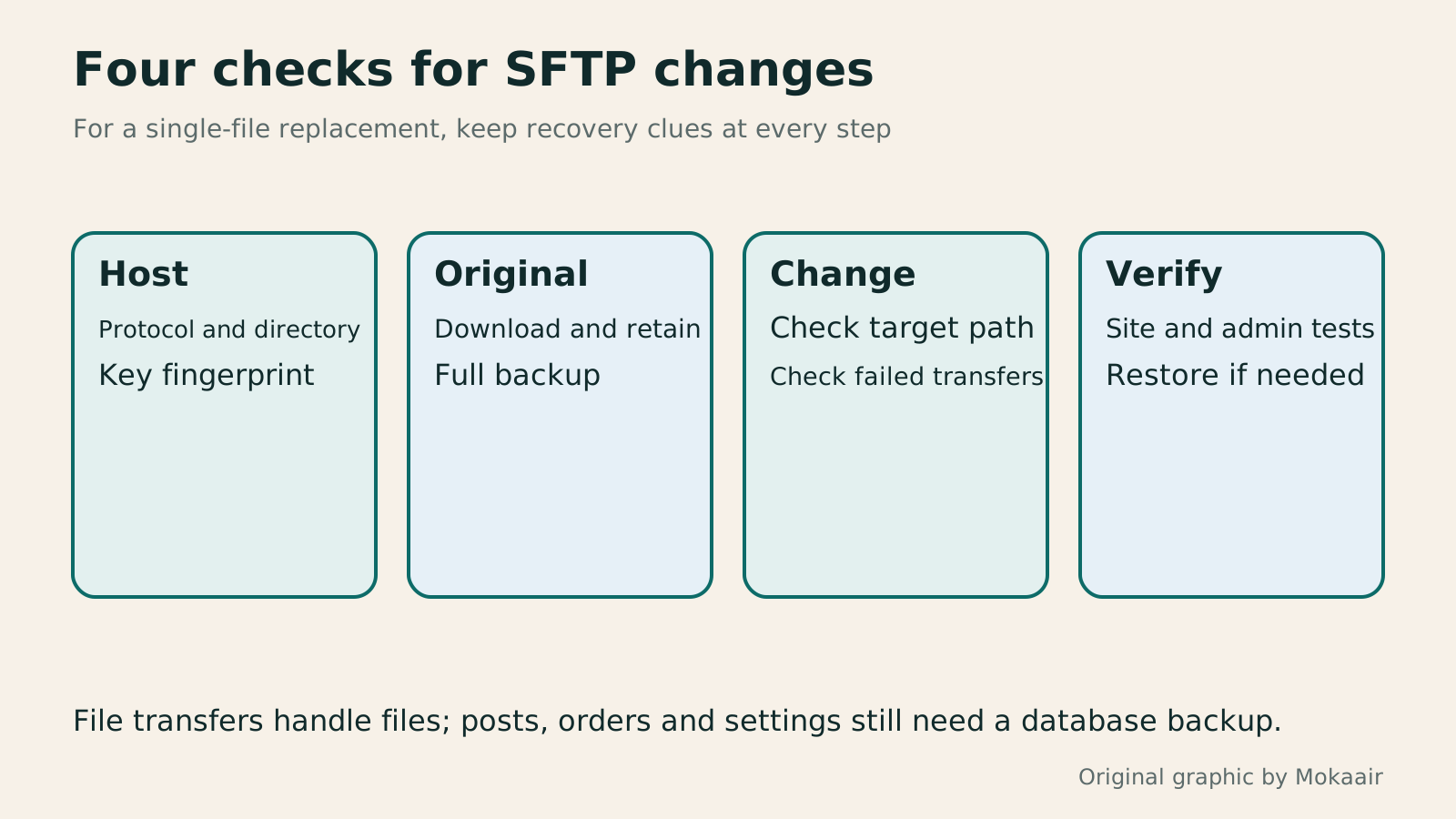
Read the full description
Four boxes show host verification, downloading the original file, a limited upload and public-site testing.
| Method | Connection protection | What to verify |
|---|---|---|
| SFTP | Encrypted with SSH | Host key, account scope and actual port |
| FTPS | FTP protected with TLS | Certificate, encryption mode and host requirements |
| Unencrypted FTP | Data may travel as plain text | Ask the host for a protected alternative |
| WordPress admin | Site HTTPS and admin permissions | Suitable for routine content edits; different functionality |
Create a full backup of files and databaseHow to back up WordPress: files, databases and restoration drillsA successful backup message is not enough. Build a checklist for WordPress files, databases and off-site copies, then learn the UpdraftPlus and WPvivid controls, restore limitations and isolated drills needed to confirm recovery. Plan schedules, retained versions, configuration files and acceptance records so someone can restore a personal or studio website.Read the full article
Troubleshooting a website 500 error
Lifestyle
After a WordPress Move: Check Search Traffic, the Old Host, and Renewals
A completed WordPress move still needs checks that the new host is stable, search entry points work, backups can be used, and old services can safely stop. This guide provides a cutover observation checklist, a way to interpret search traffic, an inventory of old-host dependencies, and renewal closeout steps. Individual site owners and studios can retain the information needed for rollback without confusing temporary fluctuations, ending renewal, and immediately deleting a site.
Lifestyle
Move WordPress to a New Host Without Changing the Domain: Migration, Testing, and DNS Cutover
When WordPress moves to a new host, its URLs can stay the same, but files, the database, certificates, and external services still need a handoff. This guide covers preparation of the new host, restricted previews, the final data sync, and DNS cutover in order. A verification table and rollback criteria help individual site owners and studios keep their domain while moving hosts, without canceling the old service before recovery options are secure.
Lifestyle
Changing a WordPress Domain: Check Redirects, Search Signals, and Email
Changing a WordPress domain means handling internal URLs, redirects from old links, search signals, and email together. Starting with a URL mapping, this guide explains how to preview database replacements, check permanent redirects, test sending and receiving on the new domain, and monitor the change after launch. It helps personal brands and studios plan a name change without assuming that editing the WordPress site address completes the move.
Lifestyle
Moving from WordPress.com to Self-Hosted WordPress: Content, Media, and URLs
Before moving a WordPress.com site to self-hosted WordPress, check your plan, domain, and the handoff for each kind of content. This guide covers the options available to free and paid sites, XML export and import, verification of actual image files, subscriber migration, and when Site Redirect is available. It helps individual creators in Taiwan plan the move and identifies features and billing items that need separate attention after the new site is ready.
Latest travel guides

GuideTokyo
Where to Stay in Tokyo: Comparing Shinjuku, Ueno, Tokyo Station, Shibuya, Asakusa, Ikebukuro, and Ginza, Plus Airport Access, Accommodation Tax, and Luggage Delivery
Where should you stay in Tokyo? Compare Shinjuku, Ueno, Tokyo Station, Shibuya, Asakusa, Ikebukuro, and Ginza by the same criteria: access from Narita and Haneda, transit routes, nearby attractions, neighborhood character, and who each area suits. Includes a comparison table, a Yamanote Line diagram, Tokyo’s accommodation tax as verified in 2026/9 (changing to 3% in 2027/4), and Airport TA-Q-BIN luggage shipping rules.
- Budget
- Hotels

GuideTokyo
How to Choose Tokyo Transit Passes: Are Suica, Welcome Suica, the Tokyo Subway Ticket, and the JR Pass Worth It?
On a first Tokyo trip, start with an IC card and pay per ride (Welcome Suica has no deposit and is valid for 28 days). If you take four or more subway rides in a day, add a 72-hour Tokyo Subway Ticket for 2,000 yen; a JR Pass is never worthwhile if you stay in Tokyo and do not go to Kansai. See what TOURIST PASMO, Suica on iPhone, and the Tokyo Metro day pass do and do not cover, with a decision chart. Prices verified in September 2026.
- Transport
- Budget

GuideTokyo
Tokyo Disneyland and DisneySea Guide: Ticket Prices, Fantasy Springs, Disney Premier Access (DPA), Standby Pass, and Which Park to Choose for Your First Visit
Tokyo Disney one-day Passport prices vary: most weekdays in 9/2026 cost ¥9,900 and weekends ¥10,900. At 14:00 daily, tickets go on sale for the same date two months later. Free Priority Pass is no longer on the official service list; only paid Disney Premier Access (¥1,000–3,500 per person per use) shortens waits. Covers hours, the 25th anniversary, Standby Pass, Entry Request, Fantasy Springs access and first-visit park choice; checked on the official site in 9/2026.
- Itineraries
- Family
Sources
- FileZilla: Connecting with Site Manager · Checked:
- WinSCP: Verifying the SSH Host Key · Checked:
- WinSCP: Transfer Protocol Comparison · Checked:
- WordPress: Hardening and File Permissions · Checked:
- WordPress: Editing and Restoring Files · Checked:
- WordPress.com: Media and File Permissions · Checked: