Lifestyle
How to evaluate FastComet hosting: resources, backups and WordPress installation
Evaluate FastComet beyond introductory pricing: site counts, resources, backup retention and restoration. Using official plans and instructions, this guide covers pre-purchase questions, Softaculous installation, launch checks and conflicting official descriptions. Add existing content, email and future needs to the checklist to choose for your own site, without relying on untested speed rankings or a single promotional figure.
About 7 min read
Before choosing FastComet, turn “I want to build a website” into requirements you can check: how many sites, how many images, whether you need forms or email, and who will handle backups. This tells you more about whether a plan fits than an inexpensive monthly price does. Compare current plan names so that you do not use allowances from older products.
This guide uses the example of a small photography portfolio site. Its workflow comes from public documentation; no account was purchased and no performance testing was carried out. The photography scenario is hypothetical: portfolio images use storage, inquiry forms depend on email delivery, and a future client area adds administration. Completing requirements in stages makes acceptance checks easier than pursuing every feature from the start.
Estimate resources from your actual content
Estimate the size of your current files, database and email, then allow reasonable room for growth. An image-based website should not upload every original camera file to its public pages. Create appropriately sized display versions and store originals separately. This reduces transfer and storage demands, and keeps mobile visitors from downloading data they do not need.
FastComet's plan table lists website counts, storage, CPU, memory and other resources. These measure different things: permission to host multiple sites does not mean unlimited resources. Visitor estimates on the page cannot guarantee the same performance for your particular plugin combination. Ask what happens if you exceed an allowance, then monitor actual resource records after you start using the service.
Use essential requirements as eligibility thresholds. For example, if you need two independent sites, first exclude plans that do not support that number. Then compare upgrade options and costs for the remaining requirements. Do not buy every add-on for an uncertain long-term idea, but do check which data you can export if you upgrade or leave later.
Check backup retention for your specific plan
On the source check date, the official plan table distinguished the number of daily backups by plan, while the backup service overview described an “up to” limit. An overview cannot replace the terms of an individual plan. Before purchasing, confirm the retention count, backup frequency, coverage and restoration access. If pages disagree, ask support for a clear written answer about the plan you intend to buy.
The number of backups does not mean you can restore any point in time. Suppose ten new inquiries arrive today after yesterday's backup: restoring yesterday's website data may not include them. If another service provides email, check its retention separately. A photography studio can manage original photos, website content and client correspondence separately, instead of assuming a hosting backup covers the entire workflow.
Ask concrete questions such as “How do I restore an individual piece of content, a database or the whole account?” and confirm permissions and fees. After obtaining a backup, test what it can restore in an isolated environment and record the results. Offsite backups from the host add another layer of storage, but you should still know how to retrieve important data if your account is disabled or you cannot sign in.
Create a new site with Softaculous
The official tutorial opens Softaculous from the Software section of cPanel, then finds WordPress and its installation settings. Check the domain, protocol and installation directory first, especially whether a website already occupies the destination. If the homepage should be at the domain root, do not accidentally leave an extra name in the directory field. For a test site, choose a clearly separate location.
Create a dedicated administrator account with a strong password and an email address you can receive messages at. The installer may offer additional features, automatic updates and backup options. Understand each before selecting it, and avoid installing multiple plugins for the same job. Save the website and administration addresses after installation, then verify that you can sign in, create a draft and preview content.
- Sign in to your hosting account and confirm the intended plan and cPanel entry point.
- Find Softaculous under Software, select WordPress and check the installation location.
- Enter administrator and site details, review additional options, then start installation.
- Test sign-in, drafts and previews before configuring the production domain and HTTPS.
Test a complete visitor journey after installation
For a photography site, the first acceptance journey can be “browse the portfolio, view services, send an inquiry.” Prepare a few photos whose usage rights you have confirmed, add suitable alternative text and truthful descriptions, and check loading and layout on a phone. After submitting the form, confirm that the notification actually arrives and the submission record can be found, rather than relying only on a success message.
When connecting the domain, identify the service that actually manages DNS and preserve existing records needed for email. Once HTTPS is configured, check the root domain, www, images and important internal pages so that the homepage is not the only page using the right address. If you retain a test site, restrict access and use test data; do not upload private client photos to an unprotected copy.
Collect comparable evidence before diagnosing performance
If the site feels slow, record the time, page, device and whether you were signed in, then compare these with hosting resource and error logs. Oversized images, external fonts, plugin queries and cache settings can all affect the experience. Do not assume that changing hosting plans solves the problem, or that a single homepage speed test represents the whole site.
Start by comparing the same page before and after adjusting its images, then check that important forms and the administration area still work. When contacting support, provide the specific page and reproducible steps, without sending customer data or passwords. FastComet's speed was not measured for this guide; any performance judgment should rest on your own configuration and actual tests.
Keep renewal and exit terms together
The official pricing page distinguishes promotional initial-term pricing from regular renewal prices. Calculate the total payment using the term, currency, taxes and add-ons at checkout, rather than recording only a converted monthly price. Set a renewal reminder and check whether your domain, email and backups are billed separately. This helps explain any year-on-year increase in website costs.
Finally, save the plan details, support replies and management checklist. If you migrate later, obtain a usable backup, plan data synchronization and confirm email dependencies before ending the old service. Evidence of a suitable host is that it meets your needs and has clear management arrangements; the number of advertised features cannot replace that acceptance record.
Read the full description
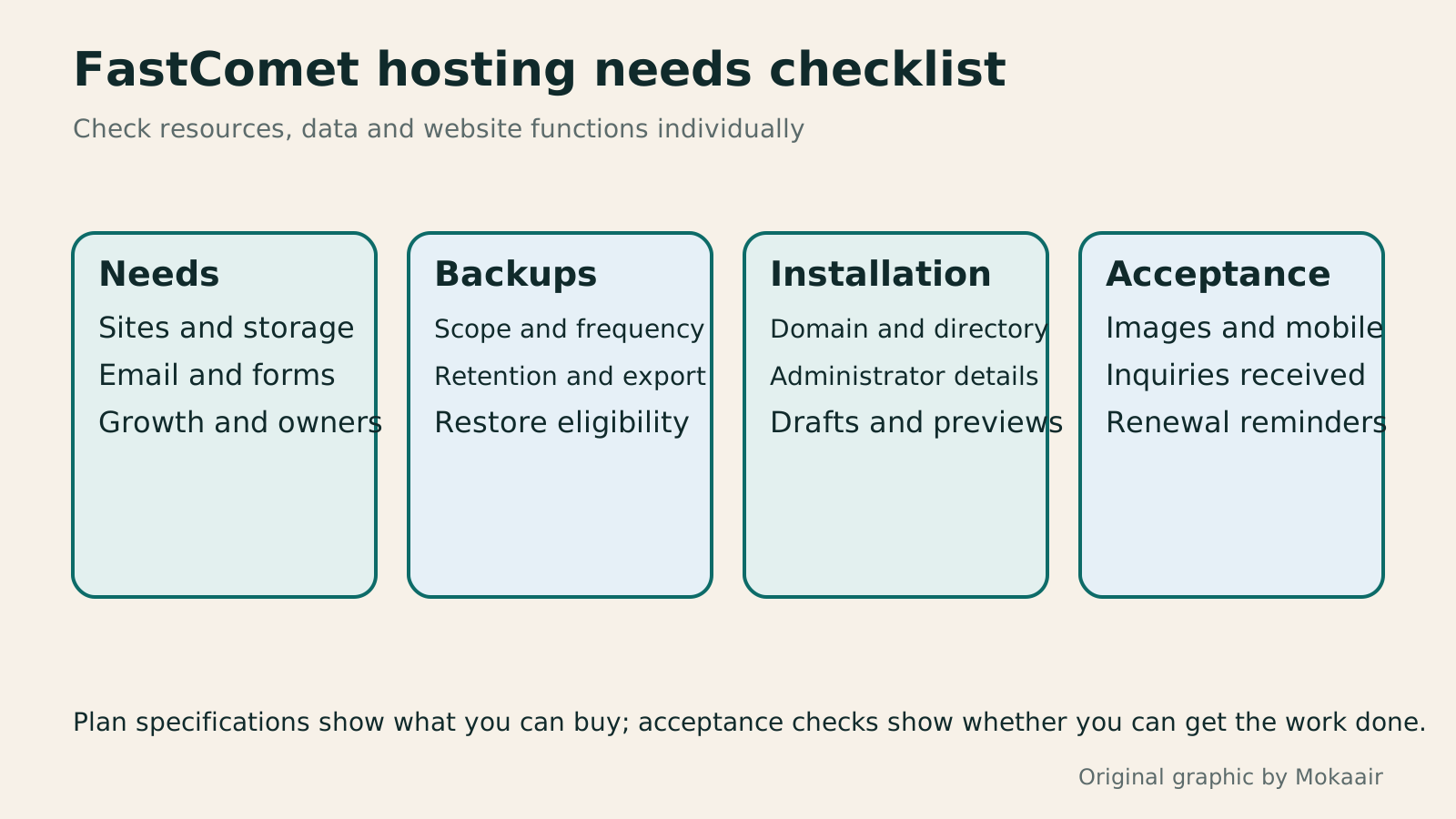
An original diagram checking resource needs, backup terms, installation location and the visitor journey in sequence.
| Check | Confirm with the provider | Your acceptance checks |
|---|---|---|
| Resource allowances | Site, storage and computing limits | Actual usage and peak records |
| Backups | Retention count, scope and restore terms | Recoverable data and missing parts |
| Installation | Tools and plan eligibility | Sign-in, drafts and publication |
| Connection | Domain and certificate settings | Website, images and email |
| Costs | Initial term, renewal and add-ons | Total payment and expiry reminders |
The differences between shared hosting, VPS and managed cloud hostingShared Hosting, VPS, and Managed Cloud: How a Small Website Should ChooseShared hosting, VPS, and managed cloud services often share one price list, but the terms may describe resource allocation or maintenance responsibility. This guide uses a small site to compare storage, memory, transfer, backups, and support. Find the real constraint before adjusting settings, upgrading a plan, or moving hosts. You do not need to memorize specifications first: take this concrete checklist to a provider.Read the full article
A routine for everyday website maintenanceWhat website maintenance involves: a routine for backups, updates, and incident reportsWebsite maintenance includes more than plugin updates: check content, accounts, backups, outgoing email, and expiring services. Using a small WordPress content site, this guide covers routine observation, pre- and post-update checks, restoration, and incident reports, with a worksheet for owners, editors, and maintainers. Set a schedule by update frequency, identify urgent cases, and keep records the next collaborator can use.Read the full article
Lifestyle
After a WordPress Move: Check Search Traffic, the Old Host, and Renewals
A completed WordPress move still needs checks that the new host is stable, search entry points work, backups can be used, and old services can safely stop. This guide provides a cutover observation checklist, a way to interpret search traffic, an inventory of old-host dependencies, and renewal closeout steps. Individual site owners and studios can retain the information needed for rollback without confusing temporary fluctuations, ending renewal, and immediately deleting a site.
Lifestyle
Move WordPress to a New Host Without Changing the Domain: Migration, Testing, and DNS Cutover
When WordPress moves to a new host, its URLs can stay the same, but files, the database, certificates, and external services still need a handoff. This guide covers preparation of the new host, restricted previews, the final data sync, and DNS cutover in order. A verification table and rollback criteria help individual site owners and studios keep their domain while moving hosts, without canceling the old service before recovery options are secure.
Lifestyle
Changing a WordPress Domain: Check Redirects, Search Signals, and Email
Changing a WordPress domain means handling internal URLs, redirects from old links, search signals, and email together. Starting with a URL mapping, this guide explains how to preview database replacements, check permanent redirects, test sending and receiving on the new domain, and monitor the change after launch. It helps personal brands and studios plan a name change without assuming that editing the WordPress site address completes the move.
Lifestyle
Moving from WordPress.com to Self-Hosted WordPress: Content, Media, and URLs
Before moving a WordPress.com site to self-hosted WordPress, check your plan, domain, and the handoff for each kind of content. This guide covers the options available to free and paid sites, XML export and import, verification of actual image files, subscriber migration, and when Site Redirect is available. It helps individual creators in Taiwan plan the move and identifies features and billing items that need separate attention after the new site is ready.
Latest travel guides

GuideTokyo
Where to Stay in Tokyo: Comparing Shinjuku, Ueno, Tokyo Station, Shibuya, Asakusa, Ikebukuro, and Ginza, Plus Airport Access, Accommodation Tax, and Luggage Delivery
Where should you stay in Tokyo? Compare Shinjuku, Ueno, Tokyo Station, Shibuya, Asakusa, Ikebukuro, and Ginza by the same criteria: access from Narita and Haneda, transit routes, nearby attractions, neighborhood character, and who each area suits. Includes a comparison table, a Yamanote Line diagram, Tokyo’s accommodation tax as verified in 2026/9 (changing to 3% in 2027/4), and Airport TA-Q-BIN luggage shipping rules.
- Budget
- Hotels

GuideTokyo
How to Choose Tokyo Transit Passes: Are Suica, Welcome Suica, the Tokyo Subway Ticket, and the JR Pass Worth It?
On a first Tokyo trip, start with an IC card and pay per ride (Welcome Suica has no deposit and is valid for 28 days). If you take four or more subway rides in a day, add a 72-hour Tokyo Subway Ticket for 2,000 yen; a JR Pass is never worthwhile if you stay in Tokyo and do not go to Kansai. See what TOURIST PASMO, Suica on iPhone, and the Tokyo Metro day pass do and do not cover, with a decision chart. Prices verified in September 2026.
- Transport
- Budget

GuideTokyo
Tokyo Disneyland and DisneySea Guide: Ticket Prices, Fantasy Springs, Disney Premier Access (DPA), Standby Pass, and Which Park to Choose for Your First Visit
Tokyo Disney one-day Passport prices vary: most weekdays in 9/2026 cost ¥9,900 and weekends ¥10,900. At 14:00 daily, tickets go on sale for the same date two months later. Free Priority Pass is no longer on the official service list; only paid Disney Premier Access (¥1,000–3,500 per person per use) shortens waits. Covers hours, the 25th anniversary, Standby Pass, Entry Request, Fantasy Springs access and first-visit park choice; checked on the official site in 9/2026.
- Itineraries
- Family
Sources
- FastComet: plan and resource comparison · Checked:
- FastComet: offsite backup service · Checked:
- FastComet: Softaculous installation tutorial · Checked: