Lifestyle
Translate WordPress themes and plugins into Traditional Chinese: a Loco Translate and Poedit workflow
When a WordPress plugin or theme still displays English, first determine whether the text comes from program strings, content settings, or an external service. This guide explains Loco Translate and Poedit workflows, language files, update-safe storage, and checks for Taiwan terminology and placeholders so site owners can maintain a Traditional Chinese interface instead of fixing just one button.
About 7 min read
Contents
The site is set to Traditional Chinese, yet the booking plugin still has English buttons and an unreadable payment-failure message. First record where the text appears and what action triggers it; then decide whether to change a setting or a language file. The same English phrase might come from the theme, a plugin, or an external payment page. Picking the wrong source means you will never find it.
This guide uses a small studio's booking interface as an example, translating buttons, fields, and status messages into Traditional Chinese. You do not need to translate the entire plugin first. Fix the steps every user must take, then keep a checklist for checking translations after updates.
Find the real source of the text first
Search for the text in the plugin settings or page editor first. Custom form labels, article content, and navigation names are usually data saved by the site itself and should be changed in their original settings. Loco Translate mainly handles translatable strings supplied by code; it cannot automatically list all database content. For an externally embedded window, check that service's language settings.
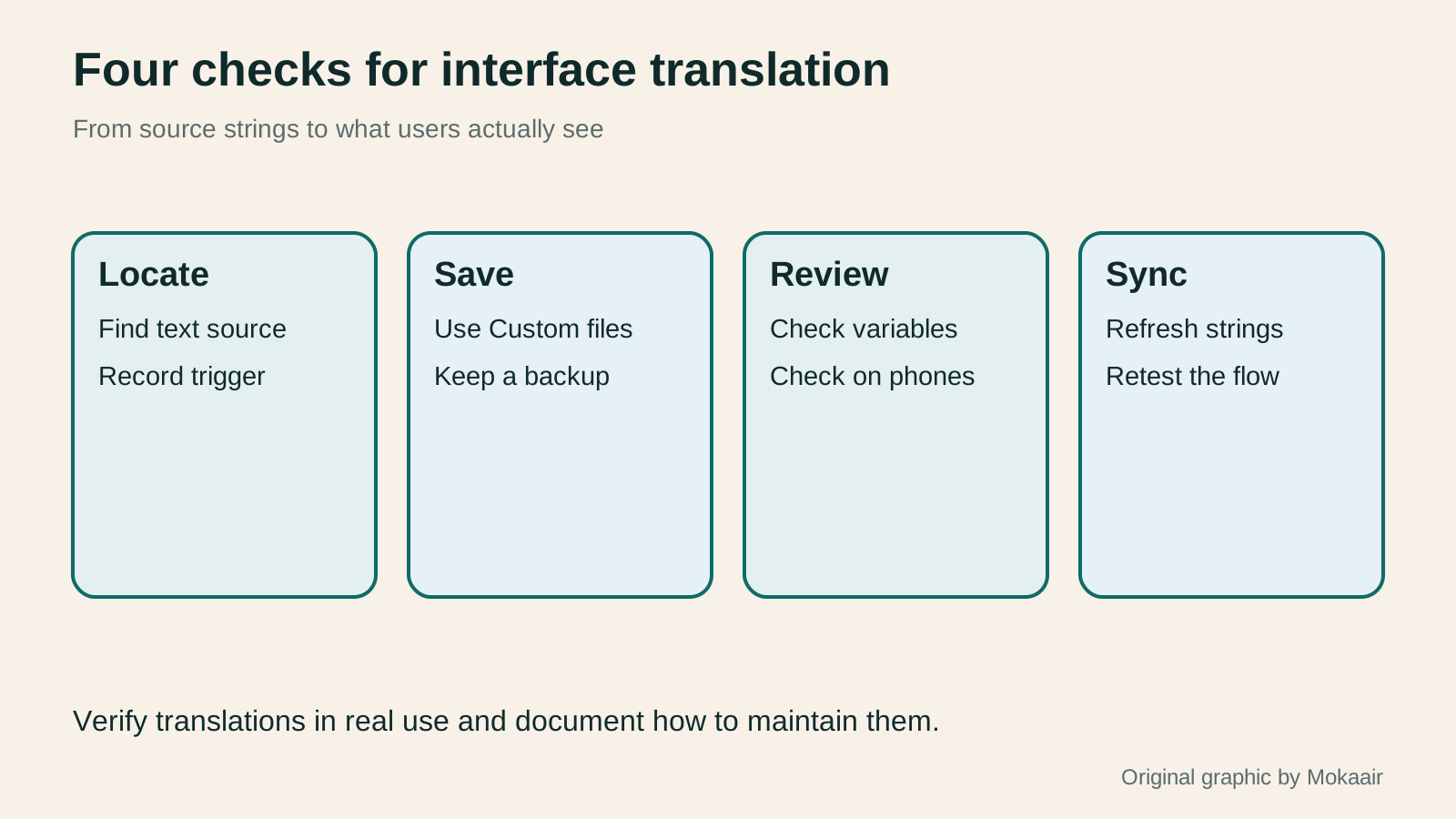
Record each untranslated phrase, page URL, signed-in role, triggering steps, and owning plugin in a table. For example, you must actually submit incomplete data to see an error that appears only after submission. Check the WordPress site language separately from your personal dashboard language so a change to your own admin interface is not mistaken for a visitor-facing fix.
- Walk through the booking flow in a signed-out window; record English text and when it appears.
- Check editable content settings first, then the theme or plugin language files.
- On a staging site, test one easily recognized button to confirm the translation loads.
Choose between dashboard translation and desktop editing
In the WordPress dashboard, Loco Translate lets you choose a plugin or theme, find a source string, and enter a translation. It works well for a site owner maintaining a few custom terms, but you must understand file locations and loading dependencies. Do not promote every editor to an administrator who can modify plugin files merely because the tool runs in the dashboard.
Poedit provides a desktop editor for translation files. Its dedicated WordPress workflow is currently listed as a Poedit Pro feature: it can read a local plugin directory or work through a server connection. Server mode uploads translations when you save, so connect to a controlled staging site first and verify the path and account permissions.
Choose a tool with the next maintainer in mind. A site owner who regularly adjusts copy may prefer the dashboard; a translator handing off files offline may need desktop editing and versioned delivery. Either way, retain the source text, translations, and file backups so the work does not live only in one person's memory.
Create a custom file with Loco Translate
In Loco Translate, choose the target under Plugins or Themes and confirm that the language is Traditional Chinese with the correct locale, such as zh_TW. If a system translation already exists, follow the official custom-translation workflow to copy the source strings, then create a Custom file for the same language and enter the few overrides you need.
Storage matters. Author files sit in the plugin or theme installation directory and may be overwritten by updates. System files may be overwritten by WordPress language updates. The officially recommended Custom location is wp-content/languages/loco/. Priority loading from that custom location depends on Loco Translate remaining active; document this dependency at handoff.
Search for the exact source phrase and read its context before writing wording understandable to readers in Taiwan. Save, then reopen the affected screen. If the site uses caching, clear the relevant entries according to its settings. Do not edit a System file and expect it to last forever, or make the entire site writable by everyone just to save a translation.
Understand the files before delivering with Poedit
A POT is a template of translatable source text; a PO is an editable language translation; and an MO is a compiled format used by software. Translating only a POT and uploading it does not mean the translation will load. Poedit's current WordPress workflow also creates other formats as needed, such as PHP translation files and JSON used by JavaScript.
For offline work, obtain the plugin or theme directory matching the site's version. Create a translation for the target language or open an existing PO. Save and retain all related files generated by the tool. The official guidance says manually copied files must keep the correct names and locations. Do not omit apparently duplicate files on your own: parts of the dashboard may otherwise remain untranslated.
A delivery checklist should record at least the plugin name and version, language, source-template date, generated filenames, installation paths, and any special loading requirement. Ask the maintainer to install the files on a staging site first, then schedule the production update after verification. A translator should not overwrite files currently serving visitors.
Proofread meaning while preserving symbols required by code
For %s, %d, or numbered placeholders, read translator notes to learn whether each represents a name, quantity, or other dynamic value. Preserve the required symbols and their relationships; do not substitute a fixed test name. Check plural forms and distinct contexts individually. The same English phrase may need different translations on different screens.
Terminology should match the result of the action. Unsubscribing and cancelling a booking are not interchangeable just because the English looks similar; a button that only saves a draft must not say Publish. Maintain a glossary for account, password, notification, and booking terms, and have someone familiar with the business confirm that error messages offer a useful next step.
On phones, inspect long buttons, line breaks, and error messages especially carefully. Test short and long names, different quantities, and empty fields to see whether inserted dynamic values read naturally. Machine translation can help draft text, but it cannot replace checks of meaning and layout in the actual workflow.
Resync and spot-check after updates
A plugin update may add or change source strings. Even if your custom file remains, its old translations may no longer match. Loco's official guidance calls for a manual check and Sync, followed by reviewing new or obsolete strings before saving. Poedit's local workflow can extract strings again from the updated source; the exact steps depend on the workflow you use.
Make translation acceptance part of the site's maintenance log: back up, update the staging site, sync source strings, proofread changes, then test essential actions. If a string cannot be found, give the author its source text, screen, and plugin version to check whether it follows WordPress translation standards. Do not directly alter code with bulk search-and-replace.
Finally, spot-check the affected screens as a signed-out visitor, a regular member, and an administrator. Once both success and failure messages are understandable, retain before-and-after differences and file backups. The next maintainer can then distinguish custom terms from the official language pack.
| Method | Best for | Watch out for |
|---|---|---|
| Edit content settings directly | Form labels and page text | Maintain it in the original feature; it may not be a language string |
| Loco Custom translation | A few interface phrases changed in the dashboard | Document the plugin loading dependency and sync regularly |
| Poedit file handoff | Offline translation and version control | Check the edition, filenames, formats, and installation paths |
Plan content and URLs for a multilingual website
How to back up WordPress: files, databases and restoration drillsHow to back up WordPress: files, databases and restoration drillsA successful backup message is not enough. Build a checklist for WordPress files, databases and off-site copies, then learn the UpdraftPlus and WPvivid controls, restore limitations and isolated drills needed to confirm recovery. Plan schedules, retained versions, configuration files and acceptance records so someone can restore a personal or studio website.Read the full article
Found this guide helpful? Share it with someone who needs it
Lifestyle
Before Resetting WordPress: Separate Content, Theme Settings, and Full Restore
Starting over in WordPress does not always require wiping the site. This guide compares style resets, content revisions, database resets, and full restores; explains the scope of WP Reset and the limits of its snapshots; and walks through a test site, backup checks, and acceptance after a reset. It helps ordinary users in Taiwan identify the actual problem and choose a suitably narrow action with a recovery plan.
Lifestyle
WordPress Performance Plugins: Caching, Images, and Feature Conflicts
WordPress performance plugins need settings matched to the actual site; enabling every option at once is unsafe. Using a small Taiwan-based course and shop site, this guide compares WP Rocket and NitroPack, divides responsibility for caching and images, and shows how to diagnose conflicts caused by CSS and JavaScript optimization. A comparison table, staged workflow, and original diagram help administrators retain a measurement baseline and verify forms, menus, and shopping flows.
Lifestyle
Handling WordPress Comment Spam: Review Rules and Akismet
Stopping spam in WordPress comments takes sensible moderation rules and a way to correct mistakes, as well as a plugin. This guide covers discussion settings, Akismet activation and plan eligibility, reporting spam, and rescuing legitimate comments. Its daily review checklist helps small-site owners reduce the workload while leaving room for readers with real questions to join the discussion.
Lifestyle
Build a personal blog with WordPress: from categories to your first post
To start a personal blog, decide what questions you want to answer over time, then plan the homepage, post list and basic pages. Using WordPress as an example, this guide develops a writing workflow from content categories and reading layouts through the first post and later updates. It also covers checks for post cards, pagination and comments. It is for readers in Taiwan who want to turn their notes into public content: finish a small but complete site first, then add features as needed.
Articles that cite this one
Sources
- Loco: adding a language and choosing a save locationChecked:
- Loco: custom translations and syncing after updatesChecked:
- Poedit: WordPress translation workflowChecked:
- WordPress: localization and language filesChecked:
- WordPress: strings, placeholders, and contextChecked:
Compiled from the references and verification dates listed above; fares, schedules, product features, and terms can change, so please confirm the latest details on the relevant official website before travelling, booking, or purchasing.