Lifestyle
Inbox Zero Is Not Required: Manage Email with To Do, Waiting, and Archive
Every email needs a next step, but not necessarily an immediate reply. Separate what you must do, what is waiting on someone else, and what is finished so your inbox no longer doubles as every kind of task list.
About 4 min read

Opening an inbox full of unread messages can make everything feel equally urgent. But unread is only a reading status; it does not mean you must act. This guide sorts email into three outcomes for people who want to spend less time searching and miss fewer commitments. The goal is not an empty inbox, but knowing which matters still belong to you.
First ask whether this email requires action from you
After reading a message, decide whether it is information, needs a reply, or requires a task. If action is needed, write a concrete step such as “confirm the number of people for the weekend venue,” instead of merely marking it “important.” If you need research or a family decision, record the condition and when you will return to it. Use your current task tool or a fixed label; you do not need another email app just to categorize messages.
Gmail’s official help says archived messages remain available in All Mail and describes tools such as labels and snoozing. Archiving removes handled material from the inbox; it does not delete it. Snoozing suits messages that have a real return time, but it should not become a way to postpone every difficult decision. The three states in this guide are an editorial workflow, not official label names for any product.
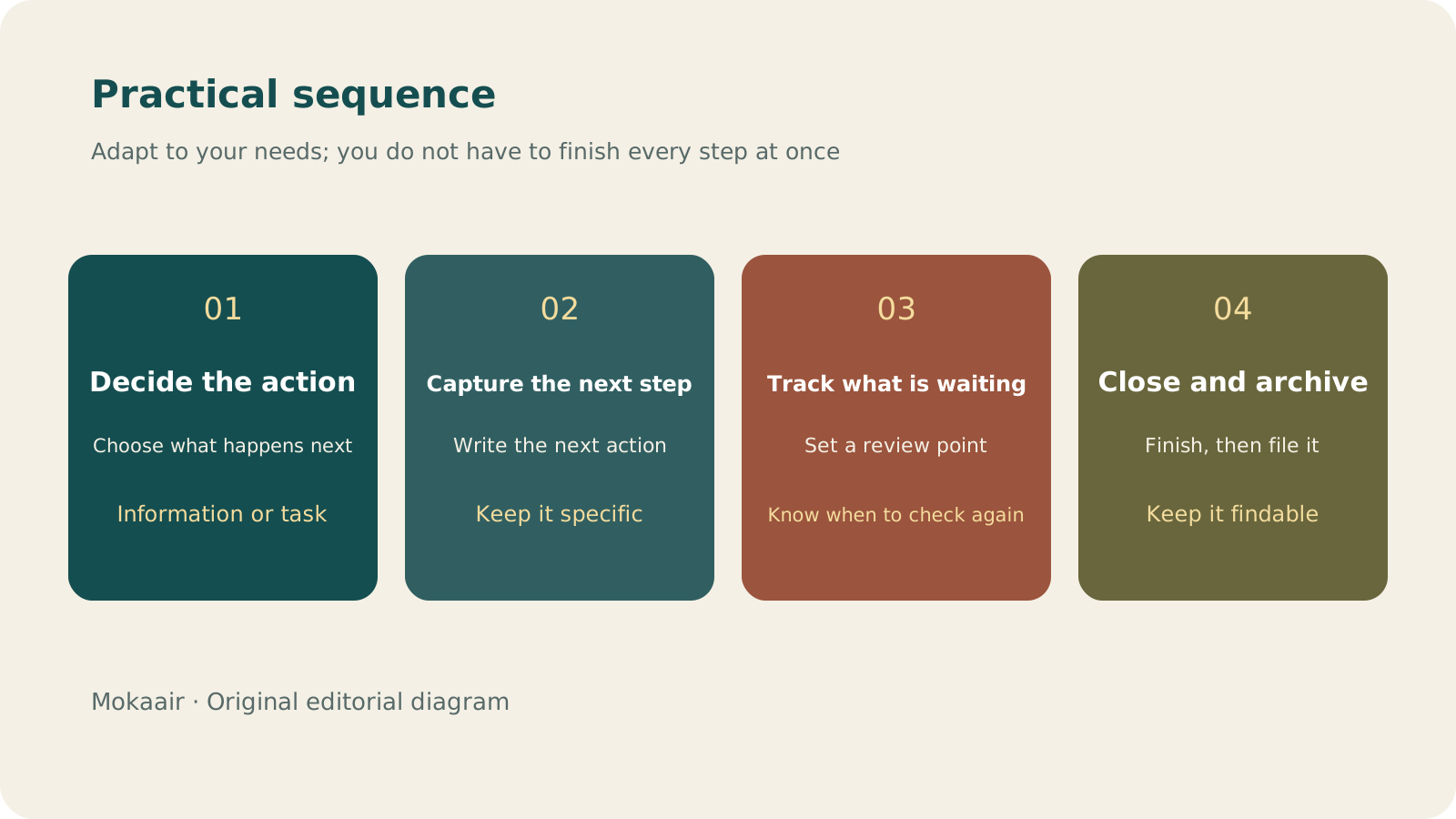
Read the full description
Check in order: decide the action, capture the next step, track what is waiting, and archive when complete. Editorial guidance, not a map or measured duration.
Each of the three states needs its own exit condition
| State | Example | When it leaves this state |
|---|---|---|
| To do | You need to add an attachment before replying | The work is complete and the message has been sent |
| Waiting | You asked whether the venue is available | A reply arrives or the follow-up date is reached |
| Archive | A notice you have read or a discussion that has ended | Retrieve it with search when needed |
Waiting items are the easiest to lose. After sending a question, record a reasonable follow-up time and the other person’s name instead of rereading the entire thread every day. If they reply but information is still missing, keep the item in Waiting and state what is missing. When a task is done, also verify that the message was actually sent and that the attachment is correct. A finished draft is not the same as delivery, and your list should preserve that distinction.
Use fewer labels and clearer search criteria
Keep only a few labels tied to real workflows, such as Reply, Waiting, and a current project. Do not build a folder for every sender and spend time classifying every message. When you need information, first narrow by sender, subject keyword, or approximate date, then inspect attachments. For messages you search for often, save the link or a recognizable subject in the task instead of copying the full message into several places.
Separate cleaning up old mail from handling new mail
Handle new mail each day or at another regular time that suits you, and clean up old mail in a separate, limited batch. Do not miss something that truly needs a reply today because you are trying to clear ten years of messages. You also do not need to open every link or download every attachment in an unfamiliar message just to process it. For essential notices, verify them through a known official website or service entry point. Before unsubscribing, confirm that the sender is trustworthy, then use the appropriate management method.
- Decide the action after reading; do more than mark it read.
- Every waiting item needs a follow-up time.
- Close the task only after confirming the message was sent.
- Archiving keeps an item searchable; decide about deletion separately.
How to Start a Weekly Review: Reassess Commitments, Trim Tasks, and Make Room for Next WeekHow to Start a Weekly Review: Organize Commitments, Trim Tasks, and Make Room for Next WeekA review is not a scorecard. Set aside a regular period to check your calendar, unfinished items, and pending replies, then decide what you will truly take on next week so your list reflects reality.Read the full article
Lifestyle
GPT-6.1 Sol Launches: New Sol Version in the API, Codex and ChatGPT Work, Not in Chat
OpenAI launched GPT-6.1 Sol on September 29, 2026, with the API name gpt-6.1-sol. The launch rollout covers Codex and ChatGPT Work on Plus, Pro, Business, Enterprise and Edu (Enterprise and Edu need an administrator to enable it); Free and Go are not included at launch, and it is not in Chat (checked September 2026).
Lifestyle
Claude Sonnet 5.5 Launches: Same List Price as Sonnet 5, Available in the API, on Cloud Platforms and in Claude.ai
Anthropic launched Claude Sonnet 5.5 on September 28, 2026. API list prices are the same as Sonnet 5 ($2 per million input tokens, $10 per million output tokens). It is available in Claude.ai, the API and several cloud platforms, and higher-risk cybersecurity requests fall back to Sonnet 5 (checked September 2026).
Lifestyle
Claude Code Adds mods: TypeScript Functions in Plugins Change Its Behavior and Interface
On October 1, 2026, Anthropic introduced Claude Code mods: TypeScript or JavaScript functions that ship inside a plugin and run in the Claude Code process, and can rewrite prompts, manage tool calls and draw new interface. Anthropic says they work in the CLI and the desktop app and are not sandboxed; the documentation says v2.1.287 or later is required (checked October 2026).
Lifestyle
What to Do When Searches Get No Clicks: Rethinking Traffic Value Through Reader Tasks
Readers may find opening hours, phone numbers or brief answers on a search page without visiting a website. A non-click is not always a success, and site CTR cannot reveal the overall zero-click search rate. Using an original clothing alterations shop scenario, this article covers checks for search displays, business interactions and actual tasks, from finding information and comparing services to booking, with a comparison table, practical steps and original SVG diagrams.
Latest travel guides

GuideTokyo
Where to Stay in Tokyo: Comparing Shinjuku, Ueno, Tokyo Station, Shibuya, Asakusa, Ikebukuro, and Ginza, Plus Airport Access, Accommodation Tax, and Luggage Delivery
Where should you stay in Tokyo? Compare Shinjuku, Ueno, Tokyo Station, Shibuya, Asakusa, Ikebukuro, and Ginza by the same criteria: access from Narita and Haneda, transit routes, nearby attractions, neighborhood character, and who each area suits. Includes a comparison table, a Yamanote Line diagram, Tokyo’s accommodation tax as verified in 2026/9 (changing to 3% in 2027/4), and Airport TA-Q-BIN luggage shipping rules.
- Budget
- Hotels

GuideTokyo
How to Choose Tokyo Transit Passes: Are Suica, Welcome Suica, the Tokyo Subway Ticket, and the JR Pass Worth It?
On a first Tokyo trip, start with an IC card and pay per ride (Welcome Suica has no deposit and is valid for 28 days). If you take four or more subway rides in a day, add a 72-hour Tokyo Subway Ticket for 2,000 yen; a JR Pass is never worthwhile if you stay in Tokyo and do not go to Kansai. See what TOURIST PASMO, Suica on iPhone, and the Tokyo Metro day pass do and do not cover, with a decision chart. Prices verified in September 2026.
- Transport
- Budget

GuideTokyo
Tokyo Disneyland and DisneySea Guide: Ticket Prices, Fantasy Springs, Disney Premier Access (DPA), Standby Pass, and Which Park to Choose for Your First Visit
Tokyo Disney one-day Passport prices vary: most weekdays in 9/2026 cost ¥9,900 and weekends ¥10,900. At 14:00 daily, tickets go on sale for the same date two months later. Free Priority Pass is no longer on the official service list; only paid Disney Premier Access (¥1,000–3,500 per person per use) shortens waits. Covers hours, the 25th anniversary, Standby Pass, Entry Request, Fantasy Springs access and first-visit park choice; checked on the official site in 9/2026.
- Itineraries
- Family
Sources
- Gmail: Organize, archive, and snooze email · Checked: