Lifestyle
Bluehost domains and billing: check add-ons, payments and renewals item by item
Bluehost domains, hosting and add-ons may bill separately; introductory and renewal terms differ. Check checkout details, free-domain eligibility, Renewal Center settings and records to save after payment failure. Find the next step by issue, separate orders, bank transactions and product status, and check terms before cancelling. Avoid paying twice, buying another domain by mistake or assuming one automatic-renewal switch ends all subscriptions.
About 7 min read
When dealing with Bluehost billing, first describe the problem in a specific sentence: a missing domain offer, an unexpected checkout total, a failed payment message or uncertainty about which service will renew. These situations require different information. Immediately retrying the purchase or adding another plan can make the original issue harder to untangle.
This guide draws on Bluehost's domain registration, renewal center, payment and refund documentation, checked on 2026-9-14. Regional sales channels and product terms may differ, so use the official website and orders associated with your own account. The following is a checking process; it does not claim to establish your promotion eligibility on your behalf or guarantee that a payment or refund will succeed.
Separate hosting, domains and add-ons first
At checkout, examine each product name, service term, quantity, currency and total. Domain privacy, email, backups or other services may appear as separate line items. Establish which ones you currently need. A price expressed per month does not necessarily mean monthly billing. Save the total due now and the later renewal terms before deciding whether to complete the order.
If a bill is higher than expected, first compare the products, terms and add-ons instead of immediately assuming duplicate charges. Different services may renew on nearby dates, or there may be another order. Record the service and purpose of each order in a table, then compare it with bank or payment-platform records so you can identify the difference precisely.
Check your own plan's eligibility for a free domain
Bluehost's official domain registration documentation says that if a hosting plan includes a free domain but you chose to create the domain later when opening the account, you can contact support to claim it. This has a prerequisite: your plan must already include the offer. An advertisement or an account still using a temporary address does not mean that any domain name or extension is free.
Have the original order, plan name and offer terms from the time of purchase ready. Ask about eligible extensions, the claim deadline, whether the offer has already been used and whether extra services cost more. If the expected discount is missing from the cart, get an explanation before paying. Do not assume the difference will be refunded automatically, and do not register several unwanted domains just to test an offer.
Check spelling before registration, then verify completion
The current official process begins in the Portal under Domains, then Add a Domain, followed by the option to obtain a new domain and search for it. After finding an available name, read the entire name character by character, paying particular attention to the extension, hyphens and easily confused letters. The official documentation warns that a registered domain name cannot simply be edited. A spelling mistake cannot be fixed by changing a profile field.
After payment, compare the confirmation email, order and domain listed under Domains, then complete contact-information verification as officially required. If you only have a bank transaction notice and cannot find the product, ask support about the order's processing status. Registering a domain does not mean the site is connected; DNS and hosting association still need to be configured for the actual services.
After payment failure, check the order before the payment method
When a failure message appears, record the time, currency, amount and complete error text, then check whether the account already contains an order or product. If the bank sent a notice, establish whether it shows a pending authorization or a completed transaction. When the statuses disagree, give Bluehost the order details and contact the bank through its official channels. Do not repeatedly submit the same payment straight away.
Next, check the billing details, the payment method's expiry date and whether that method is available for your region and product. Bluehost's payment documentation lists methods and regional conditions; follow the current checkout screen and official guidance. If the card issuer declines a transaction, ask the issuer why. Disabling account protection or providing false information is not a solution.
When asking support for help, you can provide the order number, transaction time, amount and an error screenshot with sensitive details hidden. Do not send a full card number, security code or login password through ordinary email or chat. This is a suggested way to organize information so support can trace the same transaction without unnecessarily exposing more data.
- First check whether an order and product already exist; an error on screen does not prove that no transaction took place.
- Compare the bank or payment-platform status and record the time, amount and currency. Do not immediately pay again.
- Check the officially supported payment methods, billing details and the payment method's status. Contact the merchant and card issuer separately if needed.
- After receiving the outcome, decide whether to retry, use another supported method or cancel, and keep the corresponding order and replies.
Manage each renewal in the Renewal Center
According to the current official documentation, the Renewal Center lets you view and manage product renewal settings. Select the relevant product, change the Auto-Renew field and complete the confirmation dialog; do not leave after merely toggling the control. The interface also lets you manage payment methods, but you should still verify the settings used by each product and when its next charge is due.
Turning off automatic renewal for one item does not also turn it off for other hosting, domains or add-ons. It also does not mean the website is deleted immediately or a refund is automatic. Check each service name and expiry details, and save the resulting status. If you want to continue using a service, check the payment method and notification address and set a manual reminder too, instead of relying entirely on a single setting.
Before refunds or shutdown, check product eligibility and data effects
Bluehost's refund policy sets out eligibility and exclusions. Domain registration and renewal fees are listed as non-refundable, and the same conditions cannot simply be applied to hosting and other services. Before cancelling, compare your product, purchase date and the official terms, and obtain a clear procedure. Promotional wording does not establish that an entire order is refundable.
If cancellation affects a website or mailbox, retrieve the data you need first and make sure you can still receive billing and recovery notices afterward. On completion, check the order, service status and any separately billed items that may still renew. Keep a record of how the issue was handled so that the next renewal notice makes it clear which services remain, which have stopped and who is responsible for follow-up.
Read the full description
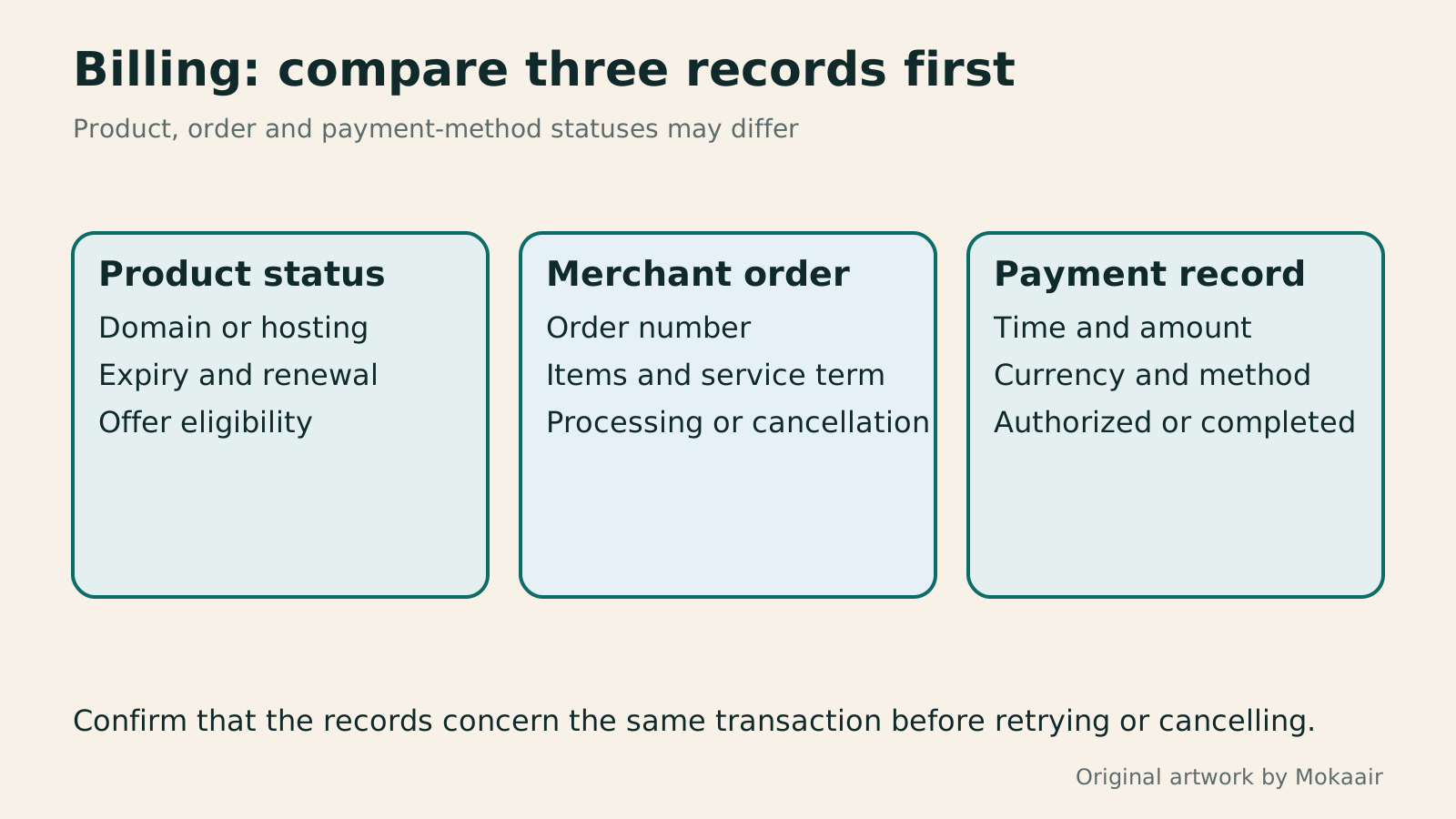
Compare product status, merchant orders and bank transactions in three columns before addressing a billing issue.
| Problem | Information to find first | Next step |
|---|---|---|
| Free domain offer is missing | Original plan and offer terms | Ask support to check eligibility and whether it was already used |
| Checkout total differs | Term, quantity and add-on details | Compare the complete order before paying |
| Payment failed but the bank sent a notice | Order and transaction status | Check separately with the merchant and card issuer |
| Unsure which item will renew | Product list in the Renewal Center | Check automatic renewal and payment methods item by item |
| Want to cancel or request a refund | Product, timing and applicable terms | First establish the data effects and procedure |
Building a site with Bluehost: checks before purchase and validation after installationSetting up a Bluehost website: checks before purchase and after installationBuild a first WordPress site with Bluehost or take over a small one: check plan features and total costs, then use Portal's current Websites flow. Based on public official docs, this guide covers new sites versus imports, external domains, initial content, HTTPS and a launch checklist. Verify installation, usable content and visitor journeys separately, and retain maintenance and handover records.Read the full article
What happens when a domain or hosting expires: a checklist before renewal or shutdownWhat happens when a domain or hosting expires: a checklist before renewal or shutdownDomains, hosting and email can expire separately, with different effects if unpaid. Check orders, expiry details and admin access before renewal, recovery eligibility after expiry, and data to save before closing or moving a site. Build a checklist in time order; manage the domain, site backups, email and external accounts separately. Avoid cancelling a service only to lose verification emails, or keeping a content export without images and site settings.Read the full article
Lifestyle
After a WordPress Move: Check Search Traffic, the Old Host, and Renewals
A completed WordPress move still needs checks that the new host is stable, search entry points work, backups can be used, and old services can safely stop. This guide provides a cutover observation checklist, a way to interpret search traffic, an inventory of old-host dependencies, and renewal closeout steps. Individual site owners and studios can retain the information needed for rollback without confusing temporary fluctuations, ending renewal, and immediately deleting a site.
Lifestyle
Move WordPress to a New Host Without Changing the Domain: Migration, Testing, and DNS Cutover
When WordPress moves to a new host, its URLs can stay the same, but files, the database, certificates, and external services still need a handoff. This guide covers preparation of the new host, restricted previews, the final data sync, and DNS cutover in order. A verification table and rollback criteria help individual site owners and studios keep their domain while moving hosts, without canceling the old service before recovery options are secure.
Lifestyle
Changing a WordPress Domain: Check Redirects, Search Signals, and Email
Changing a WordPress domain means handling internal URLs, redirects from old links, search signals, and email together. Starting with a URL mapping, this guide explains how to preview database replacements, check permanent redirects, test sending and receiving on the new domain, and monitor the change after launch. It helps personal brands and studios plan a name change without assuming that editing the WordPress site address completes the move.
Lifestyle
Moving from WordPress.com to Self-Hosted WordPress: Content, Media, and URLs
Before moving a WordPress.com site to self-hosted WordPress, check your plan, domain, and the handoff for each kind of content. This guide covers the options available to free and paid sites, XML export and import, verification of actual image files, subscriber migration, and when Site Redirect is available. It helps individual creators in Taiwan plan the move and identifies features and billing items that need separate attention after the new site is ready.
Articles that cite this one
Latest travel guides

GuideTokyo
Where to Stay in Tokyo: Comparing Shinjuku, Ueno, Tokyo Station, Shibuya, Asakusa, Ikebukuro, and Ginza, Plus Airport Access, Accommodation Tax, and Luggage Delivery
Where should you stay in Tokyo? Compare Shinjuku, Ueno, Tokyo Station, Shibuya, Asakusa, Ikebukuro, and Ginza by the same criteria: access from Narita and Haneda, transit routes, nearby attractions, neighborhood character, and who each area suits. Includes a comparison table, a Yamanote Line diagram, Tokyo’s accommodation tax as verified in 2026/9 (changing to 3% in 2027/4), and Airport TA-Q-BIN luggage shipping rules.
- Budget
- Hotels

GuideTokyo
How to Choose Tokyo Transit Passes: Are Suica, Welcome Suica, the Tokyo Subway Ticket, and the JR Pass Worth It?
On a first Tokyo trip, start with an IC card and pay per ride (Welcome Suica has no deposit and is valid for 28 days). If you take four or more subway rides in a day, add a 72-hour Tokyo Subway Ticket for 2,000 yen; a JR Pass is never worthwhile if you stay in Tokyo and do not go to Kansai. See what TOURIST PASMO, Suica on iPhone, and the Tokyo Metro day pass do and do not cover, with a decision chart. Prices verified in September 2026.
- Transport
- Budget

GuideTokyo
Tokyo Disneyland and DisneySea Guide: Ticket Prices, Fantasy Springs, Disney Premier Access (DPA), Standby Pass, and Which Park to Choose for Your First Visit
Tokyo Disney one-day Passport prices vary: most weekdays in 9/2026 cost ¥9,900 and weekends ¥10,900. At 14:00 daily, tickets go on sale for the same date two months later. Free Priority Pass is no longer on the official service list; only paid Disney Premier Access (¥1,000–3,500 per person per use) shortens waits. Covers hours, the 25th anniversary, Standby Pass, Entry Request, Fantasy Springs access and first-visit park choice; checked on the official site in 9/2026.
- Itineraries
- Family
Sources
- Bluehost: registering a domain and claiming an unused free domain · Checked:
- Bluehost: Renewal Center · Checked:
- Bluehost: accepted payment methods · Checked:
- Bluehost: refund policy · Checked: