Lifestyle
How to use a shared household calendar: make it clear who is going out, who takes over and when plans change
A shared calendar does not need everyone's entire private life. Share only the plans that need coordination, state responsibilities, locations and changes clearly, and choose permissions that let the household maintain it together.
About 4 min read

Times mentioned in a family group chat can quickly disappear under later messages. A shared calendar is useful for plans that need coordination, such as pickups, home repairs or activities together, but it does not have to track every part of everyone's life. This guide starts with event details and updating habits to show how a calendar can make it easier to hand responsibilities over.
Decide what is worth sharing first
Put only plans that affect someone else's time, space or responsibilities in the household calendar. Your reading, work details and private plans that need no coordination can stay in a personal calendar. Before starting, agree who can view and edit it and what counts as confirmed. Mark dates still under discussion as tentative; one person adding an event does not mean the whole household has agreed.
Google Calendar's official help describes different sharing permissions, including viewing only busy/free status, seeing event details and editing. Grant access according to actual needs rather than making all events public for convenience. Work or school accounts may also have administrator restrictions, so check the conditions for your account first. After sharing, ask everyone to confirm on their own devices that they can see the right calendar; sending an invitation does not mean everyone has joined.
Read the full description
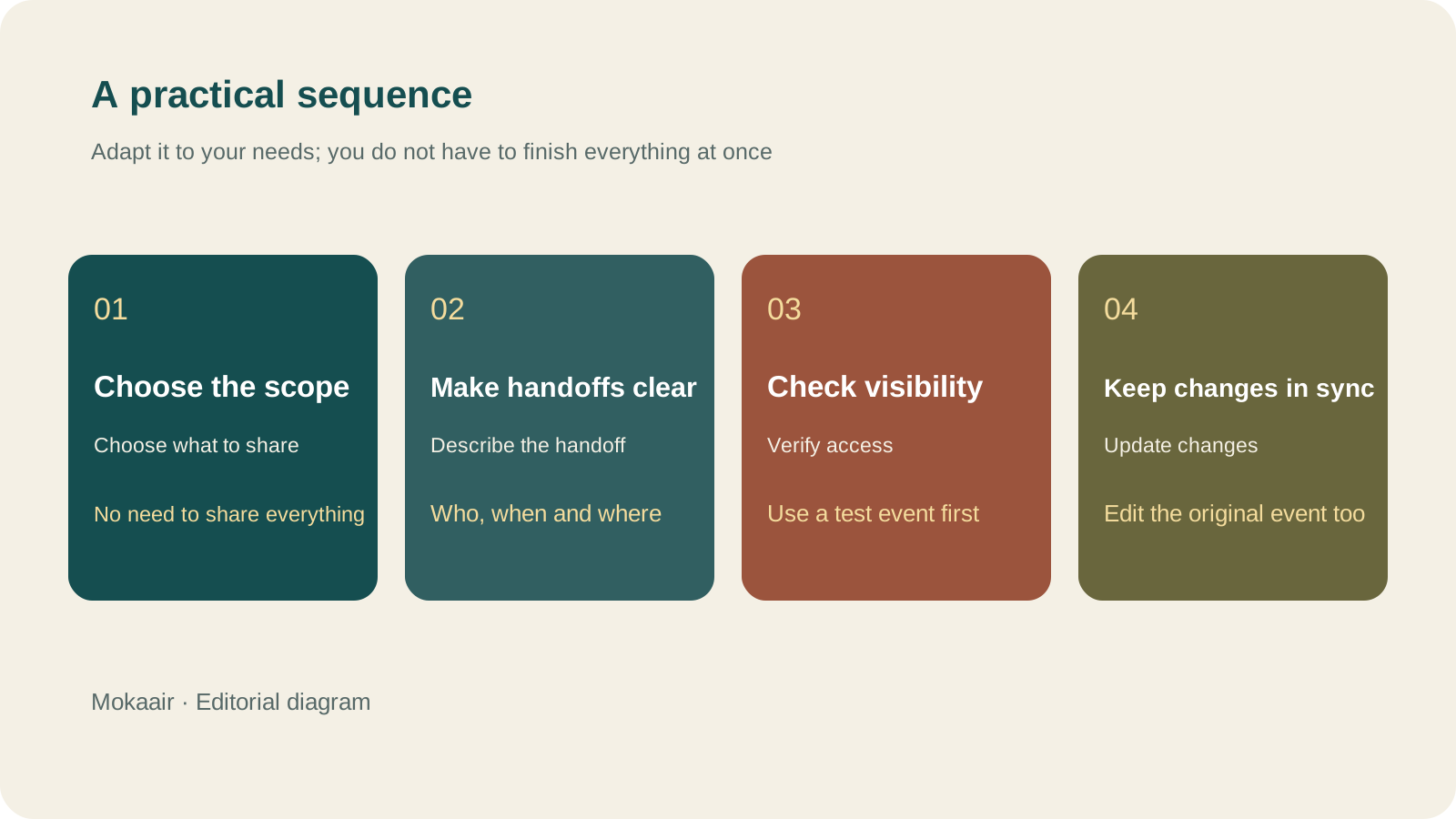
Check in order: decide what to share, make handoffs clear, check visibility, then keep changes in sync. An editorial guide, not a map or measured timings.
An event should give the person taking over enough to act
| Field | Example | Ambiguity to avoid |
|---|---|---|
| Title | Home repair | Xiaolin will be home to meet the technician | “Repair” alone does not say who is responsible |
| Time | The actual agreed arrival window | Treating an all-day event as a precise time slot |
| Location | The correct address and floor, if needed | A shop name alone may not identify the entrance |
| Description | Information to prepare or contact details | Important information scattered through the group chat |
| Status | Tentative or confirmed | Treating a suggestion as a confirmed appointment |
Keep event titles short where possible, with the main responsibility and purpose first and details in the description. When other people's personal data or entry information is involved, consider who can see it and whether notifications appear on a lock screen. Do not put all sensitive information directly in a publicly visible title. Attach a checklist or link for things that need to be prepared, but avoid linking to a private file only the event creator can open.
Update the event before telling people about a changed time
After writing “changed to the afternoon” in the group chat, update the original event too, and check whether you are changing one occurrence or the entire repeating series. Recurring events need particular care: an exception this week does not mean every future occurrence changes. Briefly tell the affected people after editing and ask for confirmation when necessary; do not assume everyone has read a system notification. Update the original event when canceling as well, so no one turns up as originally planned.
Spend a short time looking at next week together
Regularly look ahead for conflicts, people who need help and plans still awaiting confirmation. Overlapping calendar entries are not necessarily mistakes, but check whether the same person is expected in two places. Periodically review people who no longer need access and old calendars, and adjust them when household members or responsibilities change. Success is not having more events; it is helping the household avoid having to ask the same questions again.
- Include only things that need coordination.
- Set permissions by need and confirm everyone's access first.
- Make the title, responsibility, location and status clear.
- When rescheduling, update the original event and notify those affected.
How to start a weekly review: organize commitments, trim your to-do list and make room for next weekHow to Start a Weekly Review: Organize Commitments, Trim Tasks, and Make Room for Next WeekA review is not a scorecard. Set aside a regular period to check your calendar, unfinished items, and pending replies, then decide what you will truly take on next week so your list reflects reality.Read the full article
Lifestyle
Desk cable organization isn't just about looks: label each cable's purpose, specs, and where it's used
A USB-C connector can look identical from cable to cable, yet charging and data capability may differ. Identify what each cable does before you plan the routing and labels, so daily plugging in and out doesn't turn into guesswork.
Lifestyle
Keep Buying Household Supplies You Already Have? Track Location, Quantity, and Restocking Status in a Simple Inventory Sheet
Start with supplies you often buy twice, without building a warehouse system. Help everyone at home see where things are, how much remains, and who has already restocked, so the list better matches what is actually there.
Lifestyle
Before buying new electronics (3C): define your needs, check compatibility, and consider repair and end-of-use costs
A specification sheet can compare products, but it cannot decide whether you need one. Turn problems you have actually encountered into buying requirements, then check compatibility and ongoing costs so you do not bring home another unused tool.
Lifestyle
Forget what you read? Keep useful notes with questions, your own explanations and sources
Collecting many excerpts does not mean you understand them. For each reading session, keep one question you want to answer, a few sentences in your own words and a source you can revisit. Let a practical use decide whether to develop the note further.
Latest travel guides

GuideTokyo
Where to Stay in Tokyo: Comparing Shinjuku, Ueno, Tokyo Station, Shibuya, Asakusa, Ikebukuro, and Ginza, Plus Airport Access, Accommodation Tax, and Luggage Delivery
Where should you stay in Tokyo? Compare Shinjuku, Ueno, Tokyo Station, Shibuya, Asakusa, Ikebukuro, and Ginza by the same criteria: access from Narita and Haneda, transit routes, nearby attractions, neighborhood character, and who each area suits. Includes a comparison table, a Yamanote Line diagram, Tokyo’s accommodation tax as verified in 2026/9 (changing to 3% in 2027/4), and Airport TA-Q-BIN luggage shipping rules.
- Budget
- Hotels

GuideTokyo
How to Choose Tokyo Transit Passes: Are Suica, Welcome Suica, the Tokyo Subway Ticket, and the JR Pass Worth It?
On a first Tokyo trip, start with an IC card and pay per ride (Welcome Suica has no deposit and is valid for 28 days). If you take four or more subway rides in a day, add a 72-hour Tokyo Subway Ticket for 2,000 yen; a JR Pass is never worthwhile if you stay in Tokyo and do not go to Kansai. See what TOURIST PASMO, Suica on iPhone, and the Tokyo Metro day pass do and do not cover, with a decision chart. Prices verified in September 2026.
- Transport
- Budget

GuideTokyo
Tokyo Disneyland and DisneySea Guide: Ticket Prices, Fantasy Springs, Disney Premier Access (DPA), Standby Pass, and Which Park to Choose for Your First Visit
Tokyo Disney one-day Passport prices vary: most weekdays in 9/2026 cost ¥9,900 and weekends ¥10,900. At 14:00 daily, tickets go on sale for the same date two months later. Free Priority Pass is no longer on the official service list; only paid Disney Premier Access (¥1,000–3,500 per person per use) shortens waits. Covers hours, the 25th anniversary, Standby Pass, Entry Request, Fantasy Springs access and first-visit park choice; checked on the official site in 9/2026.
- Itineraries
- Family