Lifestyle
Can't find your files? Build a simple naming system with purpose, date and status
You do not need to organize your entire computer at once. Start with files you will use soon, keep names and locations consistent, and make it easy to remember search terms and identify the version that is ready to share.
About 4 min read
When your Downloads folder contains files called “latest,” “latest two” and “really final,” the problem is often that the names do not explain the differences, rather than that you have too many files. The aim of organizing is to recognize the right information when you need it again, not to make every folder look identical. This guide offers a naming approach you can adapt; the examples were created by the editors and do not promise to save everyone a fixed amount of time.
Start with how you would search, not an elaborate folder tree
Imagine looking for the file next month. Would you first think of an event, a date, an object or the file's purpose? Start the name with words you are likely to remember, such as “rental handover,” “book club poster” or “washing machine manual.” Add a date only when it helps distinguish the file. Monthly files, for example, work well with a year and month; every reference document does not need its download time in the name. Words that you and the other people using the files understand are usually more useful than abstract categories.
Start with three folder purposes: current work, long-term storage and items to sort. Add subfolders only as you need them. Google Drive provides ways to create, move and rename items and use shortcuts. These are tool features; you still decide the organizing logic. When several projects need the same material, explore shortcuts or links first. Copying a file into every folder can leave you with multiple versions and no clear original.
Read the full description
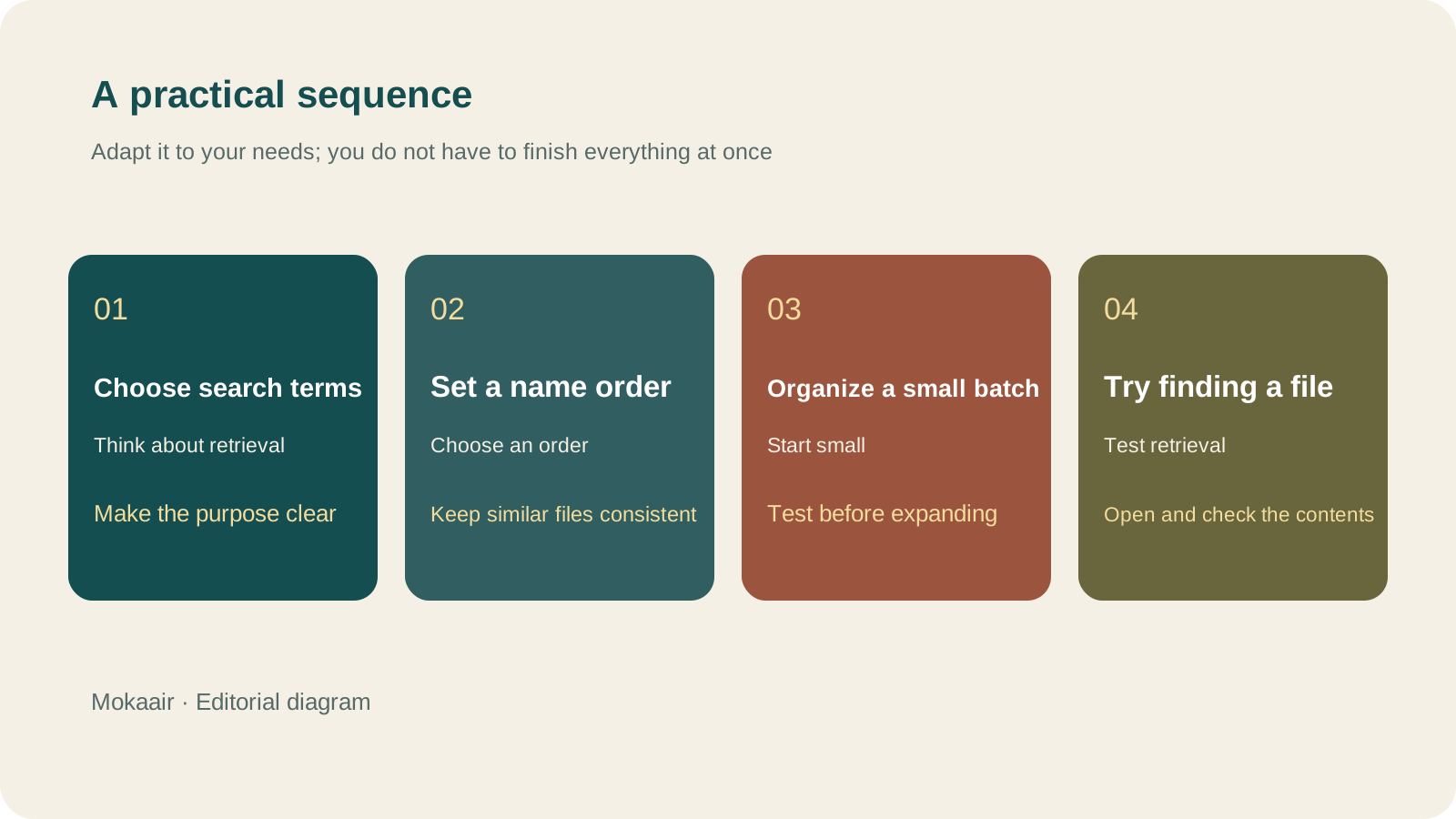
Check in order: choose search terms, set a name order, organize a small batch, then try finding a file. An editorial guide, not a map or measured timings.
Make file names answer a few consistent questions
| Field | Example | When to use it |
|---|---|---|
| Purpose | Book club poster | Usually somewhere easy to search |
| Date | 2026-09 | When files need to be distinguished by time |
| Status | Draft, awaiting confirmation, final | When stages are easy to confuse |
| Version | v01, v02 | When multiple delivery versions really need to be kept |
A name does not need every field. If “BookClubPoster_Final.pdf” is enough, there is no need to add more words. What matters is using the same order for similar files and defining who can change their status. “Final” means the content is approved; “sent” means delivery is complete. They are different. If you need to track recipients and sending times, use a separate log instead of putting the entire history in the file name.
Organize a small batch first, and keep anything you are unsure about
Choose files from a recent event, test your naming rules on copies, and try several real searches. If finding a file requires typing a long phrase, simplify the name. For software projects, photo libraries or data managed automatically by an application, do not rename the underlying files in bulk without first checking whether it will break references. Agree on changes with people using shared files, too; do not move an entire folder while someone else is working in it.
Success means finding the right file
The next day, search as you normally would, then open the file to check its contents. Finding a file with the right name but the wrong version means the status is still unclear. Finding the right file but a broken sharing link means the moving process needs adjustment. Deal with the unsorted folder regularly, but do not delete files you cannot assess just to empty it. Think of organizing as making files recognizable, not as a competition for the emptiest desktop.
- Start with one recent use case instead of moving all your files at once.
- Keep the name order consistent for similar files.
- Check who uses shared material and which links refer to it.
- Verify the result with a real search after organizing.
Home file backups: a completed sync is not enough—test a restore to find out whether your files are recoverableHome File Backups Need More Than a Sync Check: Test a Restore to Know You Can RecoverDistinguish original files, synchronized copies, and recoverable versions. From listing important files and backup locations to restoring a sample, build a way to protect your data that you can actually use.Read the full article
Lifestyle
Desk cable organization isn't just about looks: label each cable's purpose, specs, and where it's used
A USB-C connector can look identical from cable to cable, yet charging and data capability may differ. Identify what each cable does before you plan the routing and labels, so daily plugging in and out doesn't turn into guesswork.
Lifestyle
Keep Buying Household Supplies You Already Have? Track Location, Quantity, and Restocking Status in a Simple Inventory Sheet
Start with supplies you often buy twice, without building a warehouse system. Help everyone at home see where things are, how much remains, and who has already restocked, so the list better matches what is actually there.
Lifestyle
Before buying new electronics (3C): define your needs, check compatibility, and consider repair and end-of-use costs
A specification sheet can compare products, but it cannot decide whether you need one. Turn problems you have actually encountered into buying requirements, then check compatibility and ongoing costs so you do not bring home another unused tool.
Lifestyle
How to use a shared household calendar: make it clear who is going out, who takes over and when plans change
A shared calendar does not need everyone's entire private life. Share only the plans that need coordination, state responsibilities, locations and changes clearly, and choose permissions that let the household maintain it together.
Articles that cite this one
Latest travel guides

GuideTokyo
Where to Stay in Tokyo: Comparing Shinjuku, Ueno, Tokyo Station, Shibuya, Asakusa, Ikebukuro, and Ginza, Plus Airport Access, Accommodation Tax, and Luggage Delivery
Where should you stay in Tokyo? Compare Shinjuku, Ueno, Tokyo Station, Shibuya, Asakusa, Ikebukuro, and Ginza by the same criteria: access from Narita and Haneda, transit routes, nearby attractions, neighborhood character, and who each area suits. Includes a comparison table, a Yamanote Line diagram, Tokyo’s accommodation tax as verified in 2026/9 (changing to 3% in 2027/4), and Airport TA-Q-BIN luggage shipping rules.
- Budget
- Hotels

GuideTokyo
How to Choose Tokyo Transit Passes: Are Suica, Welcome Suica, the Tokyo Subway Ticket, and the JR Pass Worth It?
On a first Tokyo trip, start with an IC card and pay per ride (Welcome Suica has no deposit and is valid for 28 days). If you take four or more subway rides in a day, add a 72-hour Tokyo Subway Ticket for 2,000 yen; a JR Pass is never worthwhile if you stay in Tokyo and do not go to Kansai. See what TOURIST PASMO, Suica on iPhone, and the Tokyo Metro day pass do and do not cover, with a decision chart. Prices verified in September 2026.
- Transport
- Budget

GuideTokyo
Tokyo Disneyland and DisneySea Guide: Ticket Prices, Fantasy Springs, Disney Premier Access (DPA), Standby Pass, and Which Park to Choose for Your First Visit
Tokyo Disney one-day Passport prices vary: most weekdays in 9/2026 cost ¥9,900 and weekends ¥10,900. At 14:00 daily, tickets go on sale for the same date two months later. Free Priority Pass is no longer on the official service list; only paid Disney Premier Access (¥1,000–3,500 per person per use) shortens waits. Covers hours, the 25th anniversary, Standby Pass, Entry Request, Fantasy Springs access and first-visit park choice; checked on the official site in 9/2026.
- Itineraries
- Family