Lifestyle
Gemini Live Productivity Update: Handling Emails and To-Dos with Voice
On August 26, 2026, Google announced productivity updates for Gemini Live, extending voice interactions to email, daily briefs, and multi-step tasks. This article outlines the differences between Spark, Daily Brief, and personal data connections, covers plan thresholds, and uses family notice and work note scenarios to show how to scope queries, confirm actions, and verify results, noting Taiwan availability requires separate confirmation.
Updated: About 7 min read
On August 26, 2026, Google announced productivity updates for Gemini Live, extending voice conversations to multi-step tasks, daily briefings, and Gmail organization. The key highlight of this news is that after stating your needs aloud, the tool can follow up by assisting with task execution. This article verified the official announcement on September 14, 2026; whether each feature appears in your Taiwan account still depends on your current plan, language, and product settings.
Voice makes delegating tasks convenient, but it also makes it easier for vague instructions to be submitted directly. Asking it to "deal with those emails" could mean archiving, deleting, starring, or simply summarizing them. Below, editorial scenarios spanning home and work illustrate how to turn spoken requests into clear tasks and distinguish between querying, drafting, and actively modifying data.
First, understand the different features in this update
The official release grouped Spark, Daily Brief, email management, and Personal Intelligence into a single announcement, but they are not the same feature. Spark focuses on longer, multi-step work; Daily Brief provides daily information summaries; email capabilities handle searching and organizing in Gmail; and personalization features involve past conversations and connected data.
The announcement footnotes also list different tier thresholds: Spark requires Google AI Pro or higher, while Daily Brief requires Google AI Plus or higher. Therefore, having access to Live voice conversations does not mean all extended features are included. Matching the feature name to its required plan is essential to determine whether what is missing is a permission, a setting, or an unreleased feature.
Google explains that before getting started, you must choose to connect the relevant apps. This step allows the tool to access context you permit, which also means you need to know which account and what type of data are currently linked. Personal calendars and company shared documents may belong to different scopes; you should not assume the tool will automatically choose correctly just because multiple accounts are signed in on the same phone.
Organizing emails with voice: start with queries
You can begin with a well-scoped query, such as asking it to find recent event notices from a specific sender and list their dates, subjects, and to-dos. Let the output appear as a list first so you can cross-check against the original messages, verifying that promotional emails or outdated attachments have not been mixed in. At this stage, you are merely retrieving information, making it easy to discern whether results are reliable.
Once the search scope is accurate, specify how to handle the messages. Change "clean out unimportant emails" to "list emails matching this sender and date criteria, without modifying anything yet," and only decide to archive or delete after reviewing. The official announcement lists capabilities such as starring, archiving, and deleting, but each action impacts data differently and should not be treated as interchangeable.
Spoken instructions can also be split into two sentences: first specify the target and timeframe, then state what needs to be done. For example, "Only look at this week's event notices and find invitations I haven't replied to" is much easier to verify than "Help me handle my schedule." If speech recognition misidentifies a name or date, correct the criteria before proceeding to avoid basing subsequent tasks on erroneous search results.
| Announced Feature | Purpose | Pre-Use Check |
|---|---|---|
| Spark | Multi-step and longer tasks | Pro or higher plan, output destination |
| Daily Brief | Daily information summary | Plus or higher plan, data sources |
| Email Management | Search, summary, and designated actions | Account, scope, and confirmation methods |
| Personal Intelligence | Leverages connected personal context | Connected data and current availability |
Daily briefings must allow tracing back to original messages
Daily Brief's publicized use case is straightforward: get an overview of what is happening today without opening apps individually. However, the value of a summary lies in surfacing key points, not replacing the original source. If a briefing mentions a rescheduled meeting, a school submission deadline, or a payment notice, you should ideally be able to identify immediately which email or calendar entry it originated from.
You can request that the summary be categorized into items needing attention today, upcoming deadlines, and items for later reading, while retaining event dates. This is an editorially suggested approach, not an assertion that the product includes these three preset categories by default. When the data source lacks sufficient information, ask it to flag items as pending confirmation rather than assuming an urgency level for you.
Family sharing scenarios warrant particular caution regarding who must take action. A notice sent to all parents in a class may require a response only from those attending a specific activity; a scheduled time on a calendar may also just be tentative. When listening to a summary, you can follow up by asking, "Is this a confirmed arrangement or an invitation requiring my response?" to separate actual to-dos from background context.
Read the full description
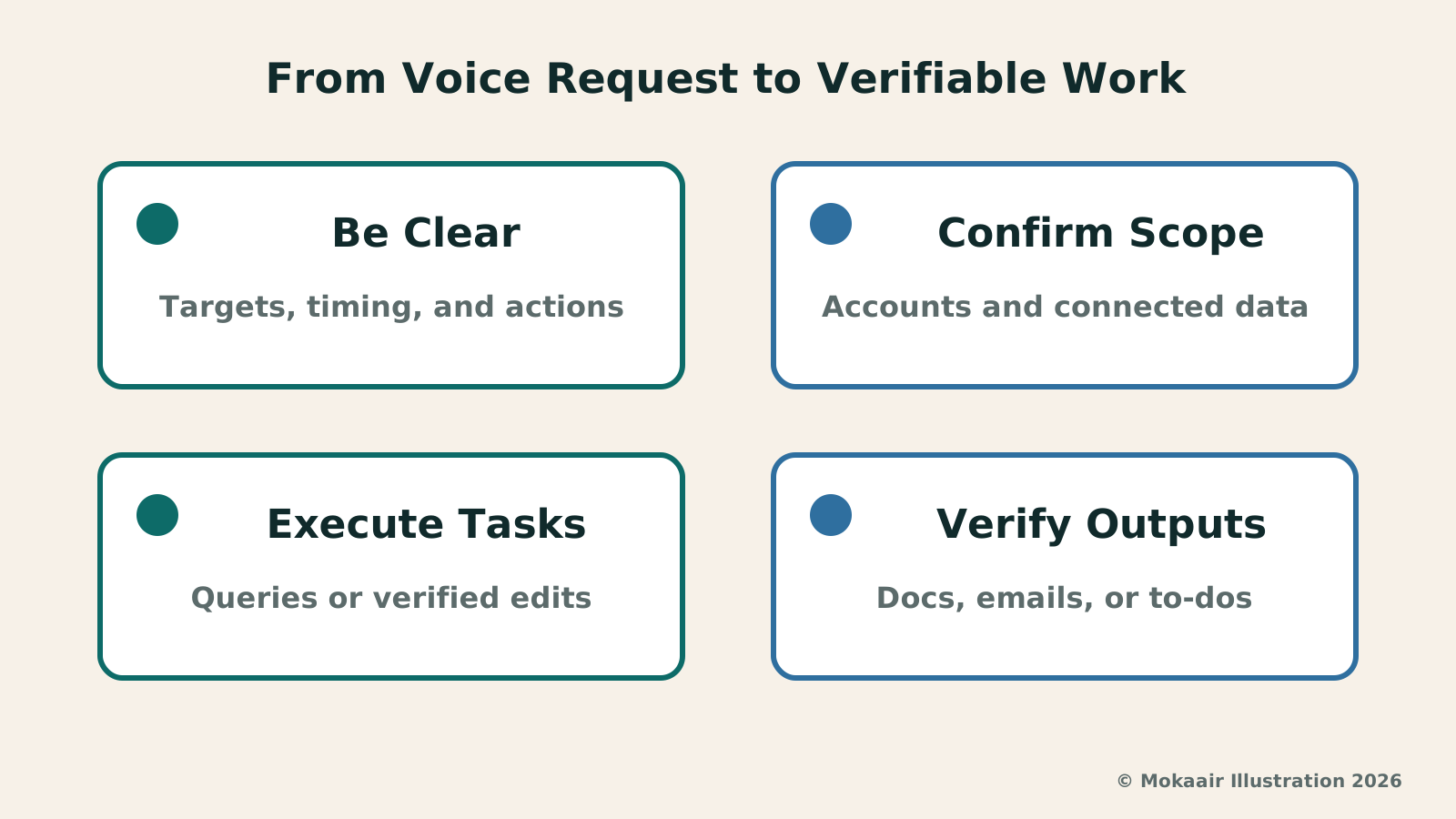
Specify data and actions, confirm the scope, and verify against documents or emails.
Handing scattered ideas to Spark: keep outputs concrete
Google's announcement describes Spark as capable of handling work across documents and web pages, as well as executing longer tasks while the app is not actively open. This allows voice brainstorming to segue into subsequent organization, but you must still provide clear output destinations and completion criteria—such as which document to compile into, which sections to include, and how to handle missing information.
Suppose you want to organize a book club meeting: you can first dictate the topic, audience, and questions you wish to discuss, then ask the tool to draft an agenda. Verify the agenda first to confirm that the duration and contents are reasonable before discussing whether invitation emails are needed. Avoid conflating brainstorming, creating formal events, and sending invitations into a single request without checkpoints.
Longer tasks also require completion criteria. You can specify which data triggers synthesis, delivery deadlines, and which decisions require your approval. Once completed, inspect the actual document or records to ensure the tool did not merely return a summary paragraph. If ongoing tracking is needed, you should know what it will proceed to do and maintain a way to adjust or halt the process.
Keeping convenient voice operations clear and understandable
Voice is best suited for moments when typing is inconvenient but your attention can still be directed toward the content. If you are engaged in real-world activities requiring focused attention, avoid dictating commands that modify critical data at the same time. The editorial recommendation is to reserve complex tasks for moments when you can clearly view confirmation screens, delegating step by step to minimize errors caused by ambient noise or distraction.
Before diving in, practice using non-sensitive test data to observe how the tool interprets senders, dates, and actions. Select only the necessary connection scopes and periodically review whether they remain needed. The convenience brought by this update is best applied to tasks that you can articulate clearly and whose results you can verify.
If you cannot find the announced features in your account, first check the feature name, subscription plan, and settings, and then consult current support documentation. This article has not tested rollout status feature by feature using Taiwan accounts, nor does it interpret global press releases as immediate simultaneous availability in every region. Understanding these boundaries can save unnecessary trial and error as well as unwarranted plan upgrades.
Gemini 3.8 Flash Launched: What Model Upgrades Mean for Everyday ToolsGemini 3.8 Flash Launched: What Model Upgrades Mean for Everyday ToolsGoogle launched Gemini 3.8 Flash and restricted-access Flash Cyber on September 2, 2026, highlighting coding, agents, and multi-step reasoning. Exploring search, spreadsheets, and data organization, this article distinguishes model upgrades from product entry points, subscription access, developer promo pricing and deadlines, and why identical unit rates might still lead to differing total usage costs.Read the full article
GPT-6 Astra Announced: From Answering Questions to Completing Computer TasksGPT-6 Astra Announced: From Answering Questions to Completing Computer TasksOpenAI announced GPT-6 Astra on September 3, 2026, emphasizing computer use, multi-step workflows, and template-based document output. Focusing on general reporting, data organization, and admin tasks, this article explains the gap between model ability and tool permissions, how to draft verifiable tasks, set required confirmation checkpoints, and recognize phased rollouts without assuming launch demos are instantly available to every account.Read the full article
Lifestyle
NVIDIA launches DGX Spark 64GB: on sale October 23 from $4,999, two units can be linked into 128GB
On October 2, 2026, NVIDIA announced a more affordable 64GB memory version of its DGX Spark personal AI computer, available from October 23 through six makers including Acer and ASUS. It is aimed mainly at developers and researchers who want to run AI models on their own machines. Below we summarize the specs NVIDIA published, its claims about linking two units, and what it means for general readers.
Lifestyle
Google Cloud Launches Spanner Queues: Putting Message Queues Inside Database Transactions to Make AI Agents More Reliable
Google Cloud has announced the general availability of Spanner queues, which make message creation part of a database transaction. The aim is to stop AI agents' "state" and "actions" from falling out of sync. This article covers Google Cloud's claims, the main features, and what it means for general readers.
Lifestyle
GPT-6.1 Sol Launches: New Sol Version in the API, Codex and ChatGPT Work, Not in Chat
OpenAI launched GPT-6.1 Sol on September 29, 2026, with the API name gpt-6.1-sol. The launch rollout covers Codex and ChatGPT Work on Plus, Pro, Business, Enterprise and Edu (Enterprise and Edu need an administrator to enable it); Free and Go are not included at launch, and it is not in Chat (checked September 2026).
Lifestyle
Claude Sonnet 5.5 Launches: Same List Price as Sonnet 5, Available in the API, on Cloud Platforms and in Claude.ai
Anthropic launched Claude Sonnet 5.5 on September 28, 2026. API list prices are the same as Sonnet 5 ($2 per million input tokens, $10 per million output tokens). It is available in Claude.ai, the API and several cloud platforms, and higher-risk cybersecurity requests fall back to Sonnet 5 (checked September 2026).
Articles that cite this one
Latest travel guides

GuideTokyo
Where to Stay in Tokyo: Comparing Shinjuku, Ueno, Tokyo Station, Shibuya, Asakusa, Ikebukuro, and Ginza, Plus Airport Access, Accommodation Tax, and Luggage Delivery
Where should you stay in Tokyo? Compare Shinjuku, Ueno, Tokyo Station, Shibuya, Asakusa, Ikebukuro, and Ginza by the same criteria: access from Narita and Haneda, transit routes, nearby attractions, neighborhood character, and who each area suits. Includes a comparison table, a Yamanote Line diagram, Tokyo’s accommodation tax as verified in 2026/9 (changing to 3% in 2027/4), and Airport TA-Q-BIN luggage shipping rules.
- Budget
- Hotels

GuideTokyo
How to Choose Tokyo Transit Passes: Are Suica, Welcome Suica, the Tokyo Subway Ticket, and the JR Pass Worth It?
On a first Tokyo trip, start with an IC card and pay per ride (Welcome Suica has no deposit and is valid for 28 days). If you take four or more subway rides in a day, add a 72-hour Tokyo Subway Ticket for 2,000 yen; a JR Pass is never worthwhile if you stay in Tokyo and do not go to Kansai. See what TOURIST PASMO, Suica on iPhone, and the Tokyo Metro day pass do and do not cover, with a decision chart. Prices verified in September 2026.
- Transport
- Budget

GuideTokyo
Tokyo Disneyland and DisneySea Guide: Ticket Prices, Fantasy Springs, Disney Premier Access (DPA), Standby Pass, and Which Park to Choose for Your First Visit
Tokyo Disney one-day Passport prices vary: most weekdays in 9/2026 cost ¥9,900 and weekends ¥10,900. At 14:00 daily, tickets go on sale for the same date two months later. Free Priority Pass is no longer on the official service list; only paid Disney Premier Access (¥1,000–3,500 per person per use) shortens waits. Covers hours, the 25th anniversary, Standby Pass, Entry Request, Fantasy Springs access and first-visit park choice; checked on the official site in 9/2026.
- Itineraries
- Family